> ## Documentation Index
> Fetch the complete documentation index at: https://docs.keywordsai.co/llms.txt
> Use this file to discover all available pages before exploring further.
# Keywords API keys
> Manage your Keywords AI API keys
Keywords AI allows you to manage your API keys when you create a new key. Our key management system provides you a simple way to manage your spending and time period for your API keys.
## Create API key
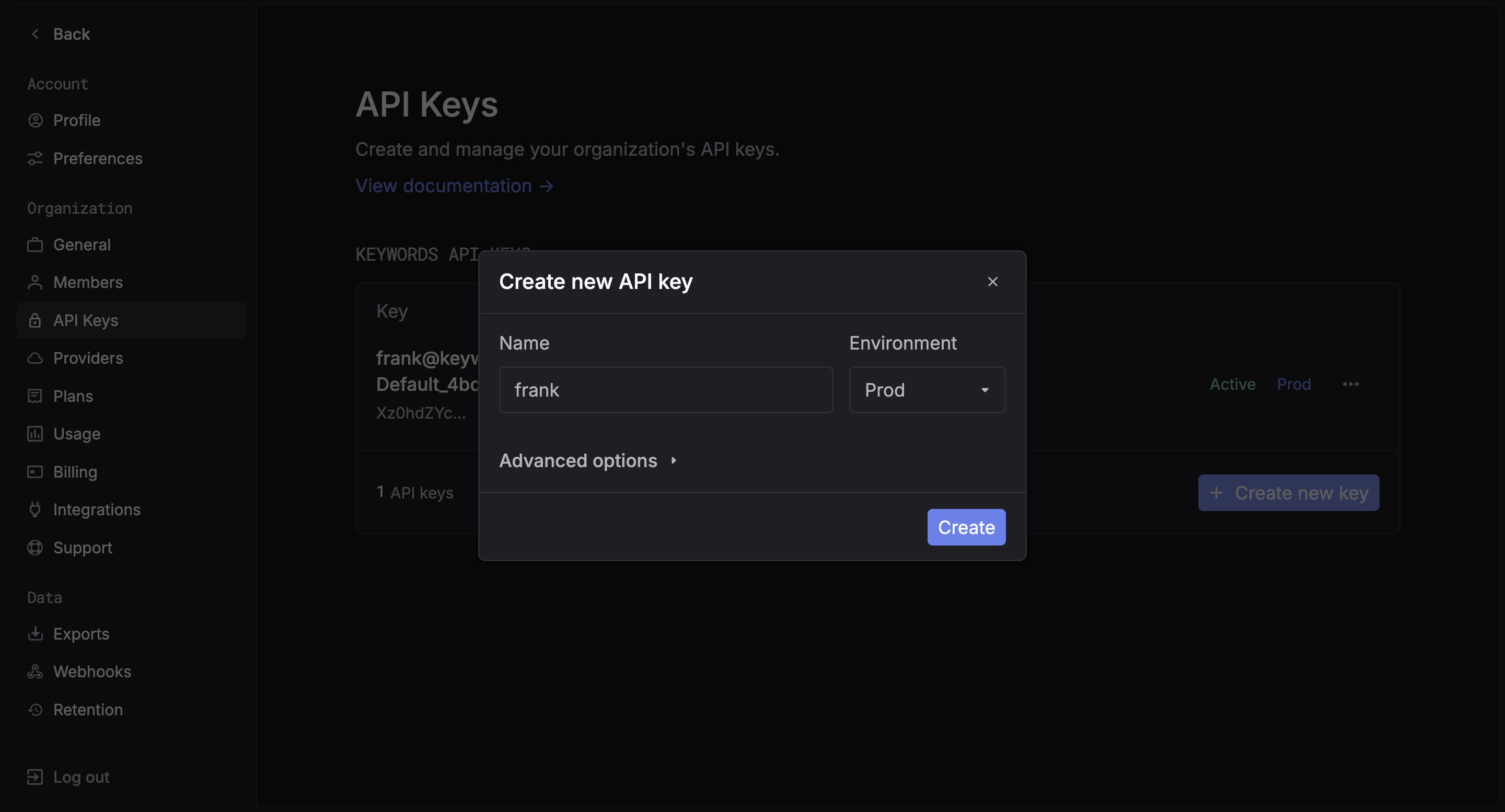
Go to the [API keys page](https://platform.keywordsai.co/platform/api/api-keys) and click the `Create new key` button.
 ### Setting environment
The environment is used to identify the API key. You can set the environment to `production` or `development`.
## Advanced settings
### Setting environment
The environment is used to identify the API key. You can set the environment to `production` or `development`.
## Advanced settings
 ### Setting rate limits and spending limits
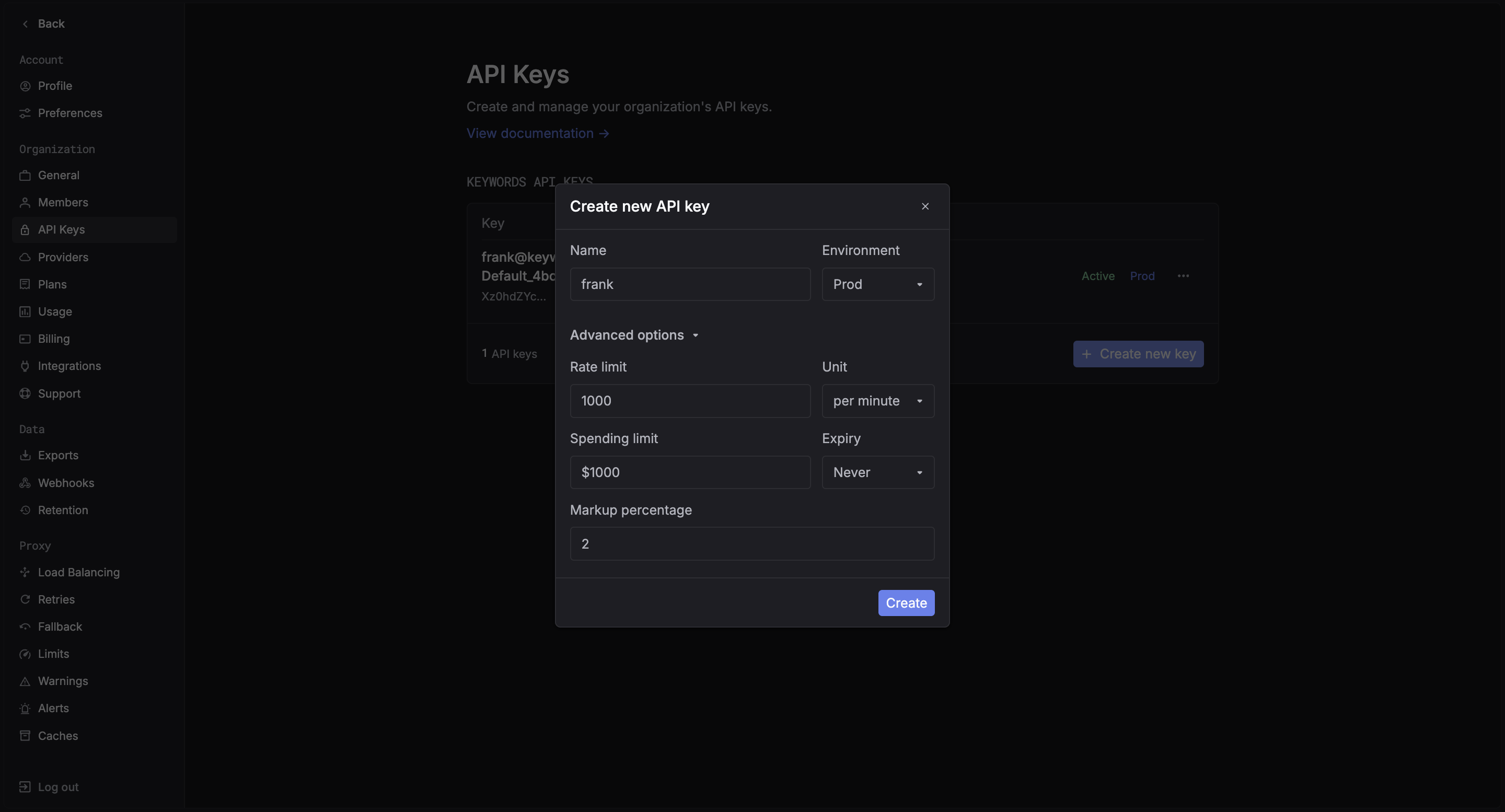
You can set the rate limits and spending limits for the API key. This will help you to manage your usage and avoid any unexpected charges.
### Setting expiration date
You can set the expiration date for the API key. This will help you to manage your API keys and avoid any security issues.
### What is Markup percentage?
Markup percentage is the percentage of the usage that you want to add to the usage of the API key. This is used to give you a better flexibility in your usage.
## Monitor API keys
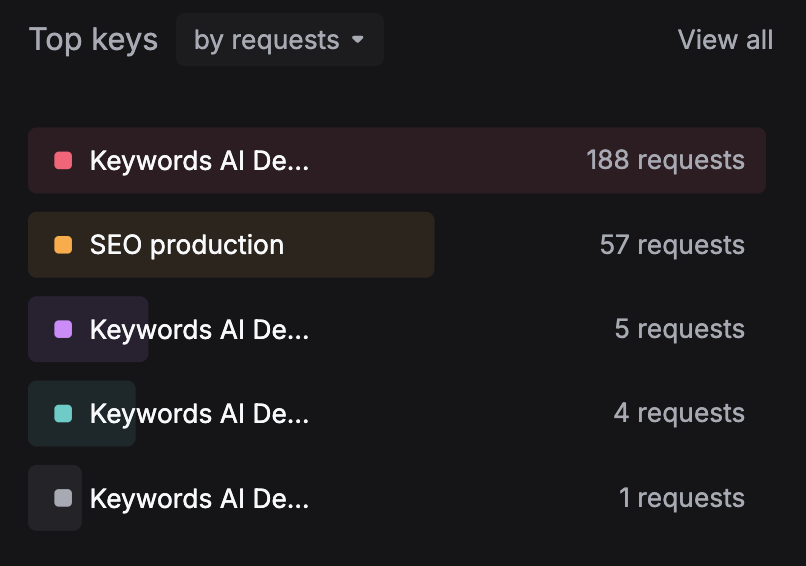
You could monitor your API key usage and spending in our [dashboard](/documentation/products/dashboard/quickstart). This will help you to understand your usage and spending.
### Setting rate limits and spending limits
You can set the rate limits and spending limits for the API key. This will help you to manage your usage and avoid any unexpected charges.
### Setting expiration date
You can set the expiration date for the API key. This will help you to manage your API keys and avoid any security issues.
### What is Markup percentage?
Markup percentage is the percentage of the usage that you want to add to the usage of the API key. This is used to give you a better flexibility in your usage.
## Monitor API keys
You could monitor your API key usage and spending in our [dashboard](/documentation/products/dashboard/quickstart). This will help you to understand your usage and spending.