> ## Documentation Index
> Fetch the complete documentation index at: https://docs.keywordsai.co/llms.txt
> Use this file to discover all available pages before exploring further.
# LLM provider keys
> This is the guide for how to add your own credentials in Keywords AI
We current don't support LLM proxy users using Keywords AI credentials, so you have to add your own credentials for each model you want to use.
There are two ways to add credentials, from the UI or in code. We recommend adding credentials from the UI, since it's easier to manage.
Typically, adding credentials is basically adding the API key for the model you want to use. Except for Azure OpenAI and Bedrock, where you have to add the API key, API base, and the endpoint.
## Add credentials from the UI
First, go to the [Providers page](https://platform.keywordsai.co/platform/api/providers). Choose the provider you want to use, and click the provider card.
 For example, if you want to use OpenAI, you can add the API key for the model you want to use. Just click on the OpenAI card, and add the OpenAI API key.
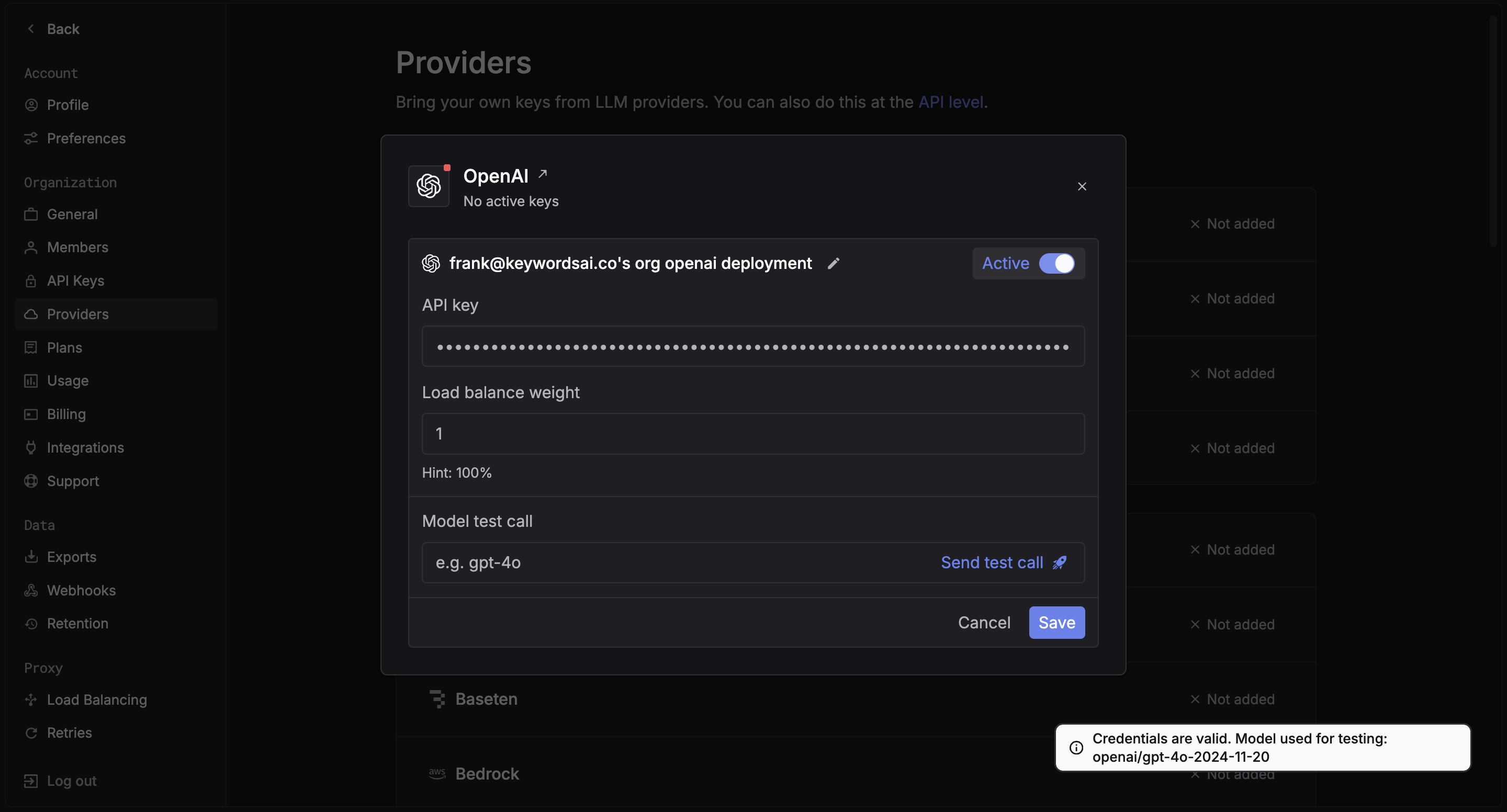 You can also test the credentials by adding a model and clicking on the `Test` button. We will try to use the credentials to generate a response from the model.
## Add credentials in code
You can also add credentials in code, but this is not recommended since it's more difficult to manage. You can add credentials in code by passing the `customer_credentials` parameter to the LLM proxy.
```python {13-17} theme={"system"}
from openai import OpenAI
client = OpenAI(
base_url="https://api.keywordsai.co/api/",
api_key="YOUR_KEYWORDSAI_API_KEY",
)
response = client.chat.completions.create(
model="gpt-4o-mini",
messages=[
{"role": "user", "content": "Tell me a long story"}
],
extra_body={
"customer_credentials": {
"openai": {"api_key": "YOUR_OPENAI_API_KEY"}
}
}
)
```
In OpenAI TypeScript SDK, you should add a `// @ts-expect-error` before the `customer_credentials` field.
```typescript {12-17} theme={"system"}
import { OpenAI } from "openai";
const client = new OpenAI({
baseURL: "https://api.keywordsai.co/api",
apiKey: "YOUR_KEYWORDSAI_API_KEY",
});
const response = await client.chat.completions
.create({
messages: [{ role: "user", content: "Say this is a test" }],
model: "gpt-4o-mini",
// @ts-expect-error
customer_credentials: {
openai: {
api_key: "YOUR_OPENAI_API_KEY"
}
}
})
.asResponse();
console.log(await response.json());
```
```python LLM proxy {14-18} theme={"system"}
import requests
def demo_call(input,
model="gpt-4o-mini",
token="YOUR_KEYWORDS_AI_API_KEY",
):
headers = {
'Content-Type': 'application/json',
'Authorization': f'Bearer {token}',
}
data = {
'model': model,
'messages': [{'role': 'user', 'content': input}],
'customer_credentials': {
"openai": {
"api_key": "YOUR_OPENAI_API_KEY"
}
}
}
response = requests.post('https://api.keywordsai.co/api/chat/completions', headers=headers, json=data)
return response
messages = "Say 'Hello World'"
print(demo_call(messages).json())
```
We also support adding credentials in other SDKs or languages.
## Add multiple credentials
We support you adding multiple credentials for the same provider. For example, you can add multiple OpenAI API keys, or multiple Anthropic API keys. Just add the credentials in the same way you would add a single credential, but you have to specify the weight of each credential - the weight is the probability of the model using the credential.
For more information, please check out our [Load balancing page](/documentation/products/gateway/traffic_management/load-balancing).
## View which credential was used
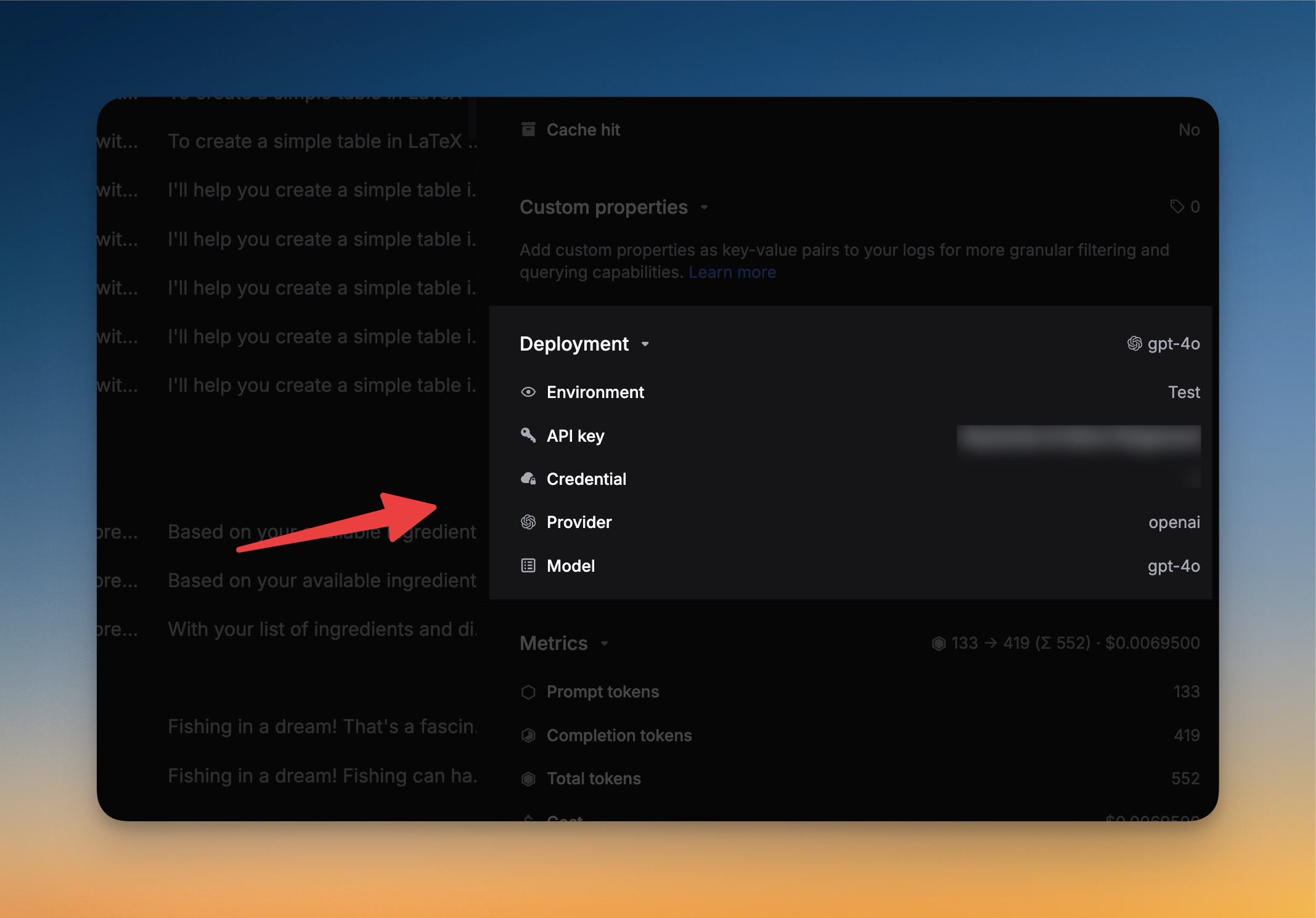
You can view which credential was used in the each LLM log. Open the side panel of the LLM log, and you will see the `Deployment` section.
We call each credential a `Deployment`.
You can also test the credentials by adding a model and clicking on the `Test` button. We will try to use the credentials to generate a response from the model.
## Add credentials in code
You can also add credentials in code, but this is not recommended since it's more difficult to manage. You can add credentials in code by passing the `customer_credentials` parameter to the LLM proxy.
```python {13-17} theme={"system"}
from openai import OpenAI
client = OpenAI(
base_url="https://api.keywordsai.co/api/",
api_key="YOUR_KEYWORDSAI_API_KEY",
)
response = client.chat.completions.create(
model="gpt-4o-mini",
messages=[
{"role": "user", "content": "Tell me a long story"}
],
extra_body={
"customer_credentials": {
"openai": {"api_key": "YOUR_OPENAI_API_KEY"}
}
}
)
```
In OpenAI TypeScript SDK, you should add a `// @ts-expect-error` before the `customer_credentials` field.
```typescript {12-17} theme={"system"}
import { OpenAI } from "openai";
const client = new OpenAI({
baseURL: "https://api.keywordsai.co/api",
apiKey: "YOUR_KEYWORDSAI_API_KEY",
});
const response = await client.chat.completions
.create({
messages: [{ role: "user", content: "Say this is a test" }],
model: "gpt-4o-mini",
// @ts-expect-error
customer_credentials: {
openai: {
api_key: "YOUR_OPENAI_API_KEY"
}
}
})
.asResponse();
console.log(await response.json());
```
```python LLM proxy {14-18} theme={"system"}
import requests
def demo_call(input,
model="gpt-4o-mini",
token="YOUR_KEYWORDS_AI_API_KEY",
):
headers = {
'Content-Type': 'application/json',
'Authorization': f'Bearer {token}',
}
data = {
'model': model,
'messages': [{'role': 'user', 'content': input}],
'customer_credentials': {
"openai": {
"api_key": "YOUR_OPENAI_API_KEY"
}
}
}
response = requests.post('https://api.keywordsai.co/api/chat/completions', headers=headers, json=data)
return response
messages = "Say 'Hello World'"
print(demo_call(messages).json())
```
We also support adding credentials in other SDKs or languages.
## Add multiple credentials
We support you adding multiple credentials for the same provider. For example, you can add multiple OpenAI API keys, or multiple Anthropic API keys. Just add the credentials in the same way you would add a single credential, but you have to specify the weight of each credential - the weight is the probability of the model using the credential.
For more information, please check out our [Load balancing page](/documentation/products/gateway/traffic_management/load-balancing).
## View which credential was used
You can view which credential was used in the each LLM log. Open the side panel of the LLM log, and you will see the `Deployment` section.
We call each credential a `Deployment`.
 ## Override credentials for a model
You can override credentials for a particular model by adding the `credential_override` parameter to the LLM proxy. This is useful if you want to use a different credential for a particular model. For example, you can override the credential for the `gpt-4o` model by adding the following to the LLM proxy:
```json theme={"system"}
{
// Rest of the request body
"customer_credentials": {
"openai": {
"api_key": "YOUR_OPENAI_API_KEY",
}
},
"credential_override": {
"gpt-4o":{ // override for a specific model.
"api_key": "YOUR_ANOTHER_OPENAI_API_KEY",
}
}
}
```
## Override credentials for a model
You can override credentials for a particular model by adding the `credential_override` parameter to the LLM proxy. This is useful if you want to use a different credential for a particular model. For example, you can override the credential for the `gpt-4o` model by adding the following to the LLM proxy:
```json theme={"system"}
{
// Rest of the request body
"customer_credentials": {
"openai": {
"api_key": "YOUR_OPENAI_API_KEY",
}
},
"credential_override": {
"gpt-4o":{ // override for a specific model.
"api_key": "YOUR_ANOTHER_OPENAI_API_KEY",
}
}
}
```