> ## Documentation Index
> Fetch the complete documentation index at: https://docs.keywordsai.co/llms.txt
> Use this file to discover all available pages before exploring further.
# Monitoring
> This is a guide for you to create a automation on the platform.
## What is an automation?
An automation is a tool that helps you to monitor your LLM applications. You can set up metrics and alerts to monitor system performance.
## How to create an automation?
### 1. Create a condition
Start by defining a **condition**, which specifies when an alert should be triggered.\
Go to [Conditions](https://platform.keywordsai.co/platform/api/conditions).
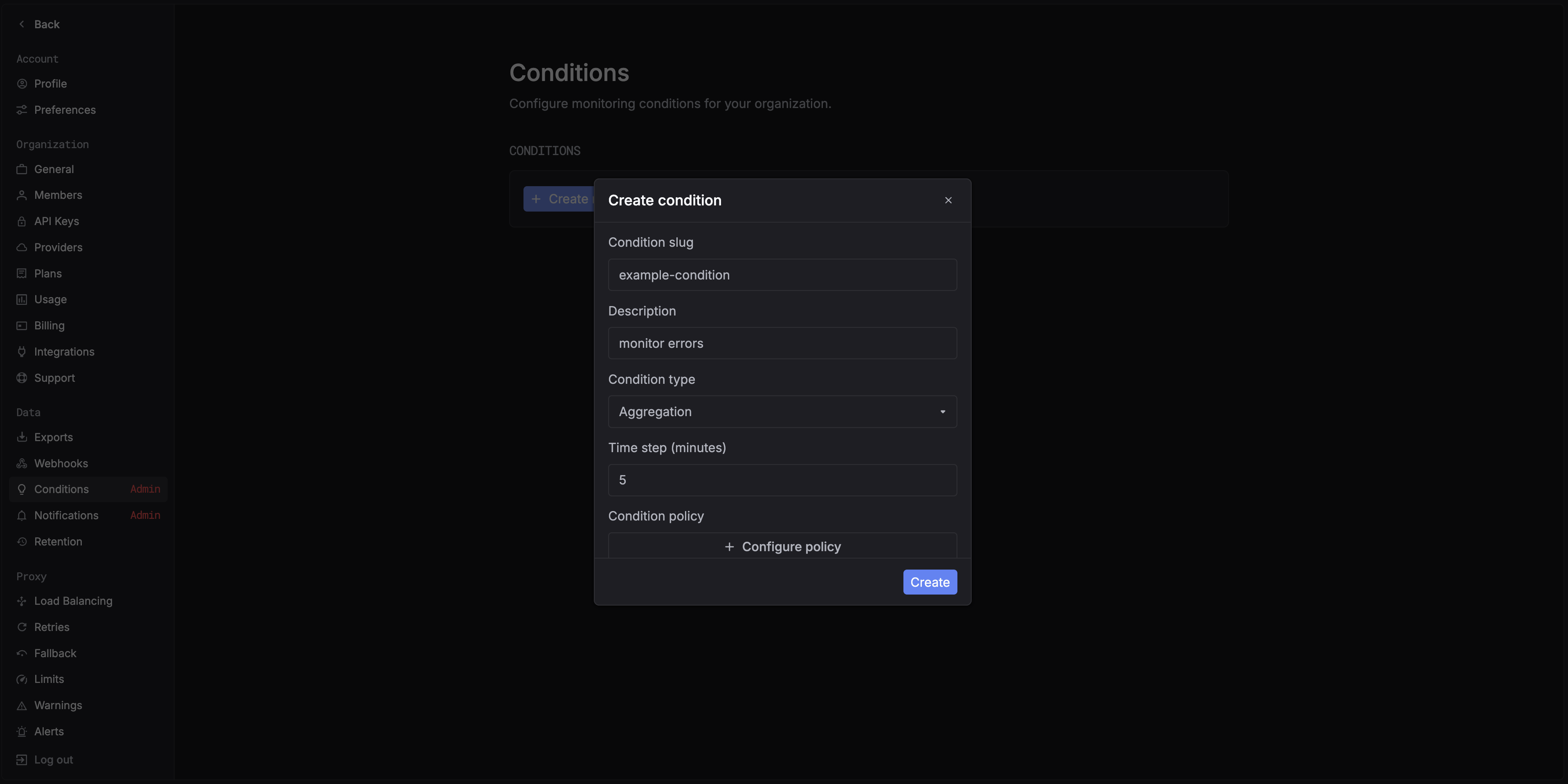 You can choose one of the following **condition types**:
* **Single log** – triggers when a specific log matches the rule.
* **Aggregation** – triggers based on aggregated metrics over time.
When selecting **Aggregation**, you’ll see the **Time step** option.\
This defines the time interval used for metric aggregation (e.g., every 5 minutes).
You can choose one of the following **condition types**:
* **Single log** – triggers when a specific log matches the rule.
* **Aggregation** – triggers based on aggregated metrics over time.
When selecting **Aggregation**, you’ll see the **Time step** option.\
This defines the time interval used for metric aggregation (e.g., every 5 minutes).
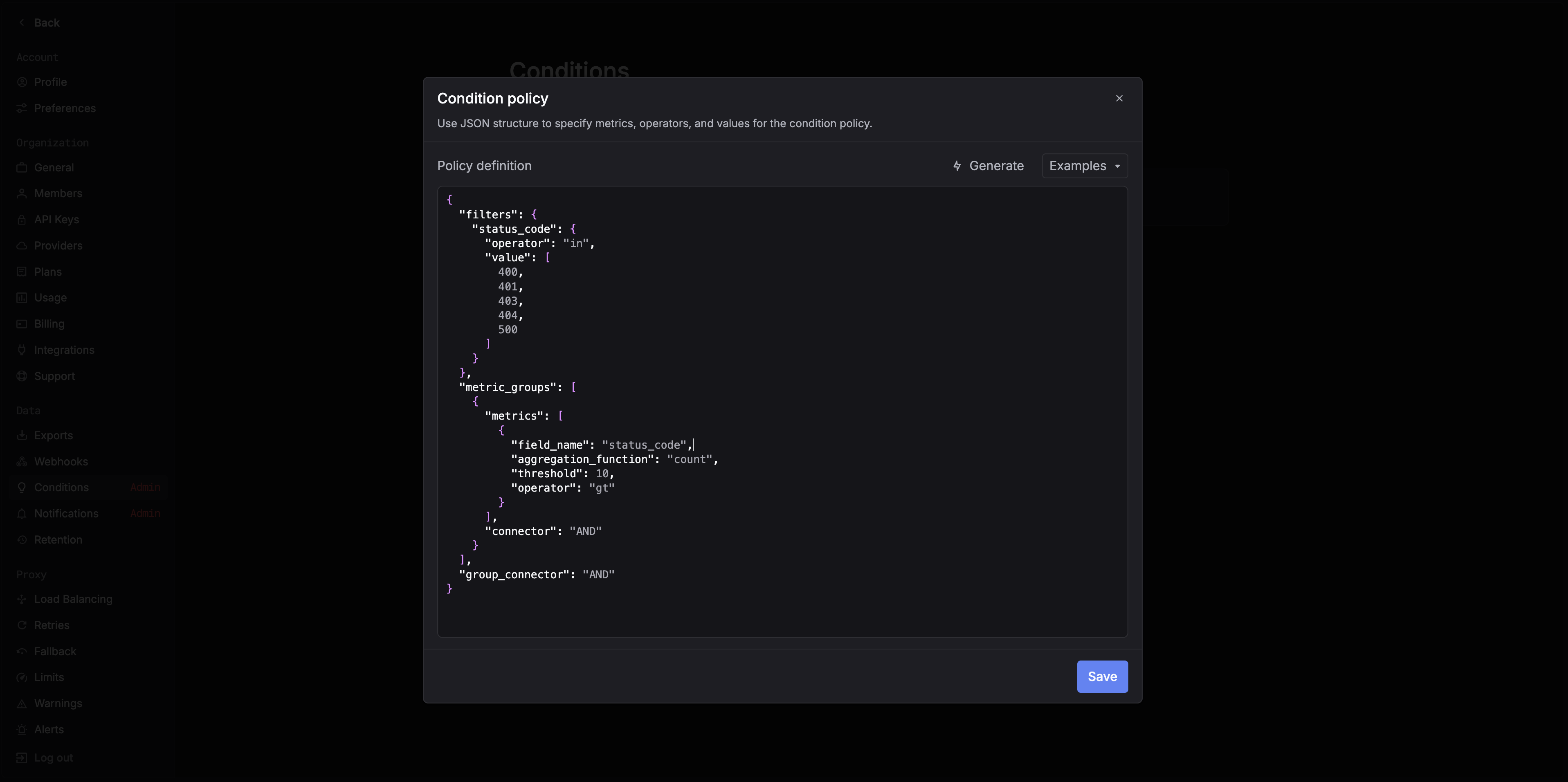 For example, the policy shown above triggers an alert when there are more than 10 HTTP errors (`400`, `401`, `403`, `404`, `500`) within a 5-minute window.
***
### 2. Create a notification
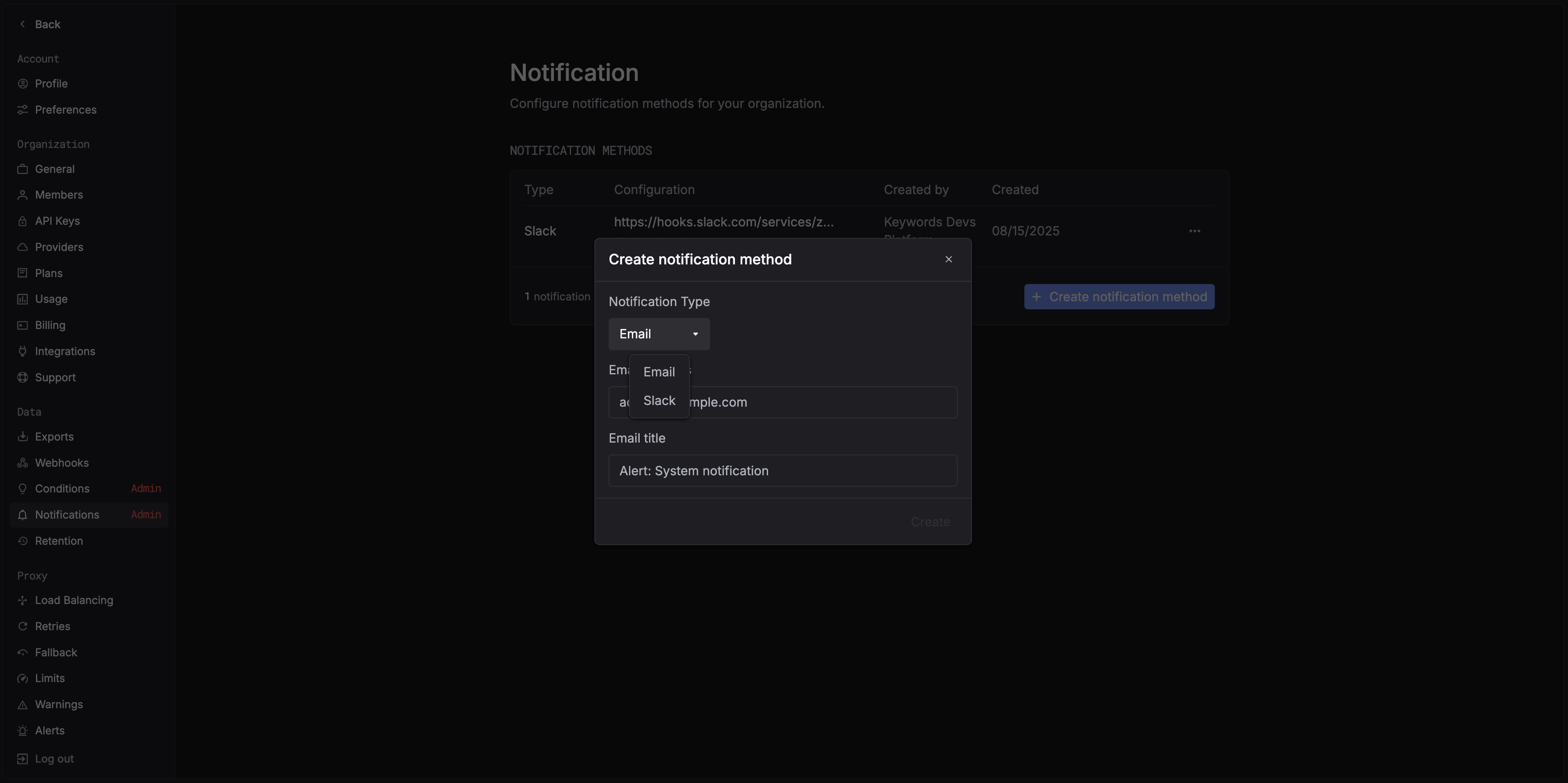
After defining your condition, set up a **notification channel** to receive alerts.\
Go to [Notifications](https://platform.keywordsai.co/platform/api/notifications).
Currently supported channels:
* **Email**
* **Slack**
For example, the policy shown above triggers an alert when there are more than 10 HTTP errors (`400`, `401`, `403`, `404`, `500`) within a 5-minute window.
***
### 2. Create a notification
After defining your condition, set up a **notification channel** to receive alerts.\
Go to [Notifications](https://platform.keywordsai.co/platform/api/notifications).
Currently supported channels:
* **Email**
* **Slack**
 ***
### 3. Create a automation
Once your condition and notification are ready, navigate to [Automations](https://platform.keywordsai.co/platform/monitors) and create a new **automation**.
***
### 3. Create a automation
Once your condition and notification are ready, navigate to [Automations](https://platform.keywordsai.co/platform/monitors) and create a new **automation**.
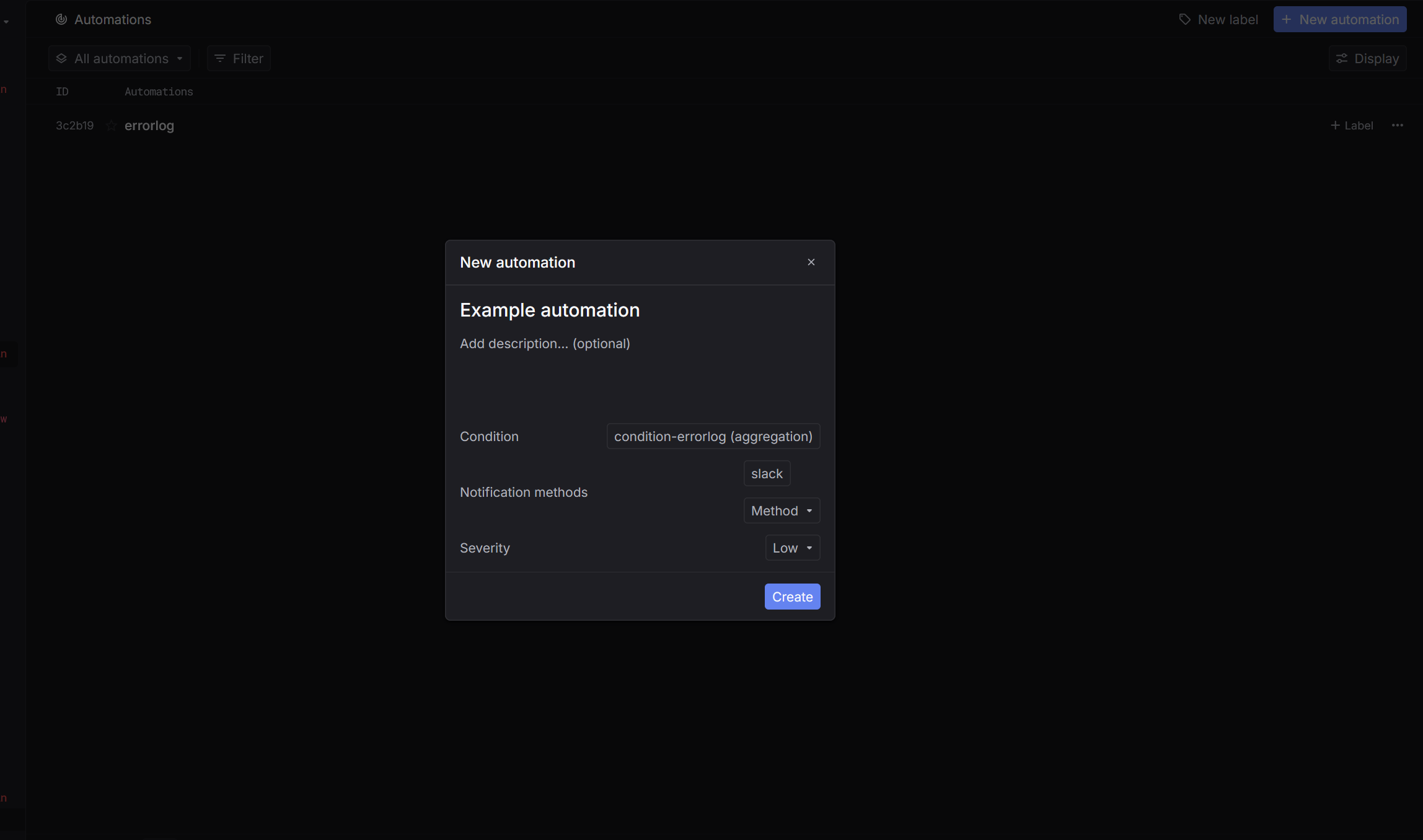 In the creation form:
1. Select the **condition** you want to track.
2. Choose the **notification** method.
3. Set the **severity** level for the alert (e.g., Urgent or Low).
In the creation form:
1. Select the **condition** you want to track.
2. Choose the **notification** method.
3. Set the **severity** level for the alert (e.g., Urgent or Low).
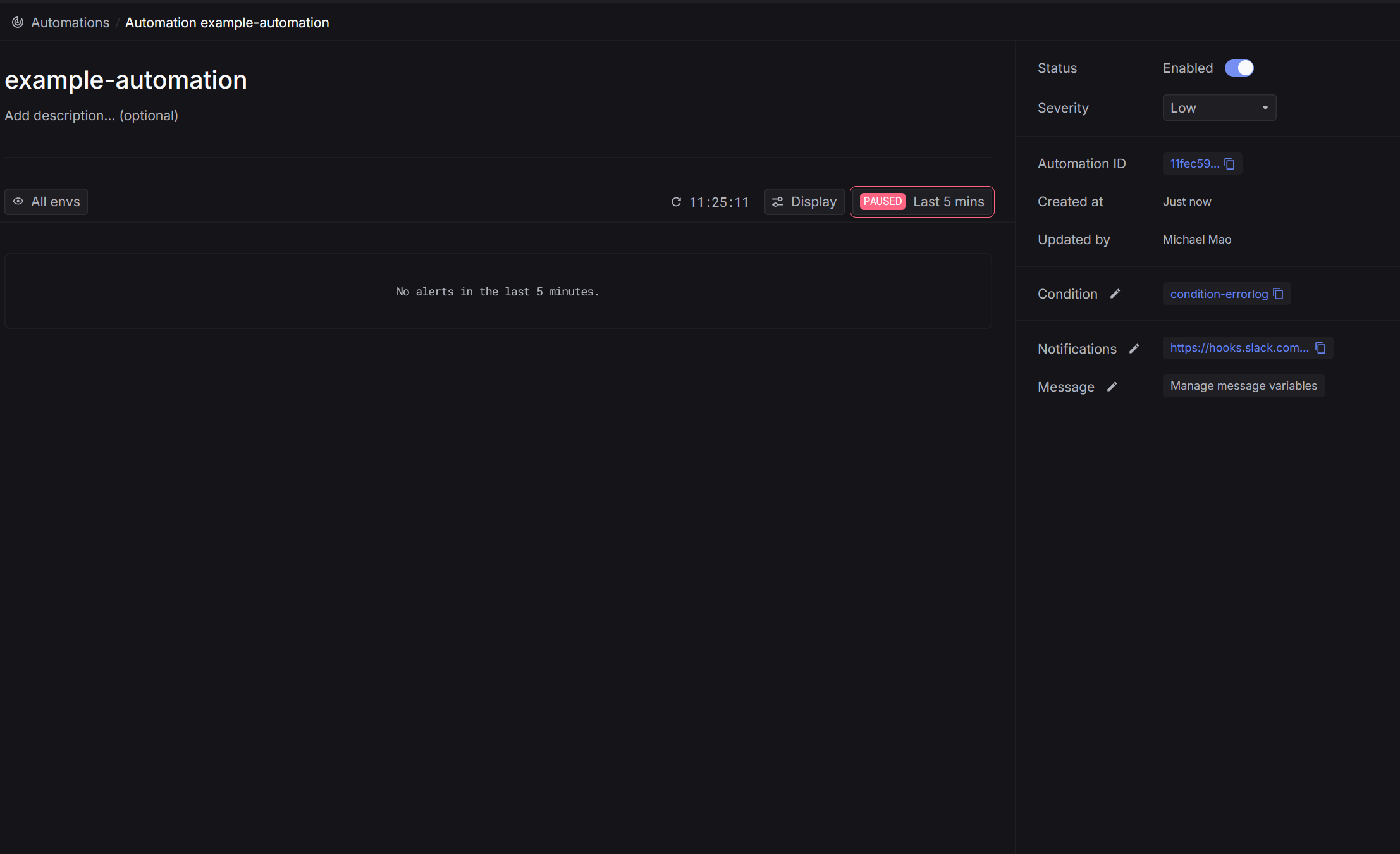 After saving, your automation will appear in the [Automations](https://platform.keywordsai.co/platform/monitors) list.\
When the defined condition is met, alerts will automatically be sent through the selected notification method.
***
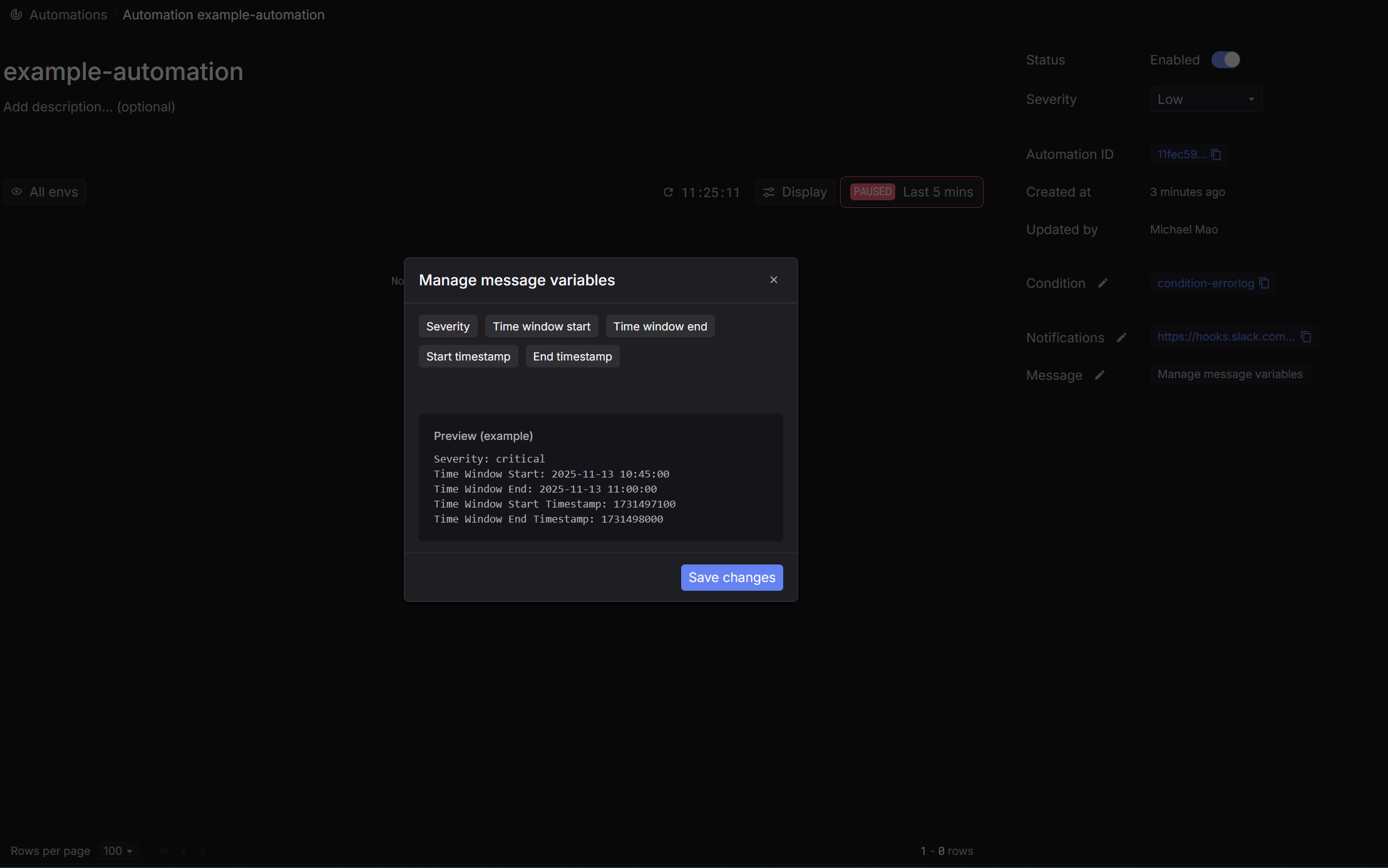
### 4. Customize automation notification message
You can customize the message that gets sent each time an automation is triggered.
Choose from several predefined choices:
* severity
* triggered time range
* ...
A real-time preview shows exactly what will be delivered via email or webhook before you save your changes.
After saving, your automation will appear in the [Automations](https://platform.keywordsai.co/platform/monitors) list.\
When the defined condition is met, alerts will automatically be sent through the selected notification method.
***
### 4. Customize automation notification message
You can customize the message that gets sent each time an automation is triggered.
Choose from several predefined choices:
* severity
* triggered time range
* ...
A real-time preview shows exactly what will be delivered via email or webhook before you save your changes.