> ## Documentation Index
> Fetch the complete documentation index at: https://docs.keywordsai.co/llms.txt
> Use this file to discover all available pages before exploring further.
# Online evals
> This is a guide for you to set up an online evals automation on the platform.
## What is an online evals automation?
Online evals automatically runs evaluators on your production logs in real-time based on conditions and sampling rules.
## How to set up an online evals automation?
### 1. Create a condition
A **condition** defines the filtering rules that determine which production logs will be evaluated—only logs that match the condition proceed to the sampling and evals stages.\
Go to [Conditions](https://platform.keywordsai.co/platform/api/conditions).
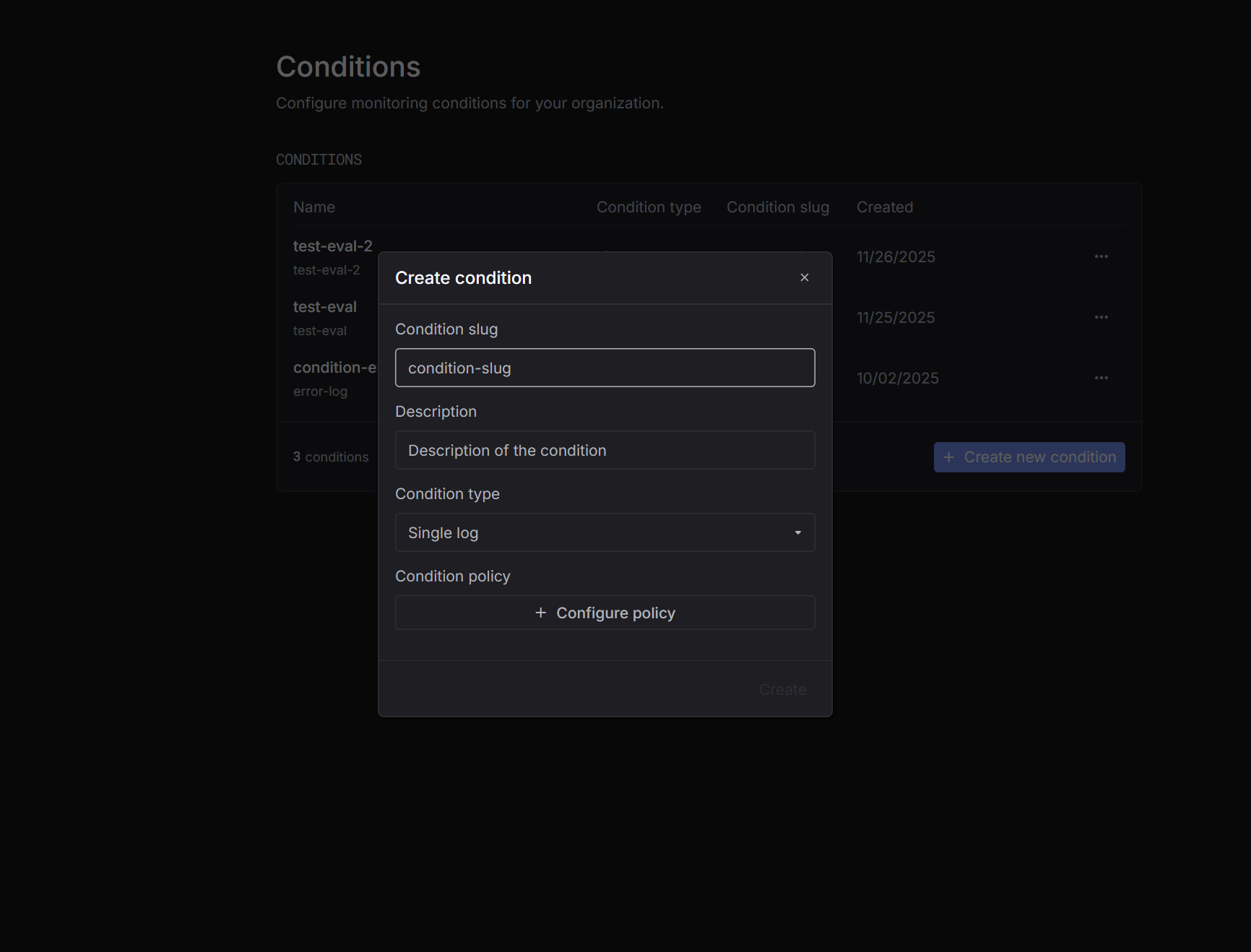 You can choose one of the following **condition types**:
* **Single log** – triggers when a specific log matches the rule.
* **Aggregation** – triggers based on aggregated metrics over time.
We will choose **Single log** for **Online evals**.\
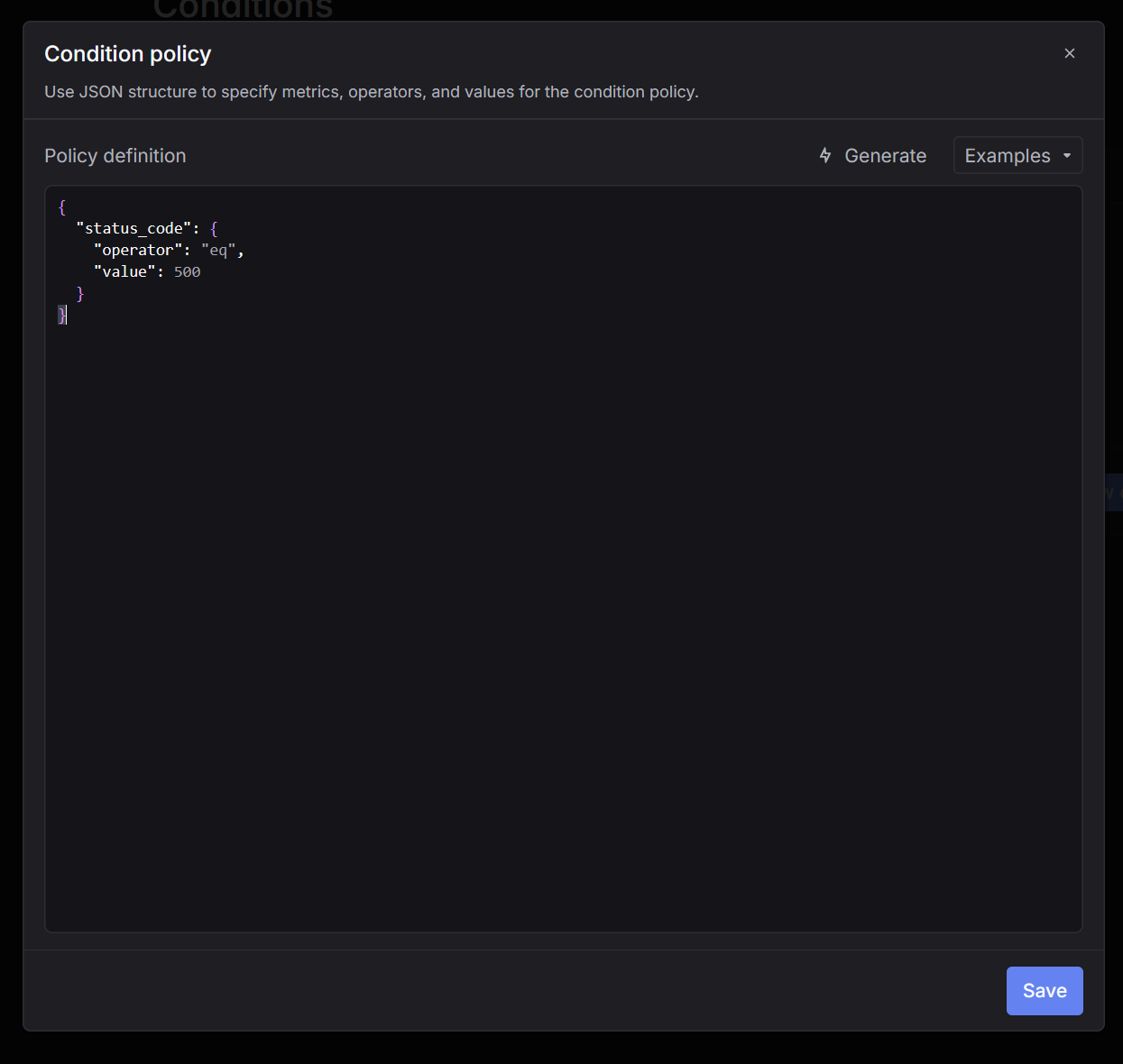
Following is a simple condition that triggers everytime a log with status code 500 is logged.
You can choose one of the following **condition types**:
* **Single log** – triggers when a specific log matches the rule.
* **Aggregation** – triggers based on aggregated metrics over time.
We will choose **Single log** for **Online evals**.\
Following is a simple condition that triggers everytime a log with status code 500 is logged.
 ***
### 2. Create an automation
Once your condition and [evaluator](https://docs.keywordsai.co/documentation/products/evaluation/llm-evals/llm-evaluator) are ready, navigate to [Automations](https://platform.keywordsai.co/platform/monitors) and create a new **automation**.
***
### 2. Create an automation
Once your condition and [evaluator](https://docs.keywordsai.co/documentation/products/evaluation/llm-evals/llm-evaluator) are ready, navigate to [Automations](https://platform.keywordsai.co/platform/monitors) and create a new **automation**.
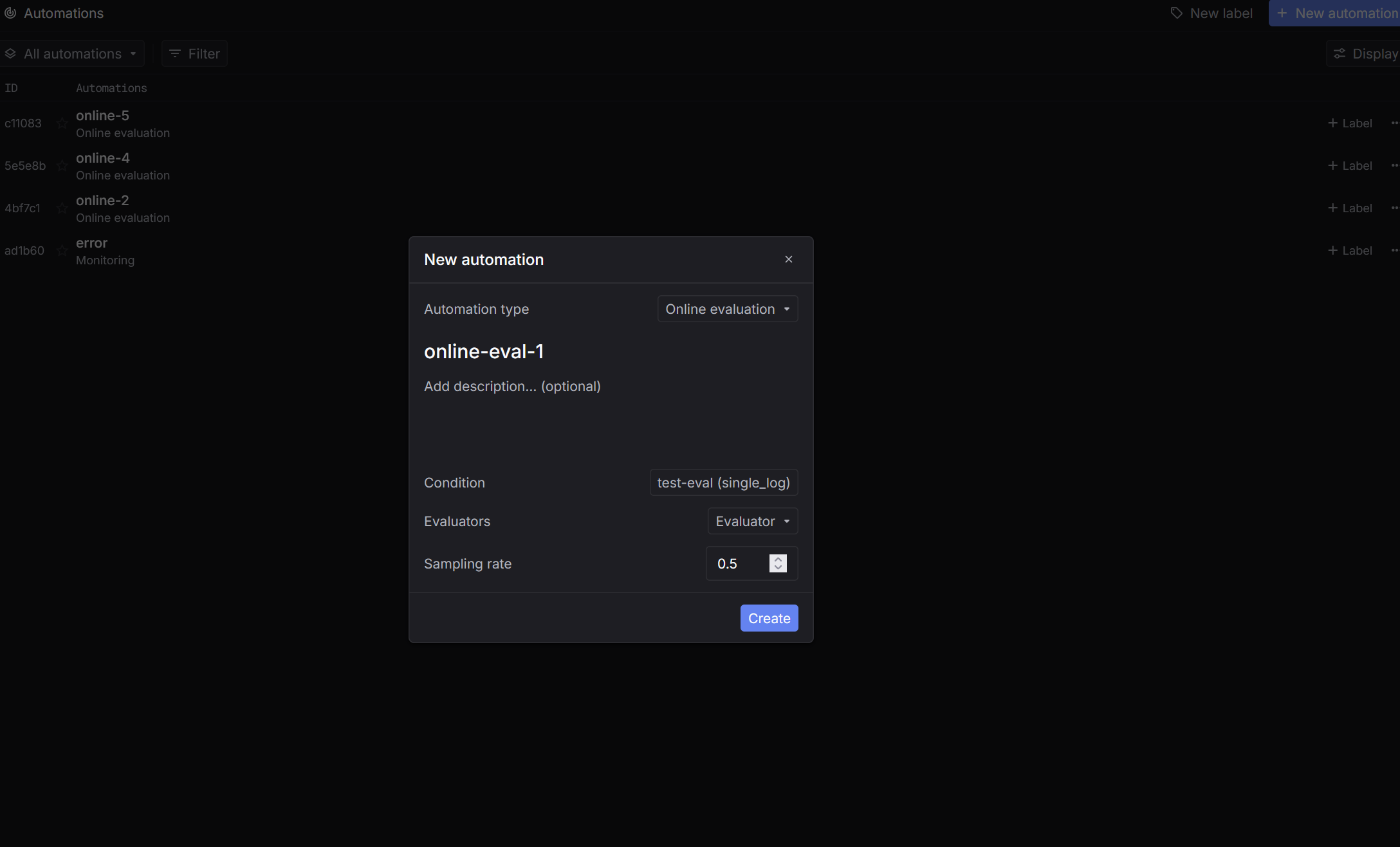 In the creation form:
1. Select **Online evals** as the type.
2. Select the **condition** you want to track.
3. Choose the **evaluator** you want to run through.
4. Set the **Sampling rate** (range from 0 to 1).
After saving, your online evals will appear in the [Automations](https://platform.keywordsai.co/platform/monitors) list.\
When the defined condition is met, sampling will be done and run through evaluators.
***
### 3. Check online evals results
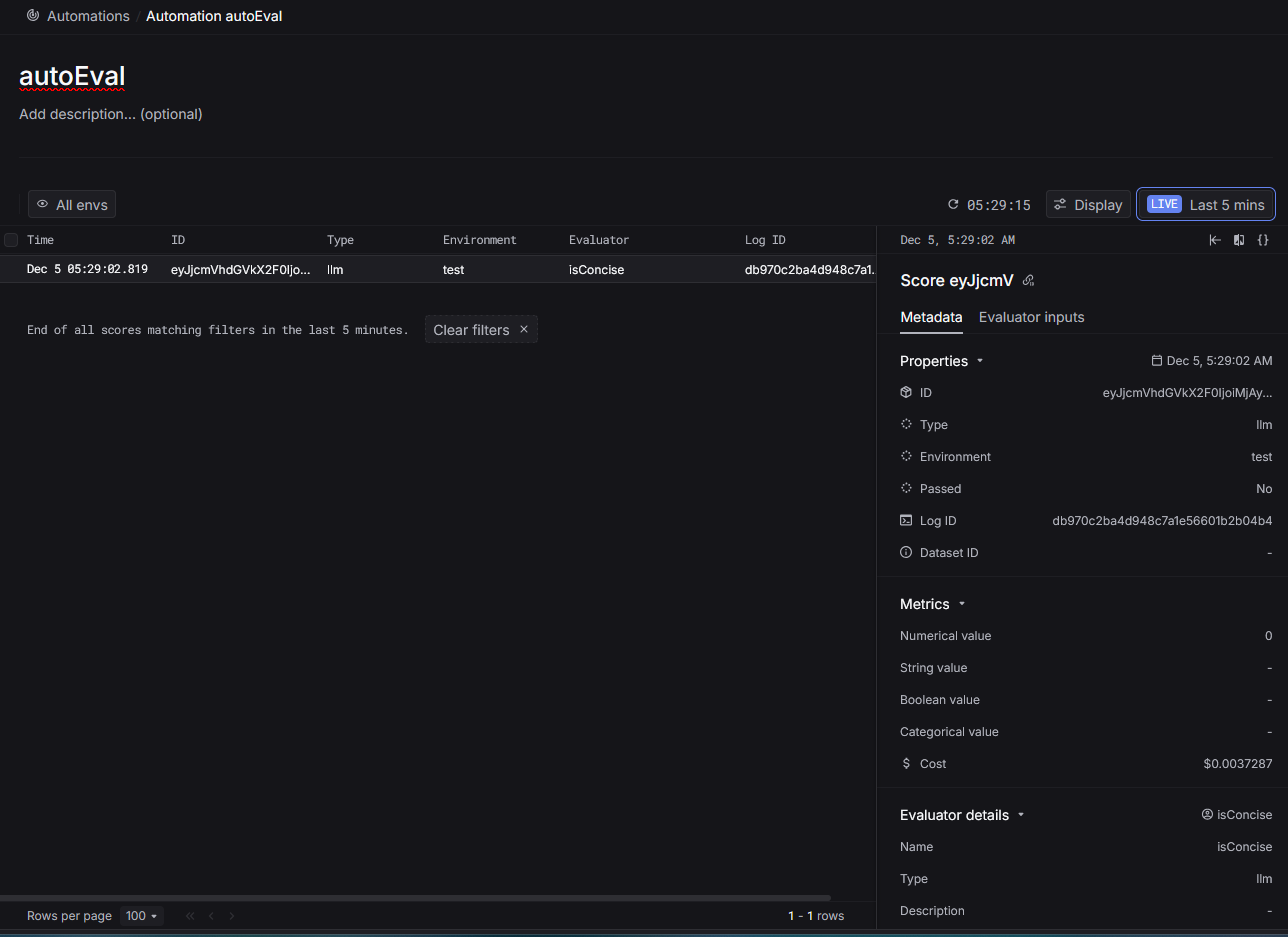
After condition is triggered, online evals results will be shown in the table of the automation detail page.
In the creation form:
1. Select **Online evals** as the type.
2. Select the **condition** you want to track.
3. Choose the **evaluator** you want to run through.
4. Set the **Sampling rate** (range from 0 to 1).
After saving, your online evals will appear in the [Automations](https://platform.keywordsai.co/platform/monitors) list.\
When the defined condition is met, sampling will be done and run through evaluators.
***
### 3. Check online evals results
After condition is triggered, online evals results will be shown in the table of the automation detail page.
 #### Table columns
The results table displays the following information for each evaluation:
* **Time** – When the evaluation was executed
* **ID** – Unique identifier for the evaluation score
* **Environment** – The environment where the log was generated (e.g., `test`, `production`)
* **Evaluator** – Name of the evaluator that was run
* **Log ID** – The ID of the log that was evaluated
Click on any row to open the detailed sidepanel.
#### Sidepanel details
The sidepanel on the right provides comprehensive information about the selected evaluation result:
**Properties**
* **ID** – Unique evaluation score identifier
* **Type** – Evaluator type
* **Log ID** – Link to the original log
**Metrics**
* **Numerical value** – Numeric score from the evaluation
**Evaluator details**
* **Name** – The evaluator's name
* **Type** – The evaluator type
* **Description** – Details about what the evaluator checks
#### Table columns
The results table displays the following information for each evaluation:
* **Time** – When the evaluation was executed
* **ID** – Unique identifier for the evaluation score
* **Environment** – The environment where the log was generated (e.g., `test`, `production`)
* **Evaluator** – Name of the evaluator that was run
* **Log ID** – The ID of the log that was evaluated
Click on any row to open the detailed sidepanel.
#### Sidepanel details
The sidepanel on the right provides comprehensive information about the selected evaluation result:
**Properties**
* **ID** – Unique evaluation score identifier
* **Type** – Evaluator type
* **Log ID** – Link to the original log
**Metrics**
* **Numerical value** – Numeric score from the evaluation
**Evaluator details**
* **Name** – The evaluator's name
* **Type** – The evaluator type
* **Description** – Details about what the evaluator checks