> ## Documentation Index
> Fetch the complete documentation index at: https://docs.keywordsai.co/llms.txt
> Use this file to discover all available pages before exploring further.
# Views
> Save filters from Logs, Traces, Users, Prompts, and more as reusable views for quick access and sharing.
## What are views?
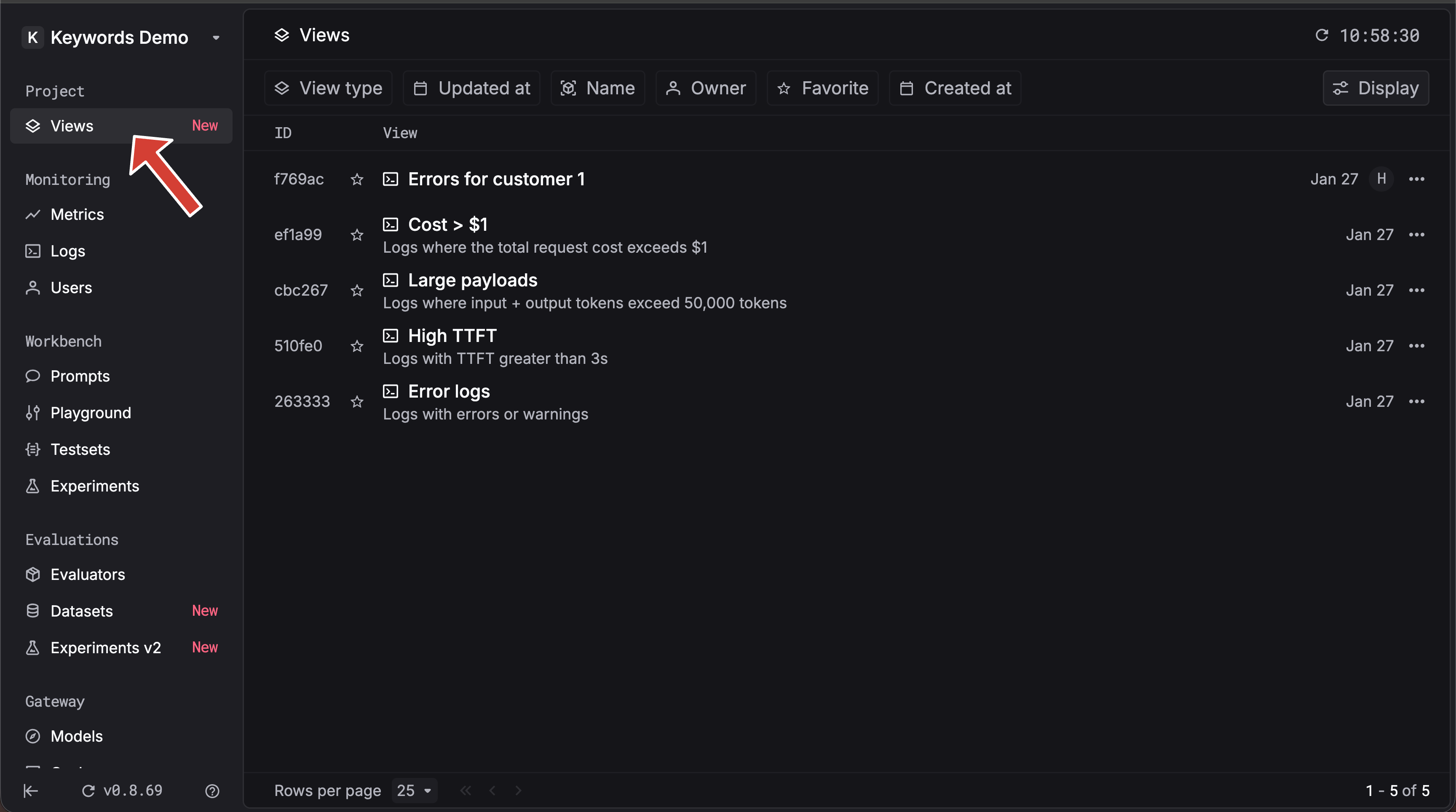
**Views** are saved filter configurations. When you apply filters on [Logs](/documentation/products/logs/quickstart), [Traces](/documentation/products/traces/quickstart), [Users](/documentation/products/users/customer-identifier), [Prompts](/documentation/products/prompt_management/quickstart), or elsewhere in Keywords AI—for example, by `status`, `model`, `user`, `timestamp`, or [custom properties](/documentation/products/logs/configuration/custom_properties)—you can save that filter setup as a **view**. Views let you reuse the same filters with one click instead of reconfiguring them each time.
 ## Where you create filters
You can set up filters in **Logs**, **Traces**, **Users**, **Prompts**, and more:
* **Logs** — Filter by status, model, user, timestamp, custom properties, and more. Use the **Filter** button on the [Logs](https://platform.keywordsai.co/platform/logs) page.
* **Traces** — Filter traces by workflow, metadata, customer identifier, and other fields on the [Traces](https://platform.keywordsai.co/platform/traces) page.
* **Users** — Filter users by identifier, usage, and related fields.
* **Prompts** — Filter prompts by name, model, and other attributes.
* **And more** — Views work across filtered surfaces throughout Keywords AI.
Build the filter combination you care about (e.g. “production errors” or “high-cost requests”), then save it as a view.
## Where you create filters
You can set up filters in **Logs**, **Traces**, **Users**, **Prompts**, and more:
* **Logs** — Filter by status, model, user, timestamp, custom properties, and more. Use the **Filter** button on the [Logs](https://platform.keywordsai.co/platform/logs) page.
* **Traces** — Filter traces by workflow, metadata, customer identifier, and other fields on the [Traces](https://platform.keywordsai.co/platform/traces) page.
* **Users** — Filter users by identifier, usage, and related fields.
* **Prompts** — Filter prompts by name, model, and other attributes.
* **And more** — Views work across filtered surfaces throughout Keywords AI.
Build the filter combination you care about (e.g. “production errors” or “high-cost requests”), then save it as a view.
 ## Steps to save a filter as a view
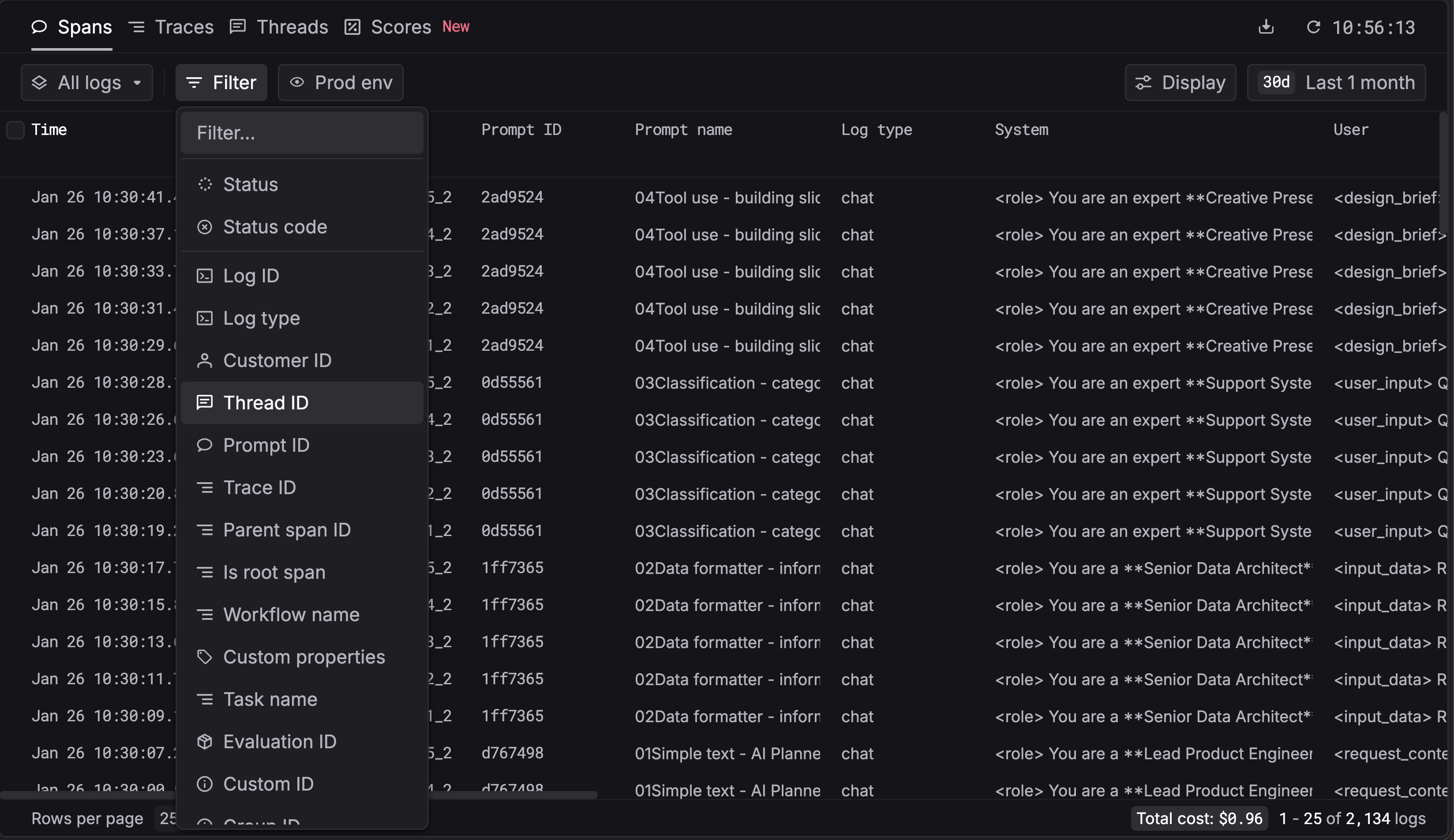
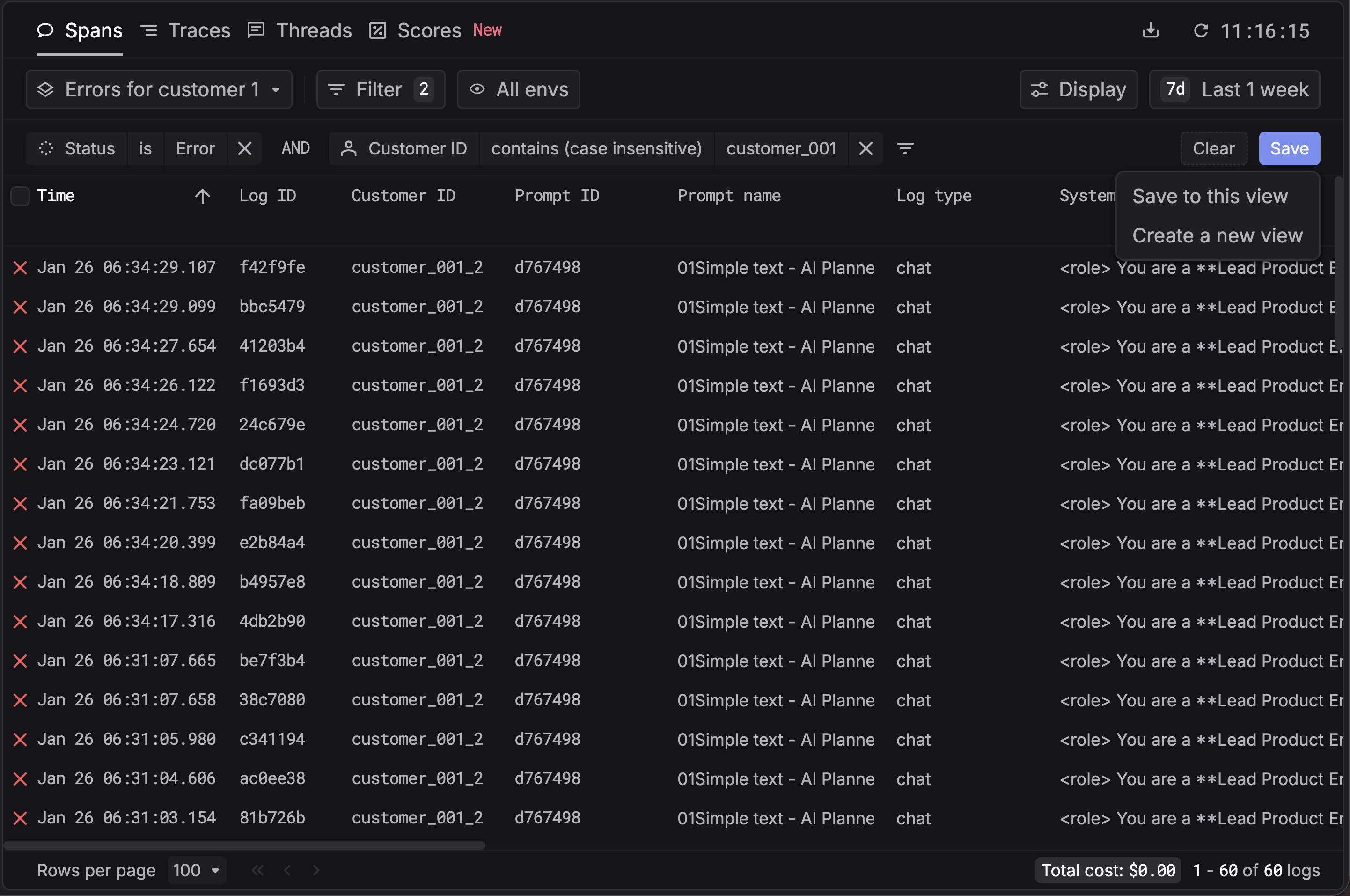
Open [Logs](https://platform.keywordsai.co/platform/logs), [Traces](https://platform.keywordsai.co/platform/traces), Users, Prompts, or any filtered surface and apply the filters you want (status, model, user, custom properties, etc.).
Use the **Save as view** option next to the filters.
## Steps to save a filter as a view
Open [Logs](https://platform.keywordsai.co/platform/logs), [Traces](https://platform.keywordsai.co/platform/traces), Users, Prompts, or any filtered surface and apply the filters you want (status, model, user, custom properties, etc.).
Use the **Save as view** option next to the filters.
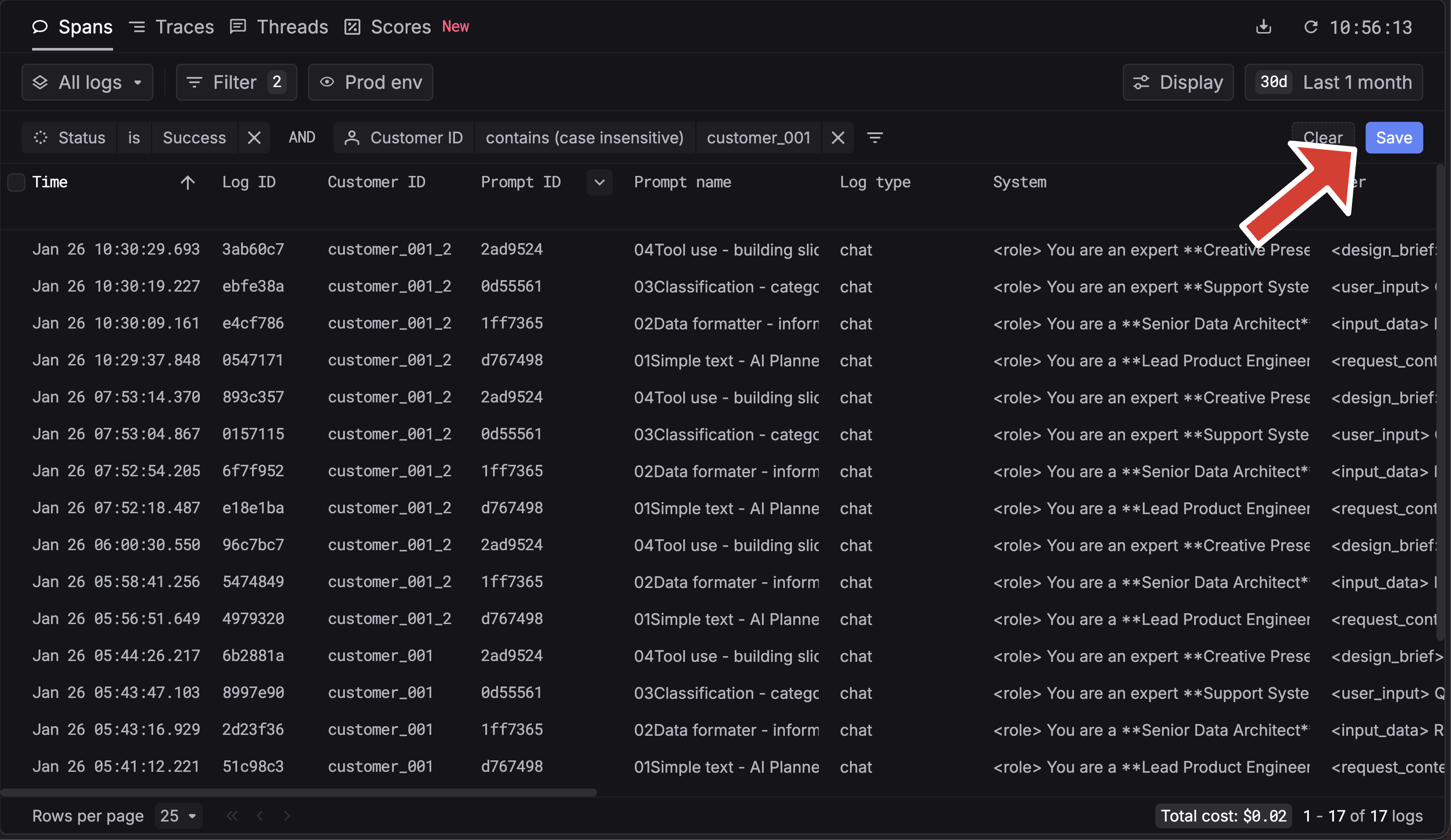 Enter a name for your view (e.g. “Production errors”, “GPT-4 usage”) so you can find and reuse it later.
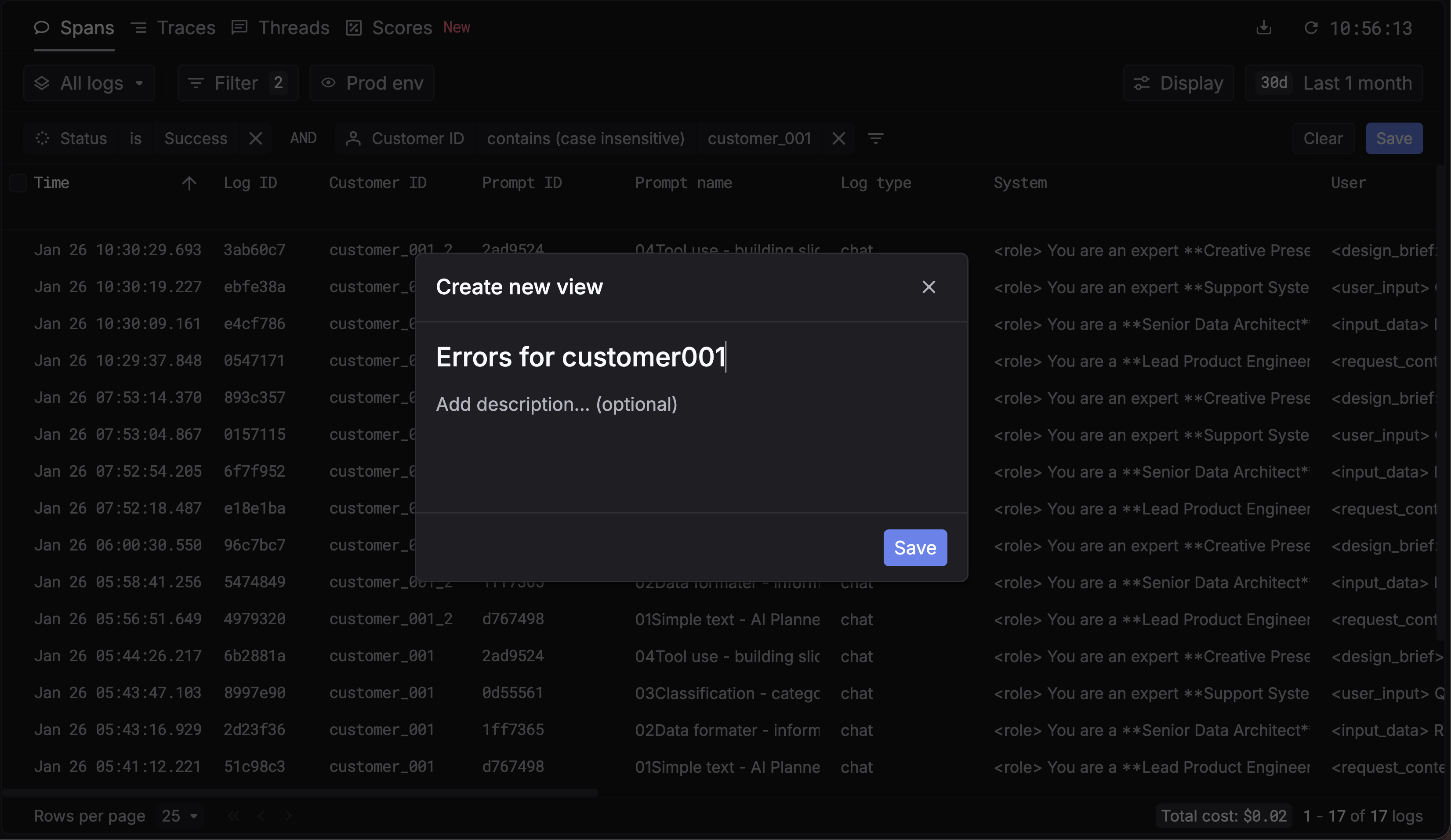 Your view is saved. Open the views list to see it and select it anytime to instantly apply its filters.
## Use and manage views
* **Apply a view** — Select a saved view from the views list to instantly apply its filters.
* **Change filters and save** — When you’re in a view, you can change the filters, then **Save** to update the current view or **Save as new** to create a new view from the current filters.
Your view is saved. Open the views list to see it and select it anytime to instantly apply its filters.
## Use and manage views
* **Apply a view** — Select a saved view from the views list to instantly apply its filters.
* **Change filters and save** — When you’re in a view, you can change the filters, then **Save** to update the current view or **Save as new** to create a new view from the current filters.
 ## Resources
* [Filters API Reference](/api-endpoints/reference/filters_api_reference) — Filter logs, traces, users, prompts, and more programmatically; filters support operators like `gt`, `gte`, `contains`, `in`, and more.
## Additional
Get started with logging and filtering LLM requests.
Instrument workflows and filter traces.
Complete API documentation for filtering logs, traces, users, prompts, and more.
***
## Need help?
[Join our Discord](https://discord.com/invite/KEanfAafQQ) — we’ll help you get the most out of views and filters.
## Resources
* [Filters API Reference](/api-endpoints/reference/filters_api_reference) — Filter logs, traces, users, prompts, and more programmatically; filters support operators like `gt`, `gte`, `contains`, `in`, and more.
## Additional
Get started with logging and filtering LLM requests.
Instrument workflows and filter traces.
Complete API documentation for filtering logs, traces, users, prompts, and more.
***
## Need help?
[Join our Discord](https://discord.com/invite/KEanfAafQQ) — we’ll help you get the most out of views and filters.