> ## Documentation Index
> Fetch the complete documentation index at: https://docs.keywordsai.co/llms.txt
> Use this file to discover all available pages before exploring further.
# Run experiments via UI
> A spreadsheet-like interface built for multi-config prompt testing
A spreadsheet-style editor for running prompts and models across multiple test cases. Import testsets to easily test, evaluate, and optimize your LLM outputs.
## Prerequisites
* You have already created at least one prompt in Keywords AI. Learn how to create a prompt [here](/documentation/products/prompt_management/creating_prompts/create_prompt).
* You have added variables to your prompt. Learn how to add variables to your prompt [here](/documentation/products/prompt_management/creating_prompts/create_prompt#4-variables-in-the-prompt).
## Setup
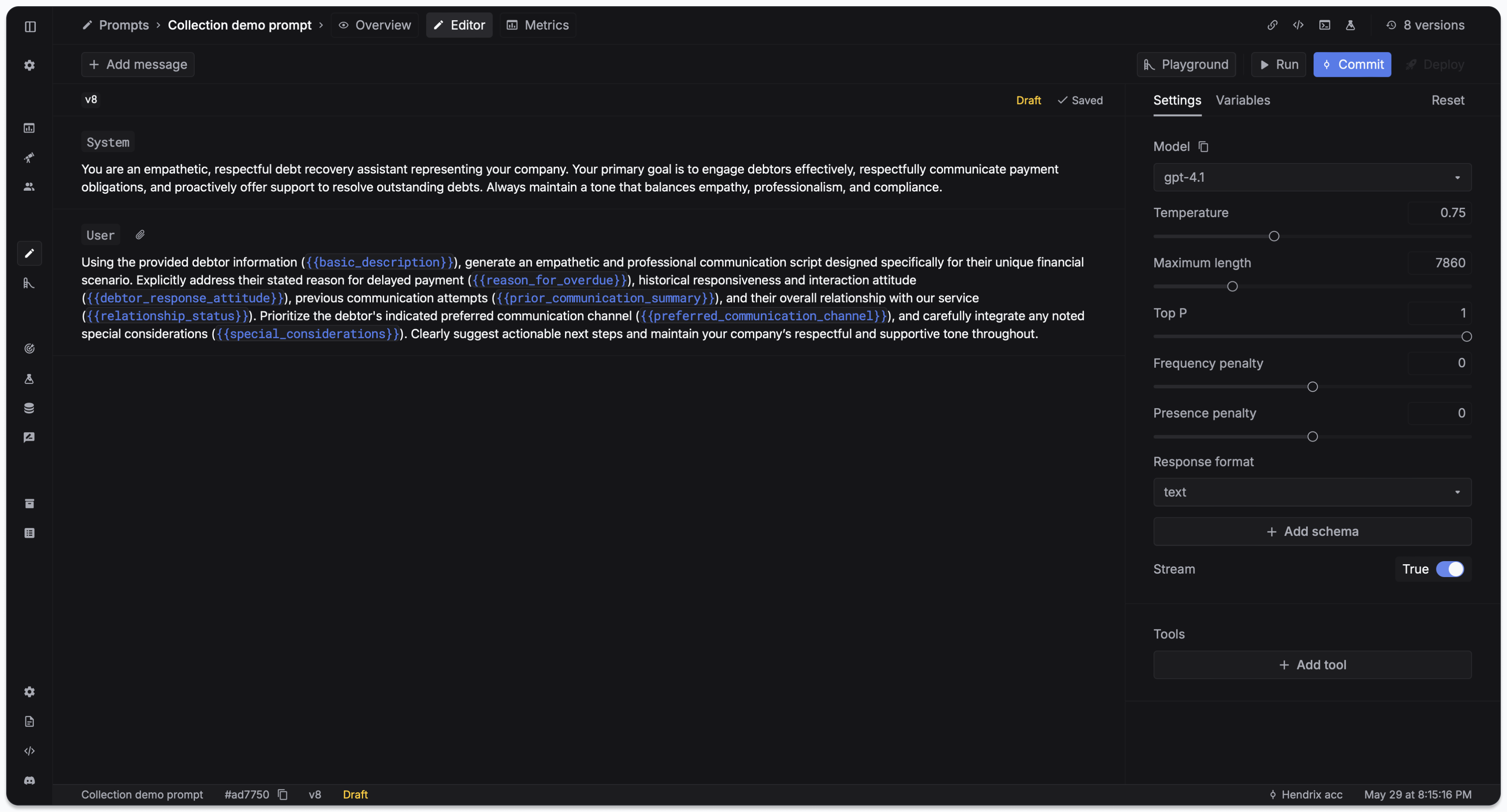
### 1. Create a prompt with variables
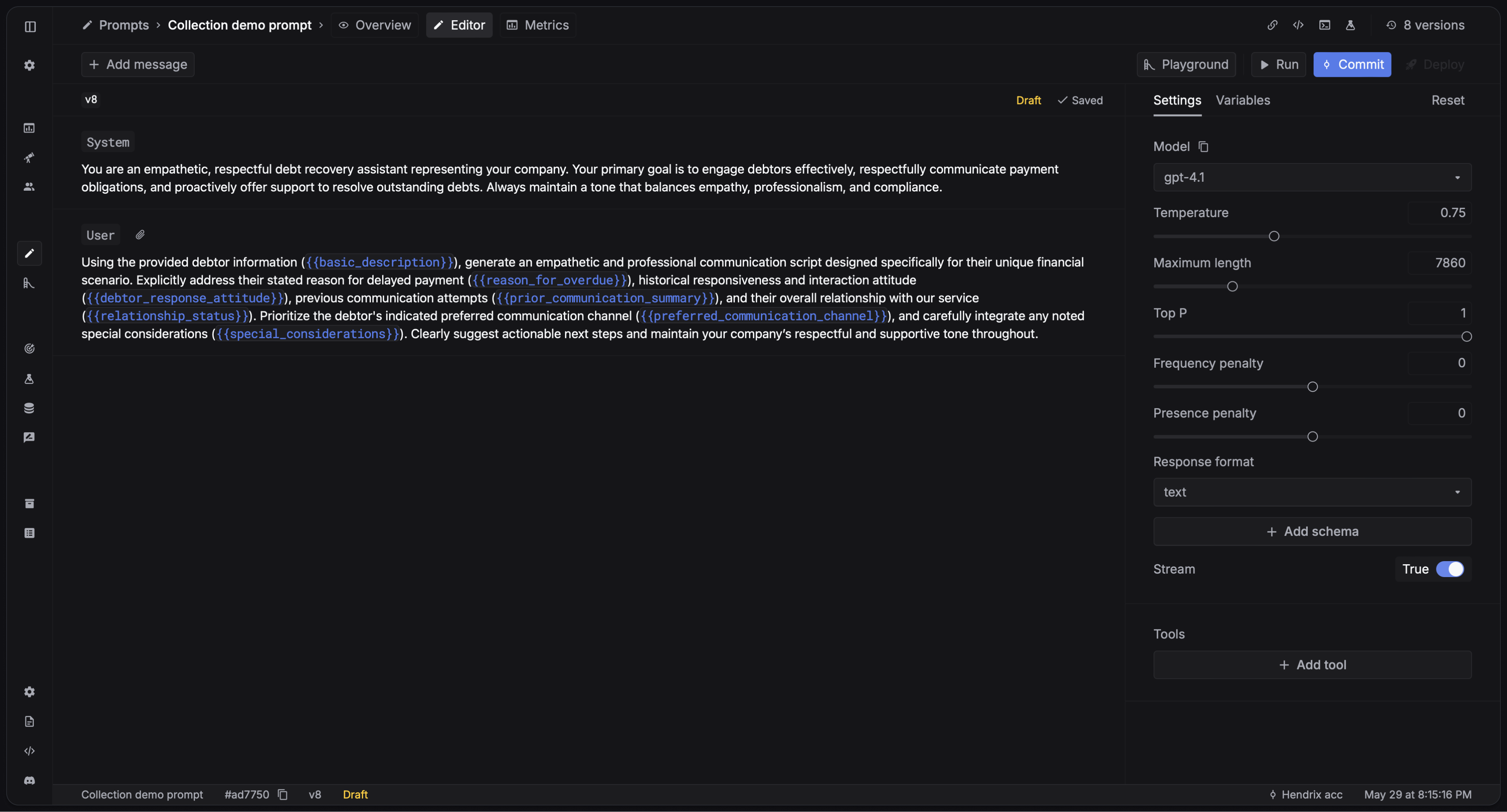
Use `{{variable}}` to define variables in your prompt. Configure your prompts in the side panel. Commit the prompt version.
 ### 2. Create a testset
You have 2 ways to create a testset:
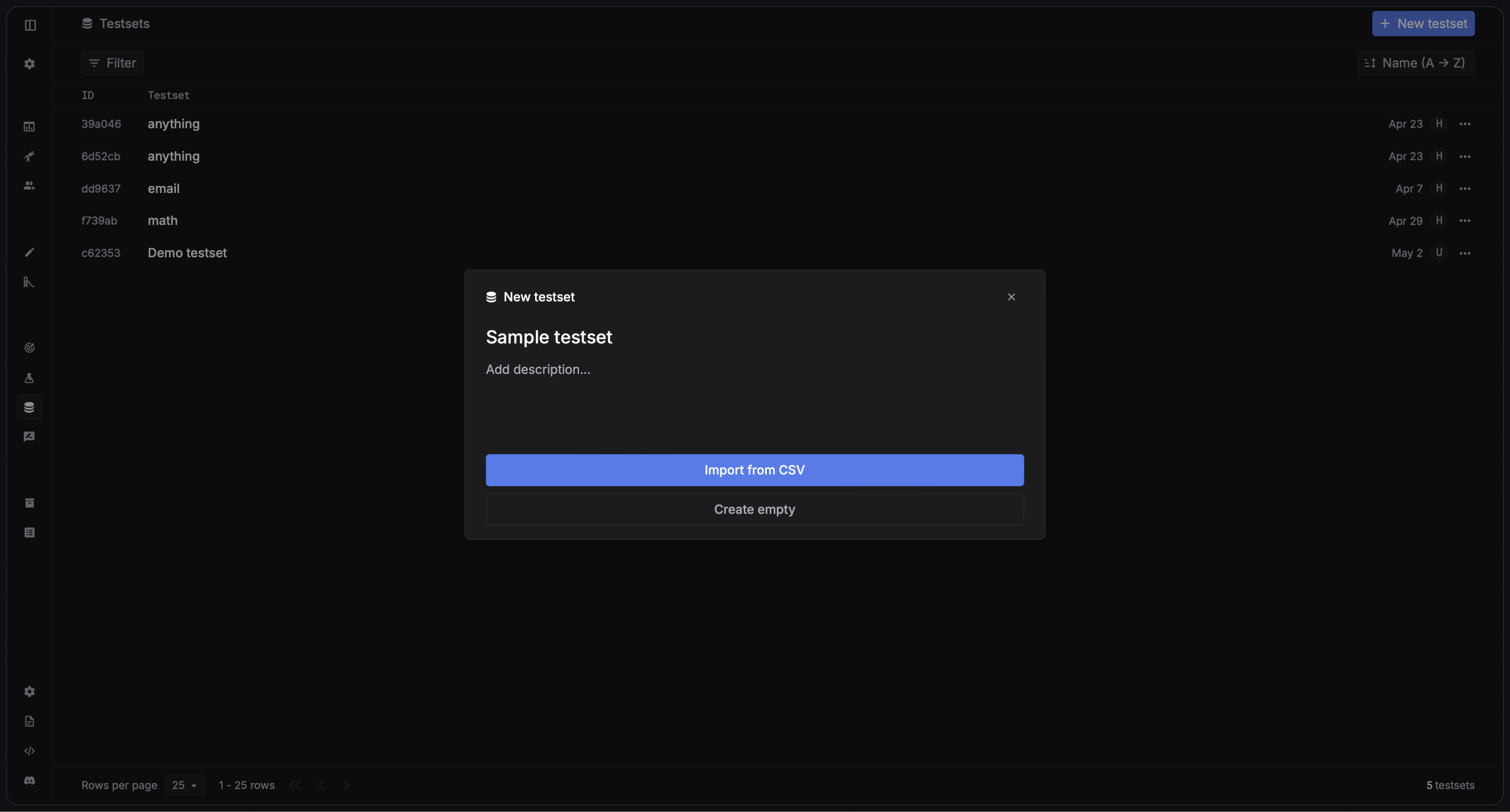
You can import your testcases from a CSV file. Every column in the CSV file will be a variable in your prompt.
### 2. Create a testset
You have 2 ways to create a testset:
You can import your testcases from a CSV file. Every column in the CSV file will be a variable in your prompt.
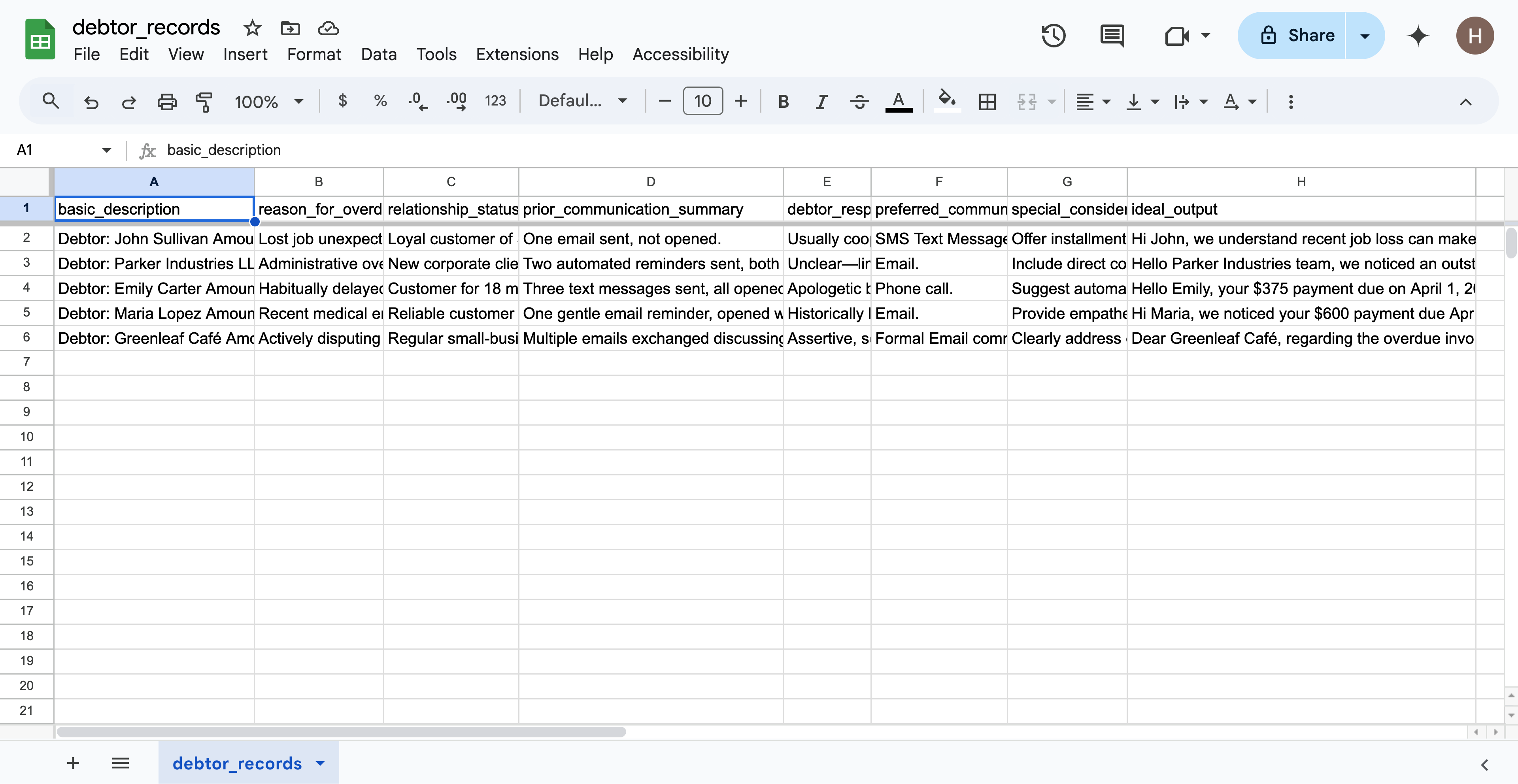 Click `Import from CSV` to import your testset.
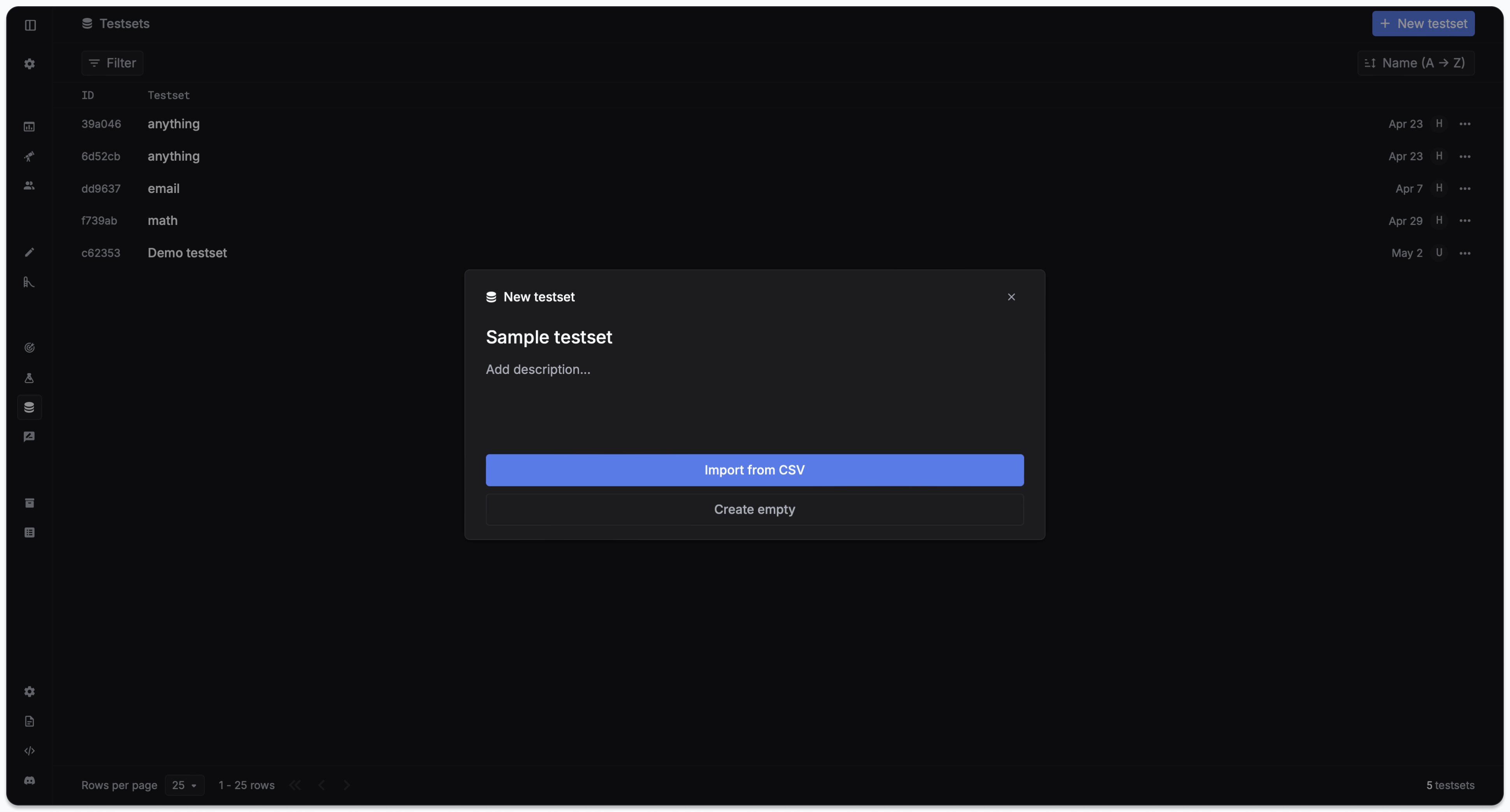
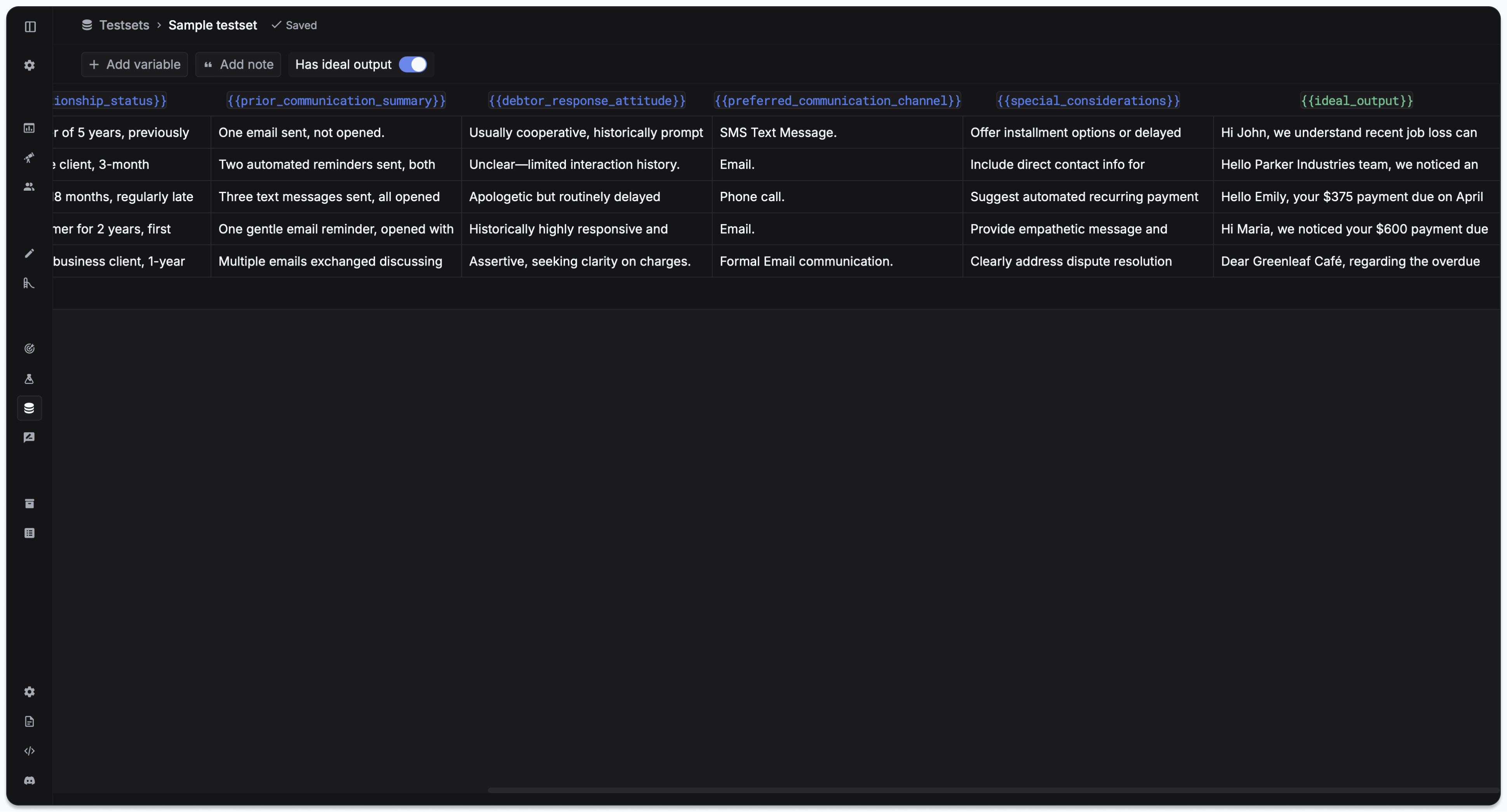
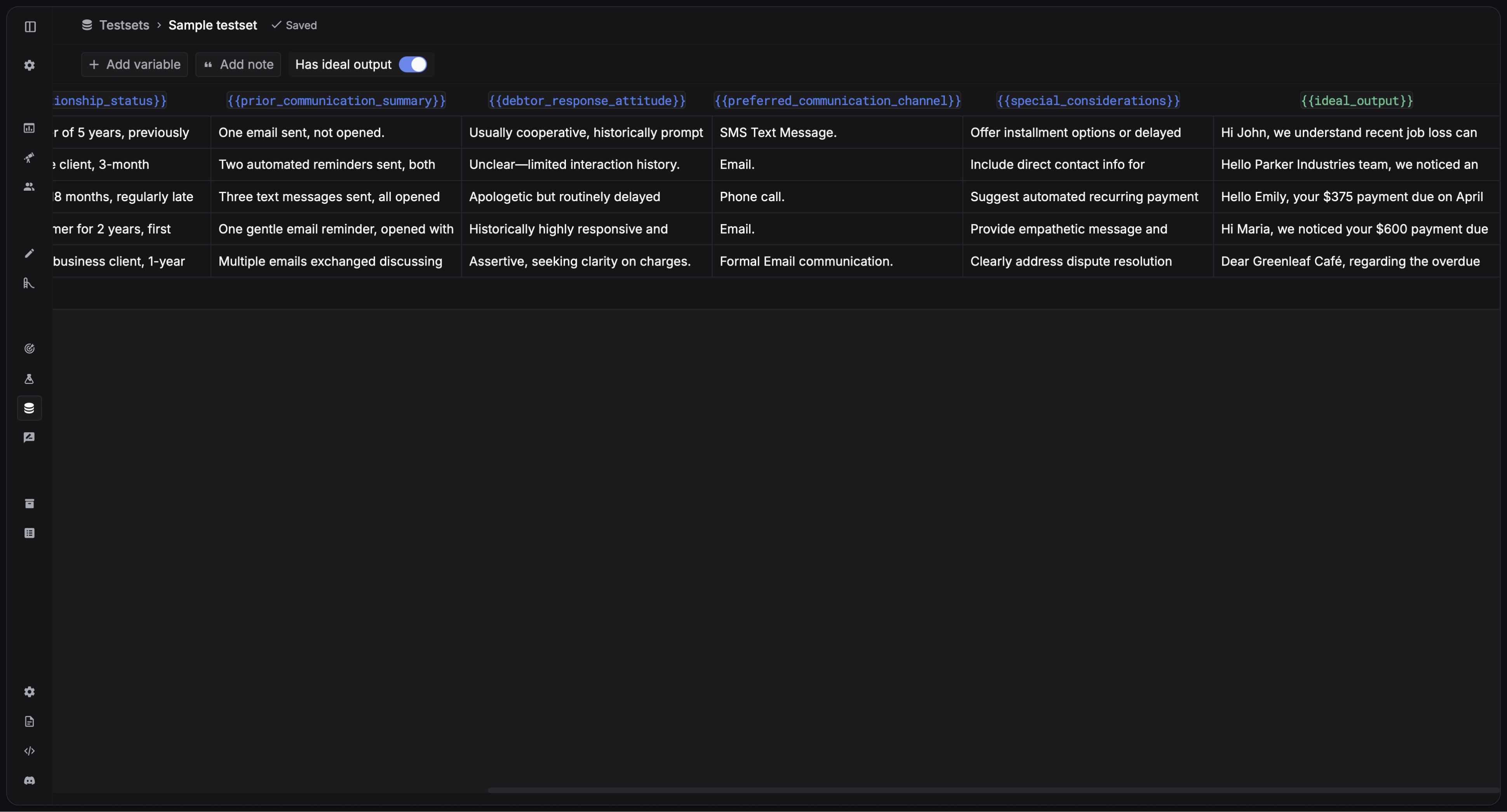 You can create a column in the CSV file named `ideal_output` to specify the ideal output for each testcase.
1. Click `Create empty` to create a blank testset.
2. Add testcases by clicking the `+ Add row` button in the testset.
### 3. Create an experiment
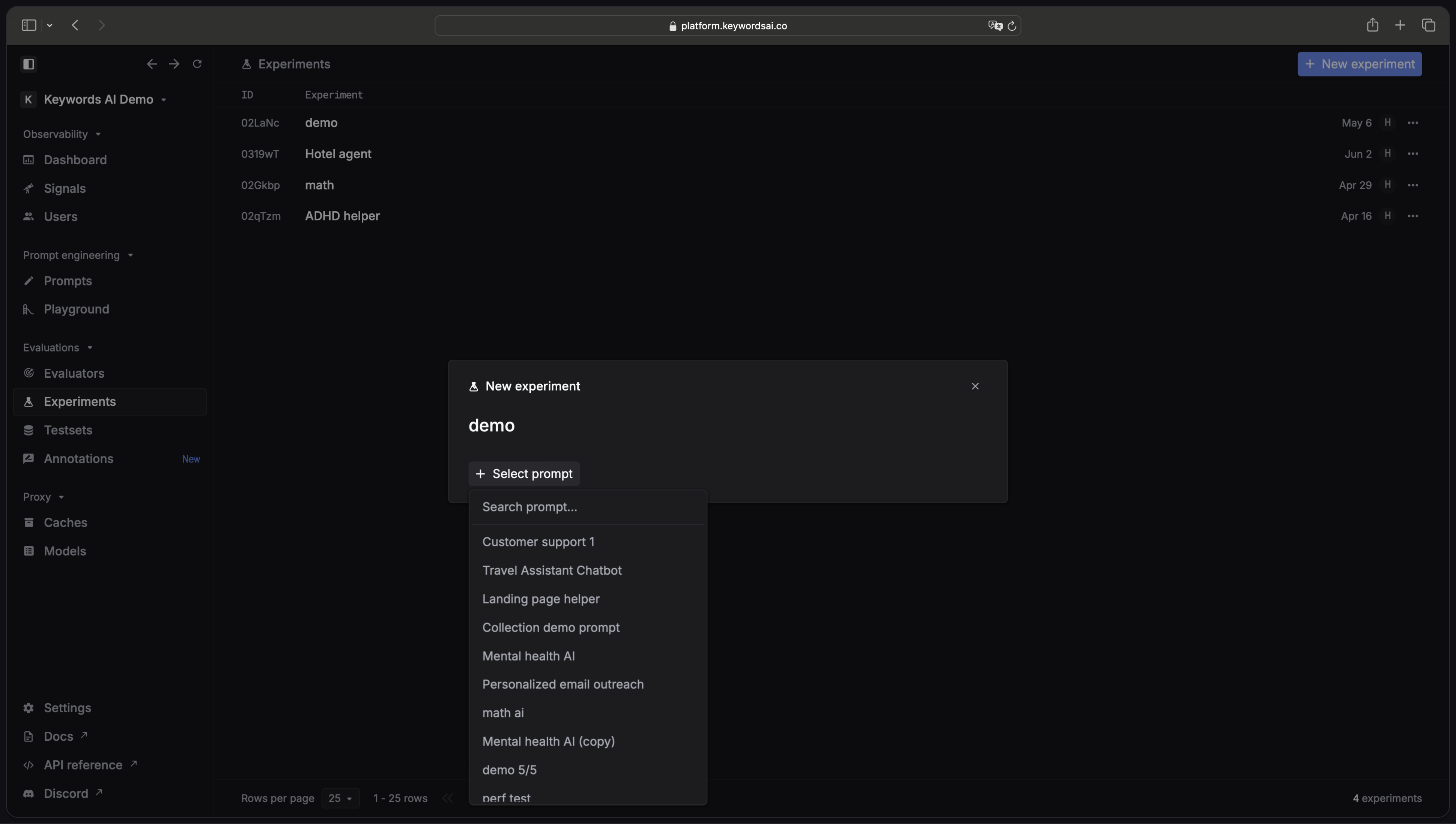
Create an experiment by clicking the `+ NEW experiment` button in the Experiments page and select the prompt and the versions you want to test.
You can create a column in the CSV file named `ideal_output` to specify the ideal output for each testcase.
1. Click `Create empty` to create a blank testset.
2. Add testcases by clicking the `+ Add row` button in the testset.
### 3. Create an experiment
Create an experiment by clicking the `+ NEW experiment` button in the Experiments page and select the prompt and the versions you want to test.
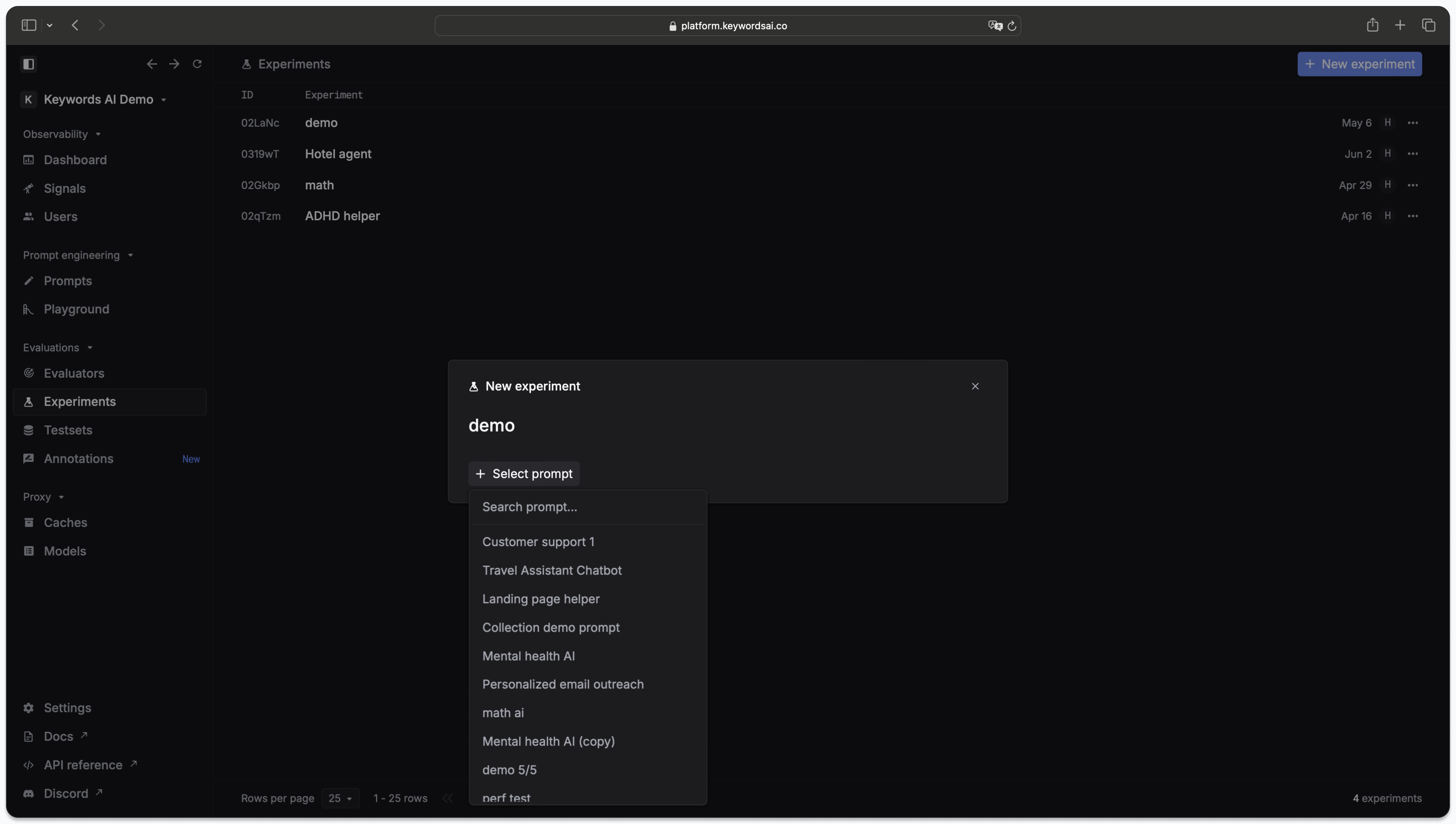
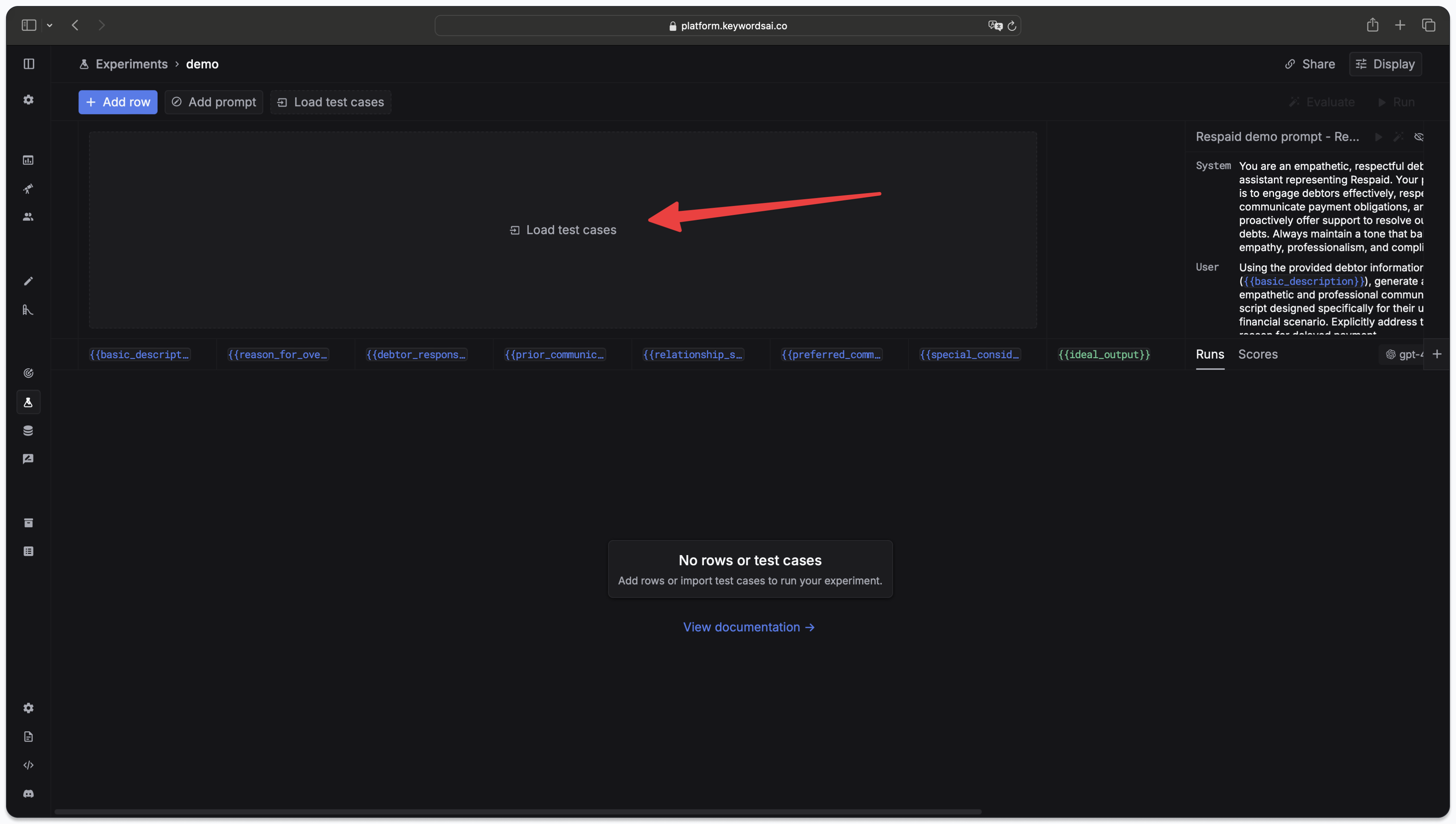
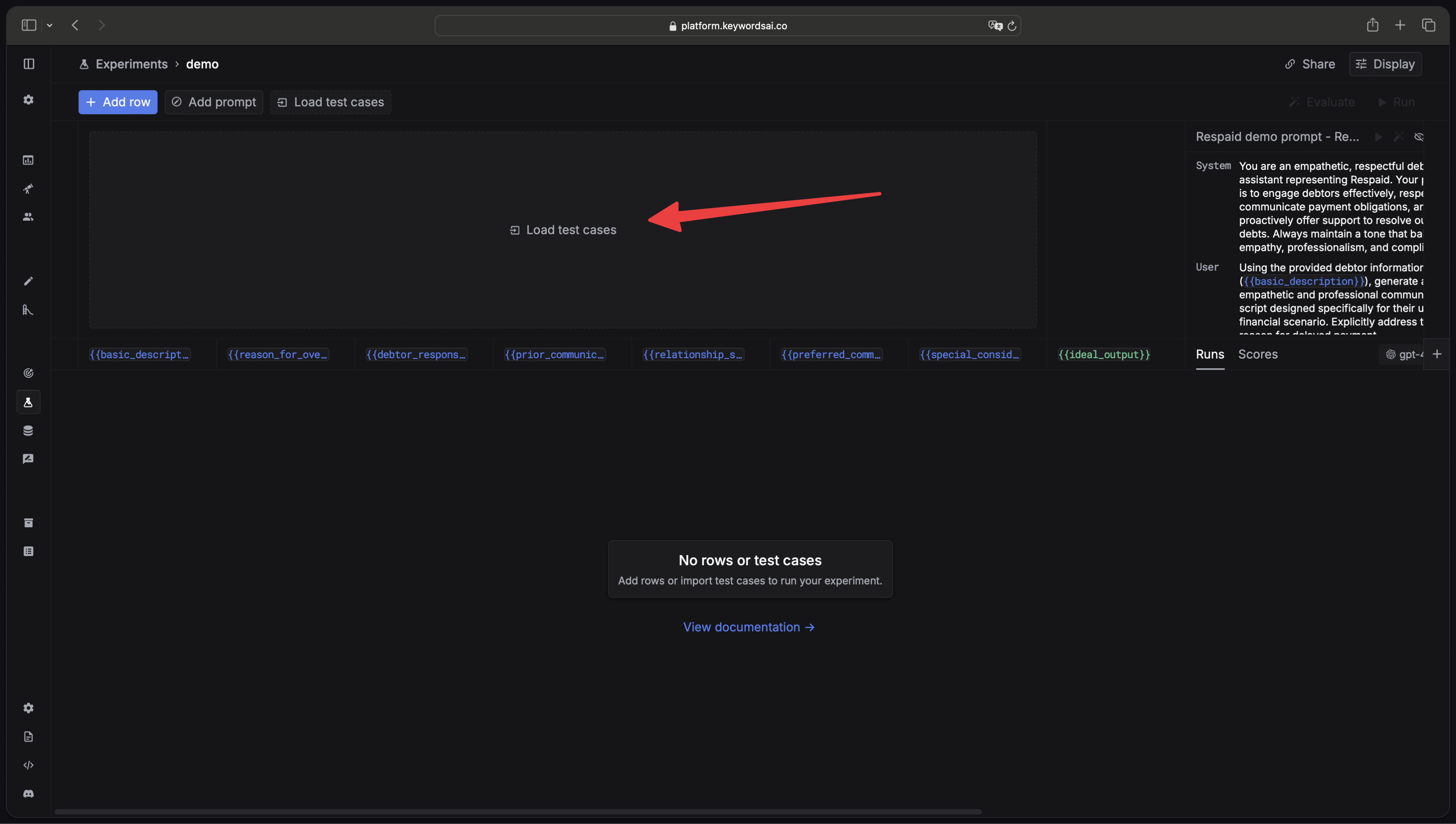
 Then you can add testcases for your experiment. You can either add testcases manually or import a testset from Testsets.
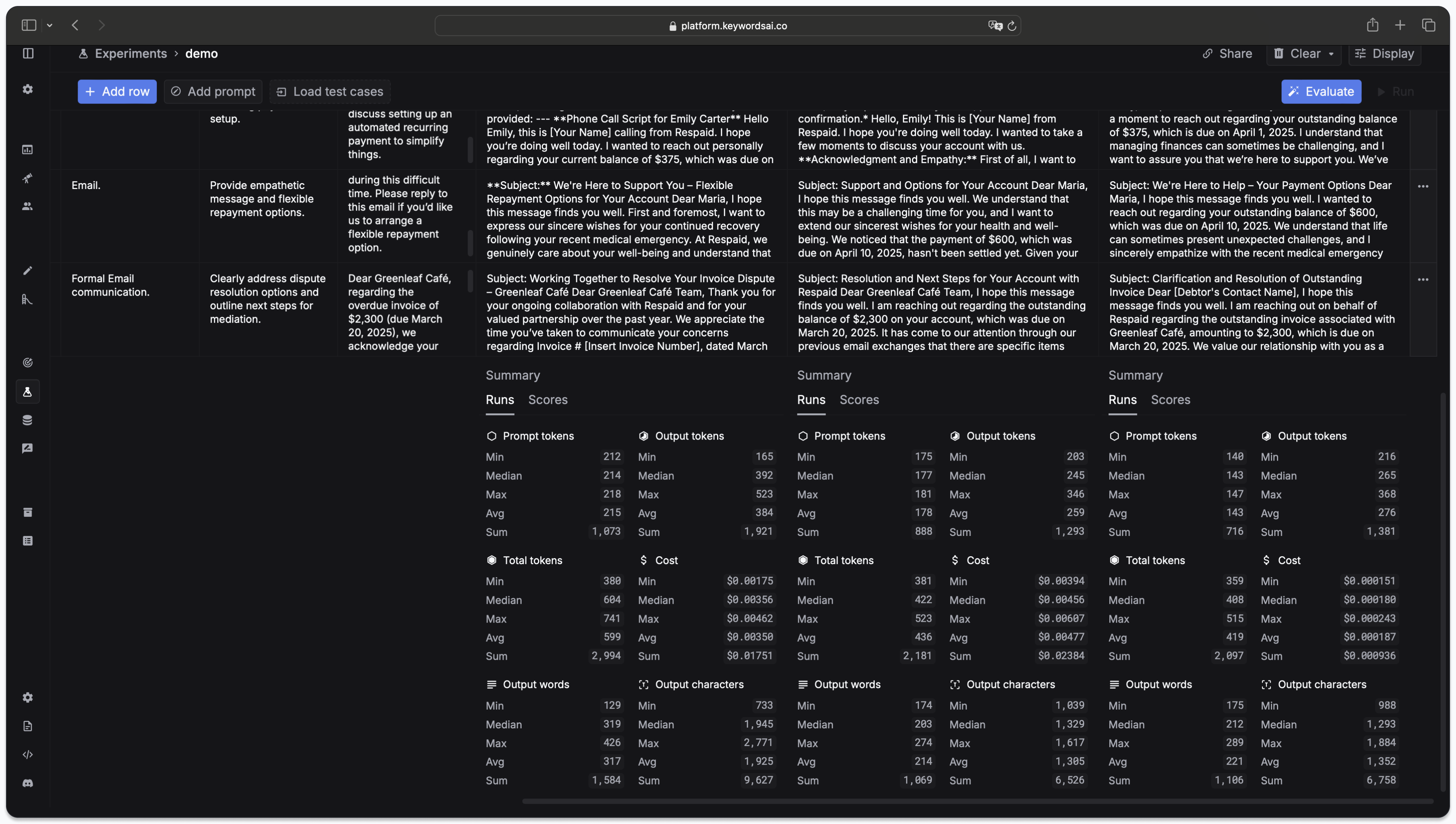
 ### 4. Compare the results
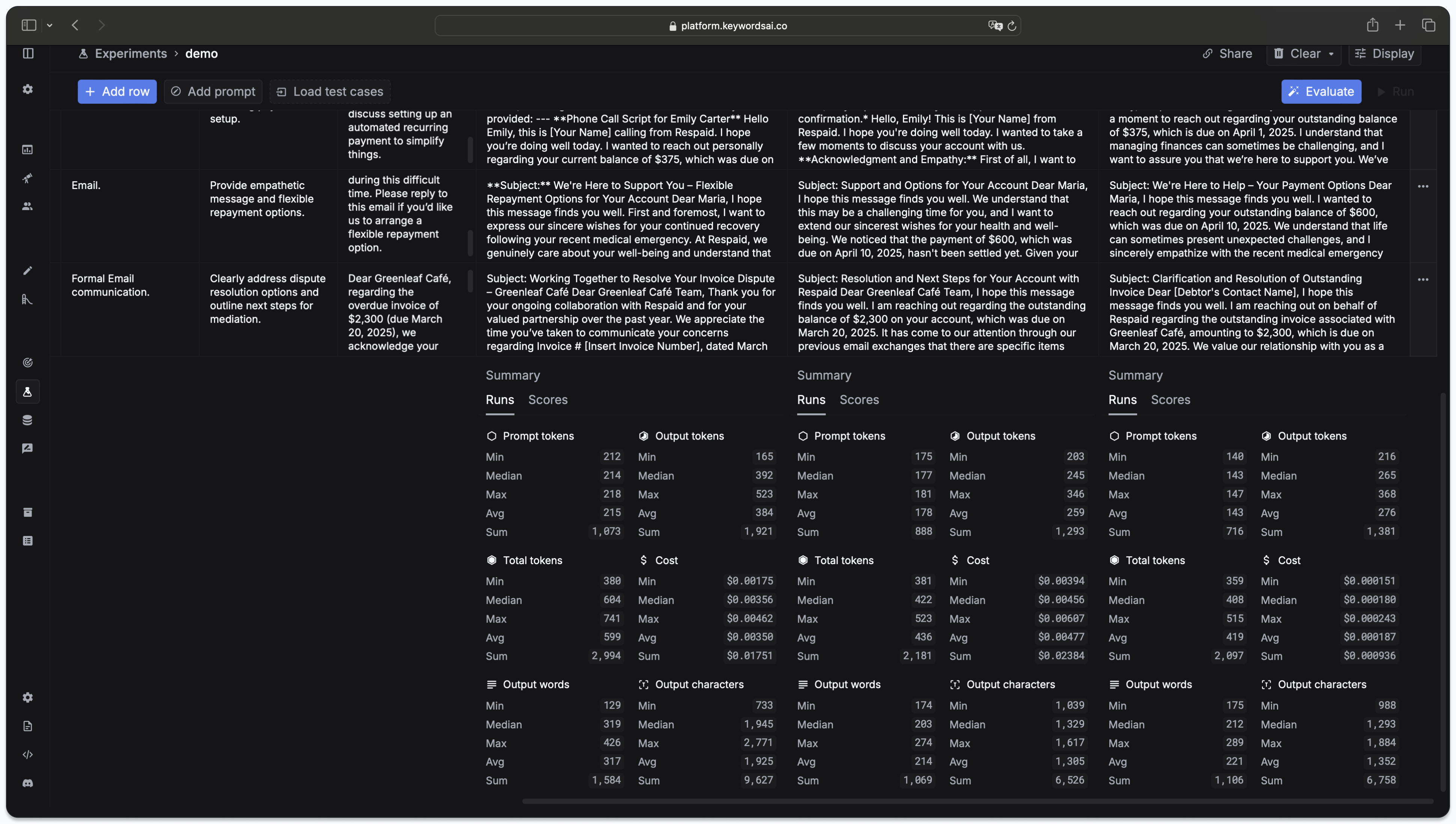
After the experiment is finished, you can compare the results by scrolling down to the bottom of the page. You can easily find which prompt version has the best performance.
### 4. Compare the results
After the experiment is finished, you can compare the results by scrolling down to the bottom of the page. You can easily find which prompt version has the best performance.
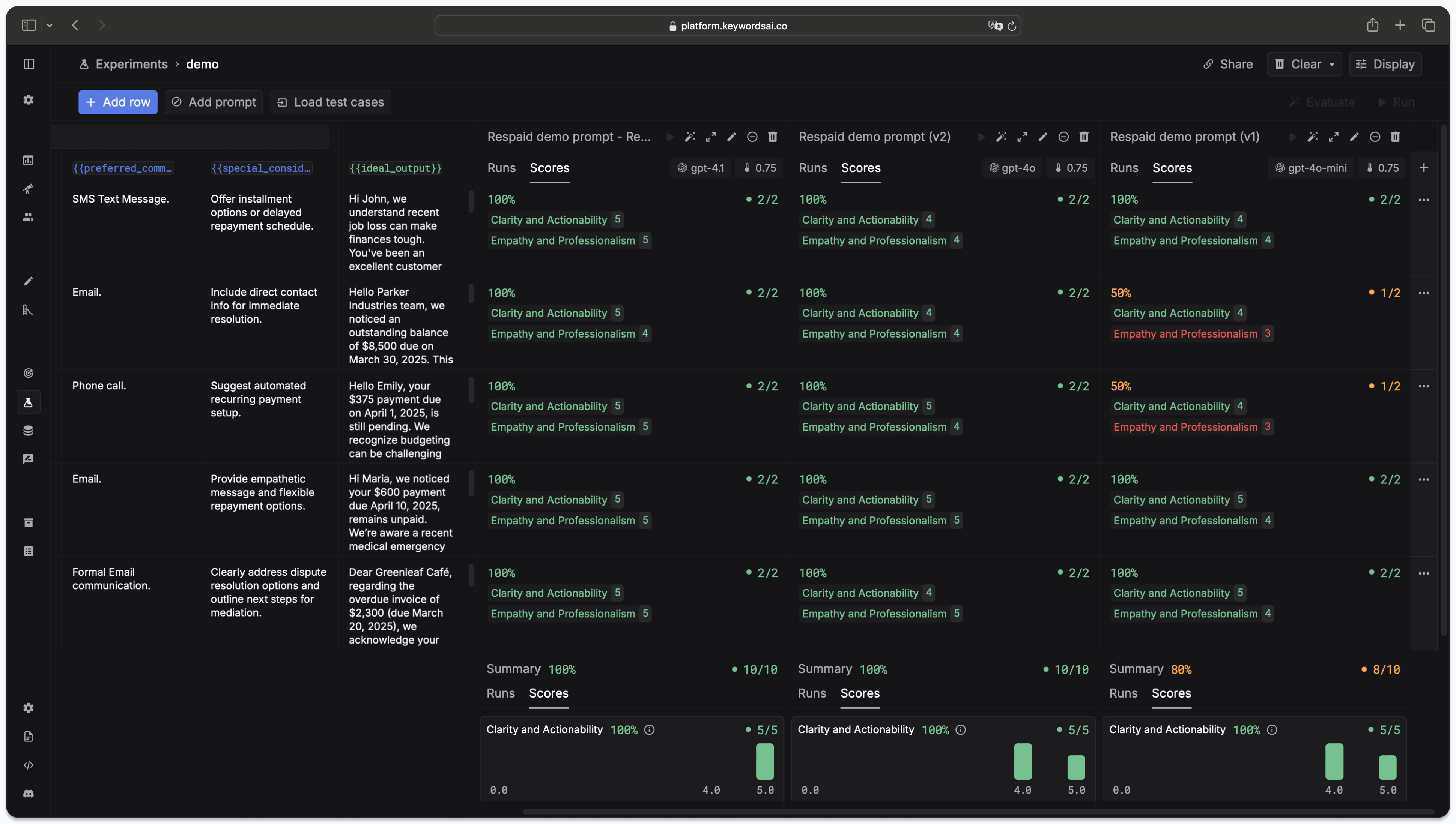
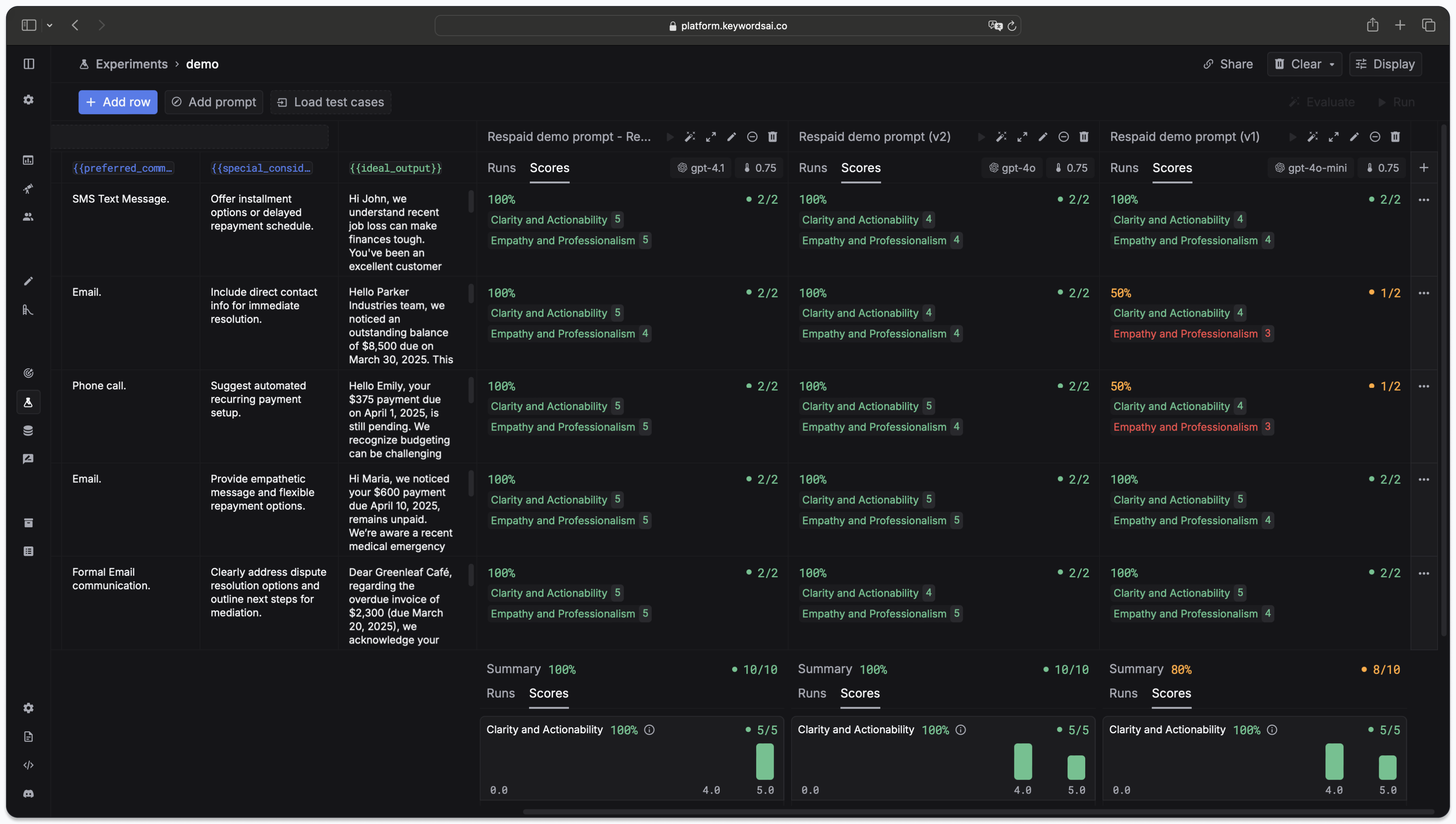
 ### 5. Use LLM to evaluate the results
You can also use LLM to evaluate the results. Check out [LLM-as-judge](/documentation/products/evaluation/llm-evals/llm-evaluator) to learn how to create LLM evaluators.
After you have created your LLM evaluators, you can run them to evaluate the results.
### 5. Use LLM to evaluate the results
You can also use LLM to evaluate the results. Check out [LLM-as-judge](/documentation/products/evaluation/llm-evals/llm-evaluator) to learn how to create LLM evaluators.
After you have created your LLM evaluators, you can run them to evaluate the results.
 {/*
## What's next?
After you have evaluated the prompts, you can save the results to the [Logs page](/features/generation/logs) for further analysis. If you're satisfied with the results, you can deploy the prompt to your application. Check out the [Prompts page](/features/prompt/prompt-management) for more information. */}
{/*
## What's next?
After you have evaluated the prompts, you can save the results to the [Logs page](/features/generation/logs) for further analysis. If you're satisfied with the results, you can deploy the prompt to your application. Check out the [Prompts page](/features/prompt/prompt-management) for more information. */}