> ## Documentation Index
> Fetch the complete documentation index at: https://docs.keywordsai.co/llms.txt
> Use this file to discover all available pages before exploring further.
# Overview
> A guide to manage test cases for running experiments and run prompt experiments against testsets.
## What is Testsets & Experiments?
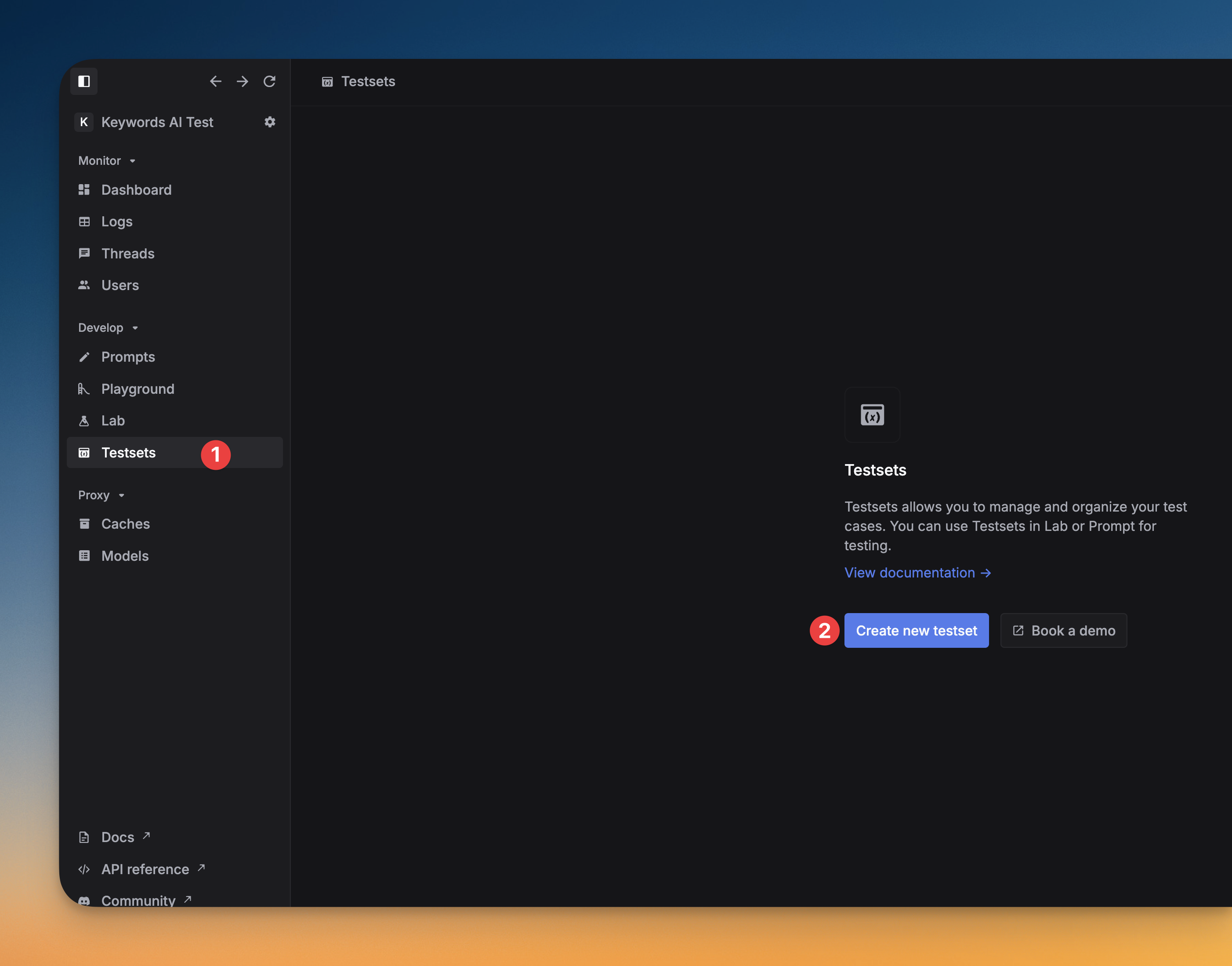
**Testsets** allows you to manage and organize your test cases. You can use Testsets in experiments for testing.
**Experiments** are spreadsheets-like notebooks to run and evaluate prompts with test cases. You can use Experiments to test and improve your LLM outputs.
## Why use Testsets & Experiments?
* **Maintain quality:** Catch performance drops when modifying prompts
* **Find optimal models:** Compare different models side-by-side on the same inputs
* **Accelerate development:** Get immediate feedback on prompt changes without waiting for production data
* **Make data-driven decisions:** Base your prompt engineering on evidence rather than intuition
## Quickstart
### Create a testset
Create a CSV file with columns matching your prompt variables. Each column header should be a variable name (without the `{{}}` syntax). You can include an additional column for expected outputs.
For example, if your prompt uses variables like `{{first_name}}`, `{{description}}`, `{{job_title}}`, and `{{company_name}}`, your CSV should have columns named `first_name`, `description`, `job_title`, and `company_name`.
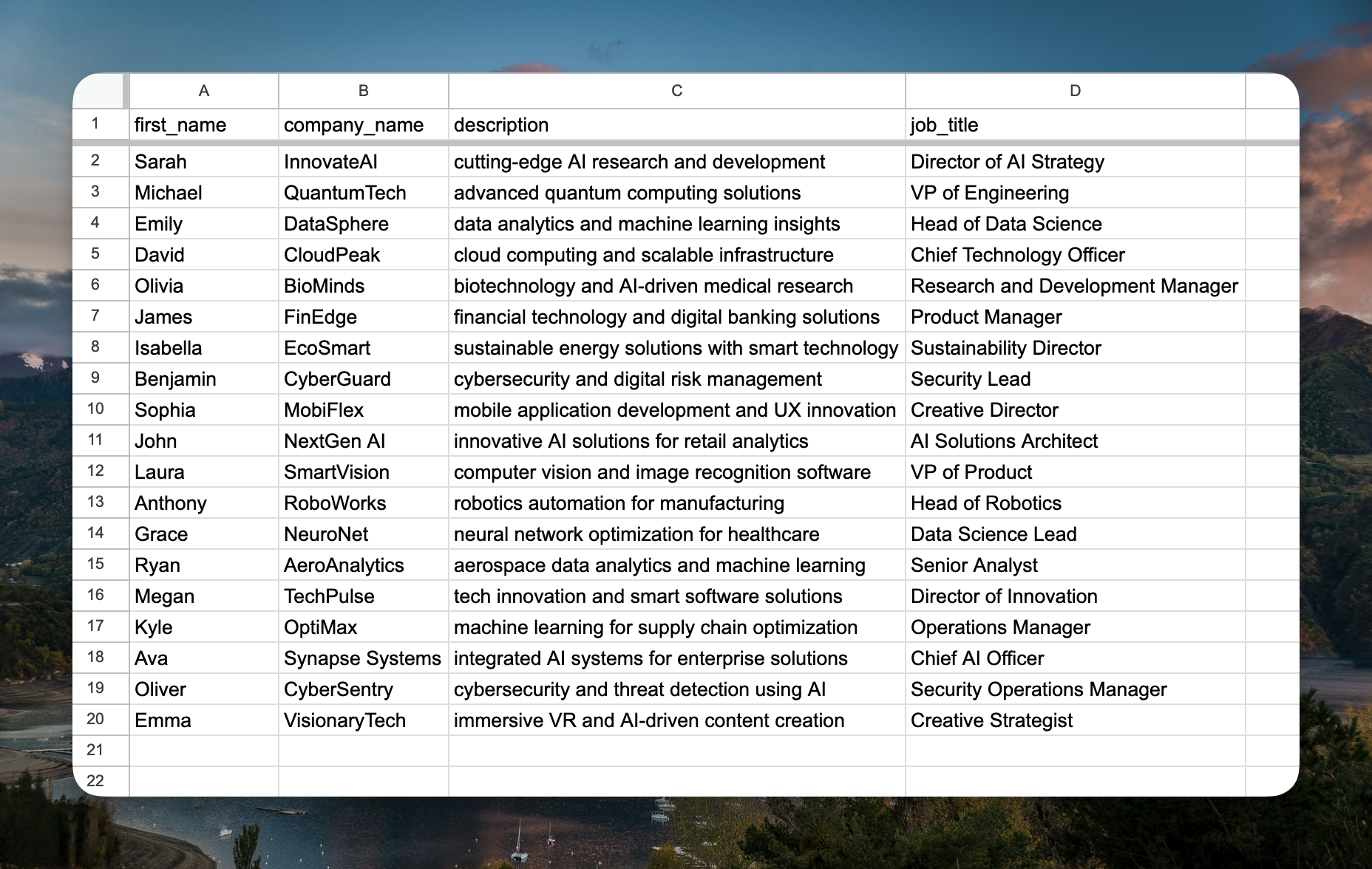 ou can import the CSV file and edit it like a Google Sheet. You can add, delete, or edit the test cases in the testset.
 ### Import ideal outputs
If you want to include ideal outputs in the testset, you can add a column for the expected output. Name the column `ideal_output`, then the testset will show the ideal output for each test case.
### Run an experiment
Go to Experiments and create a new experiment.
### Import ideal outputs
If you want to include ideal outputs in the testset, you can add a column for the expected output. Name the column `ideal_output`, then the testset will show the ideal output for each test case.
### Run an experiment
Go to Experiments and create a new experiment.
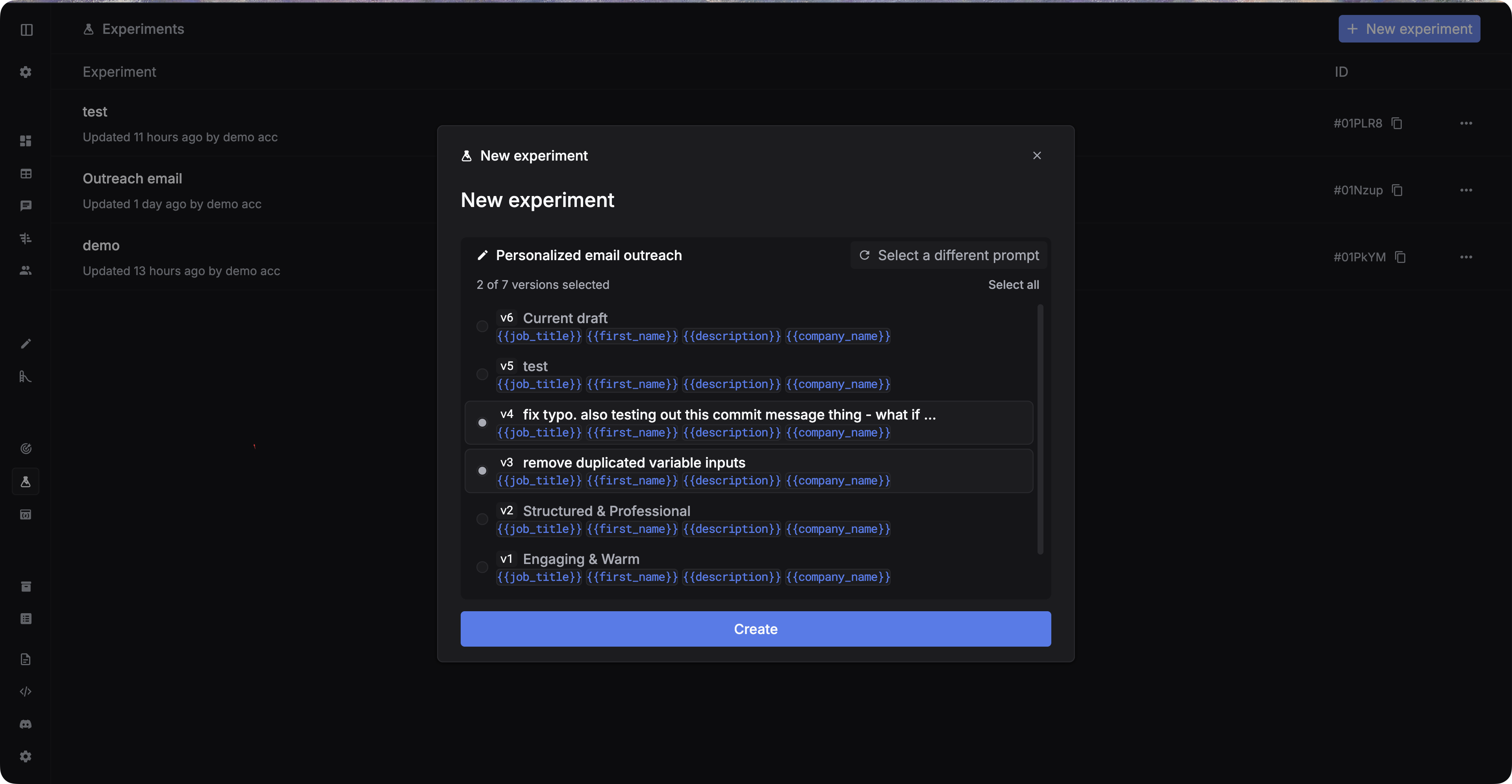
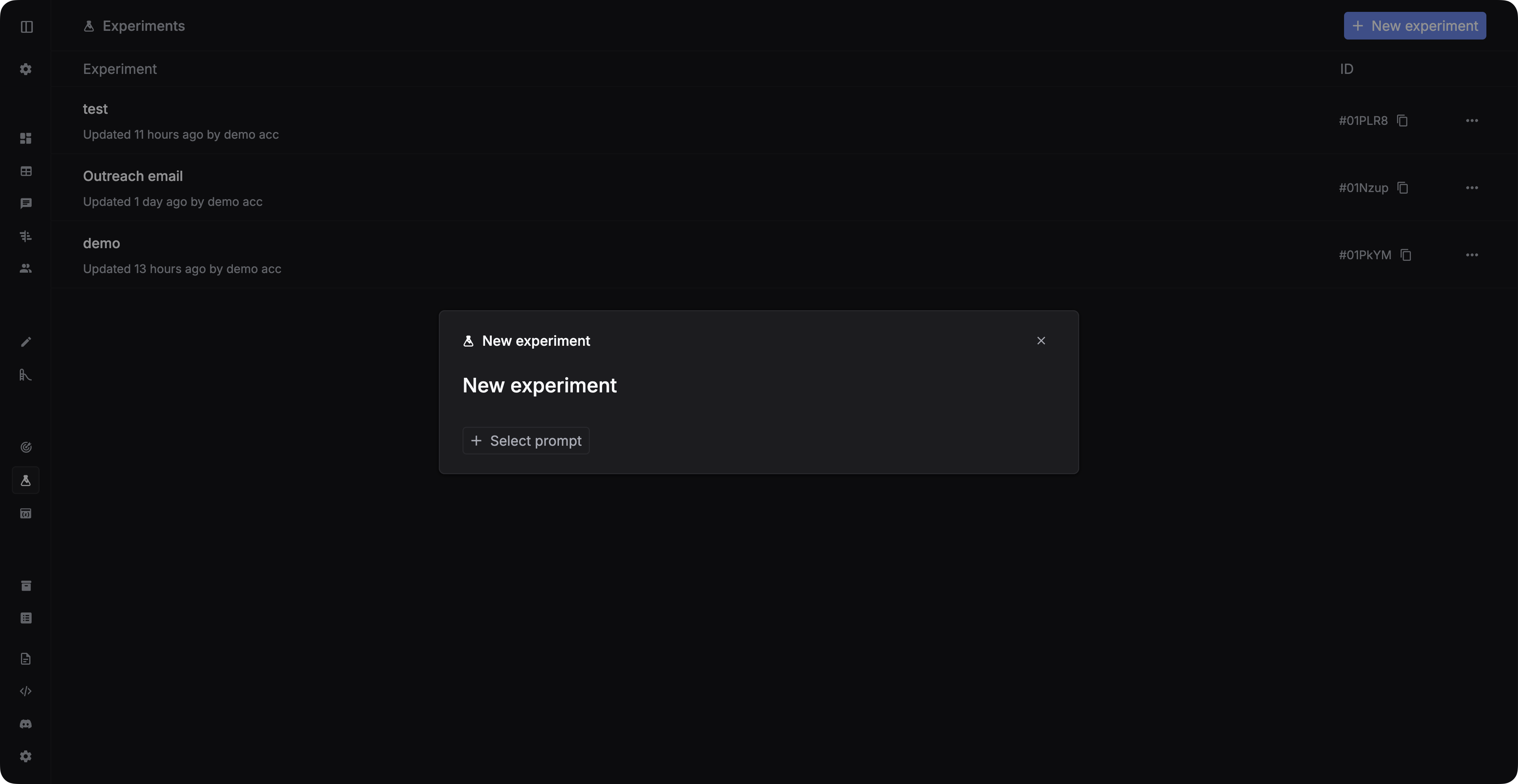 Then you should select the prompt and the versions you want to test.
 Then you should add test cases for your experiment. You can either add test cases manually or import a testset from Testsets.
You can also add test cases manually in Experiments.
Then you should add test cases for your experiment. You can either add test cases manually or import a testset from Testsets.
You can also add test cases manually in Experiments.
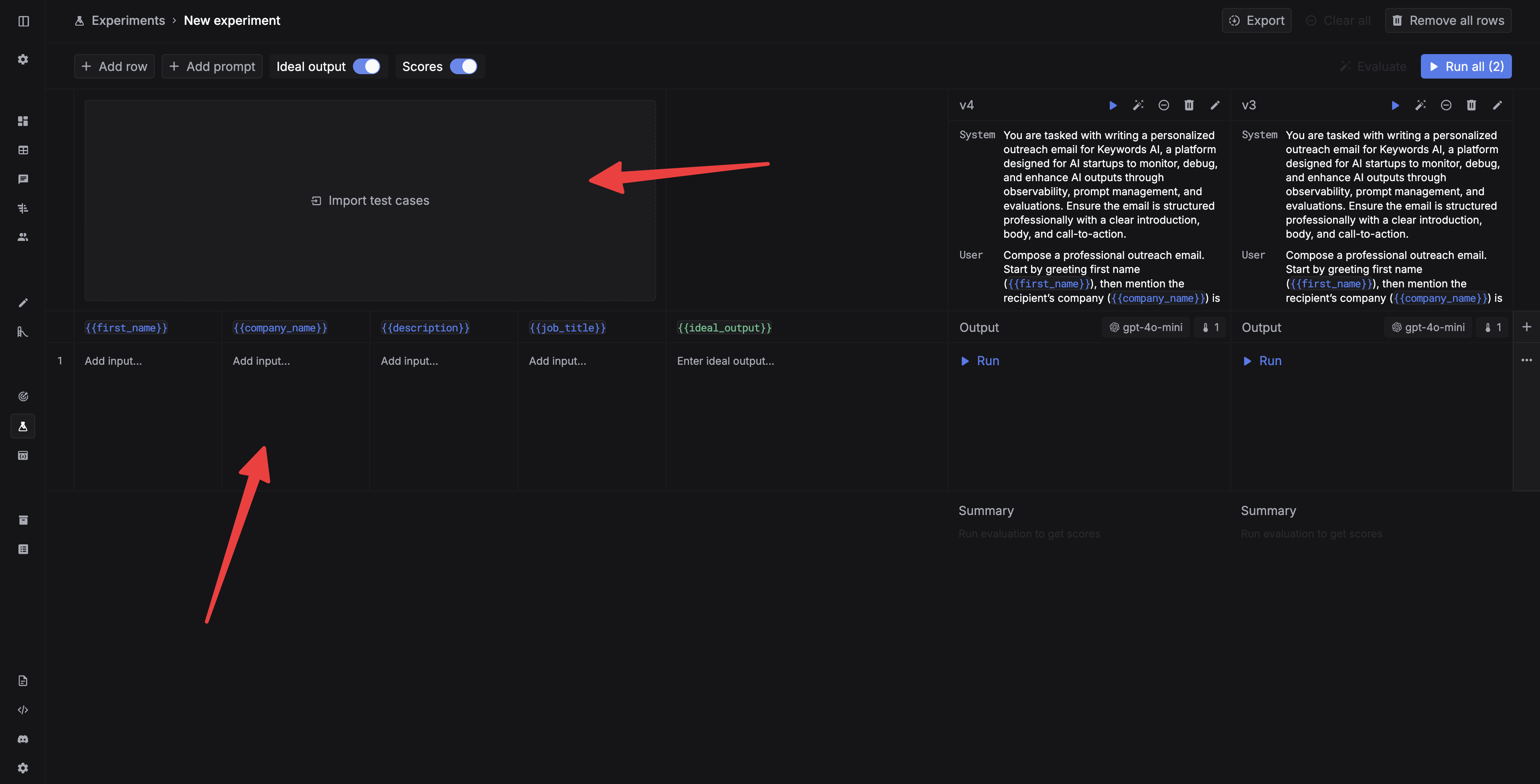 Now you can run the experiment. You can run a single cell by clicking the `Run` button in the each cell, or run all the cells by clicking the `Run all` button.
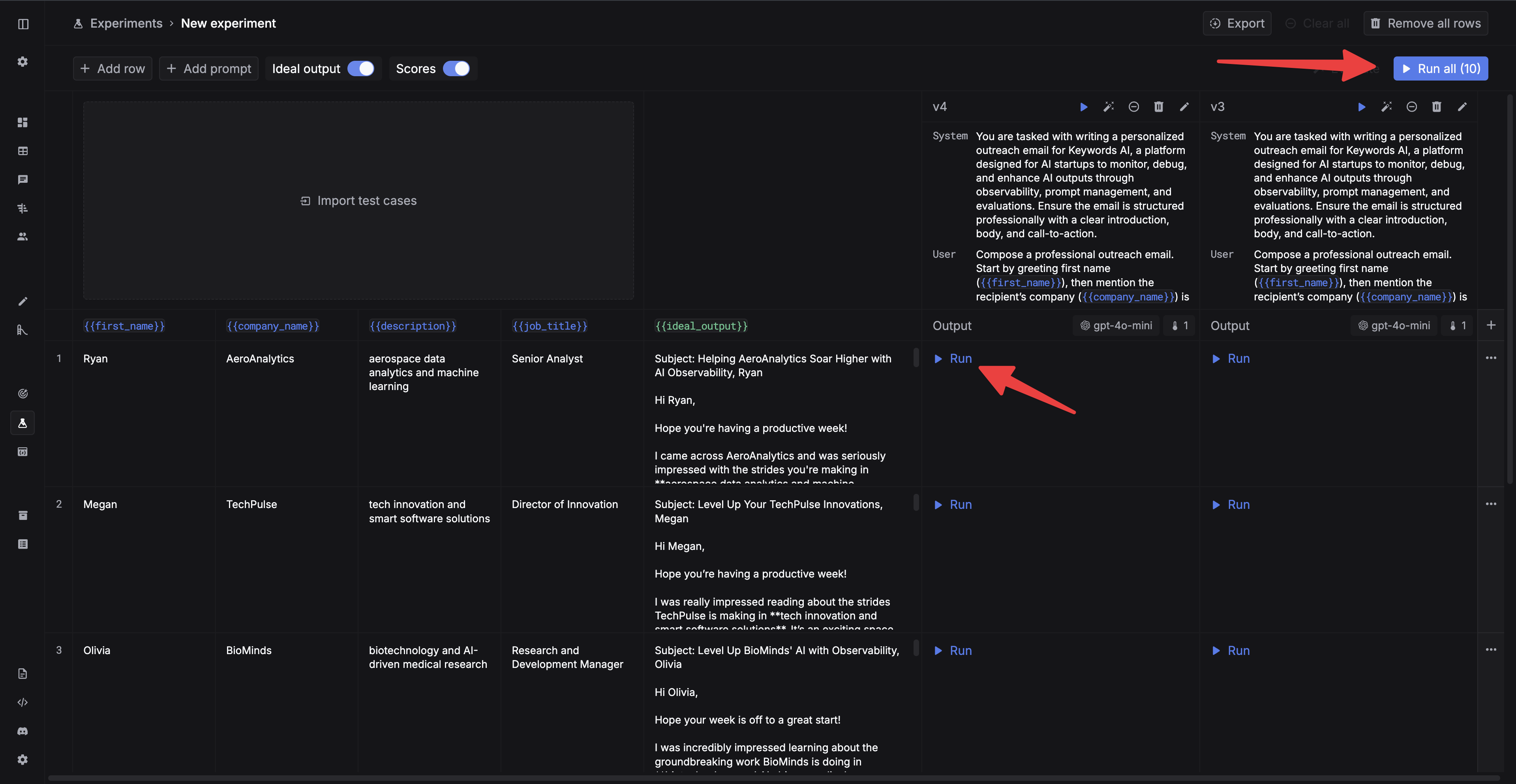 After the experiment is finished, you can run evaluations for the outputs. You can check out [Run evaluations in the UI](/documentation/products/evaluation/llm-evals/run-evaluator-ui) to learn how to run evaluations.