> ## Documentation Index
> Fetch the complete documentation index at: https://docs.keywordsai.co/llms.txt
> Use this file to discover all available pages before exploring further.
# Set up an LLM evaluator
> In this guide, we will show you how to run an LLM evaluator in the UI.
LLM evaluators allows you to evaluate your prompts with the help of LLM. You can evaluate your prompts based on various metrics and see the results in Logs.
This is a beta feature. The [API documentation](/api-endpoints/evaluate/evaluators/create) is currently the source of truth for evaluator configuration and behavior.
## Prerequisites
You have already created prompts in the platform. Learn how to create a prompt [here](/documentation/products/prompt_management/creating_prompts/create_prompt).
## Steps
Here's a sample evaluator configuration. We'll describe each section in detail below.
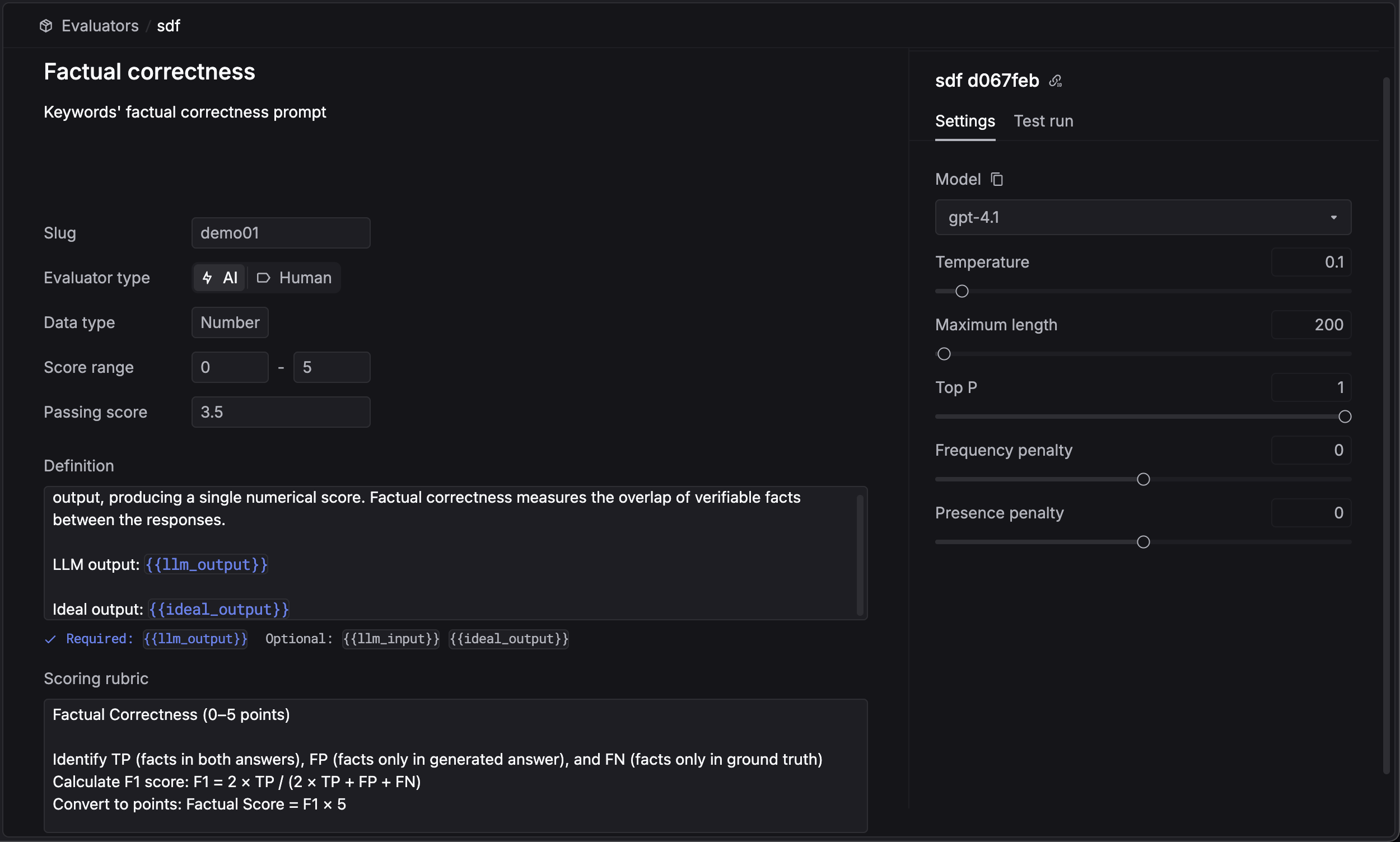 You need to define a `Slug` for each evaluator. This slug will be used to apply the evaluator in your LLM calls, and will be used to identify the evaluator in the Logs.
The `Slug` is a unique identifier for the evaluator. We suggest you don't change it once you have created the evaluator.
Then, you need to choose a model for the evaluator. The evaluator will use this model to evaluate the LLM outputs. Currently, we only support `gpt-4o` and `gpt-4o-mini` from OpenAI and Azure OpenAI.
### Definition (Prompt)
The definition is the core instruction for the LLM evaluator. It explains the task and expected output.
You can use the following variables in your definition:
* `{{input}}`: The input prompt sent to the LLM.
* `{{output}}`: The response generated by the LLM.
* `{{metadata}}`: Custom metadata associated with the request.
* `{{metrics}}`: System-captured metrics (e.g., latency, tokens).
**Ideal Output**: `ideal_output` is not a standalone option. If you need to compare the LLM response against a reference answer, you should include the reference in your `metadata` or `input` and refer to it in your prompt (e.g., `{{metadata.ideal_output}}`).
### Scoring Rubric
Finally, define the `Scoring rubric`. This guides the LLM on how to assign scores based on the definition.
**Passing score** is the minimum score that the LLM output needs to achieve to be considered as a passing response.
You need to define a `Slug` for each evaluator. This slug will be used to apply the evaluator in your LLM calls, and will be used to identify the evaluator in the Logs.
The `Slug` is a unique identifier for the evaluator. We suggest you don't change it once you have created the evaluator.
Then, you need to choose a model for the evaluator. The evaluator will use this model to evaluate the LLM outputs. Currently, we only support `gpt-4o` and `gpt-4o-mini` from OpenAI and Azure OpenAI.
### Definition (Prompt)
The definition is the core instruction for the LLM evaluator. It explains the task and expected output.
You can use the following variables in your definition:
* `{{input}}`: The input prompt sent to the LLM.
* `{{output}}`: The response generated by the LLM.
* `{{metadata}}`: Custom metadata associated with the request.
* `{{metrics}}`: System-captured metrics (e.g., latency, tokens).
**Ideal Output**: `ideal_output` is not a standalone option. If you need to compare the LLM response against a reference answer, you should include the reference in your `metadata` or `input` and refer to it in your prompt (e.g., `{{metadata.ideal_output}}`).
### Scoring Rubric
Finally, define the `Scoring rubric`. This guides the LLM on how to assign scores based on the definition.
**Passing score** is the minimum score that the LLM output needs to achieve to be considered as a passing response.
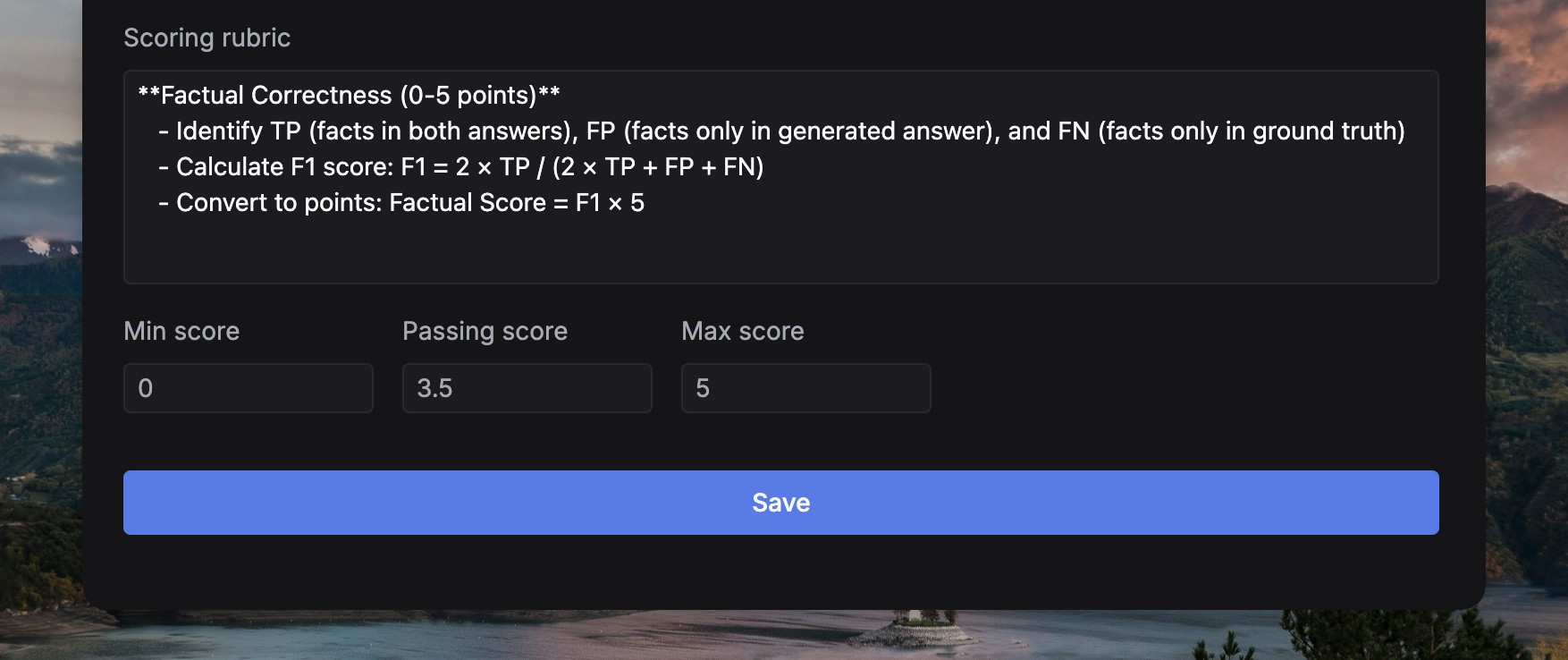 You're good to go now! Click on the **Save** button to create the evaluator.
When an evaluator runs, it receives a unified input object containing all necessary context. This ensures consistency across different evaluator types (LLM, Human, Code).
The unified input object includes:
* `input`: The request content.
* `output`: The response content.
* `metadata`: Any custom context you provided (useful for passing `ideal_output`).
* `metrics`: Performance data like latency and cost.
For more details on the data structure, please refer to the [API Reference](/api-endpoints/evaluate/evaluators/run).
You're good to go now! Click on the **Save** button to create the evaluator.
When an evaluator runs, it receives a unified input object containing all necessary context. This ensures consistency across different evaluator types (LLM, Human, Code).
The unified input object includes:
* `input`: The request content.
* `output`: The response content.
* `metadata`: Any custom context you provided (useful for passing `ideal_output`).
* `metrics`: Performance data like latency and cost.
For more details on the data structure, please refer to the [API Reference](/api-endpoints/evaluate/evaluators/run).