> ## Documentation Index
> Fetch the complete documentation index at: https://docs.keywordsai.co/llms.txt
> Use this file to discover all available pages before exploring further.

# Create Experiments in the UI

> A guided walkthrough to create experiments in the platform UI using Prompt, LLM generation (chat completion), or Custom tasks.

## What is Experiments?

Experiments lets you run repeatable evaluations over a dataset and inspect outputs, evaluator scores, and run status in the UI.

<Note>
  This page focuses on the **UI flow**. If you prefer code, see [Run Experiments via API](/documentation/products/experiments_v2/api-tutorial).
</Note>

## Resources

* [Create datasets in the UI](/documentation/products/dataset/via_ui)
* [Run Experiments via API](/documentation/products/experiments_v2/api-tutorial)
* [Evaluators (UI)](/documentation/products/evaluation/llm-evals/run-evaluator-ui)

## Steps to use

<Tabs>
  <Tab title="Prompt">
    <Steps>
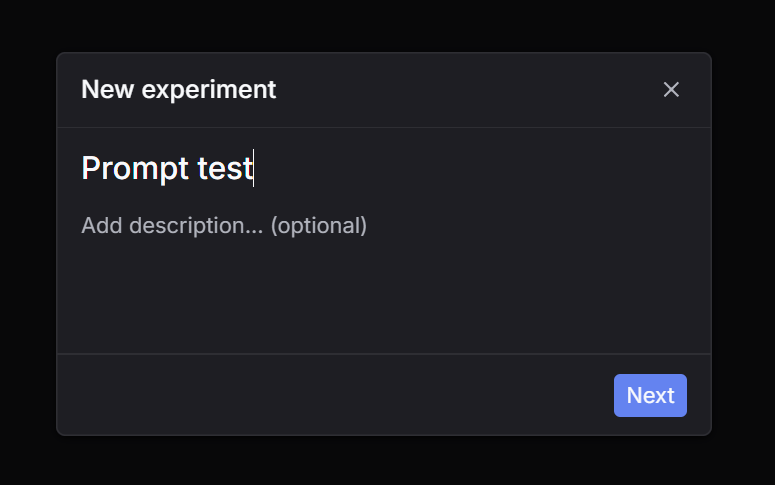
      <Step title="Step 1: Click New experiment">
        Go to **Experiments** and click **New experiment**.
        <Frame className="rounded-md">
          <img src="https://keywordsai-static.s3.us-east-1.amazonaws.com/docs/documentation/products/experiments_v2/create_prompt.png" alt="Experiments page with New experiment button" />
        </Frame>
      </Step>

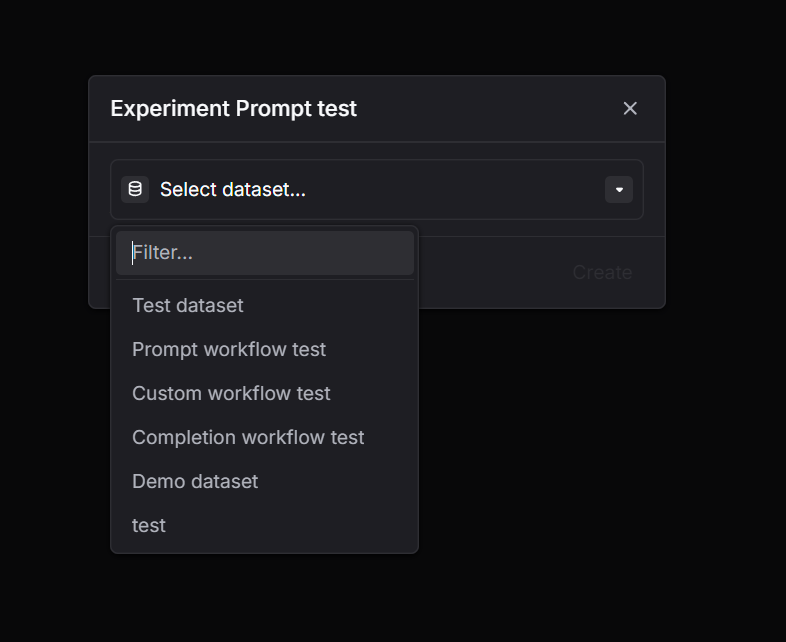
      <Step title="Step 2: Select a dataset">
        Choose the dataset you want to run on.
        <Frame className="rounded-md">
          <img src="https://keywordsai-static.s3.us-east-1.amazonaws.com/docs/documentation/products/experiments_v2/select_dataset.png" alt="Dataset selector in the New experiment flow" />
        </Frame>
      </Step>

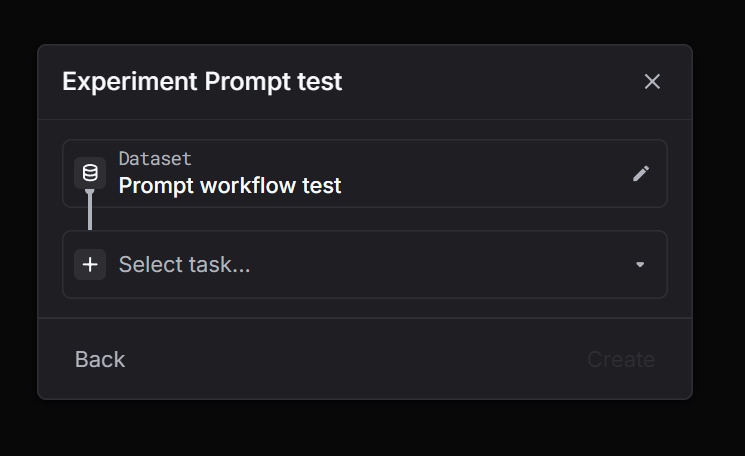
      <Step title="Step 3: Select task = Prompt">
        Pick **Prompt** as the task type.

        <Frame className="rounded-md">
          <img src="https://keywordsai-static.s3.us-east-1.amazonaws.com/docs/documentation/products/experiments_v2/select_task.png" alt="Task selector" />
        </Frame>
      </Step>

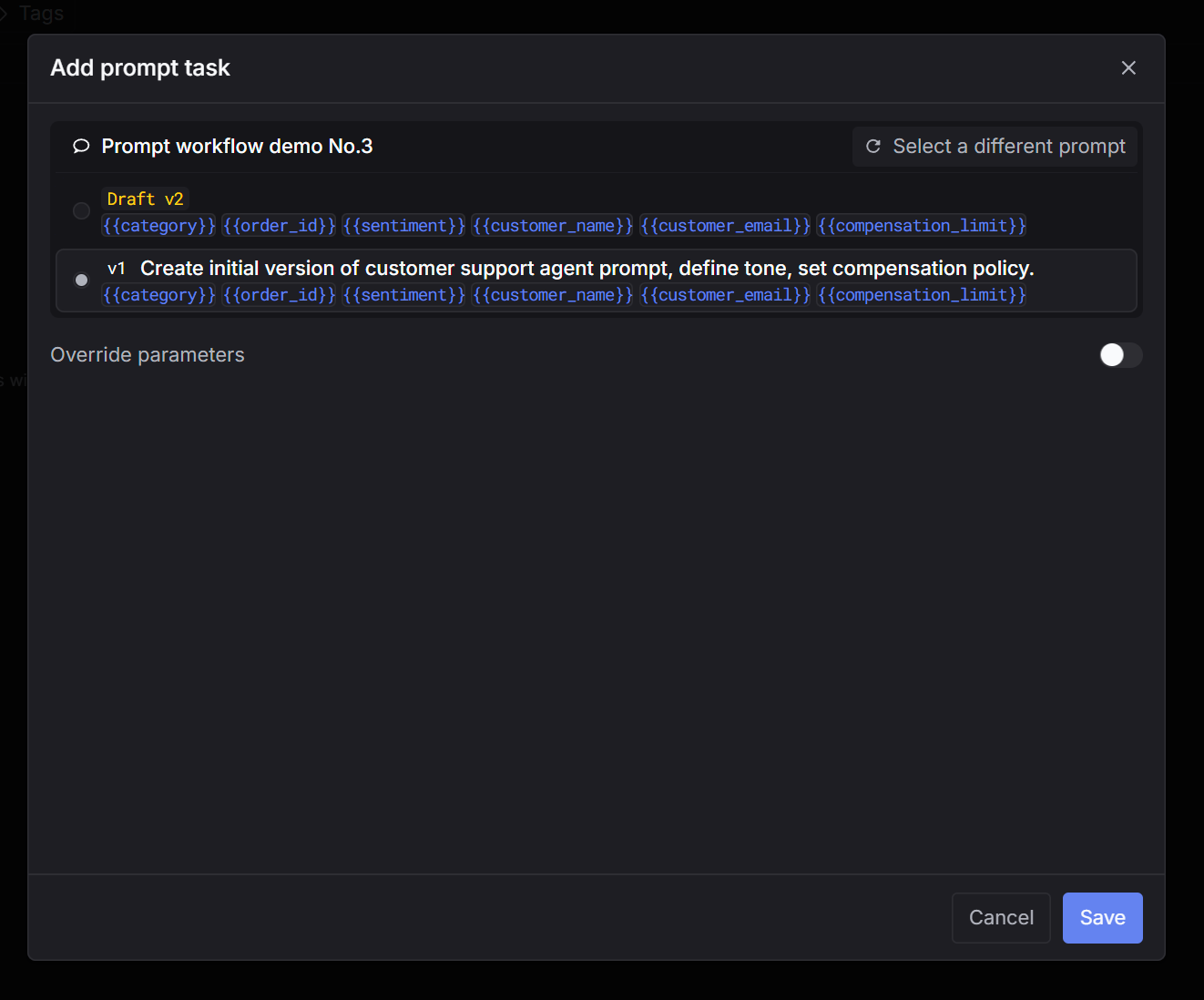
      <Step title="Step 4: Select a prompt">
        Choose the prompt you want to test (and the version if applicable).
        <Frame className="rounded-md">
          <img src="https://keywordsai-static.s3.us-east-1.amazonaws.com/docs/documentation/products/experiments_v2/select_prompt.png" alt="Prompt selector" />
        </Frame>
      </Step>

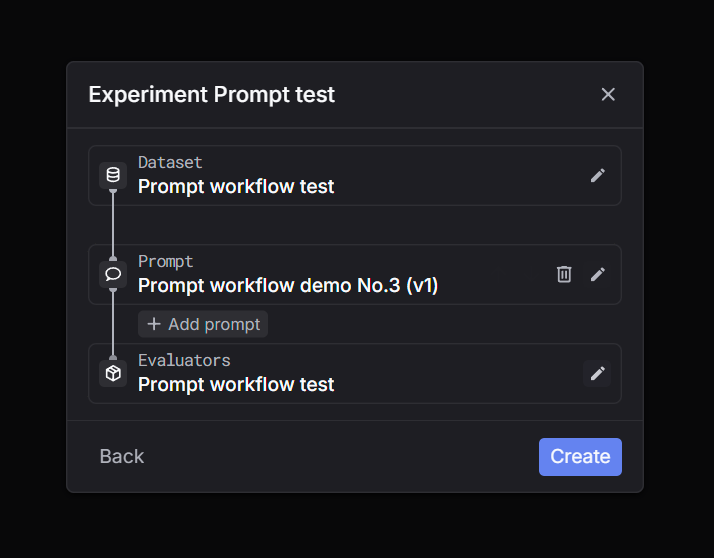
      <Step title="Step 5: Select evaluators">
        Select one or more evaluators to score outputs.
        <Frame className="rounded-md">
          <img src="https://keywordsai-static.s3.us-east-1.amazonaws.com/docs/documentation/products/experiments_v2/select_evaluators.png" alt="Evaluator selection step" />
        </Frame>
      </Step>

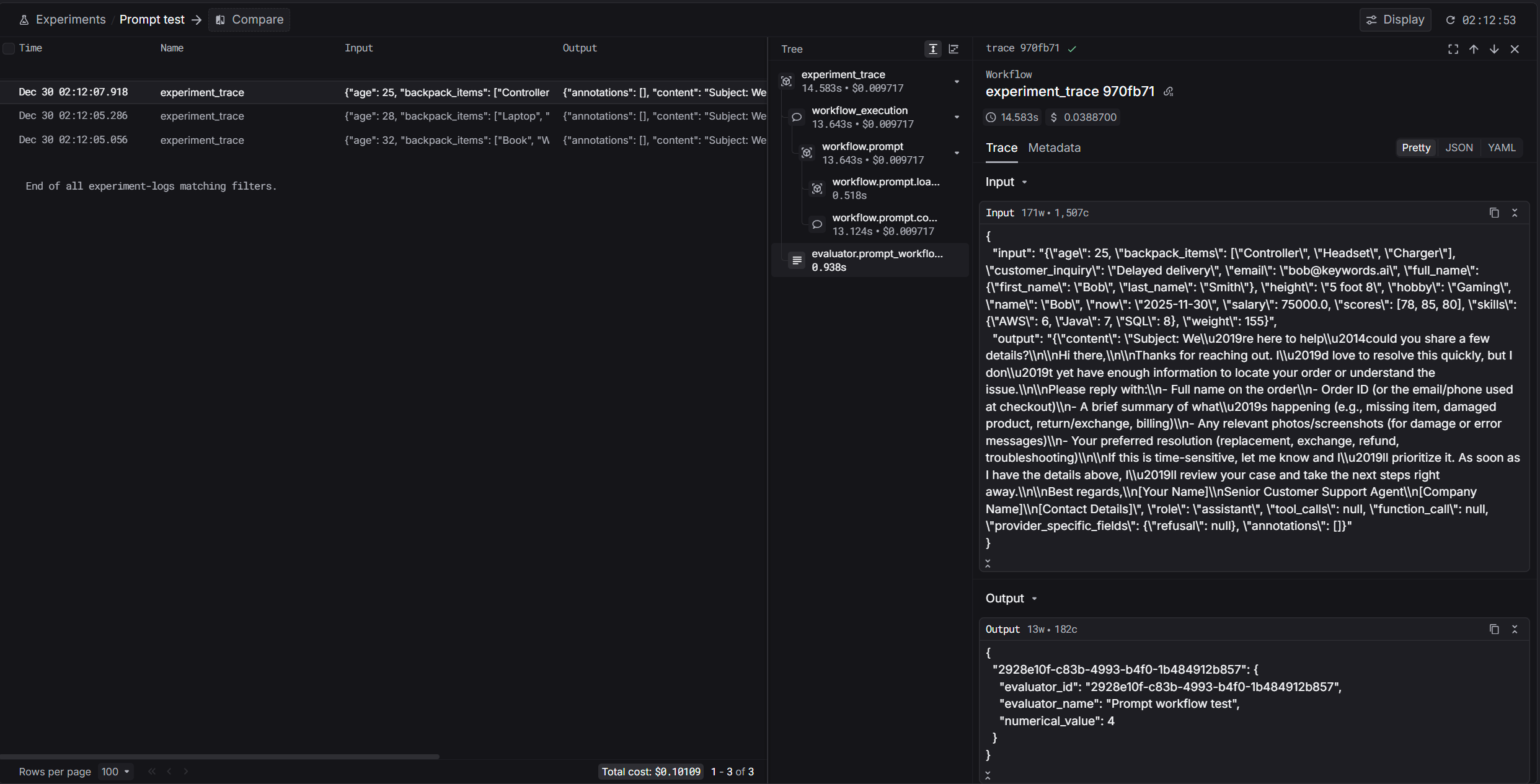
      <Step title="Step 6: Create and wait for the run to finish">
        Click **Create**. The run will process in the background. Wait until the status is complete, then inspect outputs and evaluator scores.

        <Frame className="rounded-md">
          <img src="https://keywordsai-static.s3.us-east-1.amazonaws.com/docs/documentation/products/experiments_v2/see_experiment_output.png" alt="Experiment outputs and evaluator results" />
        </Frame>

        <Frame className="rounded-md">
          <img src="https://keywordsai-static.s3.us-east-1.amazonaws.com/docs/documentation/products/experiments_v2/see_single_log.png" alt="Create experiment" />
        </Frame>
      </Step>
    </Steps>
  </Tab>

  <Tab title="LLM generation (chat completion)">
    <Steps>
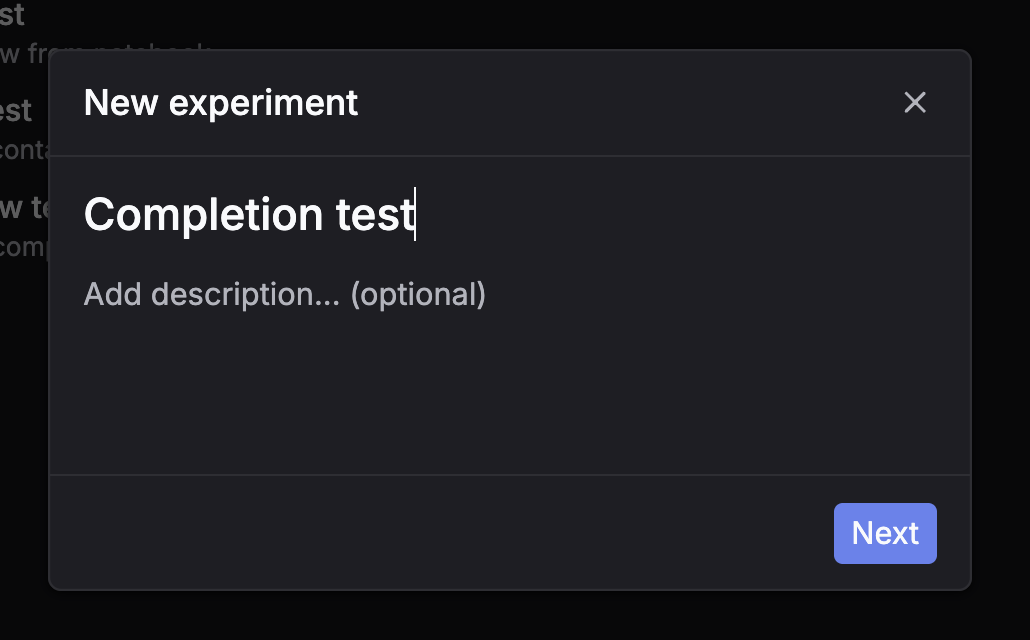
      <Step title="Step 1: Click New experiment">
        Go to **Experiments** and click **New experiment**.
        <Frame className="rounded-md">
          <img src="https://keywordsai-static.s3.us-east-1.amazonaws.com/docs/documentation/products/experiments_v2/create-completion.png" alt="Experiments page with New experiment button" />
        </Frame>
      </Step>

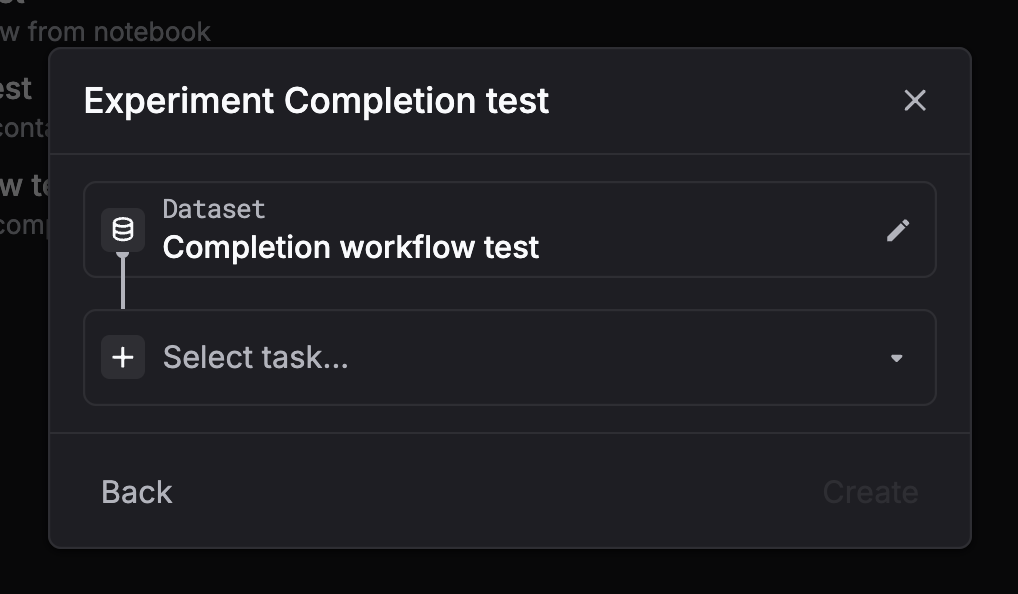
      <Step title="Step 2: Select a dataset">
        Choose the dataset you want to run on.
        <Frame className="rounded-md">
          <img src="https://keywordsai-static.s3.us-east-1.amazonaws.com/docs/documentation/products/experiments_v2/dataset-completion.png" alt="Dataset selector in the New experiment flow" />
        </Frame>
      </Step>

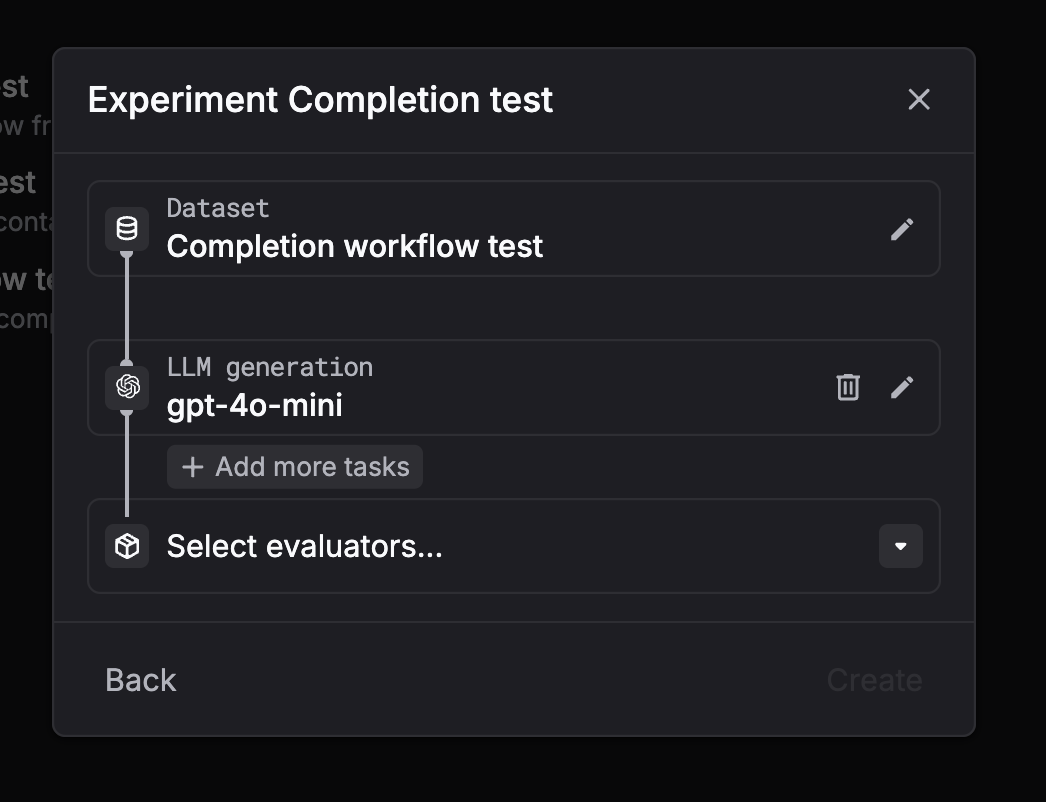
      <Step title="Step 3: Select task = LLM generation (chat completion)">
        Pick **LLM generation (chat completion)** as the task type.
        <Frame className="rounded-md">
          <img src="https://keywordsai-static.s3.us-east-1.amazonaws.com/docs/documentation/products/experiments_v2/set_model_2.png" alt="Task selector" />
        </Frame>
      </Step>

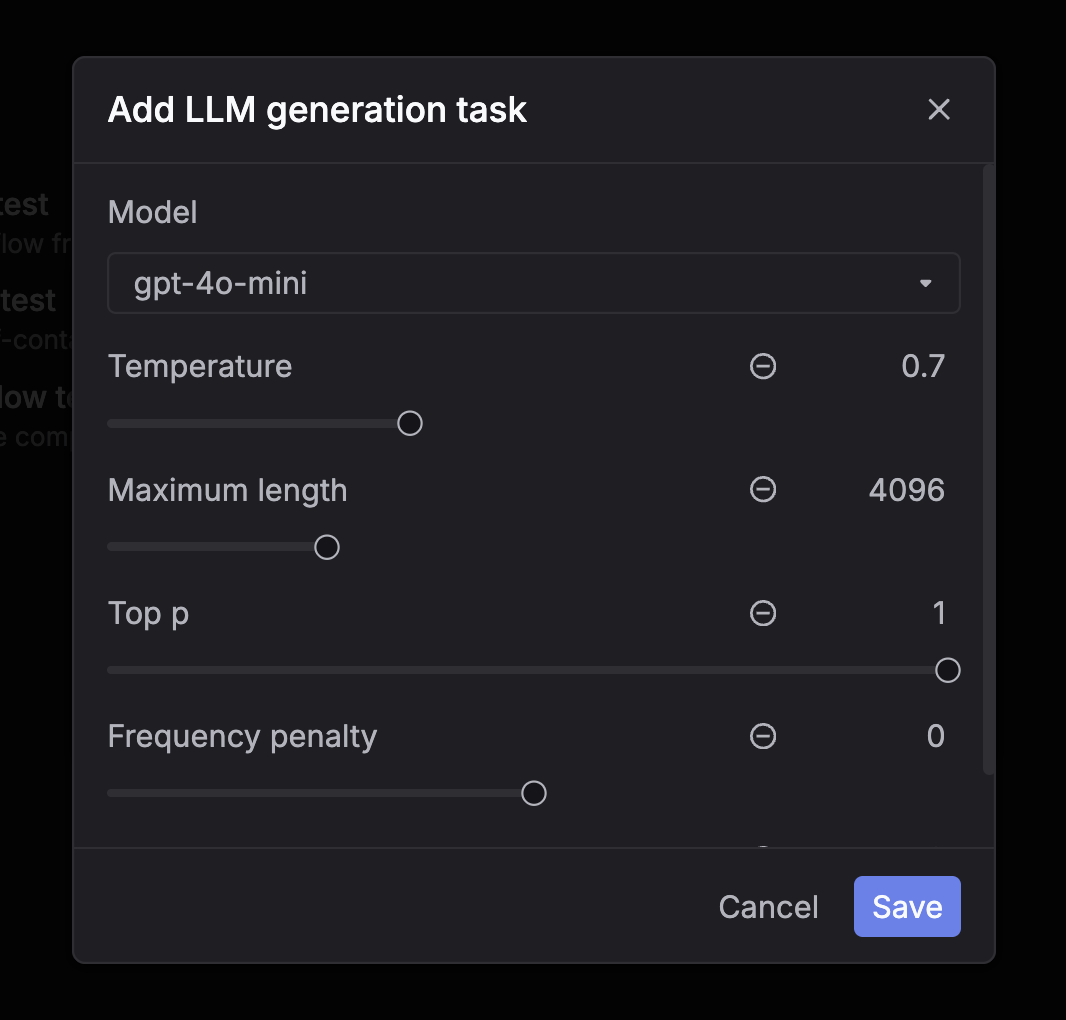
      <Step title="Step 4: Configure the model and parameters">
        Choose the model and set parameters like temperature and max tokens.
        <Frame className="rounded-md">
          <img src="https://keywordsai-static.s3.us-east-1.amazonaws.com/docs/documentation/products/experiments_v2/set_model.png" alt="Model configuration (model and parameters)" />
        </Frame>
      </Step>

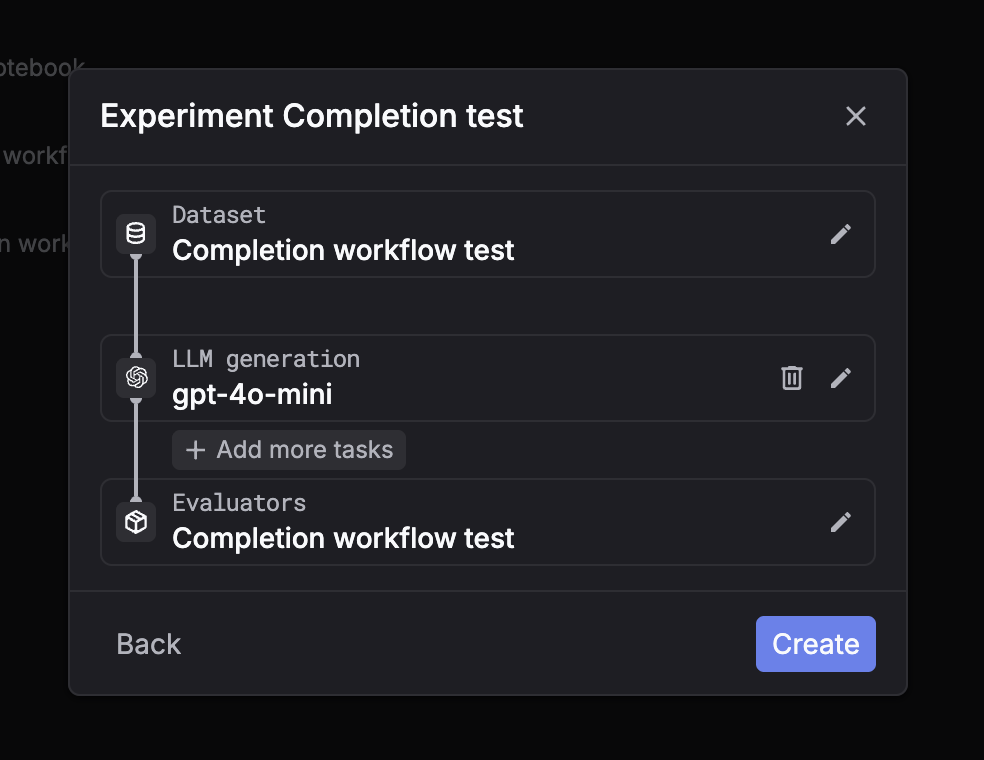
      <Step title="Step 5: Select evaluators">
        Select one or more evaluators to score outputs.
        <Frame className="rounded-md">
          <img src="https://keywordsai-static.s3.us-east-1.amazonaws.com/docs/documentation/products/experiments_v2/select-evaluator-completion.png" alt="Evaluator selection step" />
        </Frame>
      </Step>

      <Step title="Step 6: Create and wait for the run to finish">
        Click **Create**. The run will process in the background. Wait until the status is complete, then inspect outputs and evaluator scores.

        <Frame className="rounded-md">
          <img src="https://keywordsai-static.s3.us-east-1.amazonaws.com/docs/documentation/products/experiments_v2/see_experiment_output.png" alt="Experiment outputs and evaluator results" />
        </Frame>
      </Step>
    </Steps>
  </Tab>

  <Tab title="Custom">
    <Steps>
      <Step title="Step 1: Click New experiment">
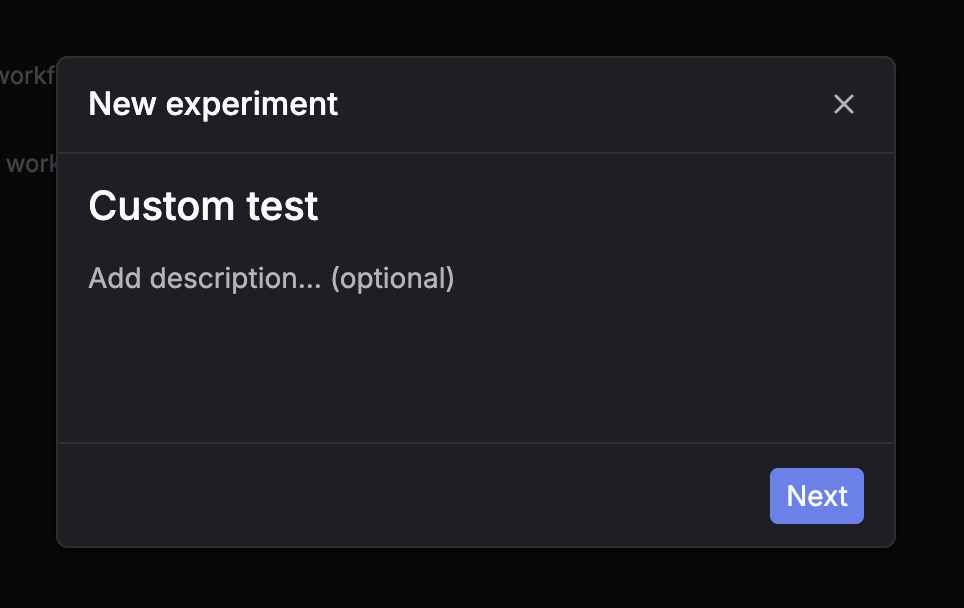
        Go to **Experiments** and click **New experiment**.
        <Frame className="rounded-md">
          <img src="https://keywordsai-static.s3.us-east-1.amazonaws.com/docs/documentation/products/experiments_v2/create-custom.png" alt="Experiments page with New experiment button" />
        </Frame>
      </Step>

      <Step title="Step 2: Select a dataset">
        Choose the dataset you want to run on.

        <Frame className="rounded-md">
          <img src="https://keywordsai-static.s3.us-east-1.amazonaws.com/docs/documentation/products/experiments_v2/select-dataset-custom.png" alt="Dataset selector in the New experiment flow" />
        </Frame>
      </Step>

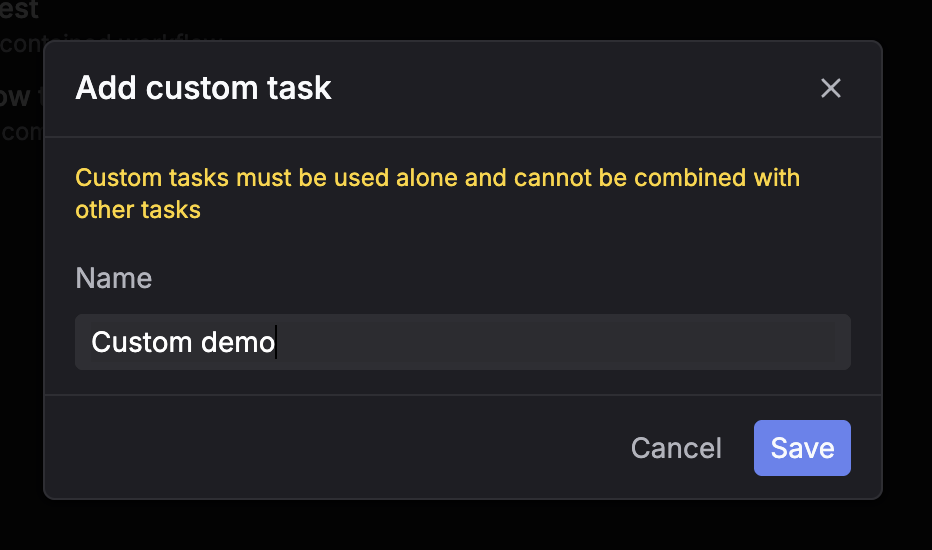
      <Step title="Step 3: Select task = Custom">
        Pick **Custom** as the task type.

        <Frame className="rounded-md">
          <img src="https://keywordsai-static.s3.us-east-1.amazonaws.com/docs/documentation/products/experiments_v2/add-custom-task.png" alt="Task selector" />
        </Frame>
      </Step>

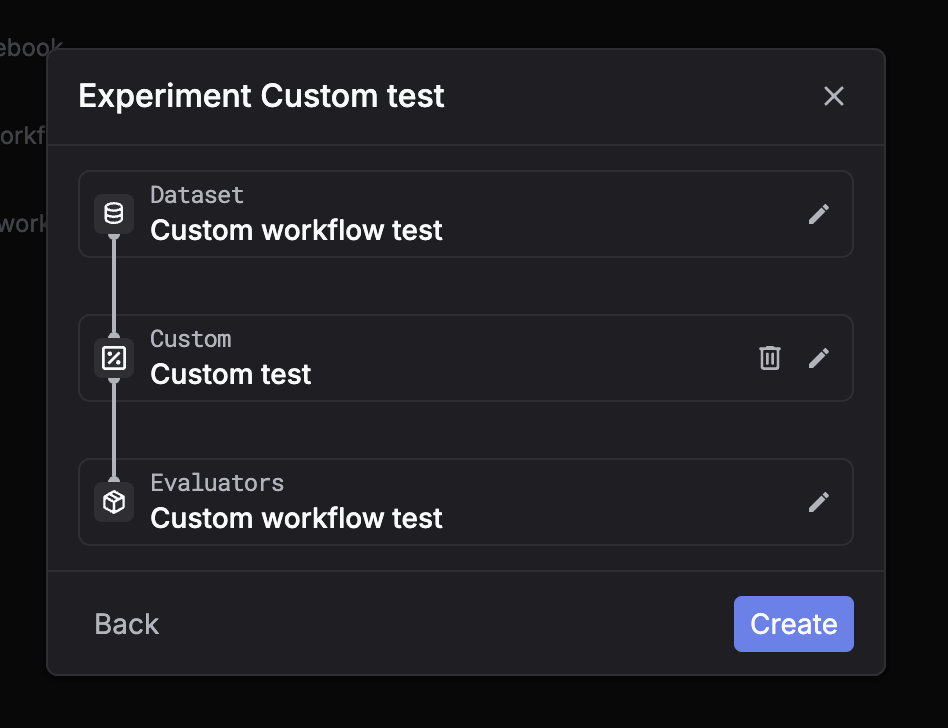
      <Step title="Step 4: Select evaluators">
        Select one or more evaluators to score outputs.
        <Frame className="rounded-md">
          <img src="https://keywordsai-static.s3.us-east-1.amazonaws.com/docs/documentation/products/experiments_v2/select-evaluators-custom.png" alt="Evaluator selection step" />
        </Frame>
      </Step>

      <Step title="Step 5: Create and wait for placeholders">
        Click **Create**. The system will create placeholder rows for each dataset entry.

        You can then fill outputs using the API flow (recommended) so evaluators run on your submitted results.

        <Tip>
          For custom tasks, the UI is usually used to monitor progress and review results, while outputs are submitted via API.
        </Tip>
      </Step>
    </Steps>
  </Tab>
</Tabs>