> ## Documentation Index
> Fetch the complete documentation index at: https://docs.keywordsai.co/llms.txt
> Use this file to discover all available pages before exploring further.
# Custom model
> Create custom model and track their usage
In Keywords AI, we support 250+ LLMs across different providers.
Sometimes, though, you may want to:
* Use your own naming conventions (aliases) for existing models.
* Add a newly released model from a supported provider before we’ve listed it.
You can do this by creating a **custom model** in your model list.
## Why use a custom model?
Custom models let you create multiple aliases for the same underlying model.
This is useful when:
* Different use cases: Reuse the same base model but track usage separately.
* Analytics: Monitor usage by alias, not just the raw model name.
* Try new models before we've listed them.
## How to create a custom model
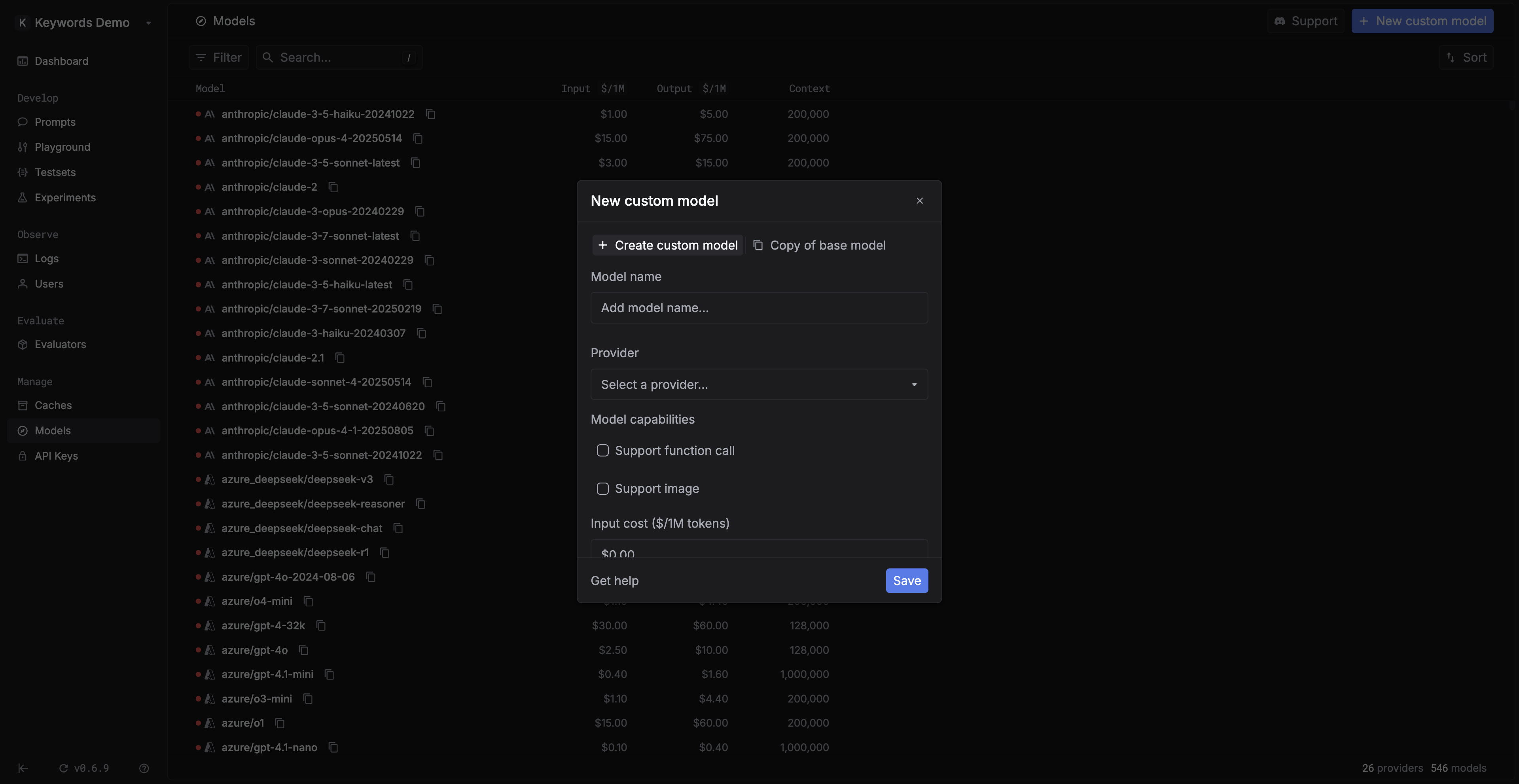 1. Go to the Models page and select `+ Create custom model`.
2. Fill out the form: model name, provider, costs, modality, etc.
3. Save — your custom model will now appear in the model list.
4. Copy the model ID and use it in your code.
### Copy from a base model
Instead of starting from scratch, you can also copy a base model and give it a new name.
This saves time if you just want multiple aliases of the same model without reconfiguring everything.
## FAQ
### Can I use a custom model in the LLM Gateway?
Yes — as long as it maps to a valid provider model.
Example: If OpenAI launches `gpt-6`, you can add it as a custom model and immediately call it through the AI Gateway.
### When should I use “copy base model”?
Think of it as a preset. It’s the fastest way to create aliases without re-entering configuration details.
1. Go to the Models page and select `+ Create custom model`.
2. Fill out the form: model name, provider, costs, modality, etc.
3. Save — your custom model will now appear in the model list.
4. Copy the model ID and use it in your code.
### Copy from a base model
Instead of starting from scratch, you can also copy a base model and give it a new name.
This saves time if you just want multiple aliases of the same model without reconfiguring everything.
## FAQ
### Can I use a custom model in the LLM Gateway?
Yes — as long as it maps to a valid provider model.
Example: If OpenAI launches `gpt-6`, you can add it as a custom model and immediately call it through the AI Gateway.
### When should I use “copy base model”?
Think of it as a preset. It’s the fastest way to create aliases without re-entering configuration details.