> ## Documentation Index
> Fetch the complete documentation index at: https://docs.keywordsai.co/llms.txt
> Use this file to discover all available pages before exploring further.
# Export logs
> Export your LLM logs to CSV or JSON for external analysis.
We understand that you might want to export your logs for external analysis. With Keywords AI, you can easily export your logs in CSV or JSON format, allowing you to analyze your data using your preferred tools and gain insights from your data.
## Select the logs you want to export
There are 2 ways to select the logs you want to export:
### 1. Select exact logs
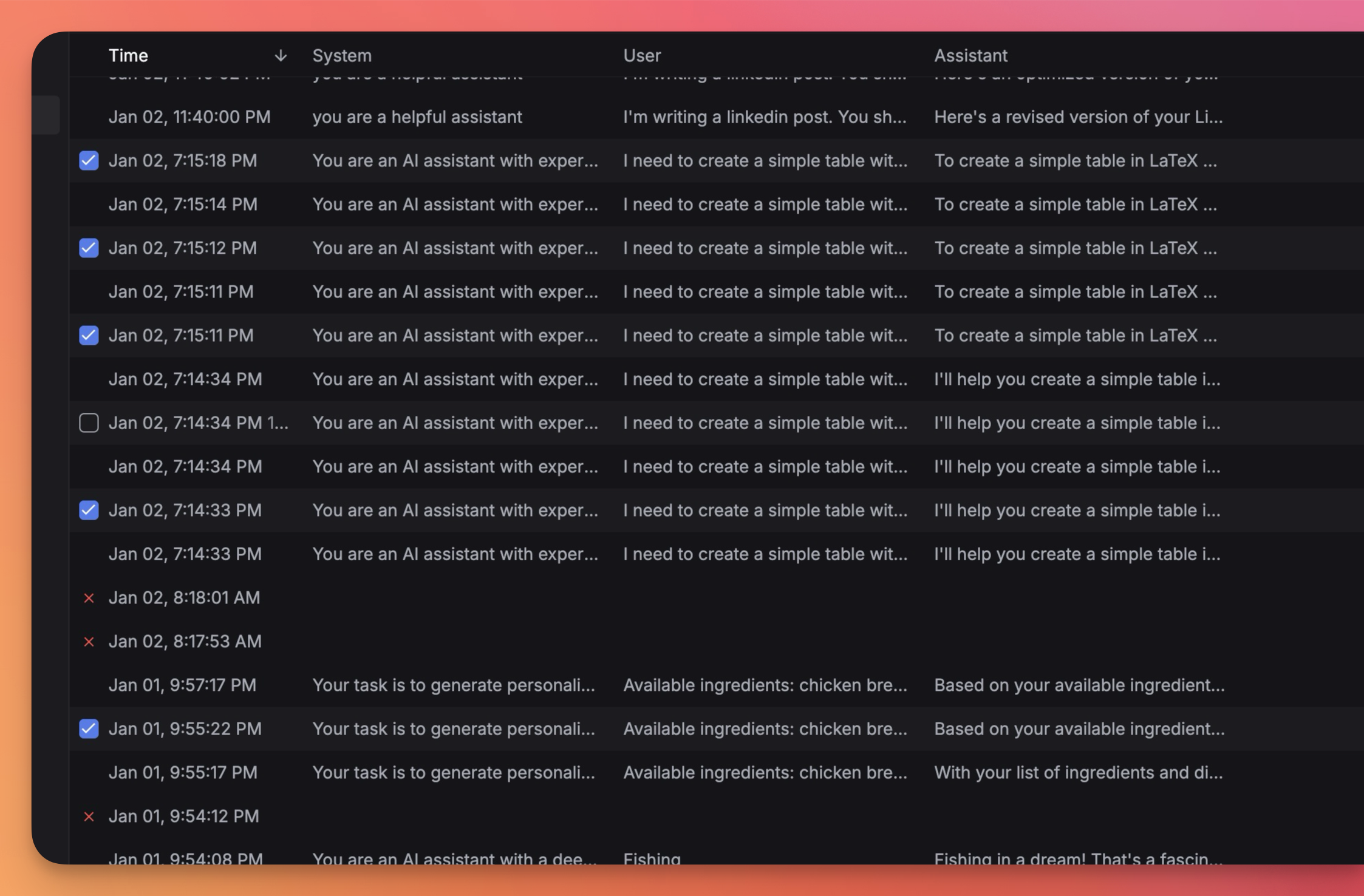
You can select exact logs by clicking on the checkboxes on the left of the log table.
 ### 2. Filter logs by applying filters
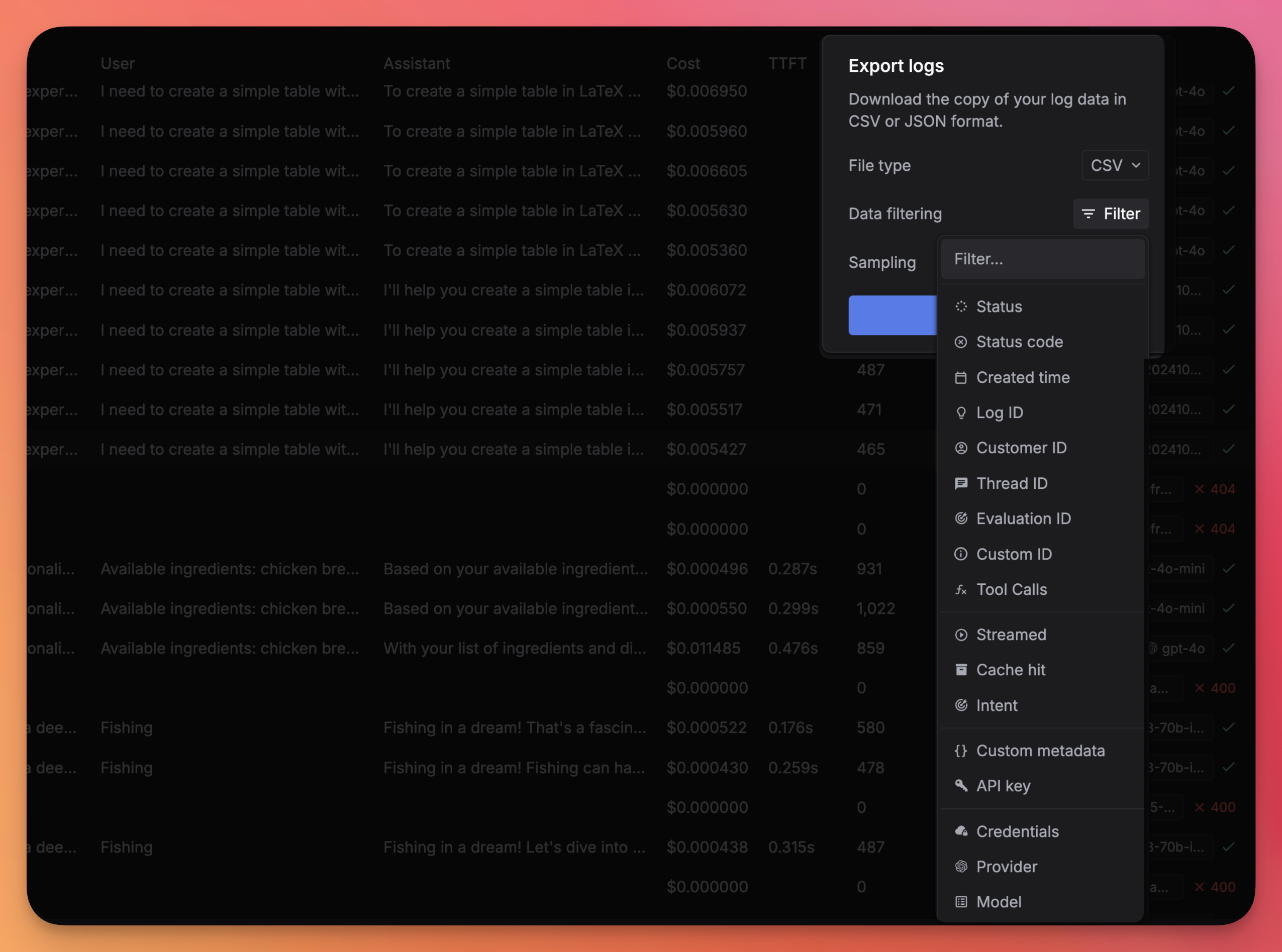
You can select multiple logs by applying filters such as `status`, `model`, `user`, `timestamp`, and more.
### 2. Filter logs by applying filters
You can select multiple logs by applying filters such as `status`, `model`, `user`, `timestamp`, and more.
 ## Export format
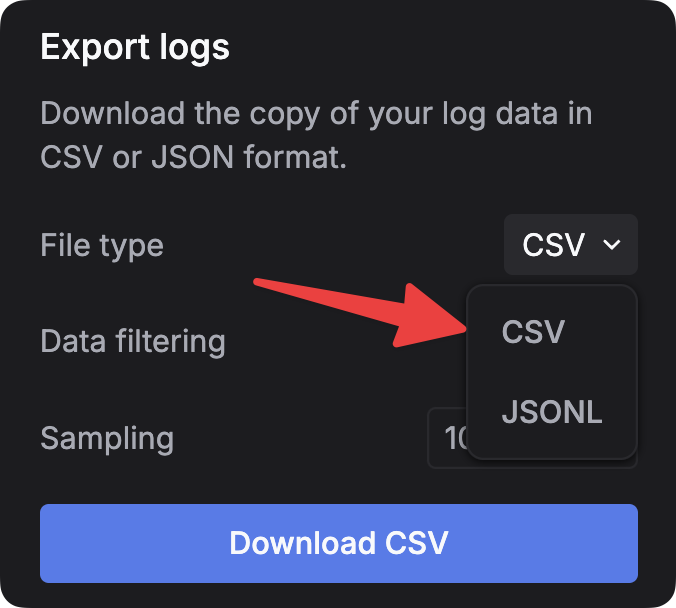
You can export your logs in either CSV or JSON format.
## Export format
You can export your logs in either CSV or JSON format.
 ## Sampling logs
In the Export tab, you can select a sample of logs by entering the percentage of logs you want to export in the `Sampling` field. This will select a random sample from your selected logs.
## Sampling logs
In the Export tab, you can select a sample of logs by entering the percentage of logs you want to export in the `Sampling` field. This will select a random sample from your selected logs.
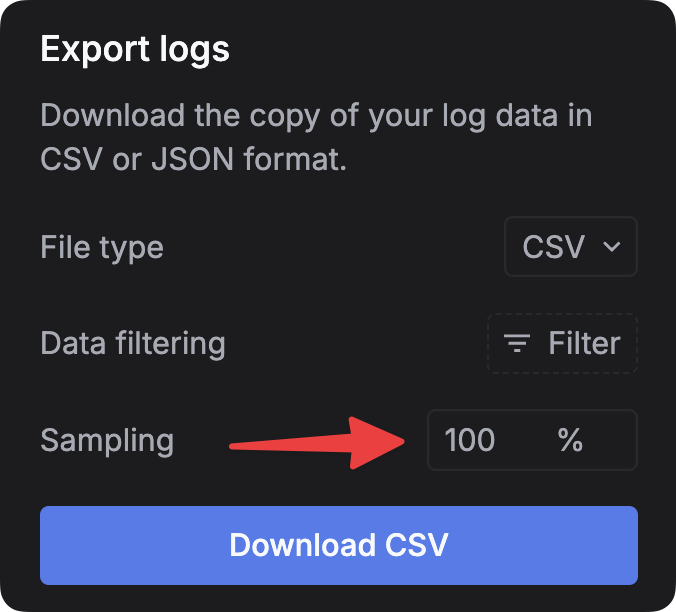 After selecting the logs you want to export and choosing the format, click the `Download file` button to export the logs to your chosen format.