> ## Documentation Index
> Fetch the complete documentation index at: https://docs.keywordsai.co/llms.txt
> Use this file to discover all available pages before exploring further.
# Log prompt variables
> You can send your prompt variables to Keywords AI to log them in your logs. So you can see the prompt template and variables separately
## How to log prompt variables
### Via LLM Gateway
If you are using the [LLM Gateway](/get-started/quickstart/gateway), you should first [set up your prompts](/documentation/products/prompt_management/use_prompt_in_code/use_prompt_in_llms) in the code. Then we will log the LLM requests and variables automatically.
**Example:**
When you created a prompt like this:
 Then deploy your prompt in the code:
```json theme={"system"}
"model": "gpt-4o-mini",
"prompt": {
"prompt_id": "09IqVI", // prompt ID in the code
"variables": {"language": "Python","task_description": "Square a number", "specific_library": "math"},
"version": 15 // optional, you can specify a version of the prompt you want to use
}
```
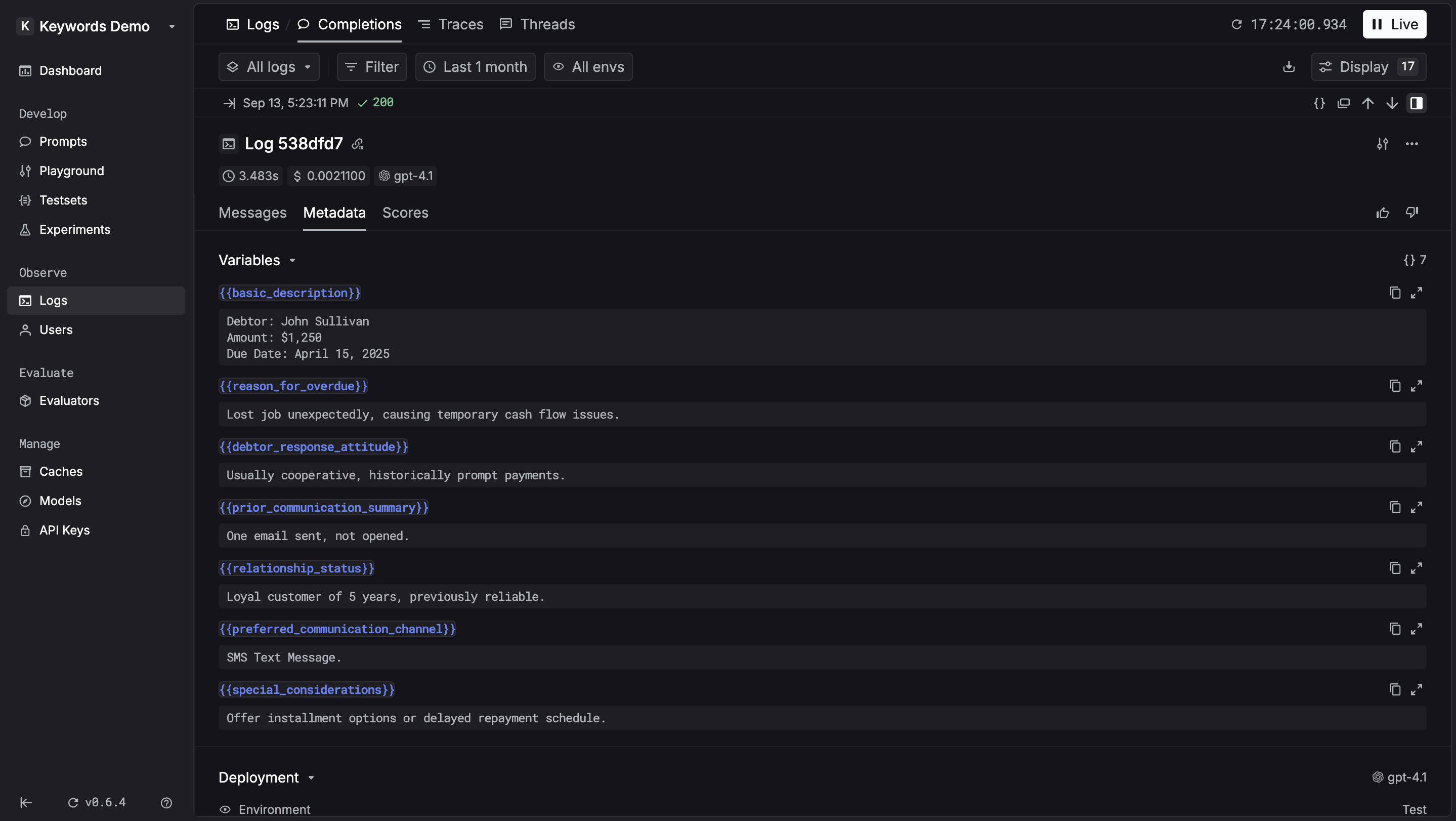
Once you send a request through the LLM Gateway, you will see the prompt variables in the side panel.
Then deploy your prompt in the code:
```json theme={"system"}
"model": "gpt-4o-mini",
"prompt": {
"prompt_id": "09IqVI", // prompt ID in the code
"variables": {"language": "Python","task_description": "Square a number", "specific_library": "math"},
"version": 15 // optional, you can specify a version of the prompt you want to use
}
```
Once you send a request through the LLM Gateway, you will see the prompt variables in the side panel.
 ### Via Logging ingestion
When you make a request through the [Logging ingestion](/api-endpoints/observe/logs/request-logging-endpoint), you can send the prompt variables in the `prompt_messages` field. Just simply wrap your prompt variables in pairs of `{{}}`.
**Example:**
```json theme={"system"}
"prompt_messages": [
{
"content": "Please develop an optimized Python function to {{task_description}}, utilizing {{specific_library}}, include error handling, and write unit tests for the function.",
"role": "user"
}
],
"variables": {
"task_description": "Square a number",
"specific_library": "math"
}
```
## Why you should log prompt variables
1. `Easy to read`: Logged prompt variables appear in the side panel, so you can quickly inspect the content of each variable without digging into the full prompt.
### Via Logging ingestion
When you make a request through the [Logging ingestion](/api-endpoints/observe/logs/request-logging-endpoint), you can send the prompt variables in the `prompt_messages` field. Just simply wrap your prompt variables in pairs of `{{}}`.
**Example:**
```json theme={"system"}
"prompt_messages": [
{
"content": "Please develop an optimized Python function to {{task_description}}, utilizing {{specific_library}}, include error handling, and write unit tests for the function.",
"role": "user"
}
],
"variables": {
"task_description": "Square a number",
"specific_library": "math"
}
```
## Why you should log prompt variables
1. `Easy to read`: Logged prompt variables appear in the side panel, so you can quickly inspect the content of each variable without digging into the full prompt.
 2. `Easy to add to a testset`: Logged variables make it simple to turn real-world logs into test cases. With one click, you can add them to a [testset](/documentation/products/evaluation/experiments/testsets) and start iterating on your prompts with realistic data.