> ## Documentation Index
> Fetch the complete documentation index at: https://docs.keywordsai.co/llms.txt
> Use this file to discover all available pages before exploring further.
# Webhooks
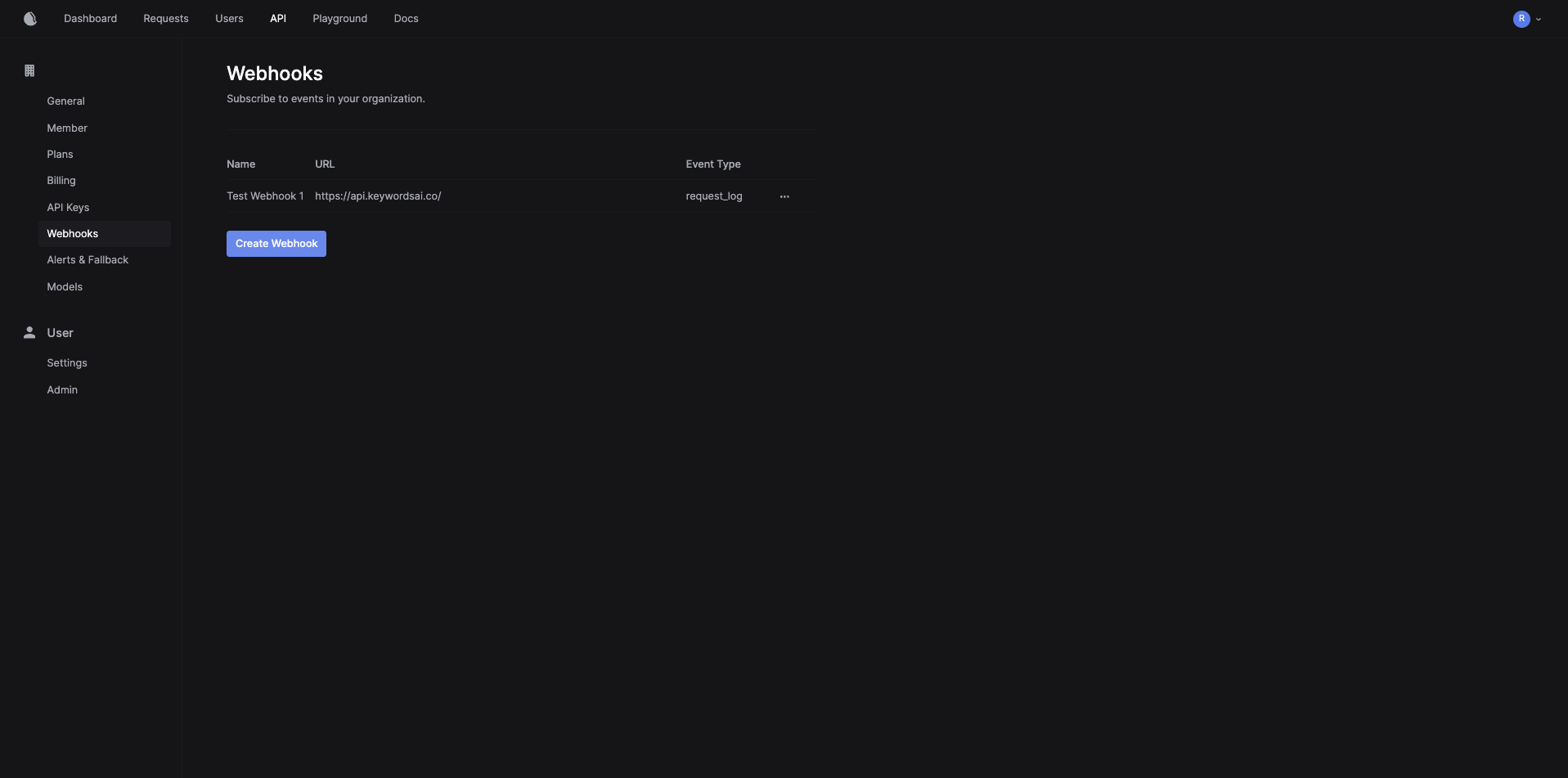
The Keywords AI platform provides a webhook system that allows you to receive notifications when certain events occur.
For example, when Keywords AI logs a new request, your webhook and point can receive this notification as an API call from Keywords AI.
 ## Authentication
Keywords AI uses [digital signature](https://en.wikipedia.org/wiki/Digital_signature) strategy for webhook data verification.
The data sent from Keywords AI undergoes the following process before you can use it:
1. The data is ready in Keywords AI's backend
```json theme={"system"}
{
"some":"data"
}
```
2. The Keywords AI encodes the data with your API Key string retrieved from the action's header (we don't store your API key) that triggers the webhook, using [SHA-256](https://en.wikipedia.org/wiki/SHA-2) algorithm.
```Python theme={"system"}
import hmac
import json
api_key = retrieve_from_header(some_action_header)
stringified_body = json.dumps(data_to_send)
signature = hmac.new(
fake_api_key.encode(),
stringified_body.encode(),
"sha256"
).hexdigest()
```
3. The signature is then passed to `X-Keywordsai-Signature`. This is **case sensitive**.
```json theme={"system"}
// Some header
{
"X-Keywordsai-Signature": "2217632f28bdfc939977d00790f1c8cc9997c23ab36de810ae7e4fecdb310603"
}
```
4. You can verify then data and accept or reject the payload
```Python theme={"system"}
secret_key = YOUR_KEYWORDS_AI_API_KEY
signature = request.headers.get("x-keywordsai-signature")
compare_signature = hmac.new(secret_key.encode(), msg=stringify_data.encode(), digestmod="sha256").hexdigest()
if compare_signature != signature:
return Response({"message": "Webhook signature does not match."}, status=401)
```
### Using Webhook Secrets
Instead of using your API key for webhook signature verification, you can use a dedicated webhook secret. This provides better security by allowing you to use a separate secret specifically for webhook validation without exposing your API key.
When creating or editing a webhook in the Keywords AI platform, you can copy the webhook secret and use it for signing the signature instead of using the API key.
## Authentication
Keywords AI uses [digital signature](https://en.wikipedia.org/wiki/Digital_signature) strategy for webhook data verification.
The data sent from Keywords AI undergoes the following process before you can use it:
1. The data is ready in Keywords AI's backend
```json theme={"system"}
{
"some":"data"
}
```
2. The Keywords AI encodes the data with your API Key string retrieved from the action's header (we don't store your API key) that triggers the webhook, using [SHA-256](https://en.wikipedia.org/wiki/SHA-2) algorithm.
```Python theme={"system"}
import hmac
import json
api_key = retrieve_from_header(some_action_header)
stringified_body = json.dumps(data_to_send)
signature = hmac.new(
fake_api_key.encode(),
stringified_body.encode(),
"sha256"
).hexdigest()
```
3. The signature is then passed to `X-Keywordsai-Signature`. This is **case sensitive**.
```json theme={"system"}
// Some header
{
"X-Keywordsai-Signature": "2217632f28bdfc939977d00790f1c8cc9997c23ab36de810ae7e4fecdb310603"
}
```
4. You can verify then data and accept or reject the payload
```Python theme={"system"}
secret_key = YOUR_KEYWORDS_AI_API_KEY
signature = request.headers.get("x-keywordsai-signature")
compare_signature = hmac.new(secret_key.encode(), msg=stringify_data.encode(), digestmod="sha256").hexdigest()
if compare_signature != signature:
return Response({"message": "Webhook signature does not match."}, status=401)
```
### Using Webhook Secrets
Instead of using your API key for webhook signature verification, you can use a dedicated webhook secret. This provides better security by allowing you to use a separate secret specifically for webhook validation without exposing your API key.
When creating or editing a webhook in the Keywords AI platform, you can copy the webhook secret and use it for signing the signature instead of using the API key.
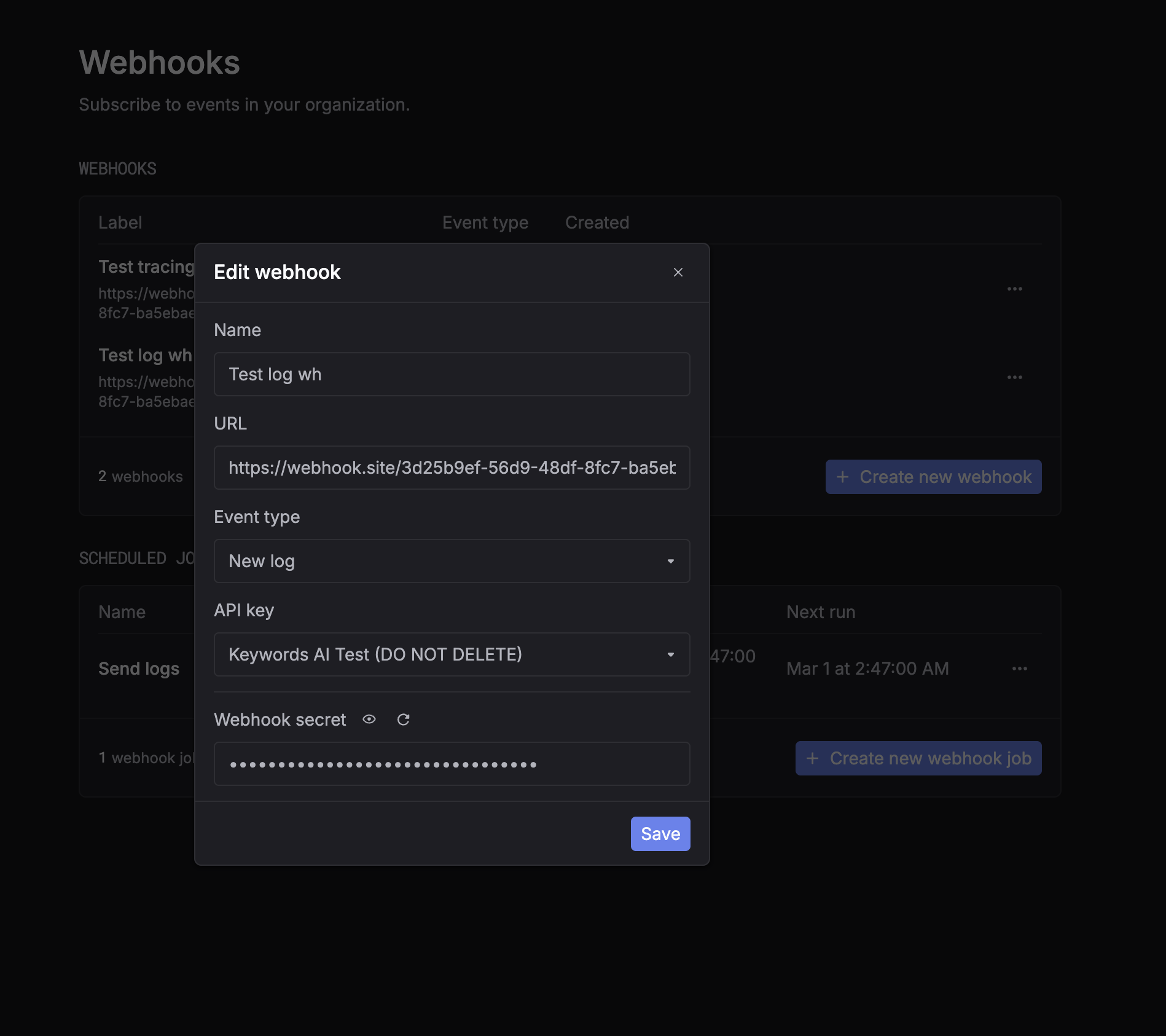 To use the webhook secret, simply replace `YOUR_KEYWORDS_AI_API_KEY` with your webhook secret in the verification code:
```Python theme={"system"}
secret_key = YOUR_WEBHOOK_SECRET # Use webhook secret instead of API key
signature = request.headers.get("x-keywordsai-signature")
compare_signature = hmac.new(secret_key.encode(), msg=stringify_data.encode(), digestmod="sha256").hexdigest()
if compare_signature != signature:
return Response({"message": "Webhook signature does not match."}, status=401)
```
## Example for using Webhooks
1. Define a webhook endpoint in your application.
This endpoint sends an email to the admin when a webhook event is received.
```Python Django theme={"system"}
import hmac
## This endpoint corresponds to http://localhost:8000/api/webhook/
## Replace this endpoint with your actual endpoint
class TestWebhook(APIView):
authentication_classes = []
permission_classes = [AllowAny]
def post(self, request, *args, **kwargs):
data = request.data
stringify_data = json.dumps(data)
secret_key = os.getenv("KEYWORDS_AI_API_KEY")
signature = request.headers.get("x-keywords-signature")
compare_signature = hmac.new(secret_key.encode(), msg=stringify_data.encode(), digestmod="sha256").hexdigest()
if compare_signature != signature:
return Response({"message": "Webhook signature does not match."}, status=401)
send_mail(
subject=f'Test Webhook Received',
message=f"Webhook data: {data}",
from_email=settings.DEFAULT_FROM_EMAIL,
recipient_list=[settings.DEFAULT_FROM_EMAIL],
)
return Response({"message": "Webhook received."}, status=200)
```
2. Create a new webhook in the Keywords AI platform.
1. Go to the [Webhooks page](https://platform.keywordsai.co/platform/api/webhooks) in the Keywords AI platform.
2. Click on the "Create Webhook" button, a modal will appear.
To use the webhook secret, simply replace `YOUR_KEYWORDS_AI_API_KEY` with your webhook secret in the verification code:
```Python theme={"system"}
secret_key = YOUR_WEBHOOK_SECRET # Use webhook secret instead of API key
signature = request.headers.get("x-keywordsai-signature")
compare_signature = hmac.new(secret_key.encode(), msg=stringify_data.encode(), digestmod="sha256").hexdigest()
if compare_signature != signature:
return Response({"message": "Webhook signature does not match."}, status=401)
```
## Example for using Webhooks
1. Define a webhook endpoint in your application.
This endpoint sends an email to the admin when a webhook event is received.
```Python Django theme={"system"}
import hmac
## This endpoint corresponds to http://localhost:8000/api/webhook/
## Replace this endpoint with your actual endpoint
class TestWebhook(APIView):
authentication_classes = []
permission_classes = [AllowAny]
def post(self, request, *args, **kwargs):
data = request.data
stringify_data = json.dumps(data)
secret_key = os.getenv("KEYWORDS_AI_API_KEY")
signature = request.headers.get("x-keywords-signature")
compare_signature = hmac.new(secret_key.encode(), msg=stringify_data.encode(), digestmod="sha256").hexdigest()
if compare_signature != signature:
return Response({"message": "Webhook signature does not match."}, status=401)
send_mail(
subject=f'Test Webhook Received',
message=f"Webhook data: {data}",
from_email=settings.DEFAULT_FROM_EMAIL,
recipient_list=[settings.DEFAULT_FROM_EMAIL],
)
return Response({"message": "Webhook received."}, status=200)
```
2. Create a new webhook in the Keywords AI platform.
1. Go to the [Webhooks page](https://platform.keywordsai.co/platform/api/webhooks) in the Keywords AI platform.
2. Click on the "Create Webhook" button, a modal will appear.
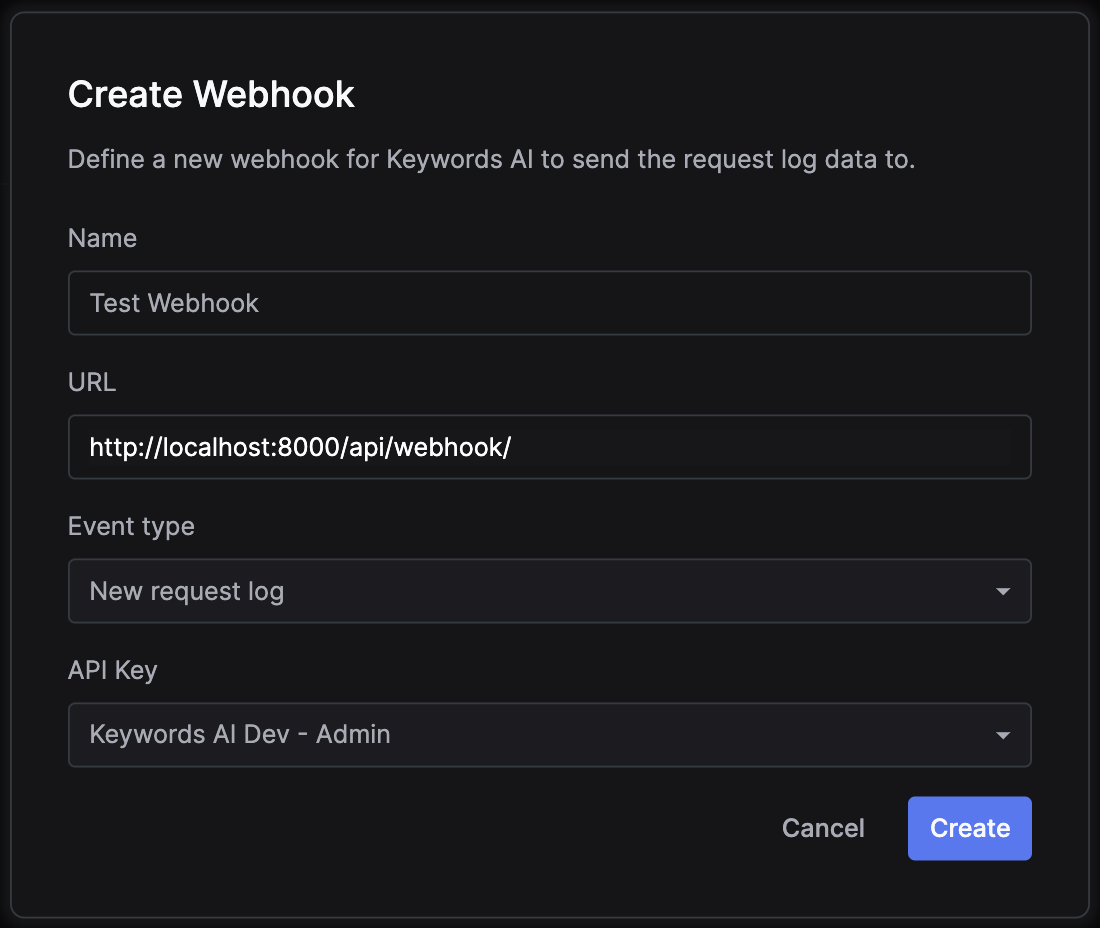 3. Define the webhook URL. In this demo, it is `http://localhost:8000/api/webhook/`.
4. Define the event type that triggers the webhook. In this demo, it is `New request log` (when an API call is logged).
5. Define the API Key you want to associate this webhook with. In this demo, it is an admin development key.
6. (Optional) Copy the webhook secret from the webhook settings if you want to use it instead of the API key for signature verification.
7. Click on the "Create" button.
3. Make an [API call](/get-started/quickstart/gateway) to the [chat completion endpoint](/api-endpoints/develop/gateway/chat-completions)
4. Receive the email.
3. Define the webhook URL. In this demo, it is `http://localhost:8000/api/webhook/`.
4. Define the event type that triggers the webhook. In this demo, it is `New request log` (when an API call is logged).
5. Define the API Key you want to associate this webhook with. In this demo, it is an admin development key.
6. (Optional) Copy the webhook secret from the webhook settings if you want to use it instead of the API key for signature verification.
7. Click on the "Create" button.
3. Make an [API call](/get-started/quickstart/gateway) to the [chat completion endpoint](/api-endpoints/develop/gateway/chat-completions)
4. Receive the email.