> ## Documentation Index
> Fetch the complete documentation index at: https://docs.keywordsai.co/llms.txt
> Use this file to discover all available pages before exploring further.
# Prompt playground
> Test and compare prompts for different models in the LLM playground
Test and iterate on your prompts directly in the Keywords AI LLM playground. You can test your prompts with different models, settings, and parameters to evaluate their performance.
## Improve prompts
You can use the playground to test and iterate on prompts in your library.
### Bring prompts to the playground
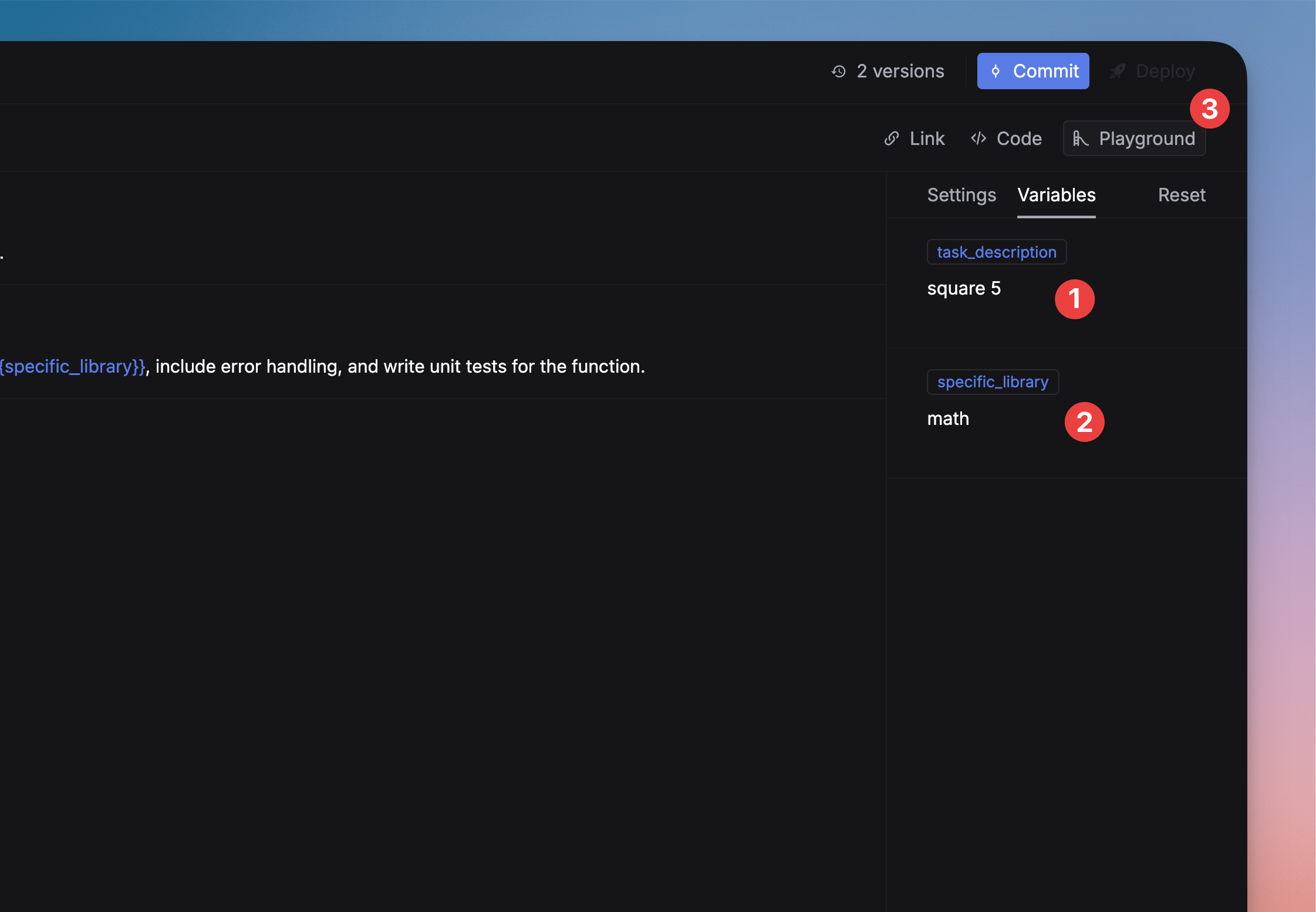
When you finish writing a prompt in the prompt editor, you can bring it to the playground to test and iterate on it. First, enter the values for each variable in the prompt, then click the `Playground` button in the top bar.
 ### Save the prompt
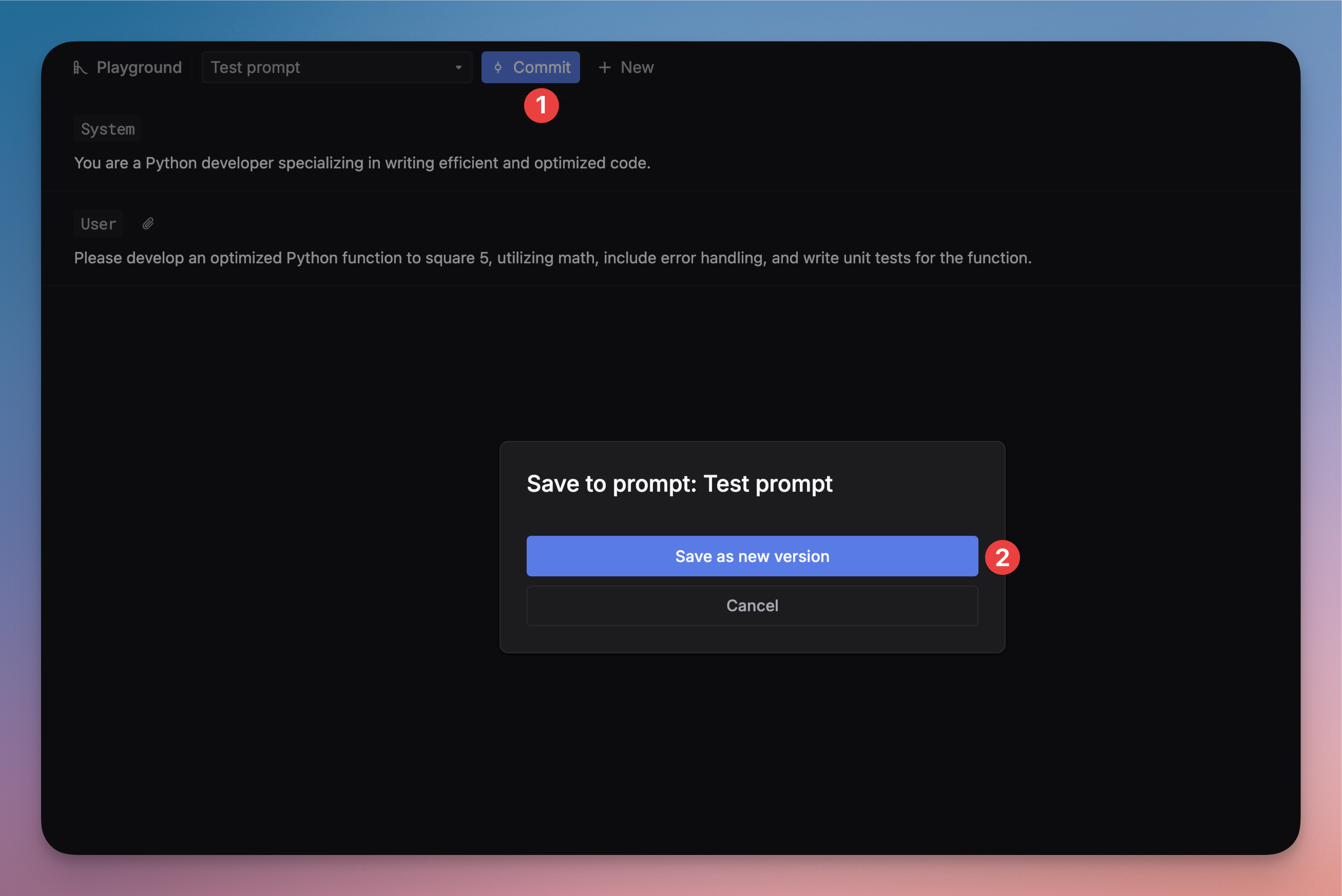
After you have tested and iterated on a prompt, you can save it to the library for future use. Click the `Commit` button in the top bar to save the prompt.
### Save the prompt
After you have tested and iterated on a prompt, you can save it to the library for future use. Click the `Commit` button in the top bar to save the prompt.
The prompt will be saved to the library, and you can find it on the [Prompts page](https://platform.keywordsai.co/platform/prompts).
 ## Debug prompts from logs
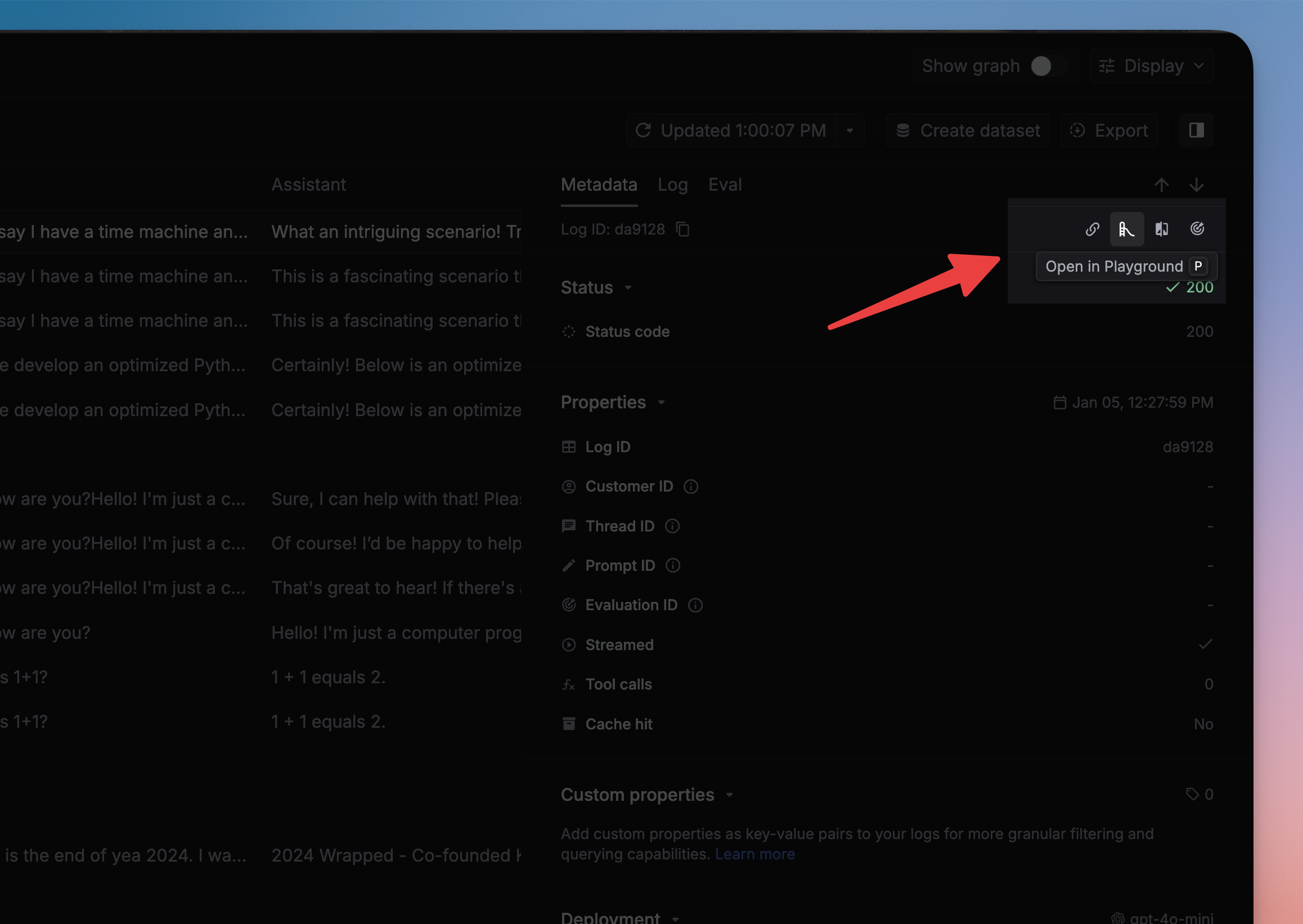
You can also debug prompts from your production logs. Find a log containing a prompt that you want to debug, and click the `Open in Playground` button in the top bar.
## Debug prompts from logs
You can also debug prompts from your production logs. Find a log containing a prompt that you want to debug, and click the `Open in Playground` button in the top bar.
 ## Simulate a prompt x times
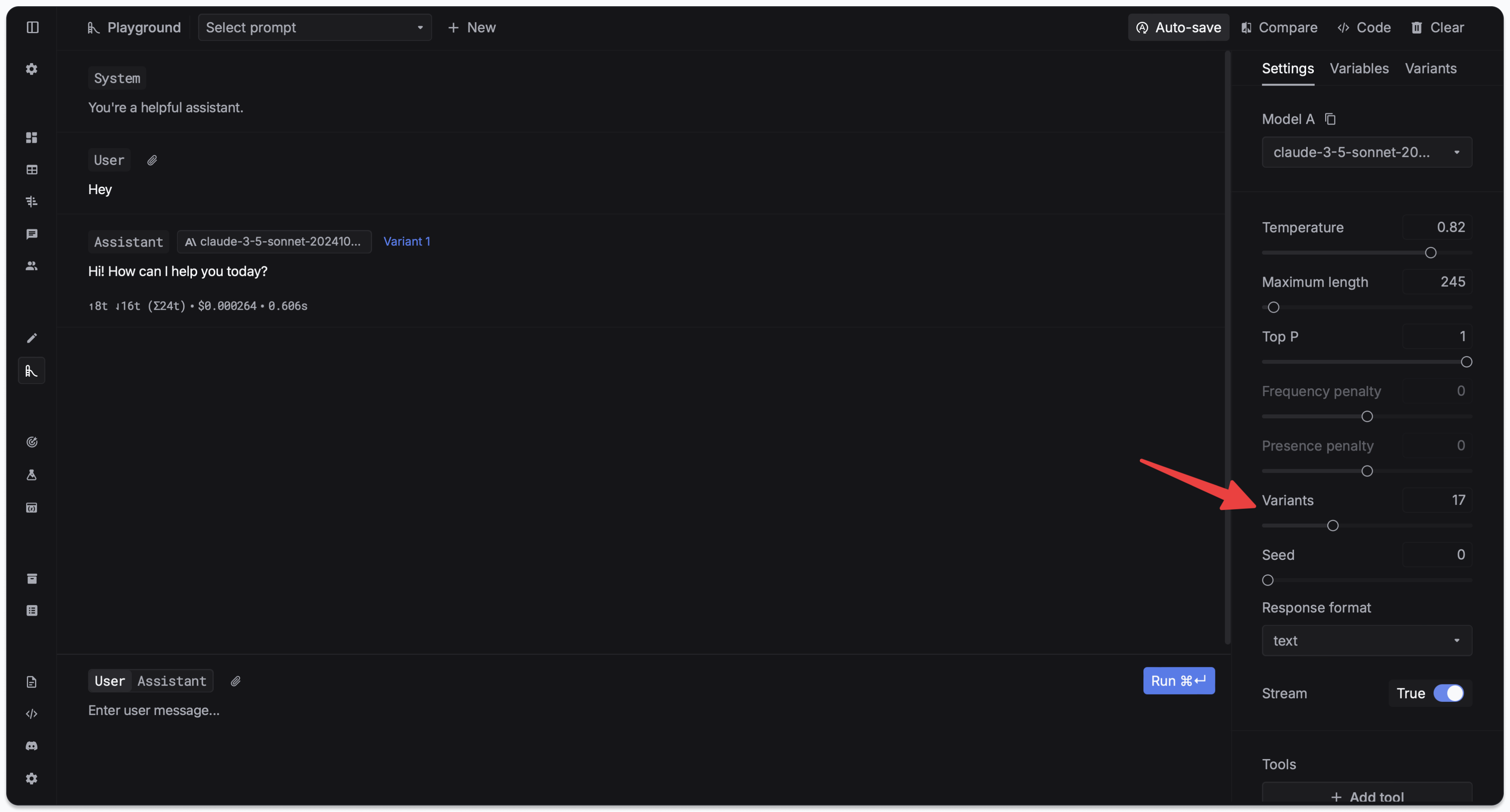
You can simulate a prompt x times to see the variation in the responses. In the side panel of the playground, you can set the number of variants you want to simulate.
## Simulate a prompt x times
You can simulate a prompt x times to see the variation in the responses. In the side panel of the playground, you can set the number of variants you want to simulate.
 After you run the simulation, you can see the results in the right panel. Just click the `Variants` tab to see the results.
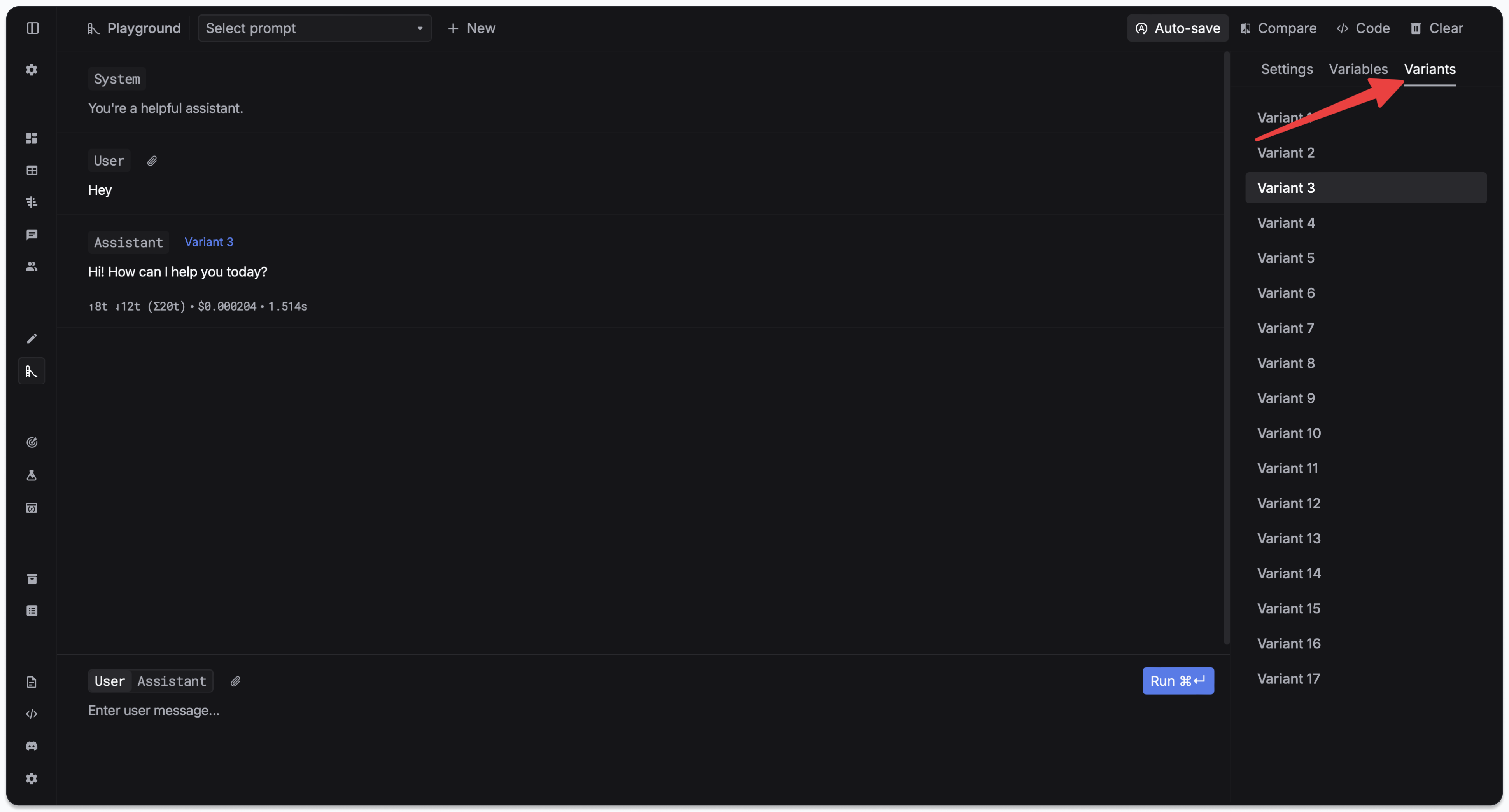 `Variants` is similar to the OpenAI API's `n` parameter. But it's different because we actually make API calls to the LLM to generate the variants.
## Advanced features
We provide the ability to test LLMs with function calling and image support. Here's a guide on how to use these features.
### Function calling
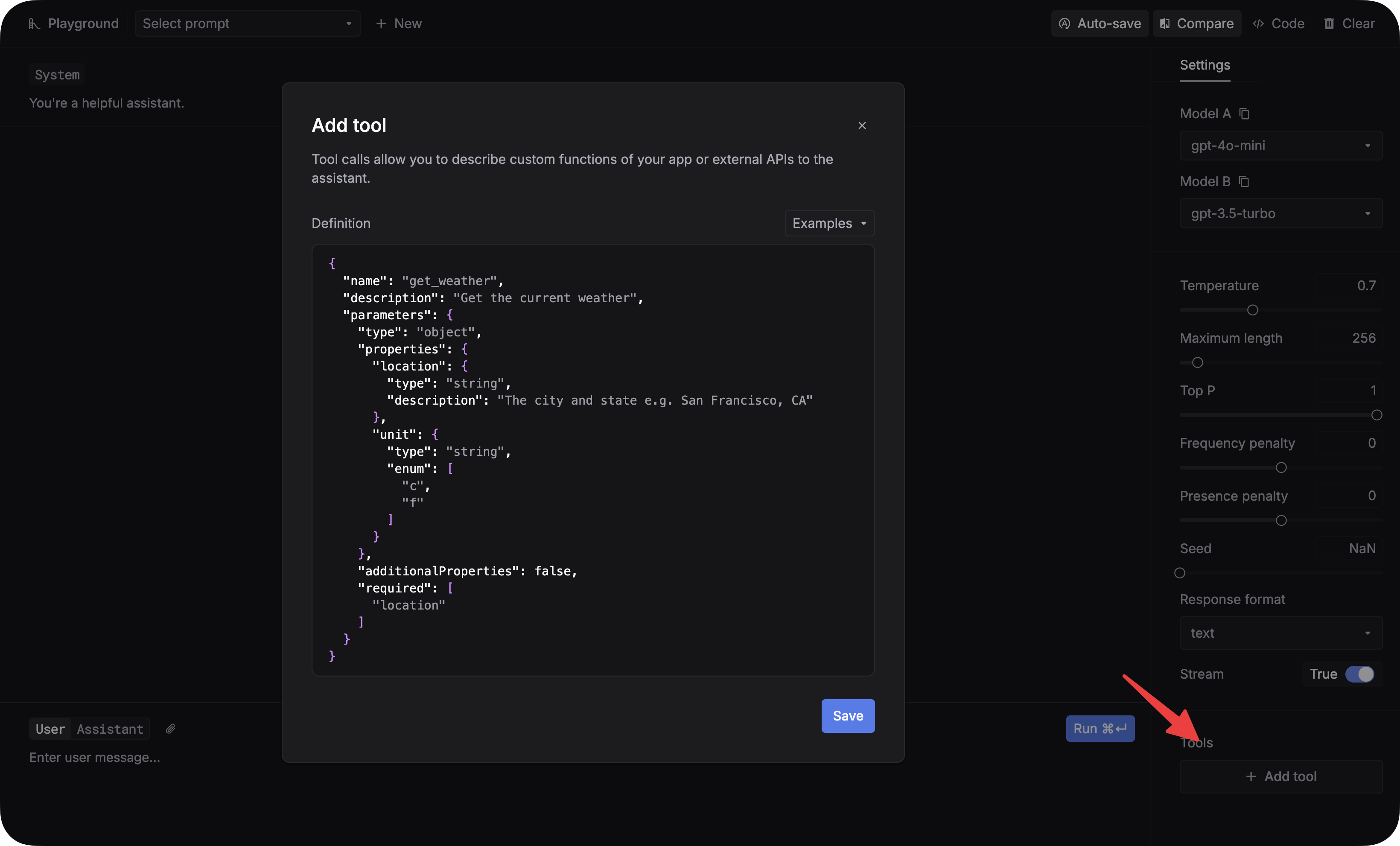
In the playground, click the `Add tool` button to enter your function in the code editor.
`Variants` is similar to the OpenAI API's `n` parameter. But it's different because we actually make API calls to the LLM to generate the variants.
## Advanced features
We provide the ability to test LLMs with function calling and image support. Here's a guide on how to use these features.
### Function calling
In the playground, click the `Add tool` button to enter your function in the code editor.
 ### Attaching images
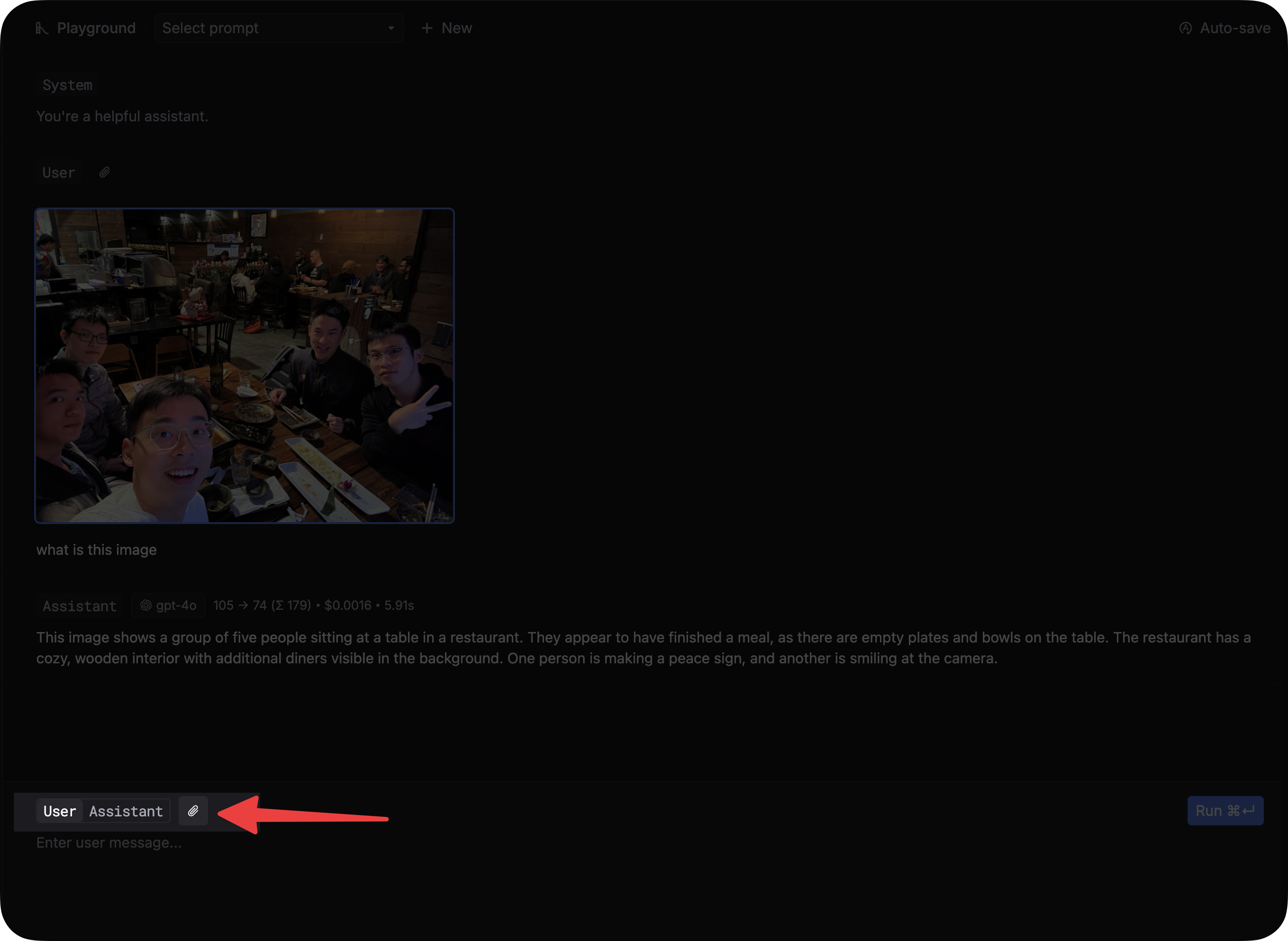
You can attach images to your prompt by clicking the `link` icon.
### Attaching images
You can attach images to your prompt by clicking the `link` icon.