> ## Documentation Index
> Fetch the complete documentation index at: https://docs.keywordsai.co/llms.txt
> Use this file to discover all available pages before exploring further.
# Pass Keywords AI parameters
> Enrich your traces with Keywords AI parameters to gain deeper insights into your LLM workflows and user interactions.
***
## Overview
Keywords AI parameters allow you to add contextual information to your traces, enabling better analytics, user tracking, and workflow understanding.
### Available Keywords AI Parameters
| Parameter | Type | Description | Example |
| --------------------- | ------ | ---------------------- | ---------------------- |
| `customer_identifier` | string | Unique customer ID | `"user_123"` |
| `customer_name` | string | Customer display name | `"John Doe"` |
| `customer_email` | string | Customer email address | `"john@example.com"` |
| `metadata` | object | Custom key-value pairs | `{"priority": "high"}` |
| `custom_identifier` | string | Custom operation ID | `"ticket_789"` |
| `thread_identifier` | string | Conversation thread ID | `"thread_abc"` |
For the complete list of available parameters, see the [Keywords AI API reference](https://docs.keywordsai.co/api-endpoints/observe/logs/request-logging-endpoint).
***
## Compatibility
| Integration | Support | Notes |
| ---------------------- | ------- | --------------------------------------- |
| **Keywords AI Native** | ✅ | Full support for all Keywords AI params |
| **OpenAI Agents SDK** | ✅ | Not supported yet |
| **Vercel AI SDK** | ❌ | Not supported yet |
***
## Integration
Make sure you have everything ready before you start.
### Implementation
#### Basic Keywords AI params usage
```python Python theme={"system"}
from keywordsai_tracing.decorators import workflow, task
from keywordsai_tracing.contexts.span import keywordsai_span_attributes
from openai import OpenAI
client = OpenAI()
@task(name="simple_task")
def simple_task():
with keywordsai_span_attributes(
keywordsai_params={
"customer_params": {
"customer_identifier": "user_123",
},
"metadata": {"task_type": "simple"}
}
):
response = client.chat.completions.create(
model="gpt-3.5-turbo",
messages=[{"role": "user", "content": "Hello!"}]
)
return response.choices[0].message.content
```
```typescript JavaScript theme={"system"}
import { KeywordsAITelemetry } from '@keywordsai/tracing';
import OpenAI from 'openai';
const keywordsAI = new KeywordsAITelemetry({
apiKey: process.env.KEYWORDSAI_API_KEY || "",
appName: 'params-example'
});
const openai = new OpenAI();
async function simpleTask() {
return await keywordsAI.withTask(
{ name: 'simple_task' },
async () => {
return await keywordsAI.withKeywordsAISpanAttributes(
async () => {
const response = await openai.chat.completions.create({
model: 'gpt-3.5-turbo',
messages: [{ role: 'user', content: 'Hello!' }]
});
return response.choices[0].message.content;
},
{
customer_params: {
customer_identifier: "user_123",
},
metadata: { task_type: "simple" }
}
);
}
);
}
```
**This workflow creates a trace hierarchy with Keywords AI params:**
* Parent workflow: `customer_support_workflow` with thread and session metadata
* Individual tasks: `user_query_processing`, `response_formatting` with customer and operation metadata
* Complete parameter tracking: customer info, custom identifiers, and contextual metadata
* Enhanced analytics: filtering by customer, priority, department, and session
## How to see this in the platform
Once you've implemented Keywords AI params in your traces, you can view and filter by them in the Keywords AI platform:
### Accessing enriched traces
1. Navigate to the [Traces page](https://platform.keywordsai.co/platform/traces) in your Keywords AI dashboard
2. You'll see traces with additional metadata and customer information
### Understanding the enhanced trace view
* **Customer tracking**: Filter traces by customer identifier, name, or email
* **Custom metadata**: Use metadata fields for advanced filtering and analytics
* **Thread grouping**: View related conversations using thread identifiers
* **Custom identifiers**: Track specific operations or tickets
### Example trace with Keywords AI params
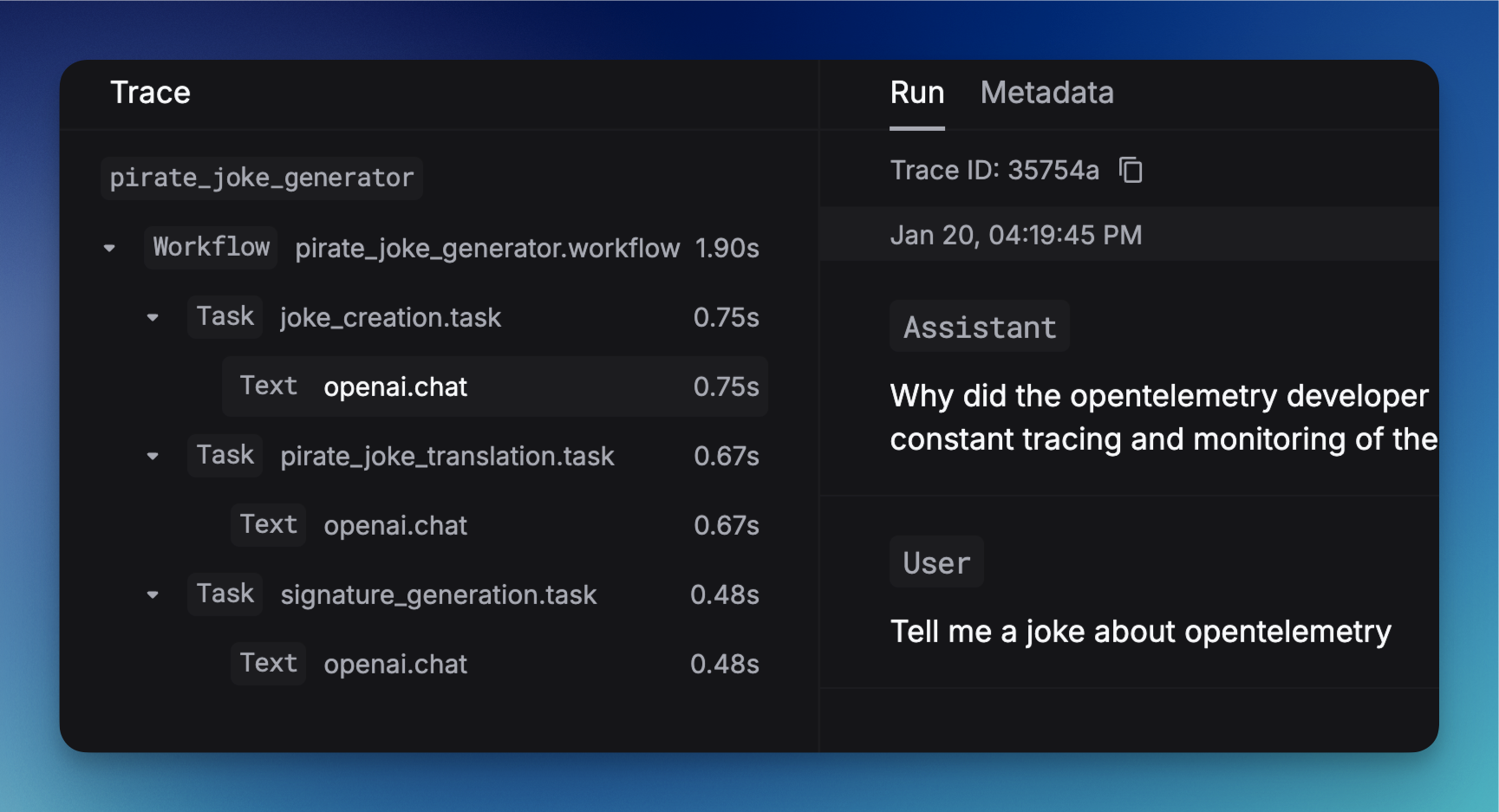 The enhanced trace view shows:
* Customer information in the trace details
* Custom metadata for filtering and analysis
* Thread and session grouping
* Performance metrics with contextual data
The enhanced trace view shows:
* Customer information in the trace details
* Custom metadata for filtering and analysis
* Thread and session grouping
* Performance metrics with contextual data