> ## Documentation Index
> Fetch the complete documentation index at: https://docs.keywordsai.co/llms.txt
> Use this file to discover all available pages before exploring further.
# Enable user analytics
> Keywords AI allows you to track user data and monitor the user's data in the platform.
## How does user analytics work?
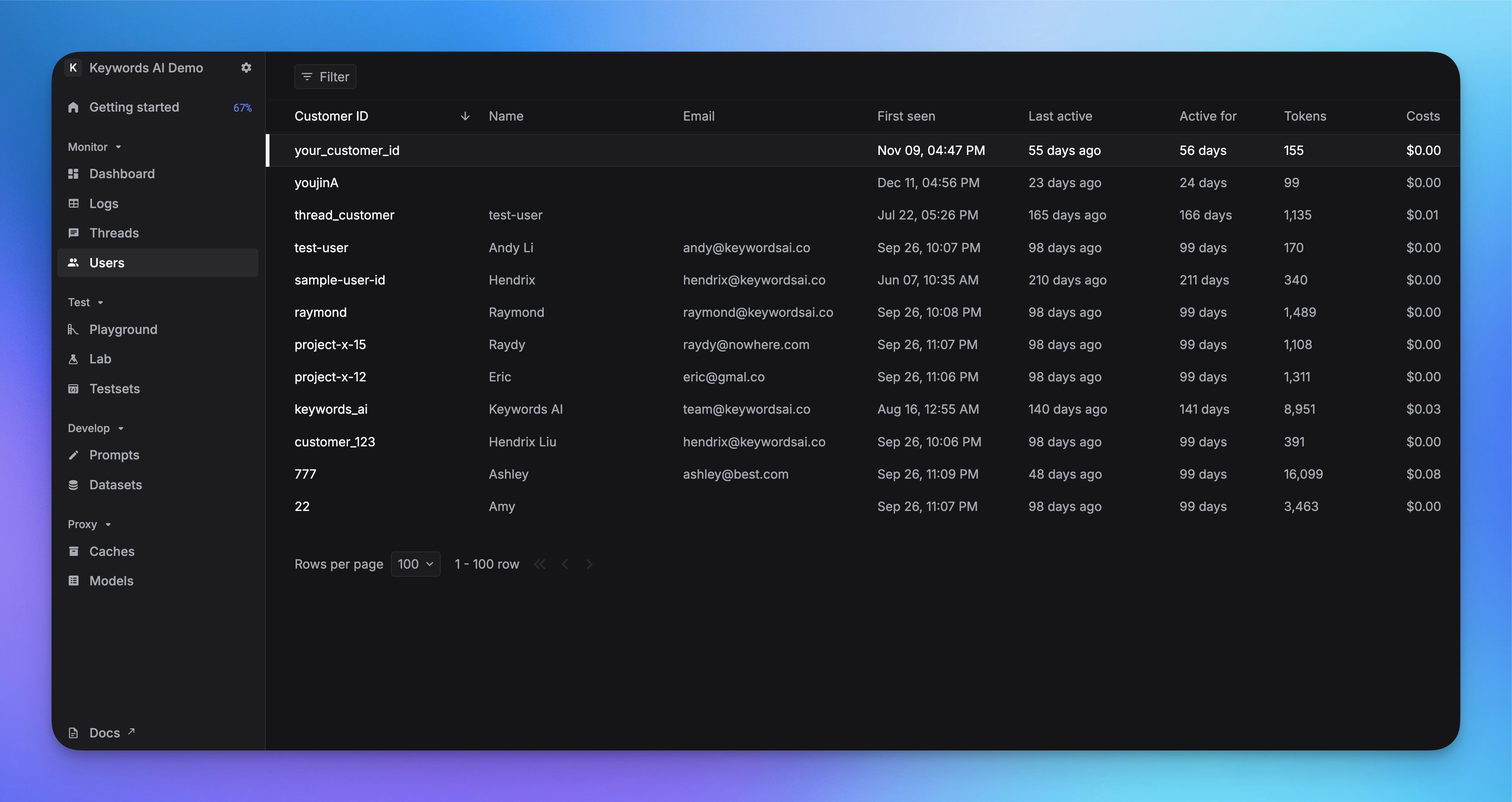
On Keywords AI, we built a [Users page](https://platform.keywordsai.co/platform/users) to help you understand your users and their behavior on your LLM applications. With our user analytics feature, you can;
* Track user LLM usage
* Set user budget
* Filter logs by user identifier
 ## Enable user analytics in the code
You can pass a `customer_params` to the request to track the user's behavior on your LLM applications.
Here is an example of how to send a user's data with the parameter `customer_params` to Keywords AI in the OpenAI Python SDK.
```python {13-19} theme={"system"}
from openai import OpenAI
client = OpenAI(
base_url="https://api.keywordsai.co/api/",
api_key="YOUR_KEYWORDSAI_API_KEY",
)
response = client.chat.completions.create(
model="gpt-4o-mini",
messages=[
{"role": "user", "content": "Tell me a long story"}
],
extra_body={
"customer_params": {
"customer_identifier": "customer_1",
"name": "Hendrix Liu", # optional parameter
"email": "hendrix@keywordsai.co" # optional parameter
}
}
)
```
Here is an example of how to send a user's data with the parameter `customer_params` to Keywords AI in the OpenAI TypeScript SDK. In OpenAI TypeScript SDK, you should add a `// @ts-expect-error` before the metadata field.
```typescript {12-17} theme={"system"}
import { OpenAI } from "openai";
const client = new OpenAI({
baseURL: "https://api.keywordsai.co/api",
apiKey: "YOUR_KEYWORDSAI_API_KEY",
});
const response = await client.chat.completions
.create({
messages: [{ role: "user", content: "Say this is a test" }],
model: "gpt-4o-mini",
// @ts-expect-error
customer_params: {
"customer_identifier": "customer_1",
"name": "Hendrix Liu", // optional parameter
"email": "hendrix@keywordsai.co" // optional parameter
}
})
.asResponse();
console.log(await response.json());
```
```python LLM proxy {14-18} theme={"system"}
import requests
def demo_call(input,
model="gpt-4o-mini",
token="YOUR_KEYWORDS_AI_API_KEY",
):
headers = {
'Content-Type': 'application/json',
'Authorization': f'Bearer {token}',
}
data = {
'model': model,
'messages': [{'role': 'user', 'content': input}],
'customer_params': {
"customer_identifier": "customer_1",
"name": "Hendrix Liu", # optional parameter
"email": "hendrix@keywordsai.co" # optional parameter
}
}
response = requests.post('https://api.keywordsai.co/api/chat/completions', headers=headers, json=data)
return response
messages = "Say 'Hello World'"
print(demo_call(messages).json())
```
```python Async logging {16-20} theme={"system"}
import requests
url = "https://api.keywordsai.co/api/request-logs/create/"
payload = {
"model": "gpt-4o-mini",
"prompt_messages": [
{
"role": "user",
"content": "Hi"
},
],
"completion_message": {
"role": "assistant",
"content": "Hi, how can I assist you today?"
},
"customer_params": {
"customer_identifier": "customer_1",
"name": "Hendrix Liu", # optional parameter
"email": "hendrix@keywordsai.co" # optional parameter
}
# other parameters
}
headers = {
"Authorization": "Bearer YOUR_KEYWORDS_AI_API_KEY",
"Content-Type": "application/json"
}
response = requests.request("POST", url, headers=headers, json=payload)
```
We also support adding credentials in other SDKs or languages, please check out our [integration section](/documentation/admin/llm_provider_keys) for more information.
## See user data on the platform
After you send the user's data to Keywords AI, there are 3 places you can see the user's data on the platform.
### 1. [Users page](https://platform.keywordsai.co/platform/users)
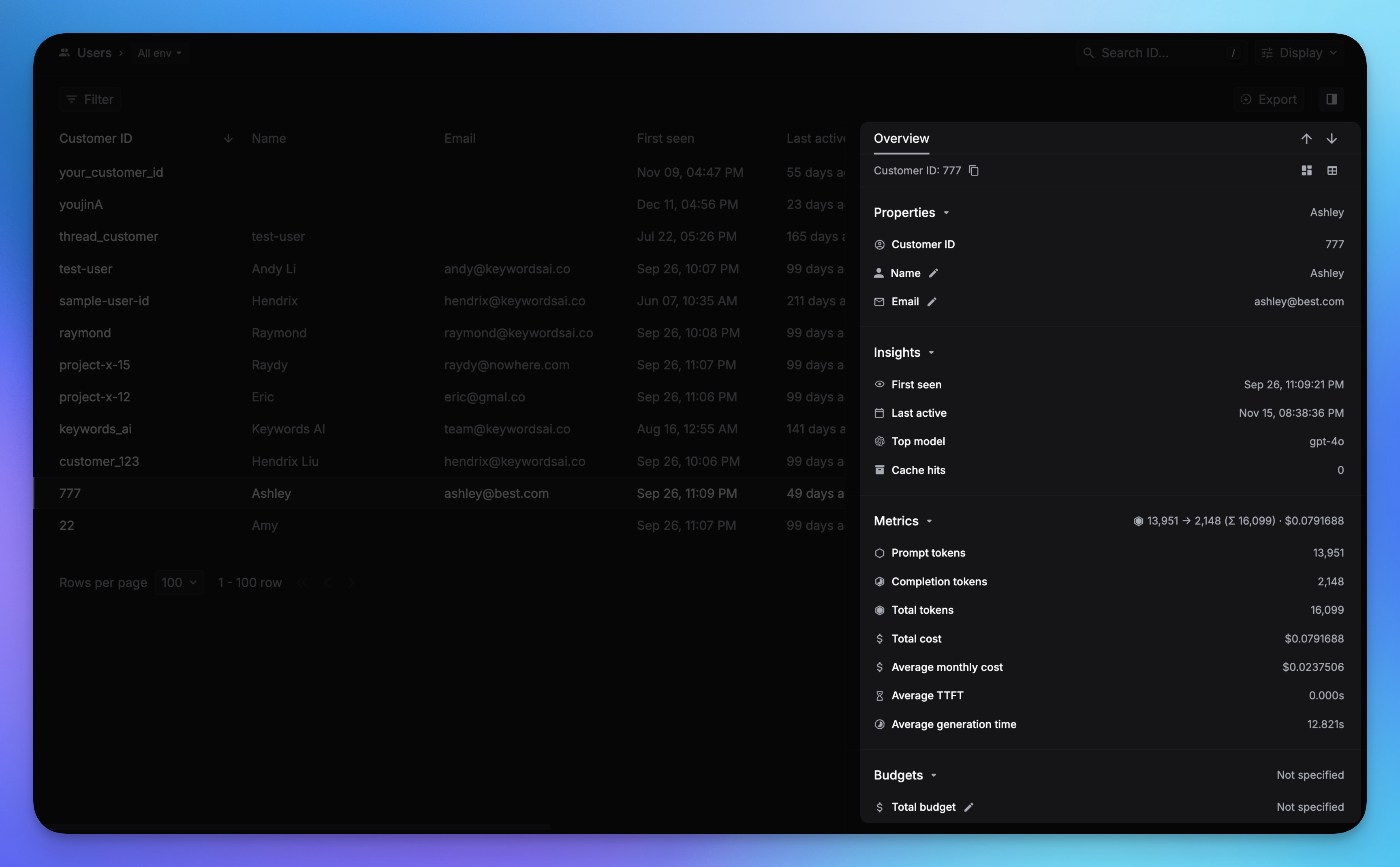
You will see each user's detail information and their LLM usage on the Users page and the side panel.
## Enable user analytics in the code
You can pass a `customer_params` to the request to track the user's behavior on your LLM applications.
Here is an example of how to send a user's data with the parameter `customer_params` to Keywords AI in the OpenAI Python SDK.
```python {13-19} theme={"system"}
from openai import OpenAI
client = OpenAI(
base_url="https://api.keywordsai.co/api/",
api_key="YOUR_KEYWORDSAI_API_KEY",
)
response = client.chat.completions.create(
model="gpt-4o-mini",
messages=[
{"role": "user", "content": "Tell me a long story"}
],
extra_body={
"customer_params": {
"customer_identifier": "customer_1",
"name": "Hendrix Liu", # optional parameter
"email": "hendrix@keywordsai.co" # optional parameter
}
}
)
```
Here is an example of how to send a user's data with the parameter `customer_params` to Keywords AI in the OpenAI TypeScript SDK. In OpenAI TypeScript SDK, you should add a `// @ts-expect-error` before the metadata field.
```typescript {12-17} theme={"system"}
import { OpenAI } from "openai";
const client = new OpenAI({
baseURL: "https://api.keywordsai.co/api",
apiKey: "YOUR_KEYWORDSAI_API_KEY",
});
const response = await client.chat.completions
.create({
messages: [{ role: "user", content: "Say this is a test" }],
model: "gpt-4o-mini",
// @ts-expect-error
customer_params: {
"customer_identifier": "customer_1",
"name": "Hendrix Liu", // optional parameter
"email": "hendrix@keywordsai.co" // optional parameter
}
})
.asResponse();
console.log(await response.json());
```
```python LLM proxy {14-18} theme={"system"}
import requests
def demo_call(input,
model="gpt-4o-mini",
token="YOUR_KEYWORDS_AI_API_KEY",
):
headers = {
'Content-Type': 'application/json',
'Authorization': f'Bearer {token}',
}
data = {
'model': model,
'messages': [{'role': 'user', 'content': input}],
'customer_params': {
"customer_identifier": "customer_1",
"name": "Hendrix Liu", # optional parameter
"email": "hendrix@keywordsai.co" # optional parameter
}
}
response = requests.post('https://api.keywordsai.co/api/chat/completions', headers=headers, json=data)
return response
messages = "Say 'Hello World'"
print(demo_call(messages).json())
```
```python Async logging {16-20} theme={"system"}
import requests
url = "https://api.keywordsai.co/api/request-logs/create/"
payload = {
"model": "gpt-4o-mini",
"prompt_messages": [
{
"role": "user",
"content": "Hi"
},
],
"completion_message": {
"role": "assistant",
"content": "Hi, how can I assist you today?"
},
"customer_params": {
"customer_identifier": "customer_1",
"name": "Hendrix Liu", # optional parameter
"email": "hendrix@keywordsai.co" # optional parameter
}
# other parameters
}
headers = {
"Authorization": "Bearer YOUR_KEYWORDS_AI_API_KEY",
"Content-Type": "application/json"
}
response = requests.request("POST", url, headers=headers, json=payload)
```
We also support adding credentials in other SDKs or languages, please check out our [integration section](/documentation/admin/llm_provider_keys) for more information.
## See user data on the platform
After you send the user's data to Keywords AI, there are 3 places you can see the user's data on the platform.
### 1. [Users page](https://platform.keywordsai.co/platform/users)
You will see each user's detail information and their LLM usage on the Users page and the side panel.
 ### 2. [Dashboard page](https://platform.keywordsai.co/platform/dashboard)
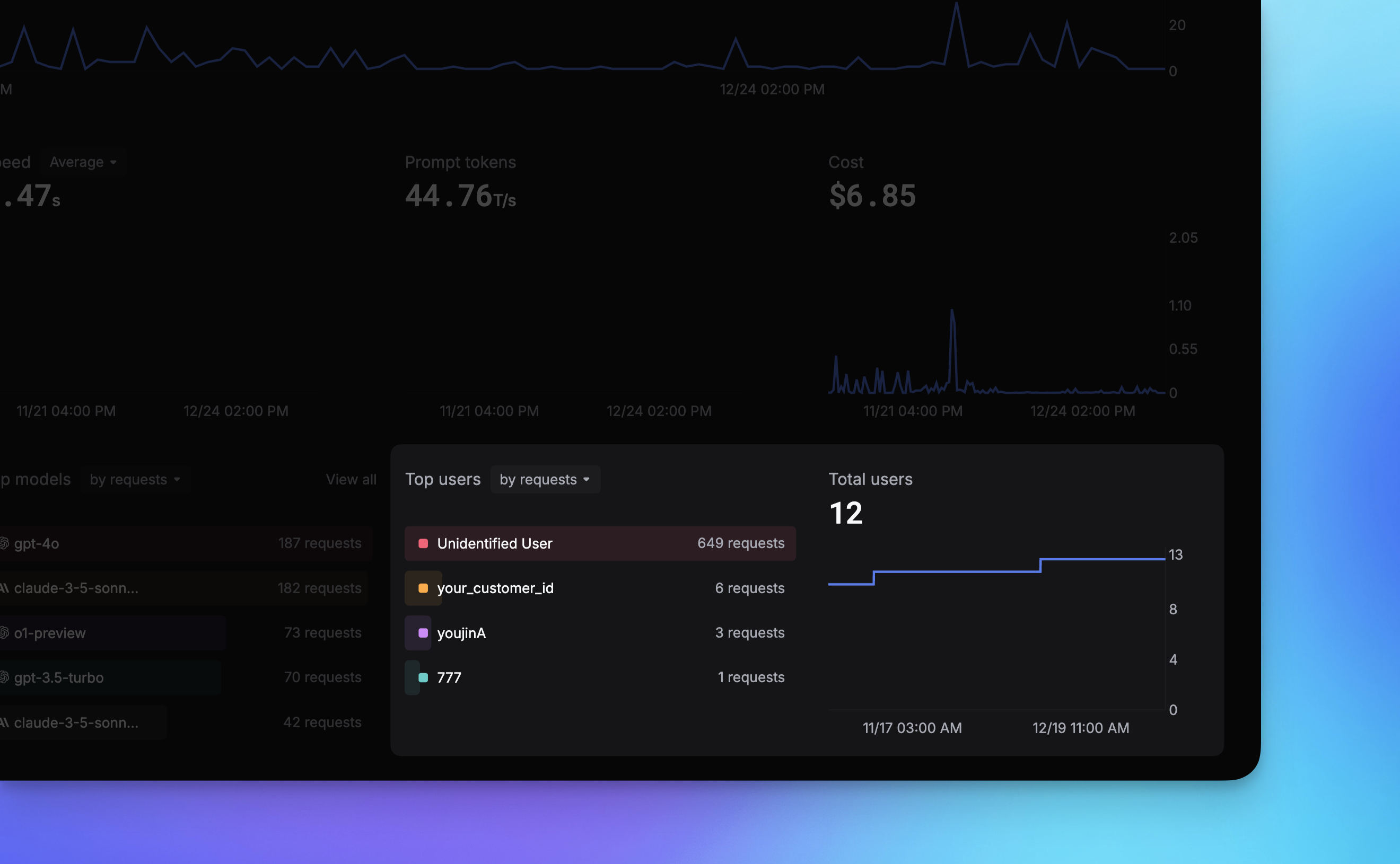
There are several charts on the Dashboard page to help you understand your users' behavior, including;
* Top users
* Daily active users count
* LLM cost by user
### 2. [Dashboard page](https://platform.keywordsai.co/platform/dashboard)
There are several charts on the Dashboard page to help you understand your users' behavior, including;
* Top users
* Daily active users count
* LLM cost by user
 ### 3. [Logs page](https://platform.keywordsai.co/platform/requests)
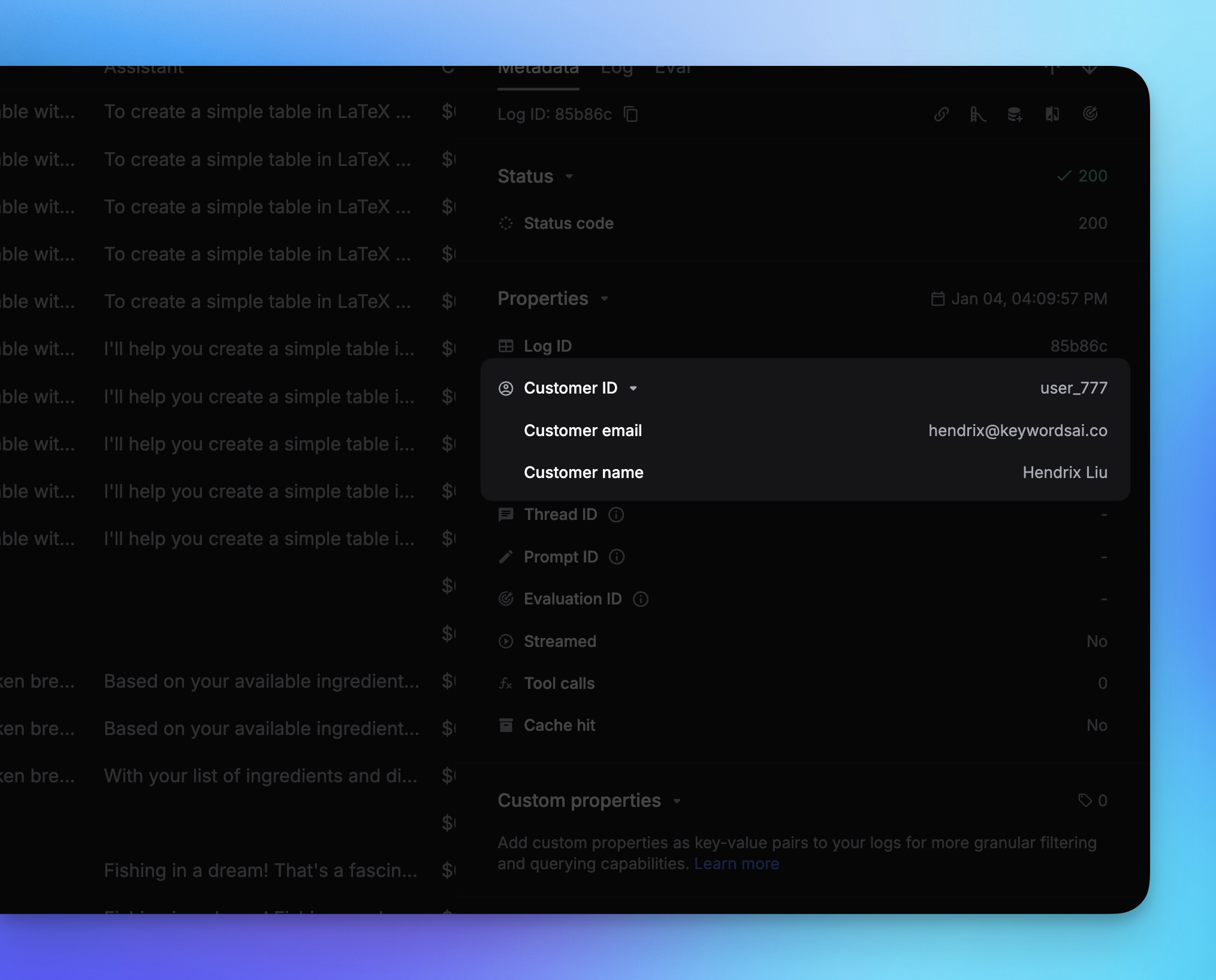
For each LLM log, you can see the corresponding user's data in the side panel. You can also filter logs by choosing a User Identifier.
### 3. [Logs page](https://platform.keywordsai.co/platform/requests)
For each LLM log, you can see the corresponding user's data in the side panel. You can also filter logs by choosing a User Identifier.
 ## Create a user without sending a log