> ## Documentation Index
> Fetch the complete documentation index at: https://docs.keywordsai.co/llms.txt
> Use this file to discover all available pages before exploring further.
# Evaluations
> Evaluate and improve your LLM applications with automated testing and scoring
## What is evaluation?
Evaluation helps you systematically test and improve your LLM applications by running automated experiments across different prompts, models, and configurations. Keywords AI offers two ways of evaluations:
* **Online Evaluation**: Run experiments with your draft prompt, iterate before production.
* **Offline Evaluation**: Select a group of logs you have and evaluate them against your criteria.
## Use online evaluation
This quickstart focuses on **online evaluation** - testing your prompts before deploying them to production.
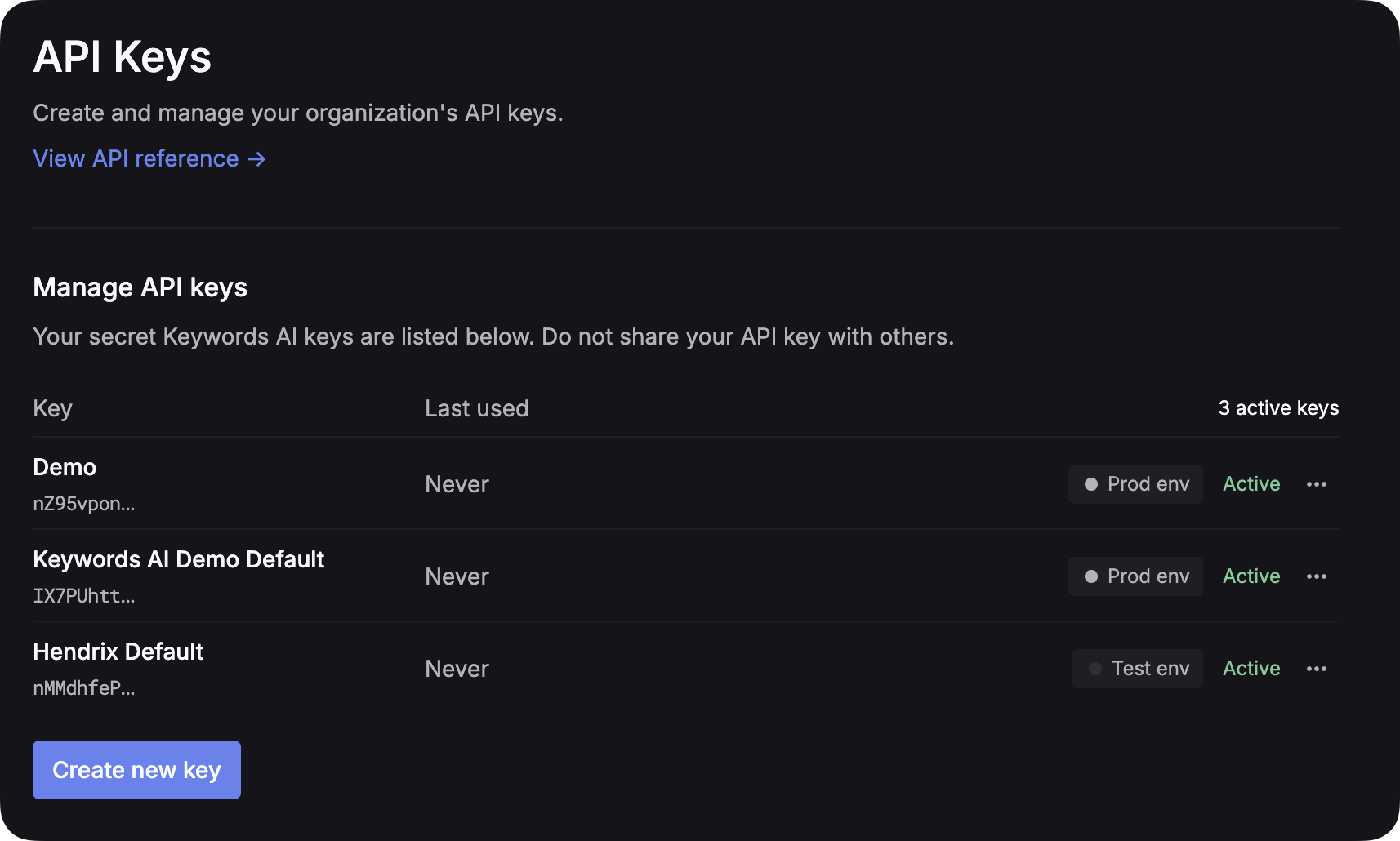
### 1. Get your Keywords AI API key
After you create an account on [Keywords AI](https://platform.keywordsai.co), you can get your API key from the [API keys page](https://platform.keywordsai.co/platform/api/api-keys).
 ### 2. Set up LLM provider API key
**Environment Management**: To separate test and production environments, create separate API keys for each environment instead of using an `env` parameter. This approach provides better security and clearer separation between your development and production workflows.
For all AI gateway users, you have to add your own credentials to activate AI gateway. We will use your credentials to call LLMs on your behalf.
For example, if you want to use OpenAI, you have to add your OpenAI API key to activate AI gateway.
We won't use your credentials for any other purposes.
* [Set up LLM provider API key](https://platform.keywordsai.co/platform/api/providers)
### 3. Create a prompt
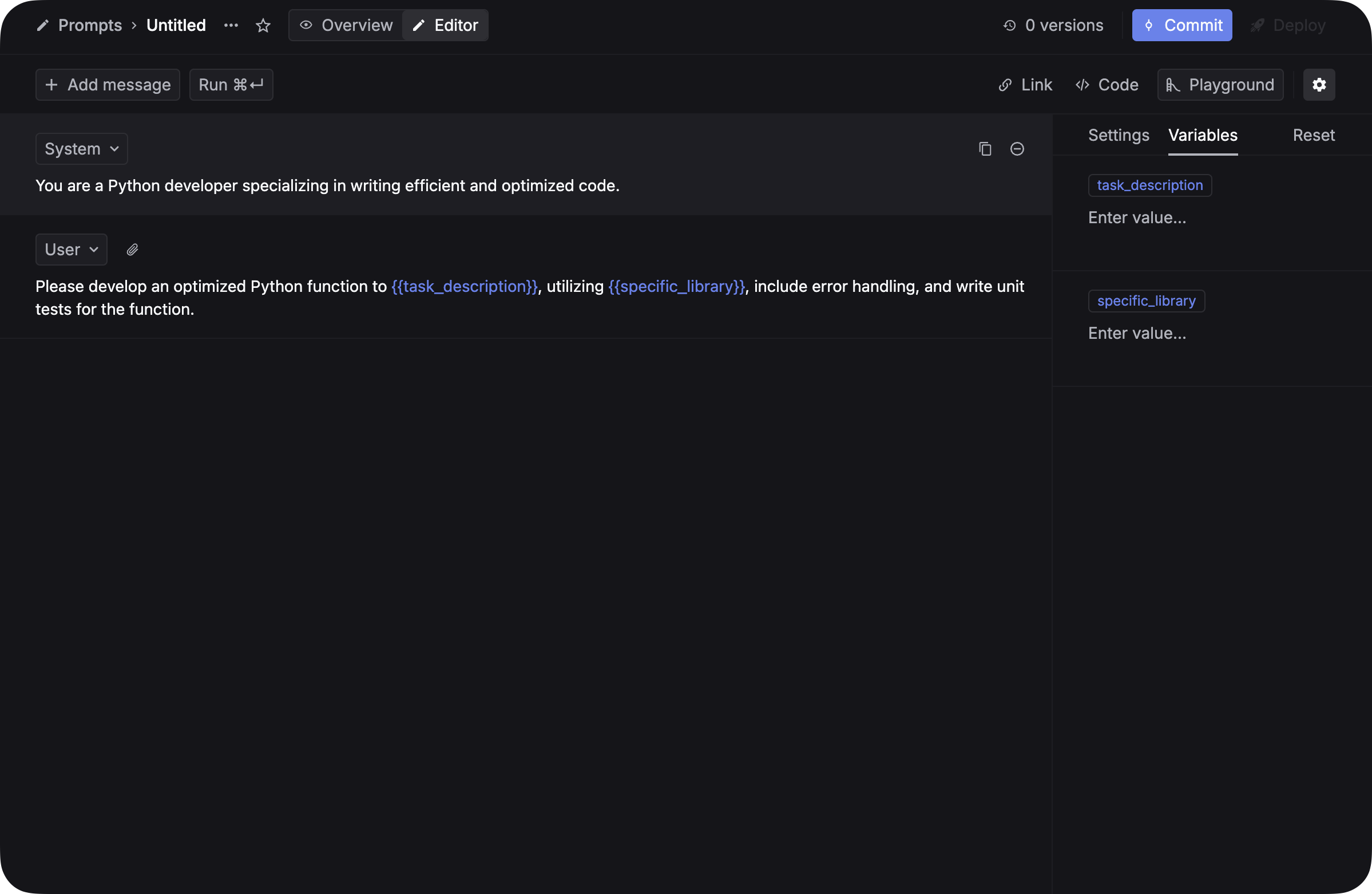
Before you can evaluate your LLM applications, you need to go to [prompts page](https://platform.keywordsai.co/platform/prompts) and create prompt template with variables that can be tested against different inputs.
**Make sure you add variables to your prompt!**
Variables are placeholders for dynamic content that can be used to generate prompts. Simply add double curly braces `{{variable_name}}` to your prompt and you will be able to use the variable in your prompt.
The format of the variable can't be `{{task description}}`. It should be `{{task_description}}` with "\_" instead of spaces.
### 2. Set up LLM provider API key
**Environment Management**: To separate test and production environments, create separate API keys for each environment instead of using an `env` parameter. This approach provides better security and clearer separation between your development and production workflows.
For all AI gateway users, you have to add your own credentials to activate AI gateway. We will use your credentials to call LLMs on your behalf.
For example, if you want to use OpenAI, you have to add your OpenAI API key to activate AI gateway.
We won't use your credentials for any other purposes.
* [Set up LLM provider API key](https://platform.keywordsai.co/platform/api/providers)
### 3. Create a prompt
Before you can evaluate your LLM applications, you need to go to [prompts page](https://platform.keywordsai.co/platform/prompts) and create prompt template with variables that can be tested against different inputs.
**Make sure you add variables to your prompt!**
Variables are placeholders for dynamic content that can be used to generate prompts. Simply add double curly braces `{{variable_name}}` to your prompt and you will be able to use the variable in your prompt.
The format of the variable can't be `{{task description}}`. It should be `{{task_description}}` with "\_" instead of spaces.
 Check this instruction if you don't know how to setup up your prompt
### Step 4: Create a LLM evaluator
Evaluators automatically score your LLM outputs based on specific criteria. Follow these steps to create your first evaluator:
1. Navigate to **Evaluation** → **Evaluators** in your dashboard
2. Click **+ New evaluator** and select **LLM**
3. Fill in the evaluator configuration form:
Check this instruction if you don't know how to setup up your prompt
### Step 4: Create a LLM evaluator
Evaluators automatically score your LLM outputs based on specific criteria. Follow these steps to create your first evaluator:
1. Navigate to **Evaluation** → **Evaluators** in your dashboard
2. Click **+ New evaluator** and select **LLM**
3. Fill in the evaluator configuration form:
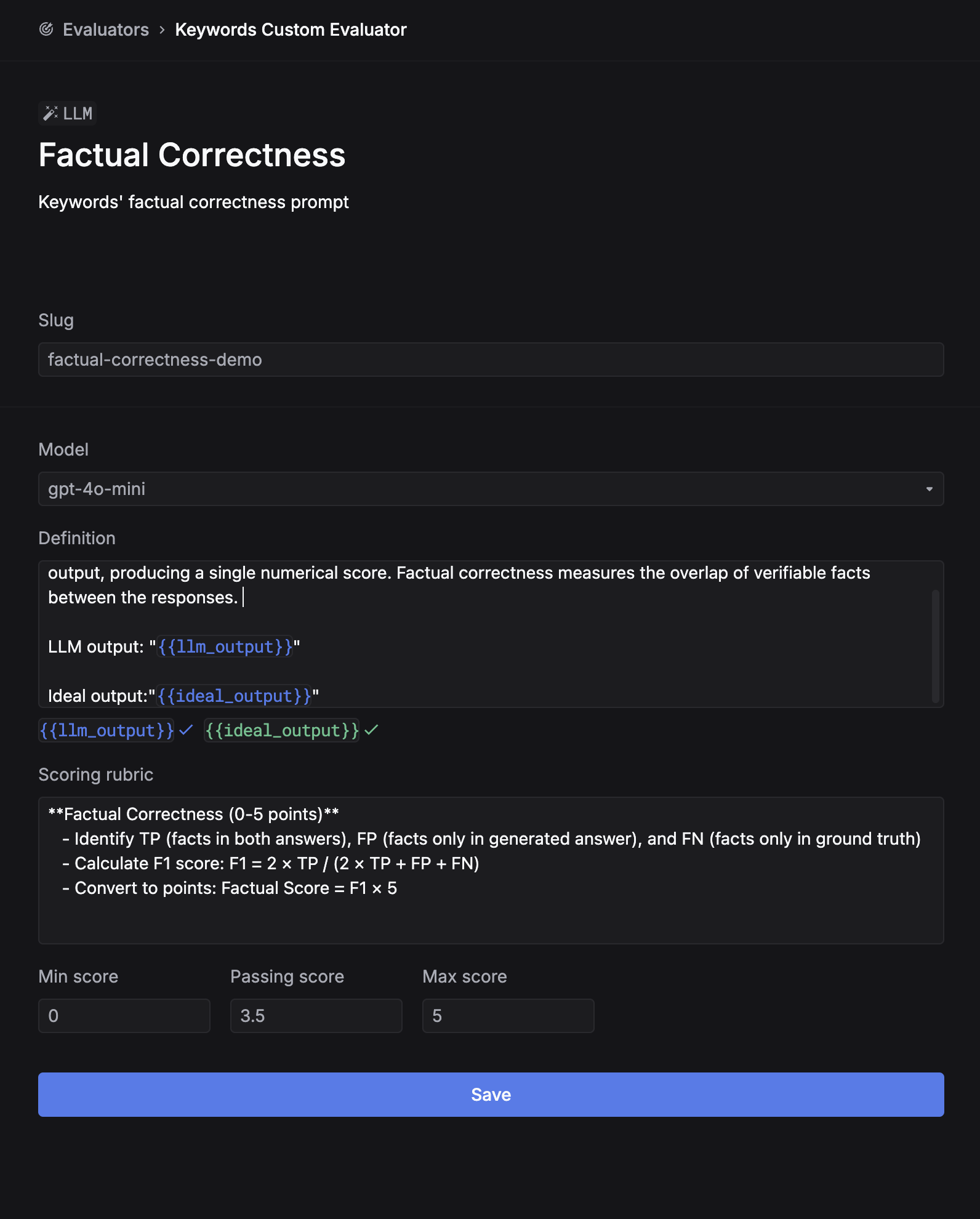 3. Fill in the evaluator configuration form:
* **Name**: Give your evaluator a descriptive name (e.g., "Factual Correctness", "Response Relevance")
* **Slug**: Create a unique identifier for logs (e.g., "factual-correctness-demo")
* **Model**: Choose your evaluation model (`gpt-4o` or `gpt-4o-mini`)
* **Definition**: Write a clear description of what the evaluator should assess, using these available variables:
* `{{llm_output}}`: The output text from the LLM being evaluated
* `{{llm_input}}`: The input/prompt sent to the LLM (optional)
* `{{ideal_output}}`: The expected ideal output for comparison (optional)
* **Scoring rubric**: Define your scoring criteria and scale (e.g., 0-5 points)
* **Min/Max/Passing scores**: Set the score thresholds for your evaluation
4. Click **Save** to create your evaluator
Start with simple criteria before creating more complex evaluators.
### Step 5: Prepare testsets
Testsets contain the input data for your evaluation experiments. Each testset should include:
* **Variables**: Columns matching your prompt variables (without `{{}}` syntax)
* **Ideal outputs (recommended)**: Expected outputs for comparison during evaluation
**Example**: If your prompt uses `{{first_name}}`, `{{job_title}}`, and `{{company_name}}`, your testset should have columns: `first_name`, `job_title`, `company_name`, and `ideal_output`.
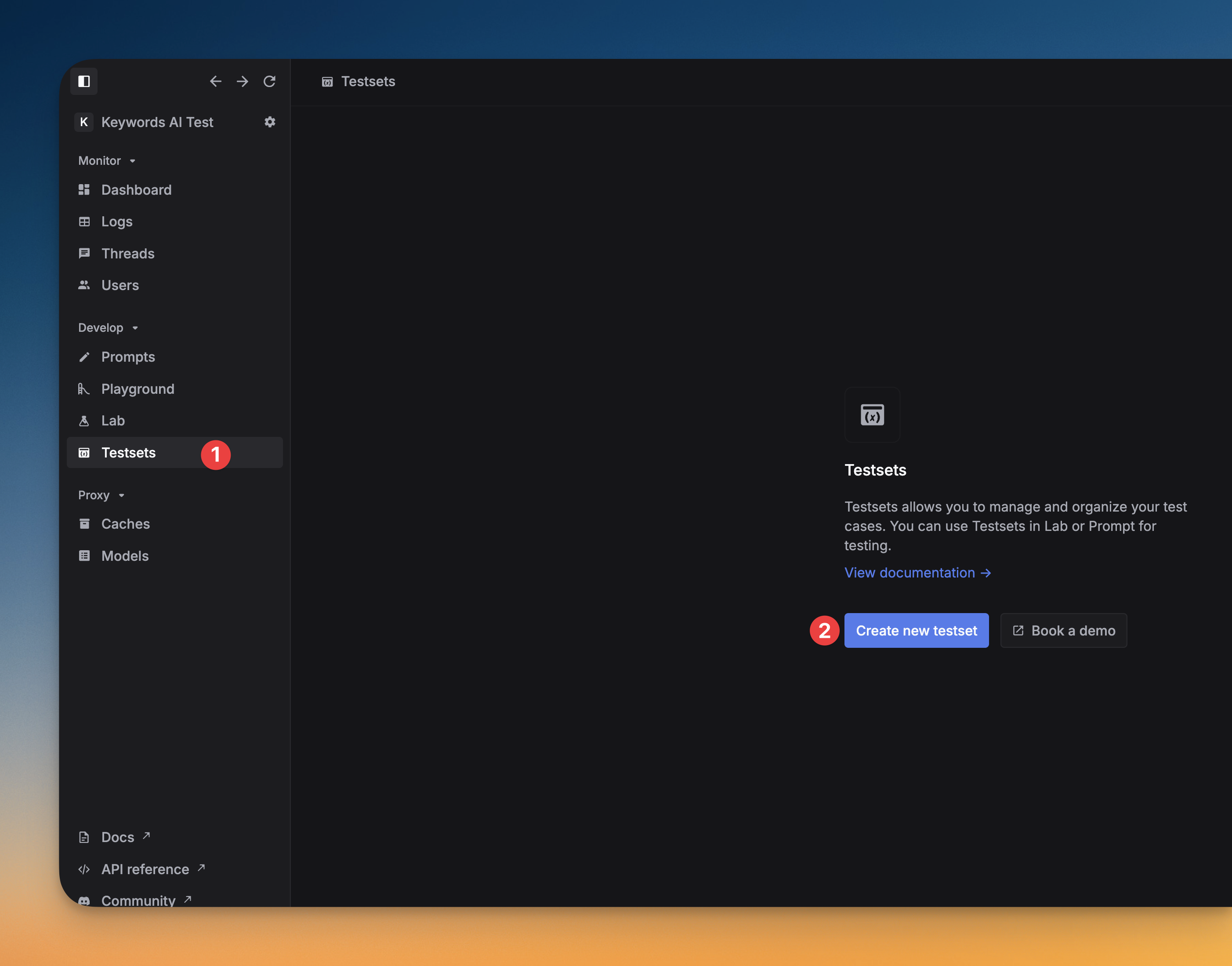
1. Navigate to **Testsets** and click **+ New testset**
2. Choose **Create empty**
3. Add columns for each variable in your prompt
4. Add an `ideal_output` column for expected results
5. Fill in your test cases directly in the interface
1. Create a CSV file with the required columns
2. Include your test data and ideal outputs
3. Fill in the evaluator configuration form:
* **Name**: Give your evaluator a descriptive name (e.g., "Factual Correctness", "Response Relevance")
* **Slug**: Create a unique identifier for logs (e.g., "factual-correctness-demo")
* **Model**: Choose your evaluation model (`gpt-4o` or `gpt-4o-mini`)
* **Definition**: Write a clear description of what the evaluator should assess, using these available variables:
* `{{llm_output}}`: The output text from the LLM being evaluated
* `{{llm_input}}`: The input/prompt sent to the LLM (optional)
* `{{ideal_output}}`: The expected ideal output for comparison (optional)
* **Scoring rubric**: Define your scoring criteria and scale (e.g., 0-5 points)
* **Min/Max/Passing scores**: Set the score thresholds for your evaluation
4. Click **Save** to create your evaluator
Start with simple criteria before creating more complex evaluators.
### Step 5: Prepare testsets
Testsets contain the input data for your evaluation experiments. Each testset should include:
* **Variables**: Columns matching your prompt variables (without `{{}}` syntax)
* **Ideal outputs (recommended)**: Expected outputs for comparison during evaluation
**Example**: If your prompt uses `{{first_name}}`, `{{job_title}}`, and `{{company_name}}`, your testset should have columns: `first_name`, `job_title`, `company_name`, and `ideal_output`.
1. Navigate to **Testsets** and click **+ New testset**
2. Choose **Create empty**
3. Add columns for each variable in your prompt
4. Add an `ideal_output` column for expected results
5. Fill in your test cases directly in the interface
1. Create a CSV file with the required columns
2. Include your test data and ideal outputs
 3. Import the CSV file in the **Testsets** section
4. Edit the imported data like a Google Sheet if needed
3. Import the CSV file in the **Testsets** section
4. Edit the imported data like a Google Sheet if needed
 ### Step 6: Run experiments
Congratulations! Now you have everything ready to run your experiments.
Experiments test your prompts against your testsets using your evaluators.
#### Create an experiment
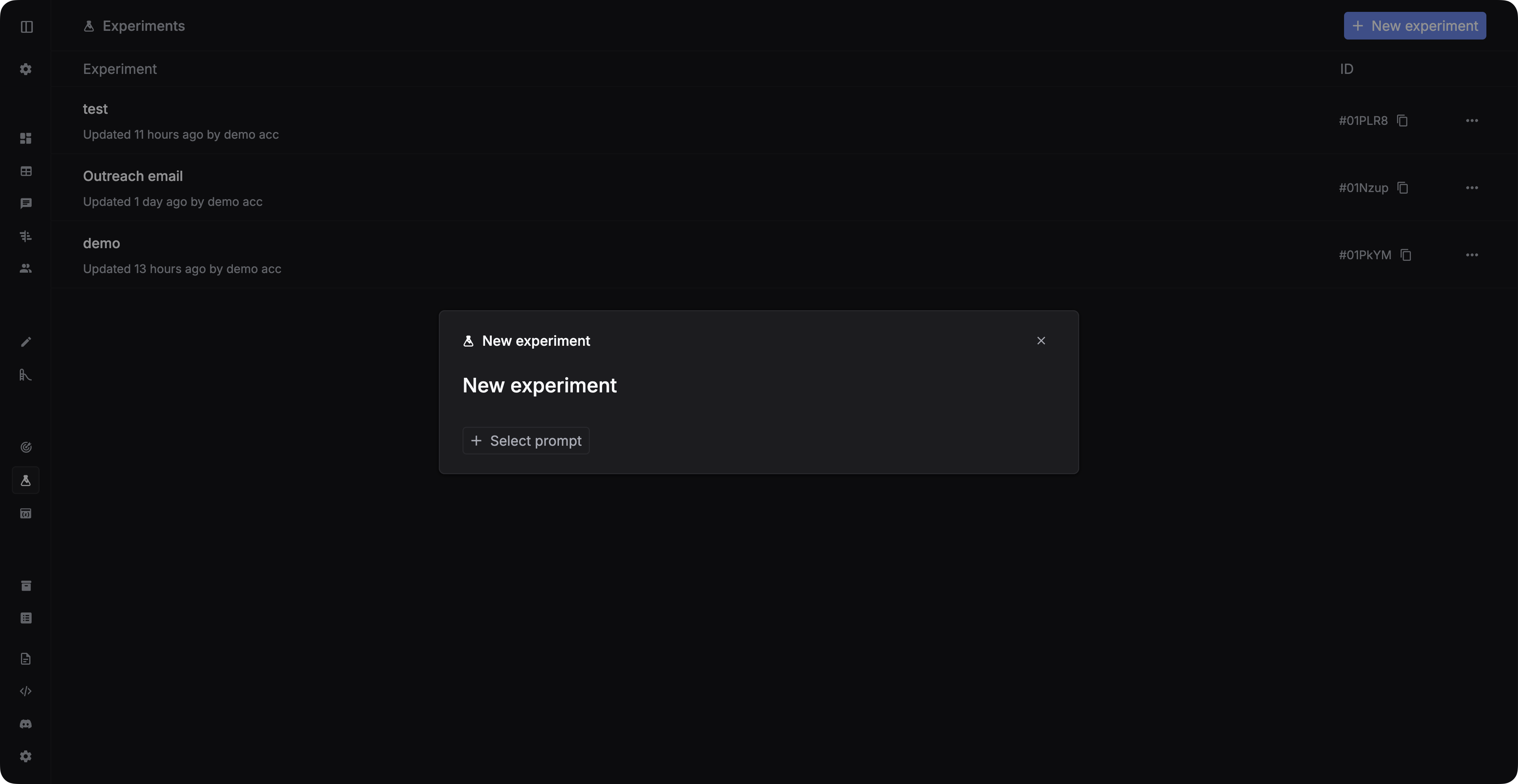
Navigate to **Experiments** and create a new experiment.
### Step 6: Run experiments
Congratulations! Now you have everything ready to run your experiments.
Experiments test your prompts against your testsets using your evaluators.
#### Create an experiment
Navigate to **Experiments** and create a new experiment.
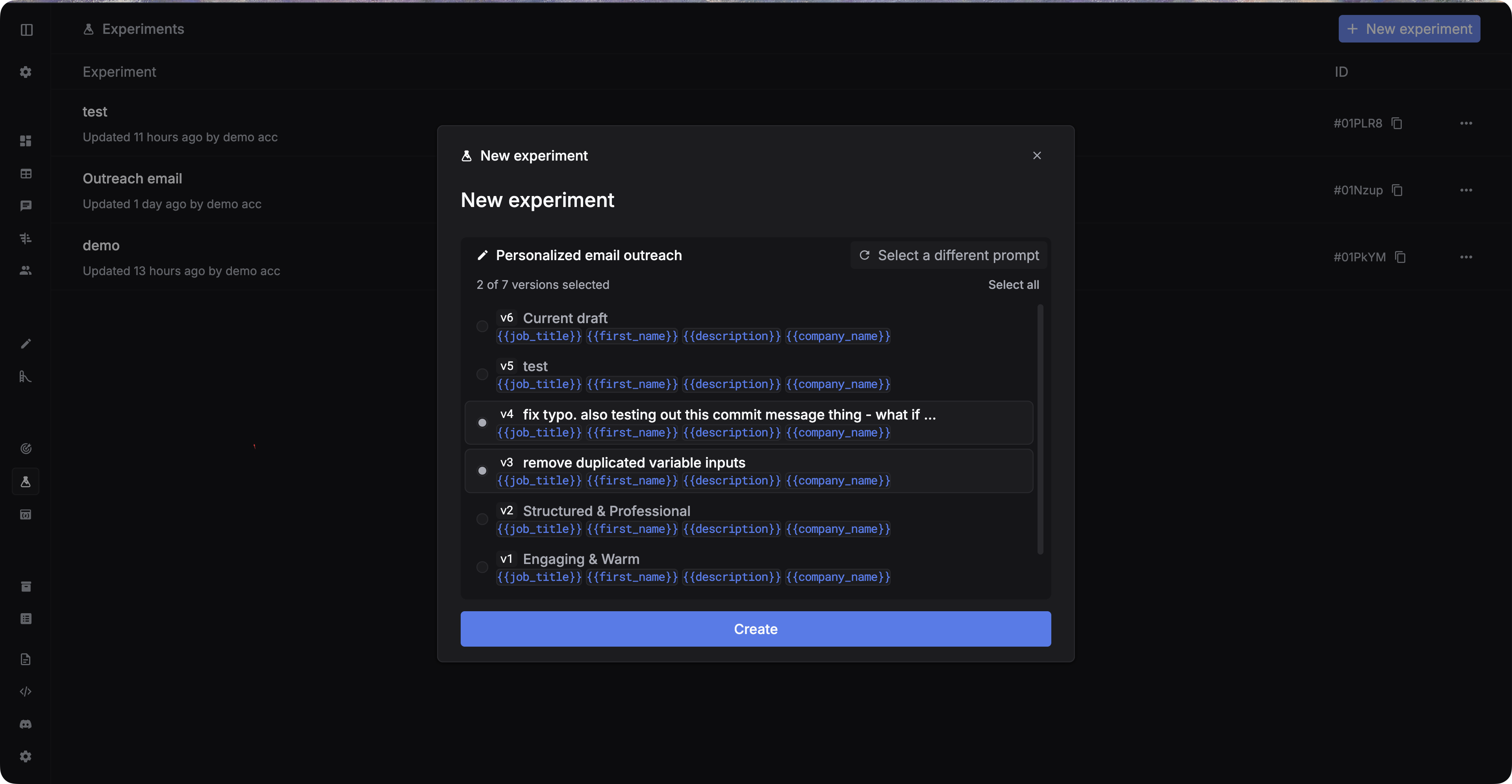
 Select the prompt and the versions you want to test.
 #### Add test cases
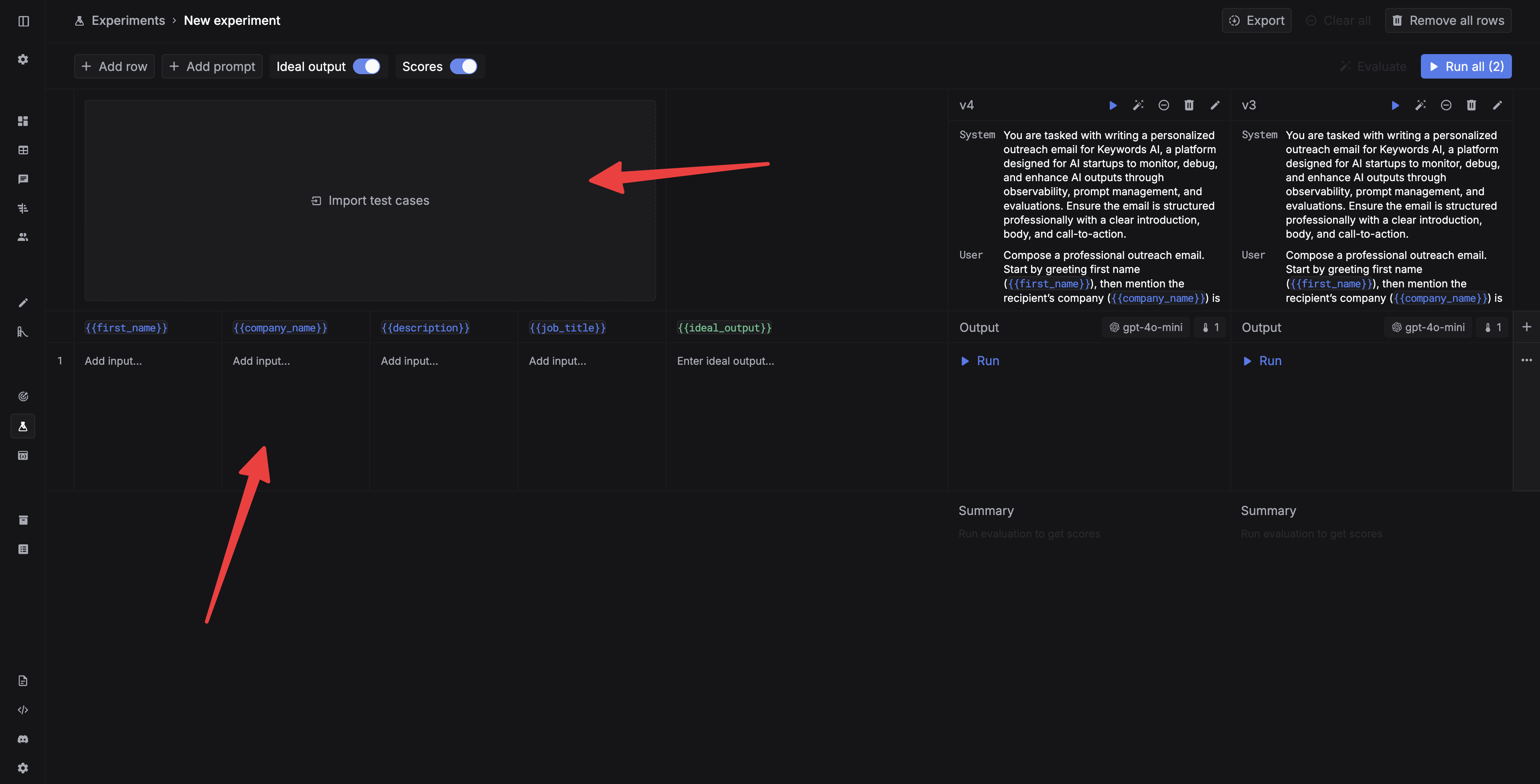
Add test cases for your experiment. You can either add test cases manually or import a testset from Testsets.
You can also add test cases manually in Experiments.
#### Add test cases
Add test cases for your experiment. You can either add test cases manually or import a testset from Testsets.
You can also add test cases manually in Experiments.
 #### Run the experiment
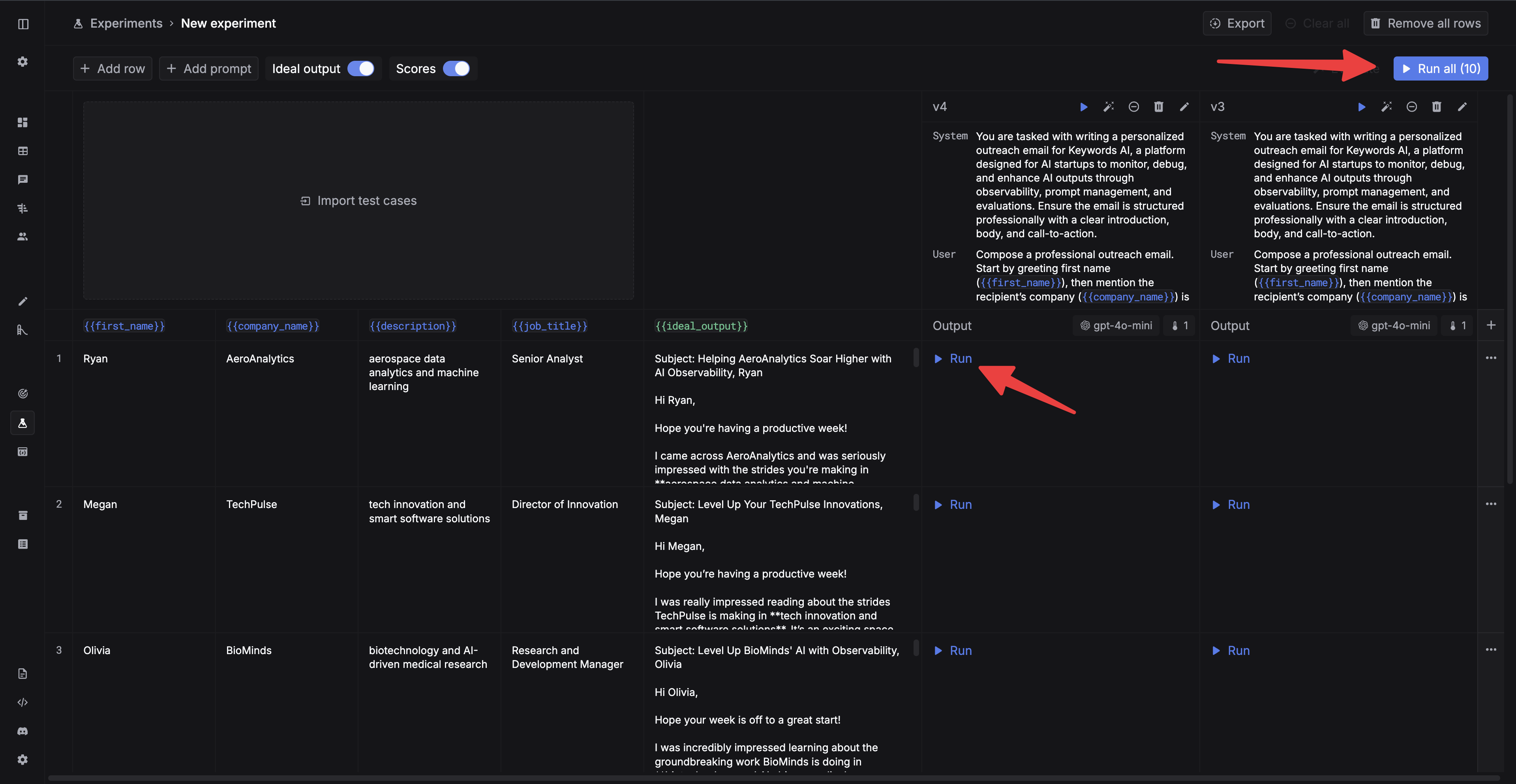
Now you can run the experiment. You can run a single cell by clicking the `Run` button in each cell, or run all the cells by clicking the `Run all` button.
#### Run the experiment
Now you can run the experiment. You can run a single cell by clicking the `Run` button in each cell, or run all the cells by clicking the `Run all` button.
 #### Run evaluations for outputs
After the experiment is finished, you can run evaluations for the outputs.
Experiments consume API credits from your LLM provider. Start with small testsets to estimate costs.
#### Run evaluations for outputs
After the experiment is finished, you can run evaluations for the outputs.
Experiments consume API credits from your LLM provider. Start with small testsets to estimate costs.