> ## Documentation Index
> Fetch the complete documentation index at: https://docs.keywordsai.co/llms.txt
> Use this file to discover all available pages before exploring further.
# AI gateway
> Keywords AI AI gateway supports you call 250+ LLMs using the same input/output format.
***
## What is AI gateway?
Keywords AI's AI Gateway is a gateway that lets you interface with 250+ large language models (LLMs) via one unified API.
```mermaid theme={"system"}
flowchart TD;
A[Input]-->B[LLM gateway];
B-->C[250+ LLMs];
B-->D[Model fallback];
B-->E[Load balancing];
B-->F[Prompt caching];
C-->Z[Optimized LLM Output];
D-->Z[Optimized LLM Output];
E-->Z[Optimized LLM Output];
F-->Z[Optimized LLM Output];
```
### Considerations:
* May not be suitable for products with strict latency requirements (**50 - 150ms** added).
* May not be ideal for those who do not want to integrate a third-party service into the core of their application.
## Use AI gateway
### 1. Get your Keywords AI API key
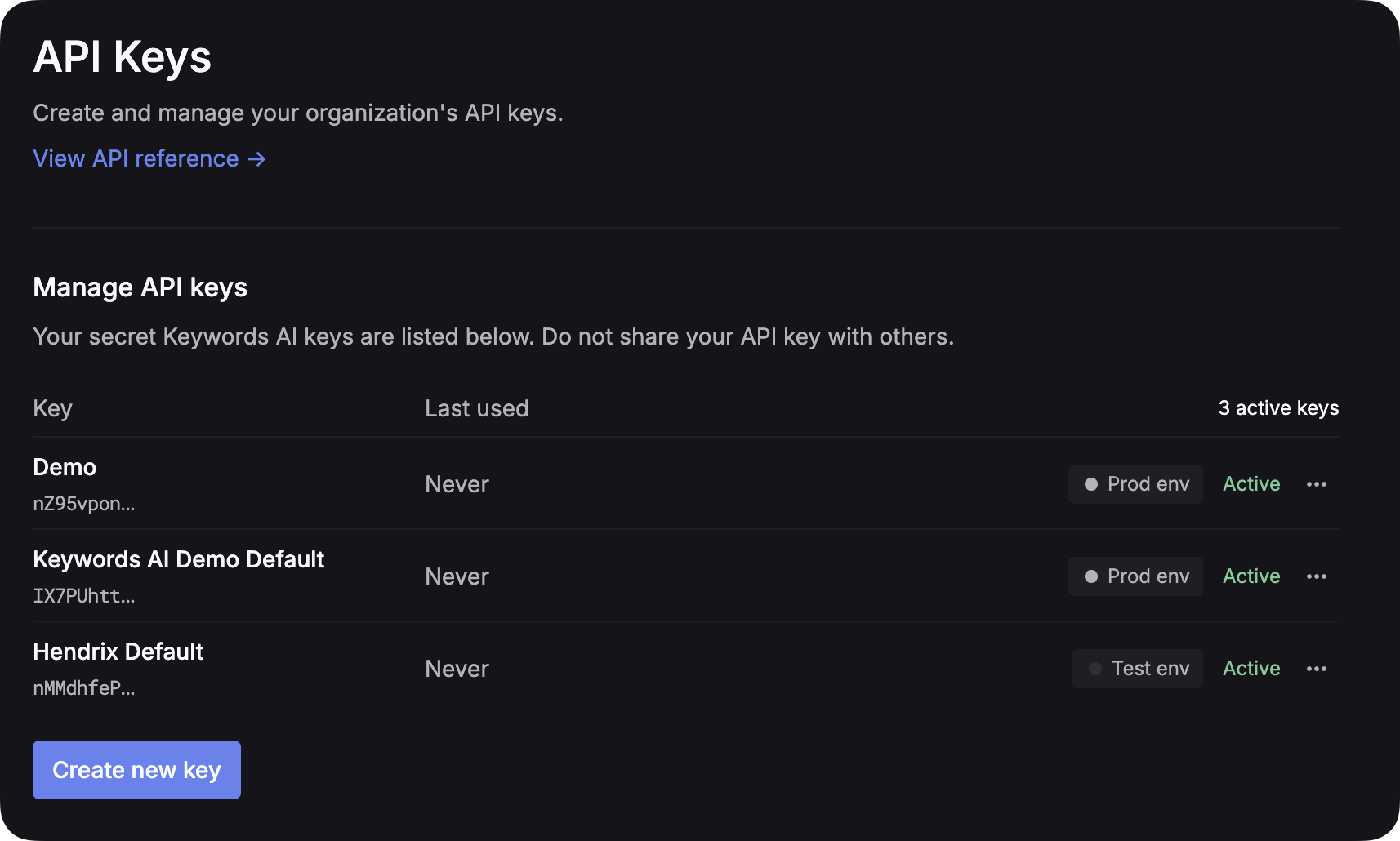
After you create an account on [Keywords AI](https://platform.keywordsai.co), you can get your API key from the [API keys page](https://platform.keywordsai.co/platform/api/api-keys).
 ### 2. Set up LLM provider API key
**Environment Management**: To separate test and production environments, create separate API keys for each environment instead of using an `env` parameter. This approach provides better security and clearer separation between your development and production workflows.
For all AI gateway users, you have to add your own credentials to activate AI gateway. We will use your credentials to call LLMs on your behalf.
For example, if you want to use OpenAI, you have to add your OpenAI API key to activate AI gateway.
We won’t use your credentials for any other purposes.
* [Set up LLM provider API key](https://platform.keywordsai.co/platform/api/providers)
### 3. Call a LLM
You can use the standard API call to connect 250+ LLMs.
```python Python theme={"system"}
import requests
def demo_call(input,
model="gpt-4o-mini",
token="YOUR_KEYWORDS_AI_API_KEY"
):
headers = {
'Content-Type': 'application/json',
'Authorization': f'Bearer {token}',
}
data = {
'model': model,
'messages': [{'role': 'user', 'content': input}],
}
response = requests.post('https://api.keywordsai.co/api/chat/completions', headers=headers, json=data)
return response
messages = "Say 'Hello World'"
print(demo_call(messages).json())
```
```TypeScript TypeScript theme={"system"}
fetch('https://api.keywordsai.co/api/chat/completions', {
method: 'POST',
headers: {
'Content-Type': 'application/json',
'Authorization': 'Bearer YOUR_KEYWORDS_AI_API_KEY'
},
body: JSON.stringify({
model: 'gpt-4o-mini',
messages: [{role: 'user', content: "Say 'Hello World'"}]
})
})
.then(response => response.json())
.then(data => console.log(data));
```
```bash Bash theme={"system"}
curl -X POST "https://api.keywordsai.co/chat/completions"
-H "Content-Type: application/json"
-H "Authorization: Bearer Your_KeywordsAI_API_Key"
-d "{
"model": "gpt-4o-mini",
"messages": [{"role": "user", "content": "Hello"}],
}"
```
```PHP PHP theme={"system"}
"gpt-4o-mini",
"messages" => array(["role" => "user", "content" => "Hello"]),
)));
$response = curl_exec($ch);
curl_close($ch);
?>
```
```Go Go theme={"system"}
package main
import (
"bytes"
"net/http"
)
func main() {
url := "https://api.keywordsai.co/chat/completions"
method := "POST"
payload := []byte(`{
"model" : "gpt-4o-mini",
"messages": [{"role": "user", "content": "Hello"}],
}`)
client := &http.Client{}
req, err := http.NewRequest(method, url, bytes.NewBuffer(payload))
if err != nil {
panic(err)
}
req.Header.Add("Content-Type", "application/json")
req.Header.Add("Authorization", "Bearer Your_KeywordsAI_API_Key")
res, err := client.Do(req)
defer res.Body.Close()
}
```
### 4. Parameters
We support all OpenAI parameters, which is the standard format for LLMs. You can check out important [OpenAI parameters in this page](/api-endpoints/develop/gateway/chat-completions#openai-compatible-parameters). You can also learn more about OpenAI parameters [here](https://platform.openai.com/docs/api-reference/chat).
Use these when you want to achieve specific goals. For example, you can use `fallback_models` to specify fallback models when the primary model is down. You can check out all [Keywords AI parameters in this page](/api-endpoints/develop/gateway/chat-completions#keywords-ai-parameters).
## Integrate with your existing AI framework
Keywords AI offers various integration options, including all mainstream LLM frameworks and REST APIs.
### Supported frameworks
### 2. Set up LLM provider API key
**Environment Management**: To separate test and production environments, create separate API keys for each environment instead of using an `env` parameter. This approach provides better security and clearer separation between your development and production workflows.
For all AI gateway users, you have to add your own credentials to activate AI gateway. We will use your credentials to call LLMs on your behalf.
For example, if you want to use OpenAI, you have to add your OpenAI API key to activate AI gateway.
We won’t use your credentials for any other purposes.
* [Set up LLM provider API key](https://platform.keywordsai.co/platform/api/providers)
### 3. Call a LLM
You can use the standard API call to connect 250+ LLMs.
```python Python theme={"system"}
import requests
def demo_call(input,
model="gpt-4o-mini",
token="YOUR_KEYWORDS_AI_API_KEY"
):
headers = {
'Content-Type': 'application/json',
'Authorization': f'Bearer {token}',
}
data = {
'model': model,
'messages': [{'role': 'user', 'content': input}],
}
response = requests.post('https://api.keywordsai.co/api/chat/completions', headers=headers, json=data)
return response
messages = "Say 'Hello World'"
print(demo_call(messages).json())
```
```TypeScript TypeScript theme={"system"}
fetch('https://api.keywordsai.co/api/chat/completions', {
method: 'POST',
headers: {
'Content-Type': 'application/json',
'Authorization': 'Bearer YOUR_KEYWORDS_AI_API_KEY'
},
body: JSON.stringify({
model: 'gpt-4o-mini',
messages: [{role: 'user', content: "Say 'Hello World'"}]
})
})
.then(response => response.json())
.then(data => console.log(data));
```
```bash Bash theme={"system"}
curl -X POST "https://api.keywordsai.co/chat/completions"
-H "Content-Type: application/json"
-H "Authorization: Bearer Your_KeywordsAI_API_Key"
-d "{
"model": "gpt-4o-mini",
"messages": [{"role": "user", "content": "Hello"}],
}"
```
```PHP PHP theme={"system"}
"gpt-4o-mini",
"messages" => array(["role" => "user", "content" => "Hello"]),
)));
$response = curl_exec($ch);
curl_close($ch);
?>
```
```Go Go theme={"system"}
package main
import (
"bytes"
"net/http"
)
func main() {
url := "https://api.keywordsai.co/chat/completions"
method := "POST"
payload := []byte(`{
"model" : "gpt-4o-mini",
"messages": [{"role": "user", "content": "Hello"}],
}`)
client := &http.Client{}
req, err := http.NewRequest(method, url, bytes.NewBuffer(payload))
if err != nil {
panic(err)
}
req.Header.Add("Content-Type", "application/json")
req.Header.Add("Authorization", "Bearer Your_KeywordsAI_API_Key")
res, err := client.Do(req)
defer res.Body.Close()
}
```
### 4. Parameters
We support all OpenAI parameters, which is the standard format for LLMs. You can check out important [OpenAI parameters in this page](/api-endpoints/develop/gateway/chat-completions#openai-compatible-parameters). You can also learn more about OpenAI parameters [here](https://platform.openai.com/docs/api-reference/chat).
Use these when you want to achieve specific goals. For example, you can use `fallback_models` to specify fallback models when the primary model is down. You can check out all [Keywords AI parameters in this page](/api-endpoints/develop/gateway/chat-completions#keywords-ai-parameters).
## Integrate with your existing AI framework
Keywords AI offers various integration options, including all mainstream LLM frameworks and REST APIs.
### Supported frameworks