> ## Documentation Index
> Fetch the complete documentation index at: https://docs.keywordsai.co/llms.txt
> Use this file to discover all available pages before exploring further.
# Logging via API
> Send your LLM logs to Keywords AI and monitor them in real-time
## What is logging?
1. Send a `POST` request to log your AI conversations
2. See them appear instantly on your Keywords AI platform
 ## Use logging API
### 1. Get your Keywords AI API key
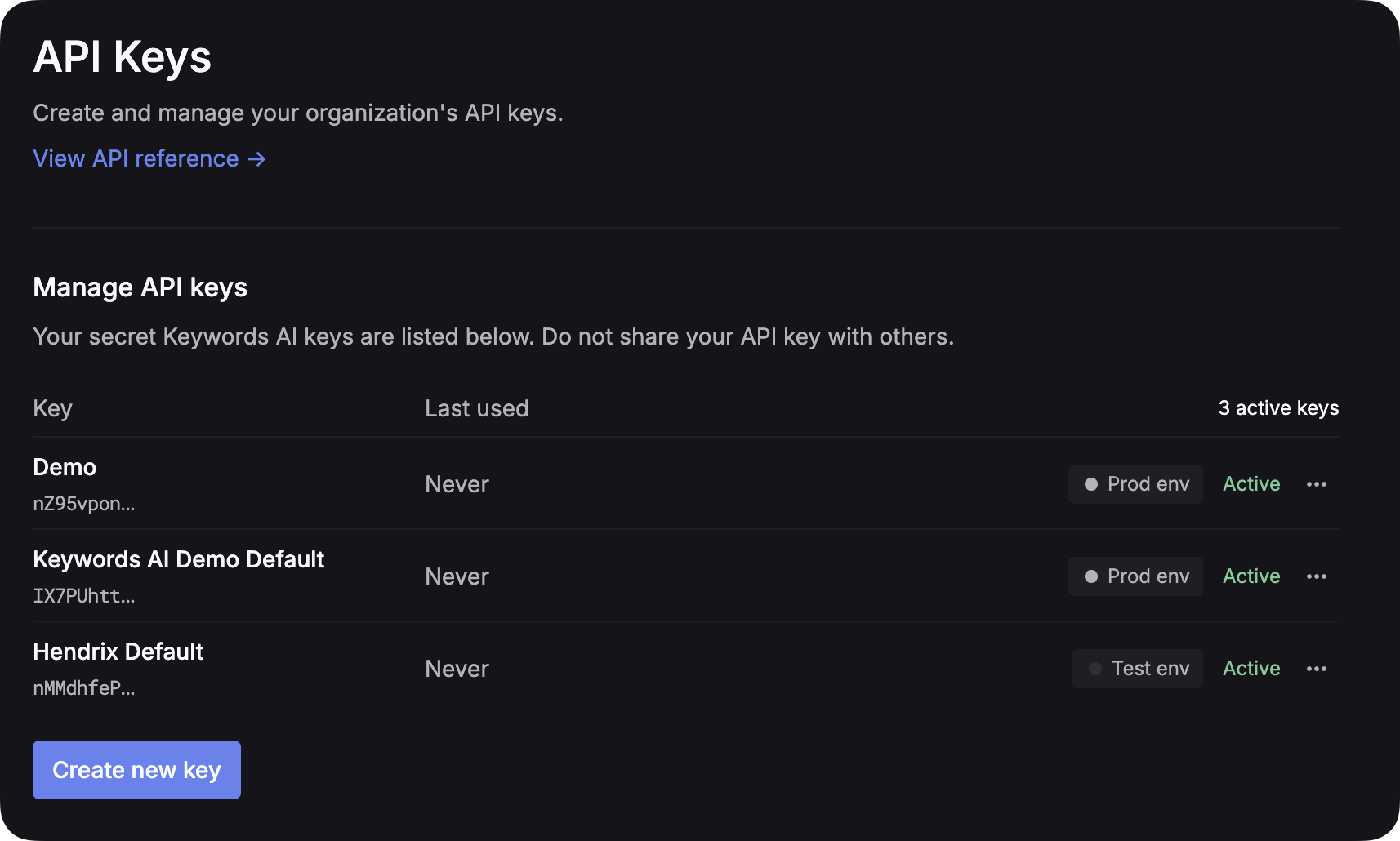
After you create an account on [Keywords AI](https://platform.keywordsai.co), you can get your API key from the [API keys page](https://platform.keywordsai.co/platform/api/api-keys).
## Use logging API
### 1. Get your Keywords AI API key
After you create an account on [Keywords AI](https://platform.keywordsai.co), you can get your API key from the [API keys page](https://platform.keywordsai.co/platform/api/api-keys).
 ### 2. Integrate Async Logging into your codebase
```python Python {22} theme={"system"}
import requests
import json
url = "https://api.keywordsai.co/api/request-logs/create/"
payload = {
"model": "gpt-4o",
"log_type": "chat",
"input": json.dumps([
{
"role": "user",
"content": "How can I help a customer with a billing issue?"
}
]),
"output": json.dumps({
"role": "assistant",
"content": "I'd be happy to help with billing issues. First, let me check your account details..."
}),
"customer_identifier": "support_agent_001"
}
headers = {
"Authorization": "Bearer YOUR_KEYWORDS_AI_API_KEY",
"Content-Type": "application/json"
}
response = requests.post(url, headers=headers, json=payload)
```
```typescript TypeScript {3} theme={"system"}
const url = 'https://api.keywordsai.co/api/request-logs/create/';
const headers = {
'Authorization': 'Bearer YOUR_KEYWORDS_AI_API_KEY',
'Content-Type': 'application/json'
};
const payload = {
model: 'gpt-4o',
log_type: 'chat',
input: JSON.stringify([
{
role: "user",
content: "How can I help a customer with a billing issue?"
}
]),
output: JSON.stringify({
role: "assistant",
content: "I'd be happy to help with billing issues. First, let me check your account details..."
}),
customer_identifier: "support_agent_001"
};
fetch(url, {
method: 'POST',
headers: headers,
body: JSON.stringify(payload)
})
.then(response => response.json())
.then(data => {
console.log(data);
});
```
```bash cURL {3} theme={"system"}
curl -X POST "https://api.keywordsai.co/api/request-logs/create/" \
-H "Content-Type: application/json" \
-H "Authorization: Bearer YOUR_KEYWORDS_AI_API_KEY" \
-d '{
"model": "gpt-4o",
"log_type": "chat",
"input": "[{\"role\":\"user\",\"content\":\"How can I help a customer with a billing issue?\"}]",
"output": "{\"role\":\"assistant\",\"content\":\"I'\''d be happy to help with billing issues. First, let me check your account details...\"}",
"customer_identifier": "support_agent_001"
}'
```
### 3. Check your logs on the platform
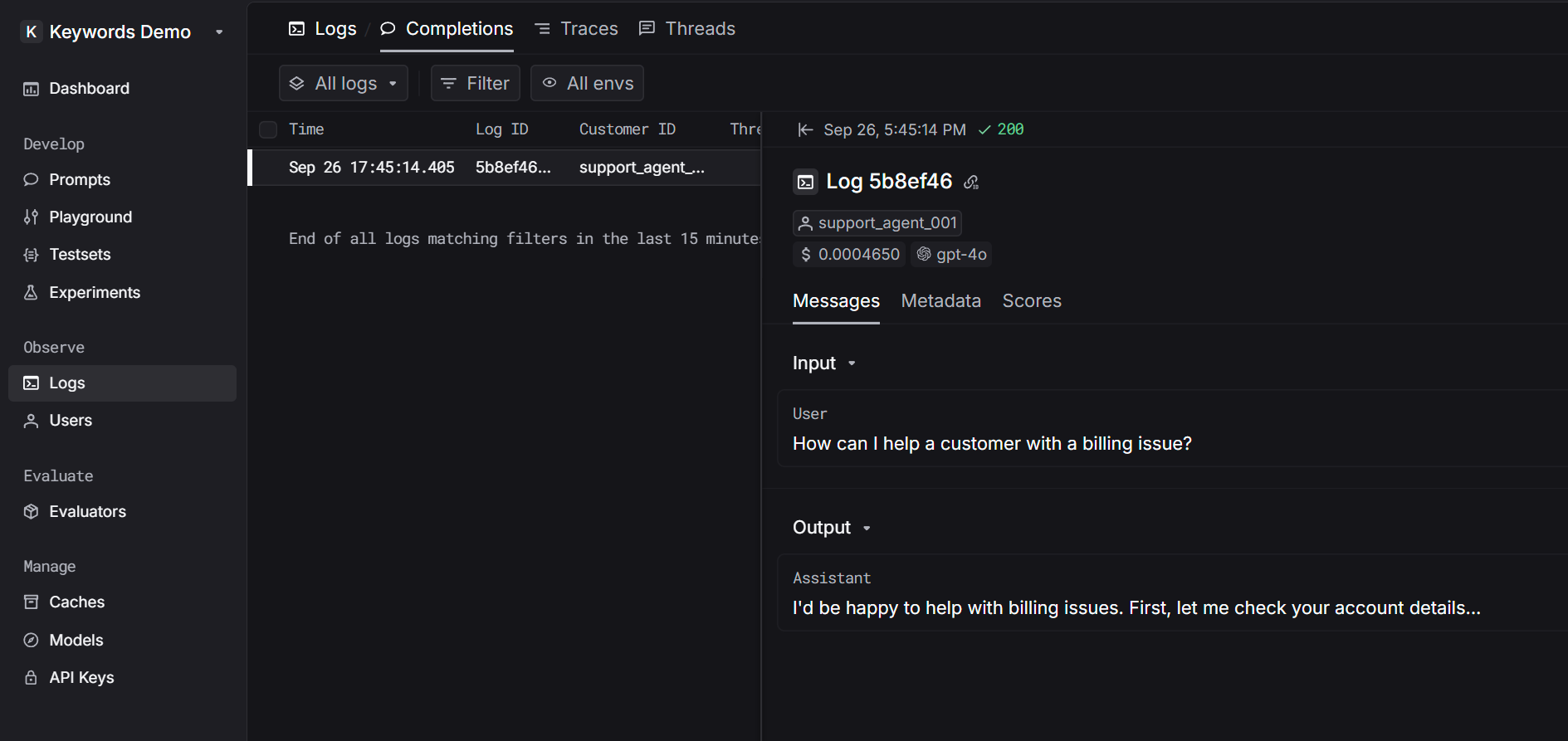
After you integrate the async logging into your codebase and send the request successfully, you can check your logs on the [Logs page](https://platform.keywordsai.co/platform/requests).
### 2. Integrate Async Logging into your codebase
```python Python {22} theme={"system"}
import requests
import json
url = "https://api.keywordsai.co/api/request-logs/create/"
payload = {
"model": "gpt-4o",
"log_type": "chat",
"input": json.dumps([
{
"role": "user",
"content": "How can I help a customer with a billing issue?"
}
]),
"output": json.dumps({
"role": "assistant",
"content": "I'd be happy to help with billing issues. First, let me check your account details..."
}),
"customer_identifier": "support_agent_001"
}
headers = {
"Authorization": "Bearer YOUR_KEYWORDS_AI_API_KEY",
"Content-Type": "application/json"
}
response = requests.post(url, headers=headers, json=payload)
```
```typescript TypeScript {3} theme={"system"}
const url = 'https://api.keywordsai.co/api/request-logs/create/';
const headers = {
'Authorization': 'Bearer YOUR_KEYWORDS_AI_API_KEY',
'Content-Type': 'application/json'
};
const payload = {
model: 'gpt-4o',
log_type: 'chat',
input: JSON.stringify([
{
role: "user",
content: "How can I help a customer with a billing issue?"
}
]),
output: JSON.stringify({
role: "assistant",
content: "I'd be happy to help with billing issues. First, let me check your account details..."
}),
customer_identifier: "support_agent_001"
};
fetch(url, {
method: 'POST',
headers: headers,
body: JSON.stringify(payload)
})
.then(response => response.json())
.then(data => {
console.log(data);
});
```
```bash cURL {3} theme={"system"}
curl -X POST "https://api.keywordsai.co/api/request-logs/create/" \
-H "Content-Type: application/json" \
-H "Authorization: Bearer YOUR_KEYWORDS_AI_API_KEY" \
-d '{
"model": "gpt-4o",
"log_type": "chat",
"input": "[{\"role\":\"user\",\"content\":\"How can I help a customer with a billing issue?\"}]",
"output": "{\"role\":\"assistant\",\"content\":\"I'\''d be happy to help with billing issues. First, let me check your account details...\"}",
"customer_identifier": "support_agent_001"
}'
```
### 3. Check your logs on the platform
After you integrate the async logging into your codebase and send the request successfully, you can check your logs on the [Logs page](https://platform.keywordsai.co/platform/requests).