> ## Documentation Index
> Fetch the complete documentation index at: https://docs.keywordsai.co/llms.txt
> Use this file to discover all available pages before exploring further.
# Agent tracing
> You can use Keywords AI Traces to trace your LLM requests and responses.
## What is traces?
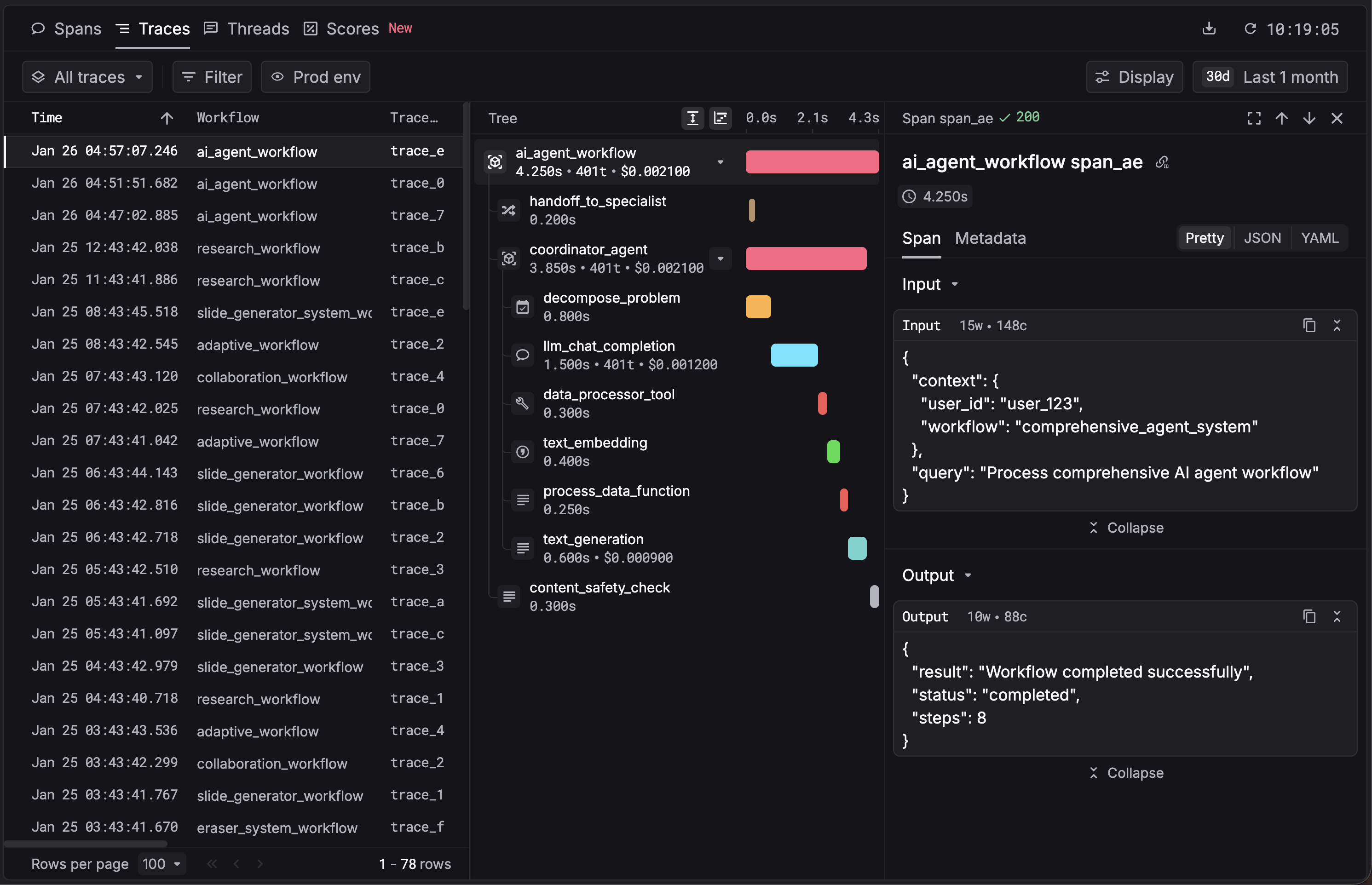
Traces are a chained collection of workflows and tasks. You can use tree views and waterfalls to better track dependencies and latency.
 ## Use agent tracing
### 1. Get your Keywords AI API key
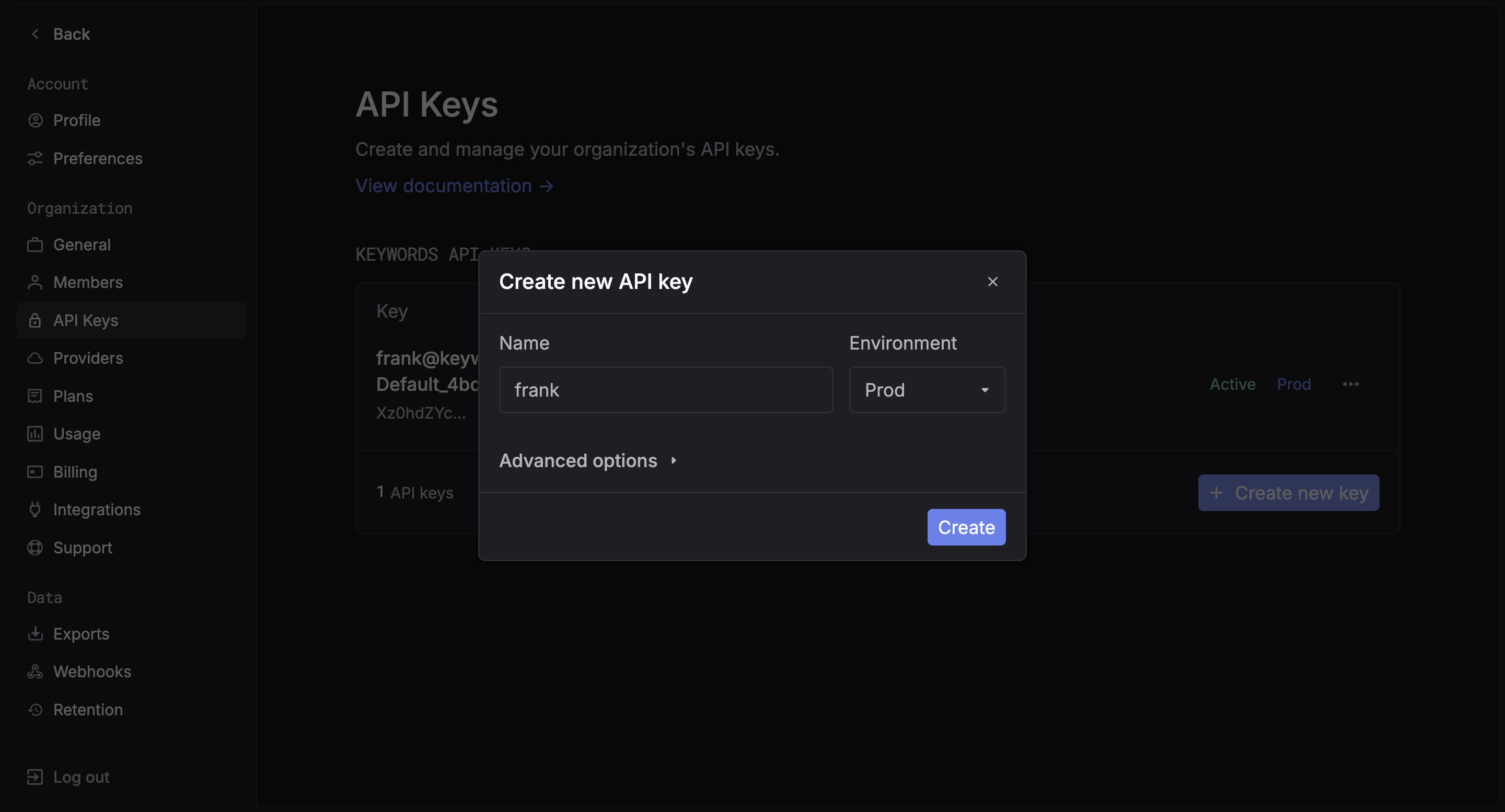
After you create an account on [Keywords AI](https://platform.keywordsai.co), you can get your API key from the [API keys page](https://platform.keywordsai.co/platform/api/api-keys).
## Use agent tracing
### 1. Get your Keywords AI API key
After you create an account on [Keywords AI](https://platform.keywordsai.co), you can get your API key from the [API keys page](https://platform.keywordsai.co/platform/api/api-keys).
 ### 2. Keywords AI Native (OpenTelemetry)
You just need to add the `keywordsai_tracing` package to your project and annotate your workflows.
**Python Requirement**: This package requires **Python 3.9** or later.
```bash pip theme={"system"}
pip install keywordsai-tracing
```
Get your API key from the [API Keys page](https://platform.keywordsai.co/platform/api/api-keys) in Settings, then configure it in your environment:
```python .env theme={"system"}
KEYWORDSAI_BASE_URL="https://api.keywordsai.co/api"
KEYWORDSAI_API_KEY="YOUR_KEYWORDSAI_API_KEY"
```
Use the `@workflow` and `@task` decorators to instrument your code:
```python Python {8} theme={"system"}
import os
from openai import OpenAI
from keywordsai_tracing.decorators import workflow, task
from keywordsai_tracing.main import KeywordsAITelemetry
# Initialize Keywords AI Telemetry
os.environ["KEYWORDSAI_API_KEY"] = "YOUR_KEYWORDSAI_API_KEY"
k_tl = KeywordsAITelemetry()
# Initialize OpenAI client
client = OpenAI()
@task(name="joke_creation")
def create_joke():
completion = client.chat.completions.create(
model="gpt-4o-mini",
messages=[{"role": "user", "content": "Tell me a joke about AI"}],
temperature=0.7,
max_tokens=100,
)
return completion.choices[0].message.content
@workflow(name="simple_joke_workflow")
def joke_workflow():
joke = create_joke()
return joke
if __name__ == "__main__":
result = joke_workflow()
print(result)
```
Install the package using your preferred package manager:
```bash theme={"system"}
npm install @keywordsai/tracing
# or yarn
yarn add @keywordsai/tracing
```
Get your API key from the [API Keys page](https://platform.keywordsai.co/platform/api/api-keys) in Settings, then configure it in your environment:
```bash .env theme={"system"}
KEYWORDSAI_BASE_URL="https://api.keywordsai.co/api"
KEYWORDSAI_API_KEY="YOUR_KEYWORDSAI_API_KEY"
OPENAI_API_KEY="YOUR_OPENAI_API_KEY"
```
```typescript server.ts {1-2, 5-9, 13-14, 16-17, 25-28} theme={"system"}
import { KeywordsAITelemetry } from '@keywordsai/tracing';
import OpenAI from 'openai';
// Initialize Keywords AI Telemetry
const keywordsAi = new KeywordsAITelemetry({
apiKey: process.env.KEYWORDSAI_API_KEY || "",
appName: 'test-app',
disableBatch: true // For testing, disable batching
});
// Initialize OpenAI client
const openai = new OpenAI();
async function createJoke() {
return await keywordsAi.withTask(
{ name: 'joke_creation' },
async () => {
const completion = await openai.chat.completions.create({
messages: [{ role: 'user', content: 'Tell me a joke about AI' }],
model: 'gpt-4o-mini',
temperature: 0.7,
max_tokens: 100
});
return completion.choices[0].message.content;
}
);
}
async function simpleJokeWorkflow() {
return await keywordsAi.withWorkflow(
{ name: 'simple_joke_workflow' },
async () => {
const joke = await createJoke();
return joke;
}
);
}
// Run the workflow
async function main() {
const result = await simpleJokeWorkflow();
console.log(result);
}
main().catch(console.error);
```
Optional HTTP instrumentation
If you see logs like:
### 2. Keywords AI Native (OpenTelemetry)
You just need to add the `keywordsai_tracing` package to your project and annotate your workflows.
**Python Requirement**: This package requires **Python 3.9** or later.
```bash pip theme={"system"}
pip install keywordsai-tracing
```
Get your API key from the [API Keys page](https://platform.keywordsai.co/platform/api/api-keys) in Settings, then configure it in your environment:
```python .env theme={"system"}
KEYWORDSAI_BASE_URL="https://api.keywordsai.co/api"
KEYWORDSAI_API_KEY="YOUR_KEYWORDSAI_API_KEY"
```
Use the `@workflow` and `@task` decorators to instrument your code:
```python Python {8} theme={"system"}
import os
from openai import OpenAI
from keywordsai_tracing.decorators import workflow, task
from keywordsai_tracing.main import KeywordsAITelemetry
# Initialize Keywords AI Telemetry
os.environ["KEYWORDSAI_API_KEY"] = "YOUR_KEYWORDSAI_API_KEY"
k_tl = KeywordsAITelemetry()
# Initialize OpenAI client
client = OpenAI()
@task(name="joke_creation")
def create_joke():
completion = client.chat.completions.create(
model="gpt-4o-mini",
messages=[{"role": "user", "content": "Tell me a joke about AI"}],
temperature=0.7,
max_tokens=100,
)
return completion.choices[0].message.content
@workflow(name="simple_joke_workflow")
def joke_workflow():
joke = create_joke()
return joke
if __name__ == "__main__":
result = joke_workflow()
print(result)
```
Install the package using your preferred package manager:
```bash theme={"system"}
npm install @keywordsai/tracing
# or yarn
yarn add @keywordsai/tracing
```
Get your API key from the [API Keys page](https://platform.keywordsai.co/platform/api/api-keys) in Settings, then configure it in your environment:
```bash .env theme={"system"}
KEYWORDSAI_BASE_URL="https://api.keywordsai.co/api"
KEYWORDSAI_API_KEY="YOUR_KEYWORDSAI_API_KEY"
OPENAI_API_KEY="YOUR_OPENAI_API_KEY"
```
```typescript server.ts {1-2, 5-9, 13-14, 16-17, 25-28} theme={"system"}
import { KeywordsAITelemetry } from '@keywordsai/tracing';
import OpenAI from 'openai';
// Initialize Keywords AI Telemetry
const keywordsAi = new KeywordsAITelemetry({
apiKey: process.env.KEYWORDSAI_API_KEY || "",
appName: 'test-app',
disableBatch: true // For testing, disable batching
});
// Initialize OpenAI client
const openai = new OpenAI();
async function createJoke() {
return await keywordsAi.withTask(
{ name: 'joke_creation' },
async () => {
const completion = await openai.chat.completions.create({
messages: [{ role: 'user', content: 'Tell me a joke about AI' }],
model: 'gpt-4o-mini',
temperature: 0.7,
max_tokens: 100
});
return completion.choices[0].message.content;
}
);
}
async function simpleJokeWorkflow() {
return await keywordsAi.withWorkflow(
{ name: 'simple_joke_workflow' },
async () => {
const joke = await createJoke();
return joke;
}
);
}
// Run the workflow
async function main() {
const result = await simpleJokeWorkflow();
console.log(result);
}
main().catch(console.error);
```
Optional HTTP instrumentation
If you see logs like:
    ERROR:root:Failed to initialize Requests instrumentation
    ERROR:root:Failed to initialize urllib3 instrumentation
install the OpenTelemetry instrumentations to enable and silence these messages:
```bash theme={"system"}
pip install opentelemetry-instrumentation-requests opentelemetry-instrumentation-urllib3
```
This is optional; tracing works without them. Add only if your app uses `requests` or `urllib3`.
### 3. View your traces
You can now see your traces in the [Traces](https://platform.keywordsai.co/platform/traces).
## Integrate with your existing AI framework
Keywords AI also integrates seamlessly with popular AI frameworks to give you complete observability into your agent workflows.