> ## Documentation Index
> Fetch the complete documentation index at: https://docs.keywordsai.co/llms.txt
> Use this file to discover all available pages before exploring further.
# Cursor
> Trace your Cursor AI agent conversations with Keywords AI for full observability into thinking, tool calls, and responses.
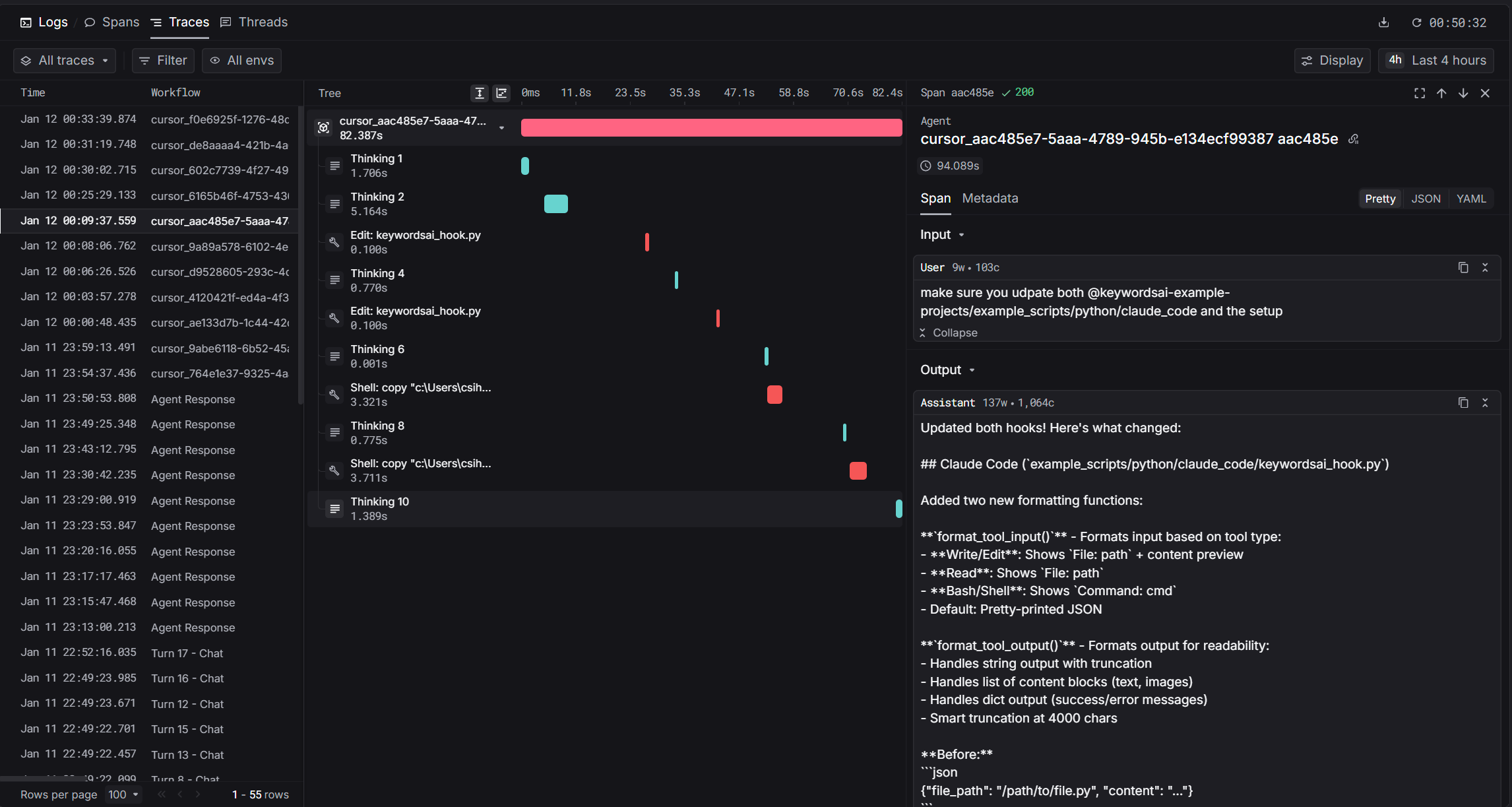 [Cursor](https://cursor.com) is an AI-powered code editor with built-in agent capabilities. With Keywords AI integration, you get hierarchical traces of every agent interaction including thinking blocks, file edits, shell commands, and MCP tool calls.
## How It Works
Cursor provides [hooks](https://cursor.com/docs/agent/hooks) that fire during agent execution. Our integration captures these events in real-time and sends them to Keywords AI as hierarchical traces.
```mermaid theme={"system"}
sequenceDiagram
participant User
participant Cursor
participant Hook as Keywords AI Hook
participant API as Keywords AI API
User->>Cursor: Submit prompt
Cursor->>Hook: beforeSubmitPrompt
Cursor->>Hook: afterToolCall (thinking, file, shell, MCP)
Hook->>API: Send spans
Cursor->>Hook: afterAgentResponse
Cursor->>User: Display response
```
The hook captures **thinking blocks**, **file edits**, **shell commands**, and **MCP tool calls** as child spans under a root agent span.
For details on trace structure and span types, see the [Observability Data Model](/get-started/observability_data_model).
## Prerequisites
* [Cursor IDE](https://cursor.com) installed
* [Keywords AI API key](https://platform.keywordsai.co)
* Python 3.8+ with `requests` library
## Installation
### 1. Set Environment Variables
Add these to your shell profile (`.bashrc`, `.zshrc`, or PowerShell `$PROFILE`):
```bash Bash/Zsh theme={"system"}
export KEYWORDSAI_API_KEY="your-api-key"
export TRACE_TO_KEYWORDSAI="true"
# Optional: Enterprise endpoint (default: api.keywordsai.co)
# export KEYWORDSAI_BASE_URL="https://endpoint.keywordsai.co/api"
# Optional: Enable debug logging
# export CURSOR_KEYWORDSAI_DEBUG="true"
```
```powershell PowerShell theme={"system"}
$env:KEYWORDSAI_API_KEY = "your-api-key"
$env:TRACE_TO_KEYWORDSAI = "true"
# Optional: Enterprise endpoint (default: api.keywordsai.co)
# $env:KEYWORDSAI_BASE_URL = "https://endpoint.keywordsai.co/api"
# Optional: Enable debug logging
# $env:CURSOR_KEYWORDSAI_DEBUG = "true"
```
### 2. Download the Hook Script
Download the hook script to your Cursor hooks directory:
```bash Bash/Zsh theme={"system"}
mkdir -p ~/.cursor/hooks
curl -o ~/.cursor/hooks/keywordsai_hook.py \
https://raw.githubusercontent.com/Keywords-AI/keywordsai-example-projects/main/example_scripts/python/cursor/keywordsai_hook.py
```
```powershell PowerShell theme={"system"}
New-Item -ItemType Directory -Force -Path "$env:USERPROFILE\.cursor\hooks"
Invoke-WebRequest -Uri "https://raw.githubusercontent.com/Keywords-AI/keywordsai-example-projects/main/example_scripts/python/cursor/keywordsai_hook.py" -OutFile "$env:USERPROFILE\.cursor\hooks\keywordsai_hook.py"
```
### 3. Configure Cursor Hooks
Create `~/.cursor/hooks.json` with the following configuration:
```json macOS/Linux theme={"system"}
{
"version": 1,
"hooks": {
"beforeSubmitPrompt": [
{ "command": "python ~/.cursor/hooks/keywordsai_hook.py" }
],
"afterAgentThought": [
{ "command": "python ~/.cursor/hooks/keywordsai_hook.py" }
],
"afterAgentResponse": [
{ "command": "python ~/.cursor/hooks/keywordsai_hook.py" }
],
"afterShellExecution": [
{ "command": "python ~/.cursor/hooks/keywordsai_hook.py" }
],
"afterFileEdit": [
{ "command": "python ~/.cursor/hooks/keywordsai_hook.py" }
],
"afterMCPExecution": [
{ "command": "python ~/.cursor/hooks/keywordsai_hook.py" }
],
"stop": [
{ "command": "python ~/.cursor/hooks/keywordsai_hook.py" }
]
}
}
```
```json Windows theme={"system"}
{
"version": 1,
"hooks": {
"beforeSubmitPrompt": [
{ "command": "python \"%USERPROFILE%\\.cursor\\hooks\\keywordsai_hook.py\"" }
],
"afterAgentThought": [
{ "command": "python \"%USERPROFILE%\\.cursor\\hooks\\keywordsai_hook.py\"" }
],
"afterAgentResponse": [
{ "command": "python \"%USERPROFILE%\\.cursor\\hooks\\keywordsai_hook.py\"" }
],
"afterShellExecution": [
{ "command": "python \"%USERPROFILE%\\.cursor\\hooks\\keywordsai_hook.py\"" }
],
"afterFileEdit": [
{ "command": "python \"%USERPROFILE%\\.cursor\\hooks\\keywordsai_hook.py\"" }
],
"afterMCPExecution": [
{ "command": "python \"%USERPROFILE%\\.cursor\\hooks\\keywordsai_hook.py\"" }
],
"stop": [
{ "command": "python \"%USERPROFILE%\\.cursor\\hooks\\keywordsai_hook.py\"" }
]
}
}
```
### 4. Restart Cursor
Restart Cursor IDE to apply the hooks configuration.
## Hooks Reference
| Hook | Trigger | Data Captured |
| --------------------- | ----------------------- | ---------------------------------- |
| `beforeSubmitPrompt` | User sends prompt | User input, start time |
| `afterAgentThought` | Agent thinking | Thinking text, duration |
| `afterShellExecution` | Shell command completes | Command, output, duration |
| `afterFileEdit` | File edited | File path, edits |
| `afterMCPExecution` | MCP tool completes | Tool name, input, output, duration |
| `afterAgentResponse` | Agent responds | Response text (creates root span) |
| `stop` | Agent stops | Cleanup |
## Span Types
| Span | `log_type` | Description |
| -------------- | ------------ | ----------------------- |
| Root | `agent` | The complete agent turn |
| Thinking | `generation` | Agent reasoning blocks |
| Shell/File/MCP | `tool` | Tool invocations |
## Trace Fields
| Field | Value | Description |
| -------------------- | ----------------------------------- | --------------------------- |
| `trace_unique_id` | `{conversation_id}_{generation_id}` | Unique per turn |
| `span_workflow_name` | `cursor_{conversation_id}` | Groups all turns |
| `thread_identifier` | `cursor_{conversation_id}` | Links turns in Threads view |
## Debugging
Check the log file for issues:
```bash Bash/Zsh theme={"system"}
tail -f ~/.cursor/state/keywordsai_hook.log
```
```powershell PowerShell theme={"system"}
Get-Content "$env:USERPROFILE\.cursor\state\keywordsai_hook.log" -Tail 50 -Wait
```
### Common Issues
| Issue | Solution |
| ------------------- | ----------------------------------------------- |
| No traces appearing | Check `TRACE_TO_KEYWORDSAI=true` is set |
| API errors | Verify `KEYWORDSAI_API_KEY` is correct |
| Only root span | Ensure all hooks are configured in `hooks.json` |
| Missing thinking | Check `afterAgentThought` hook is active |
## Example Output
After setup, you'll see traces in Keywords AI with full hierarchy:
```
cursor_abc123_xyz789 (38.9s)
├── Thinking 1 (0.5s) - "Let me analyze the code..."
├── Thinking 2 (0.3s) - "I should update the function..."
├── Edit: utils.py (0.1s)
├── Shell: npm test (4.1s)
└── Thinking 3 (0.2s) - "Tests passed, done."
```
## Source Code
The full source code is available on GitHub: [Keywords-AI/keywordsai-example-projects/cursor](https://github.com/Keywords-AI/keywordsai-example-projects/tree/main/example_scripts/python/cursor)
## References
* [Cursor Hooks Documentation](https://cursor.com/docs/agent/hooks)
* [Keywords AI Traces Ingest API](/api-endpoints/observe/traces/traces-ingest-from-logs)
[Cursor](https://cursor.com) is an AI-powered code editor with built-in agent capabilities. With Keywords AI integration, you get hierarchical traces of every agent interaction including thinking blocks, file edits, shell commands, and MCP tool calls.
## How It Works
Cursor provides [hooks](https://cursor.com/docs/agent/hooks) that fire during agent execution. Our integration captures these events in real-time and sends them to Keywords AI as hierarchical traces.
```mermaid theme={"system"}
sequenceDiagram
participant User
participant Cursor
participant Hook as Keywords AI Hook
participant API as Keywords AI API
User->>Cursor: Submit prompt
Cursor->>Hook: beforeSubmitPrompt
Cursor->>Hook: afterToolCall (thinking, file, shell, MCP)
Hook->>API: Send spans
Cursor->>Hook: afterAgentResponse
Cursor->>User: Display response
```
The hook captures **thinking blocks**, **file edits**, **shell commands**, and **MCP tool calls** as child spans under a root agent span.
For details on trace structure and span types, see the [Observability Data Model](/get-started/observability_data_model).
## Prerequisites
* [Cursor IDE](https://cursor.com) installed
* [Keywords AI API key](https://platform.keywordsai.co)
* Python 3.8+ with `requests` library
## Installation
### 1. Set Environment Variables
Add these to your shell profile (`.bashrc`, `.zshrc`, or PowerShell `$PROFILE`):
```bash Bash/Zsh theme={"system"}
export KEYWORDSAI_API_KEY="your-api-key"
export TRACE_TO_KEYWORDSAI="true"
# Optional: Enterprise endpoint (default: api.keywordsai.co)
# export KEYWORDSAI_BASE_URL="https://endpoint.keywordsai.co/api"
# Optional: Enable debug logging
# export CURSOR_KEYWORDSAI_DEBUG="true"
```
```powershell PowerShell theme={"system"}
$env:KEYWORDSAI_API_KEY = "your-api-key"
$env:TRACE_TO_KEYWORDSAI = "true"
# Optional: Enterprise endpoint (default: api.keywordsai.co)
# $env:KEYWORDSAI_BASE_URL = "https://endpoint.keywordsai.co/api"
# Optional: Enable debug logging
# $env:CURSOR_KEYWORDSAI_DEBUG = "true"
```
### 2. Download the Hook Script
Download the hook script to your Cursor hooks directory:
```bash Bash/Zsh theme={"system"}
mkdir -p ~/.cursor/hooks
curl -o ~/.cursor/hooks/keywordsai_hook.py \
https://raw.githubusercontent.com/Keywords-AI/keywordsai-example-projects/main/example_scripts/python/cursor/keywordsai_hook.py
```
```powershell PowerShell theme={"system"}
New-Item -ItemType Directory -Force -Path "$env:USERPROFILE\.cursor\hooks"
Invoke-WebRequest -Uri "https://raw.githubusercontent.com/Keywords-AI/keywordsai-example-projects/main/example_scripts/python/cursor/keywordsai_hook.py" -OutFile "$env:USERPROFILE\.cursor\hooks\keywordsai_hook.py"
```
### 3. Configure Cursor Hooks
Create `~/.cursor/hooks.json` with the following configuration:
```json macOS/Linux theme={"system"}
{
"version": 1,
"hooks": {
"beforeSubmitPrompt": [
{ "command": "python ~/.cursor/hooks/keywordsai_hook.py" }
],
"afterAgentThought": [
{ "command": "python ~/.cursor/hooks/keywordsai_hook.py" }
],
"afterAgentResponse": [
{ "command": "python ~/.cursor/hooks/keywordsai_hook.py" }
],
"afterShellExecution": [
{ "command": "python ~/.cursor/hooks/keywordsai_hook.py" }
],
"afterFileEdit": [
{ "command": "python ~/.cursor/hooks/keywordsai_hook.py" }
],
"afterMCPExecution": [
{ "command": "python ~/.cursor/hooks/keywordsai_hook.py" }
],
"stop": [
{ "command": "python ~/.cursor/hooks/keywordsai_hook.py" }
]
}
}
```
```json Windows theme={"system"}
{
"version": 1,
"hooks": {
"beforeSubmitPrompt": [
{ "command": "python \"%USERPROFILE%\\.cursor\\hooks\\keywordsai_hook.py\"" }
],
"afterAgentThought": [
{ "command": "python \"%USERPROFILE%\\.cursor\\hooks\\keywordsai_hook.py\"" }
],
"afterAgentResponse": [
{ "command": "python \"%USERPROFILE%\\.cursor\\hooks\\keywordsai_hook.py\"" }
],
"afterShellExecution": [
{ "command": "python \"%USERPROFILE%\\.cursor\\hooks\\keywordsai_hook.py\"" }
],
"afterFileEdit": [
{ "command": "python \"%USERPROFILE%\\.cursor\\hooks\\keywordsai_hook.py\"" }
],
"afterMCPExecution": [
{ "command": "python \"%USERPROFILE%\\.cursor\\hooks\\keywordsai_hook.py\"" }
],
"stop": [
{ "command": "python \"%USERPROFILE%\\.cursor\\hooks\\keywordsai_hook.py\"" }
]
}
}
```
### 4. Restart Cursor
Restart Cursor IDE to apply the hooks configuration.
## Hooks Reference
| Hook | Trigger | Data Captured |
| --------------------- | ----------------------- | ---------------------------------- |
| `beforeSubmitPrompt` | User sends prompt | User input, start time |
| `afterAgentThought` | Agent thinking | Thinking text, duration |
| `afterShellExecution` | Shell command completes | Command, output, duration |
| `afterFileEdit` | File edited | File path, edits |
| `afterMCPExecution` | MCP tool completes | Tool name, input, output, duration |
| `afterAgentResponse` | Agent responds | Response text (creates root span) |
| `stop` | Agent stops | Cleanup |
## Span Types
| Span | `log_type` | Description |
| -------------- | ------------ | ----------------------- |
| Root | `agent` | The complete agent turn |
| Thinking | `generation` | Agent reasoning blocks |
| Shell/File/MCP | `tool` | Tool invocations |
## Trace Fields
| Field | Value | Description |
| -------------------- | ----------------------------------- | --------------------------- |
| `trace_unique_id` | `{conversation_id}_{generation_id}` | Unique per turn |
| `span_workflow_name` | `cursor_{conversation_id}` | Groups all turns |
| `thread_identifier` | `cursor_{conversation_id}` | Links turns in Threads view |
## Debugging
Check the log file for issues:
```bash Bash/Zsh theme={"system"}
tail -f ~/.cursor/state/keywordsai_hook.log
```
```powershell PowerShell theme={"system"}
Get-Content "$env:USERPROFILE\.cursor\state\keywordsai_hook.log" -Tail 50 -Wait
```
### Common Issues
| Issue | Solution |
| ------------------- | ----------------------------------------------- |
| No traces appearing | Check `TRACE_TO_KEYWORDSAI=true` is set |
| API errors | Verify `KEYWORDSAI_API_KEY` is correct |
| Only root span | Ensure all hooks are configured in `hooks.json` |
| Missing thinking | Check `afterAgentThought` hook is active |
## Example Output
After setup, you'll see traces in Keywords AI with full hierarchy:
```
cursor_abc123_xyz789 (38.9s)
├── Thinking 1 (0.5s) - "Let me analyze the code..."
├── Thinking 2 (0.3s) - "I should update the function..."
├── Edit: utils.py (0.1s)
├── Shell: npm test (4.1s)
└── Thinking 3 (0.2s) - "Tests passed, done."
```
## Source Code
The full source code is available on GitHub: [Keywords-AI/keywordsai-example-projects/cursor](https://github.com/Keywords-AI/keywordsai-example-projects/tree/main/example_scripts/python/cursor)
## References
* [Cursor Hooks Documentation](https://cursor.com/docs/agent/hooks)
* [Keywords AI Traces Ingest API](/api-endpoints/observe/traces/traces-ingest-from-logs)