> ## Documentation Index
> Fetch the complete documentation index at: https://docs.keywordsai.co/llms.txt
> Use this file to discover all available pages before exploring further.
# BAML
> BAML is a domain-specific language to write and test LLM functions. Use BAML with Keywords AI to get complete LLM observability
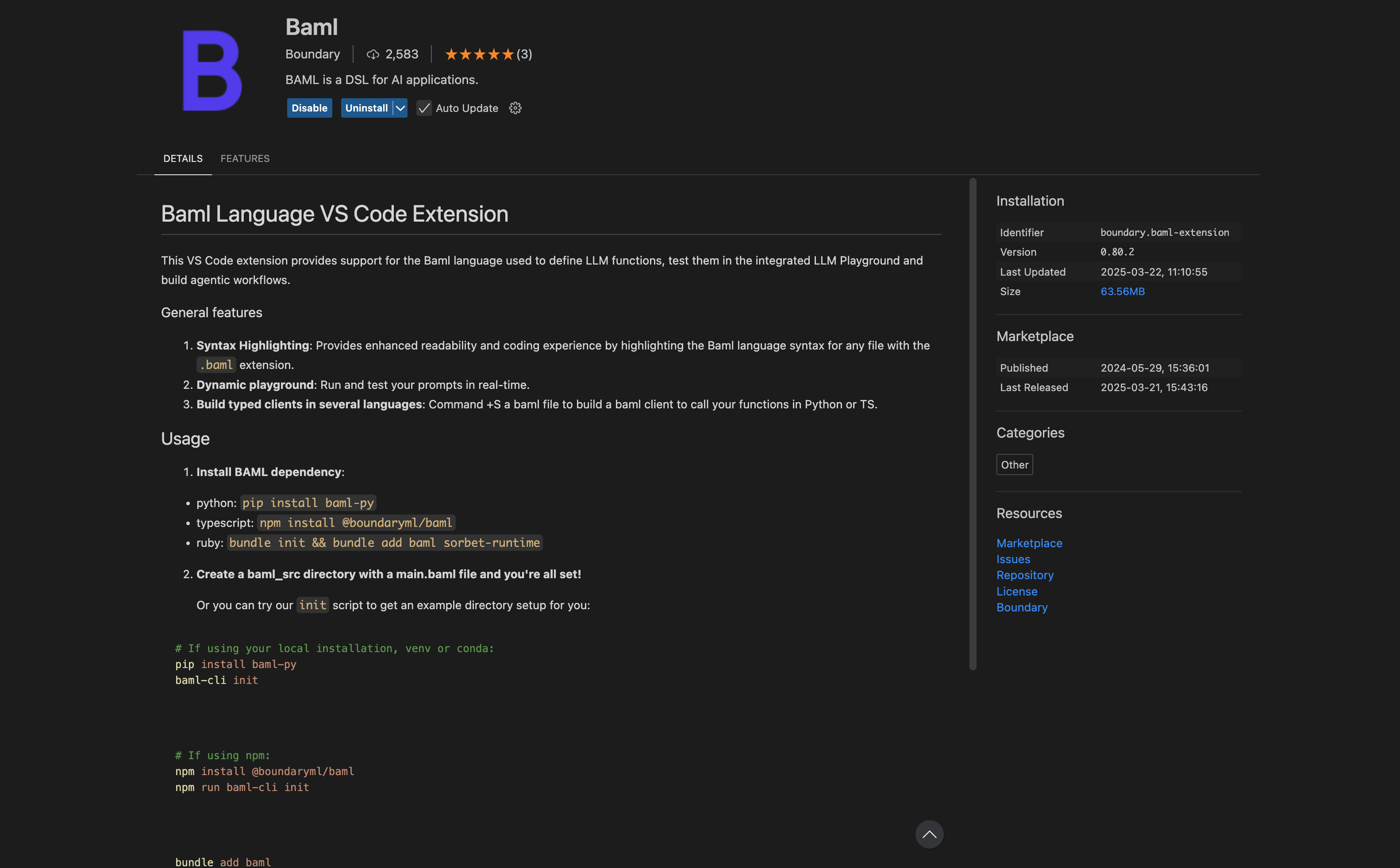
## Install extension
Install [BAML](https://github.com/BoundaryML/baml) extension in VS code. create a `.baml` file (e.g., test.baml) and get started!
 ## Integration methods
There are 2 ways to integrate Keywords AI with BAML and allow you send Keywords AI params and check them in Keywords AI platform:
1. Send Keywords AI params through header.
2. End at low level and send params to Keywords AI through the client.
### Send Keywords AI params through header
**Set up a BAML Client Registry and Keywords AI Integration**
First, you need to set up a [client registry](https://docs.boundaryml.com/ref/baml_client/client-registry) in BAML. This registry manages your LLM clients.
```python Python theme={"system"}
import os
from baml_py import ClientRegistry
async def run():
# Create a client registry
cr = ClientRegistry()
# Add an LLM client - this is a standard OpenAI client setup
cr.add_llm_client(name='MyAmazingClient', provider='openai', options={
"model": "gpt-4o",
"temperature": 0.7,
"api_key": os.environ.get('OPENAI_API_KEY')
})
# Set it as the primary client
cr.set_primary('MyAmazingClient')
# Now your BAML functions will use this client
res = await b.ExtractResume("...", { "client_registry": cr })
```
Next, you'll modify the client registry to connect to Keywords AI, enabling observability and analytics. Learn how to create a Keywords AI API key [here](https://docs.keywordsai.co/get-started/llm-inference#1-get-your-keywords-ai-api-key).
```python Python theme={"system"}
from baml_client.sync_client import b
from baml_client.types import Resume
from baml_py import ClientRegistry
import base64
import json
import os
def extract_resume_with_keywords_ai(raw_resume: str) -> Resume:
# Create a client registry
cr = ClientRegistry()
# Define Keywords AI parameters you want to track
keywordsai_params = {
"custom_identifier": "123",
"customer_identifier": "123",
# Add any other parameters you want to track
}
# Encode the parameters for the header
keywordsai_params_encoded = base64.b64encode(
json.dumps(keywordsai_params).encode("utf-8")
).decode("utf-8")
# Set up the header with encoded parameters
keywordsai_headers = {"X-Data-Keywordsai-Params": keywordsai_params_encoded}
# Create a Keywords AI client that routes through the Keywords AI API gateway
cr.add_llm_client(
name="KeywordsAIClient",
provider="openai",
options={
"model": "gpt-4o",
"api_key": os.getenv("KEYWORDSAI_API_KEY"),
"base_url": "https://api.keywordsai.co/api",
"headers": keywordsai_headers,
},
)
# Set as primary client
cr.set_primary("KeywordsAIClient")
# Call your BAML function with the Keywords AI client
response = b.ExtractResume(
raw_resume,
baml_options={
"client_registry": cr,
},
)
return response
if __name__ == "__main__":
response = extract_resume_with_keywords_ai("test resume content here")
```
With this setup, your BAML function calls will be routed through Keywords AI, allowing you to:
* Track and monitor all LLM requests
* Analyze performance and usage patterns
* Associate custom identifiers with your LLM calls
### Using Keywords AI client in BAML
**Initialize a Keywords AI client in BAML**
Initialize a Keywords AI client in BAML by switching the base URL and adding the KEYWORDSAI\_API\_KEY in the environmental variable. Learn how to create a Keywords AI API key [here](https://docs.keywordsai.co/get-started/llm-inference#create-an-api-key).
```json BAML theme={"system"}
client KeywordsAI {
provider openai
options {
model gpt-4o
api_key env.KEYWORDSAI_API_KEY
base_url "https://api.keywordsai.co/api"
}
}
```
**Define the function in baml\_src/resume.baml**
```Typescript BAML theme={"system"}
// Create a function to extract the resume from a string.
function ExtractResume(resume: string) -> Resume {
// Specify a client as provider/model-name
// you can use custom LLM params with a custom client name from clients.baml like "client CustomHaiku"
client "KeywordsAIClient" // Set OPENAI_API_KEY to use this client.
prompt #"
Extract from this content:
{{ resume }}
{{ ctx.output_format }}
"#
}
```
Then, you can use the function in your BAML file.
```Python BAML theme={"system"}
import requests
# requests is not async so for simplicity we'll use the sync client.
from baml_client.sync_client import b
def run():
# Get the HTTP request object.
req = b.request.ExtractResume("John Doe | Software Engineer | BSc in CS")
extended_body = {
**req.body.json(),
"custom_identifier": "123",
}
# Send the HTTP request.
response = requests.post(url=req.url, headers=req.headers, json=extended_body)
# Parse the LLM response.
parsed = b.parse.ExtractResume(response.json()["choices"][0]["message"]["content"])
# Fully parsed Resume type.
print(parsed)
if __name__ == "__main__":
response = run("test")
```
## Test & monitor
After you have the code, `cmd+shift+p` > BAML: Open in Playground and run your tests. You can also monitor your LLM performance in the Keywords AI dashboard. Sign up here: `https://www.keywordsai.co`
## Integration methods
There are 2 ways to integrate Keywords AI with BAML and allow you send Keywords AI params and check them in Keywords AI platform:
1. Send Keywords AI params through header.
2. End at low level and send params to Keywords AI through the client.
### Send Keywords AI params through header
**Set up a BAML Client Registry and Keywords AI Integration**
First, you need to set up a [client registry](https://docs.boundaryml.com/ref/baml_client/client-registry) in BAML. This registry manages your LLM clients.
```python Python theme={"system"}
import os
from baml_py import ClientRegistry
async def run():
# Create a client registry
cr = ClientRegistry()
# Add an LLM client - this is a standard OpenAI client setup
cr.add_llm_client(name='MyAmazingClient', provider='openai', options={
"model": "gpt-4o",
"temperature": 0.7,
"api_key": os.environ.get('OPENAI_API_KEY')
})
# Set it as the primary client
cr.set_primary('MyAmazingClient')
# Now your BAML functions will use this client
res = await b.ExtractResume("...", { "client_registry": cr })
```
Next, you'll modify the client registry to connect to Keywords AI, enabling observability and analytics. Learn how to create a Keywords AI API key [here](https://docs.keywordsai.co/get-started/llm-inference#1-get-your-keywords-ai-api-key).
```python Python theme={"system"}
from baml_client.sync_client import b
from baml_client.types import Resume
from baml_py import ClientRegistry
import base64
import json
import os
def extract_resume_with_keywords_ai(raw_resume: str) -> Resume:
# Create a client registry
cr = ClientRegistry()
# Define Keywords AI parameters you want to track
keywordsai_params = {
"custom_identifier": "123",
"customer_identifier": "123",
# Add any other parameters you want to track
}
# Encode the parameters for the header
keywordsai_params_encoded = base64.b64encode(
json.dumps(keywordsai_params).encode("utf-8")
).decode("utf-8")
# Set up the header with encoded parameters
keywordsai_headers = {"X-Data-Keywordsai-Params": keywordsai_params_encoded}
# Create a Keywords AI client that routes through the Keywords AI API gateway
cr.add_llm_client(
name="KeywordsAIClient",
provider="openai",
options={
"model": "gpt-4o",
"api_key": os.getenv("KEYWORDSAI_API_KEY"),
"base_url": "https://api.keywordsai.co/api",
"headers": keywordsai_headers,
},
)
# Set as primary client
cr.set_primary("KeywordsAIClient")
# Call your BAML function with the Keywords AI client
response = b.ExtractResume(
raw_resume,
baml_options={
"client_registry": cr,
},
)
return response
if __name__ == "__main__":
response = extract_resume_with_keywords_ai("test resume content here")
```
With this setup, your BAML function calls will be routed through Keywords AI, allowing you to:
* Track and monitor all LLM requests
* Analyze performance and usage patterns
* Associate custom identifiers with your LLM calls
### Using Keywords AI client in BAML
**Initialize a Keywords AI client in BAML**
Initialize a Keywords AI client in BAML by switching the base URL and adding the KEYWORDSAI\_API\_KEY in the environmental variable. Learn how to create a Keywords AI API key [here](https://docs.keywordsai.co/get-started/llm-inference#create-an-api-key).
```json BAML theme={"system"}
client KeywordsAI {
provider openai
options {
model gpt-4o
api_key env.KEYWORDSAI_API_KEY
base_url "https://api.keywordsai.co/api"
}
}
```
**Define the function in baml\_src/resume.baml**
```Typescript BAML theme={"system"}
// Create a function to extract the resume from a string.
function ExtractResume(resume: string) -> Resume {
// Specify a client as provider/model-name
// you can use custom LLM params with a custom client name from clients.baml like "client CustomHaiku"
client "KeywordsAIClient" // Set OPENAI_API_KEY to use this client.
prompt #"
Extract from this content:
{{ resume }}
{{ ctx.output_format }}
"#
}
```
Then, you can use the function in your BAML file.
```Python BAML theme={"system"}
import requests
# requests is not async so for simplicity we'll use the sync client.
from baml_client.sync_client import b
def run():
# Get the HTTP request object.
req = b.request.ExtractResume("John Doe | Software Engineer | BSc in CS")
extended_body = {
**req.body.json(),
"custom_identifier": "123",
}
# Send the HTTP request.
response = requests.post(url=req.url, headers=req.headers, json=extended_body)
# Parse the LLM response.
parsed = b.parse.ExtractResume(response.json()["choices"][0]["message"]["content"])
# Fully parsed Resume type.
print(parsed)
if __name__ == "__main__":
response = run("test")
```
## Test & monitor
After you have the code, `cmd+shift+p` > BAML: Open in Playground and run your tests. You can also monitor your LLM performance in the Keywords AI dashboard. Sign up here: `https://www.keywordsai.co`