> ## Documentation Index
> Fetch the complete documentation index at: https://docs.keywordsai.co/llms.txt
> Use this file to discover all available pages before exploring further.
# LiteLLM
> Use LiteLLM with Keywords AI for logging and gateway access.
This integration supports **LiteLLM callbacks** (logging) and the **Keywords AI gateway**.
## Overview
LiteLLM provides a unified interface for calling many LLM providers. With Keywords AI, you can either:
* Export logs via LiteLLM callbacks
* Route requests through the Keywords AI gateway
## Quickstart
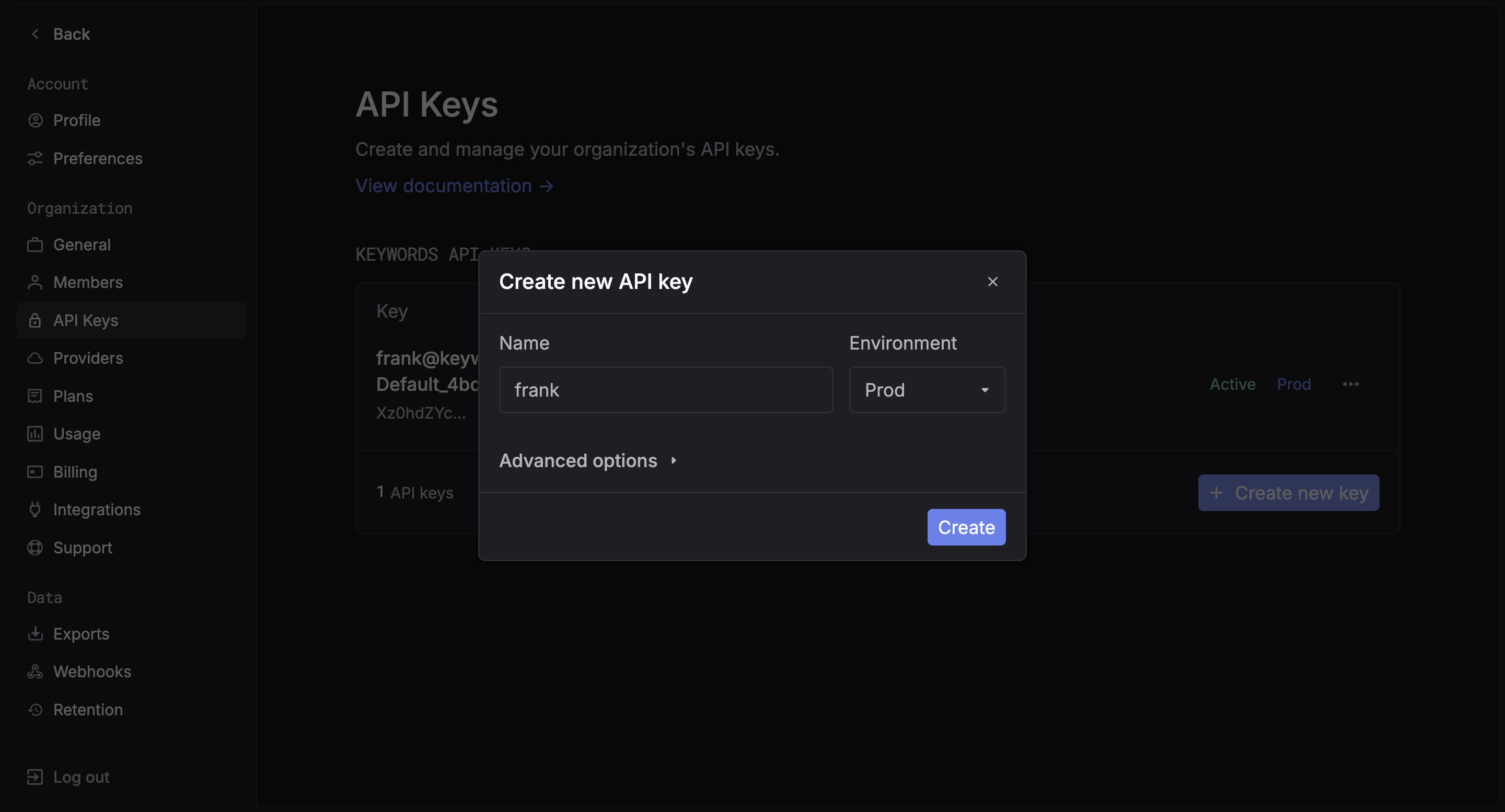
### Step 1: Get a Keywords AI API key
Create an API key in the [Keywords AI dashboard](https://platform.keywordsai.co/platform/api/api-keys).
 ### Step 2: Install packages
```bash Python theme={"system"}
pip install litellm keywordsai-exporter-litellm
```
### Examples
Choose one of the two ways to use the LiteLLM integration:
#### Callback mode (logging)
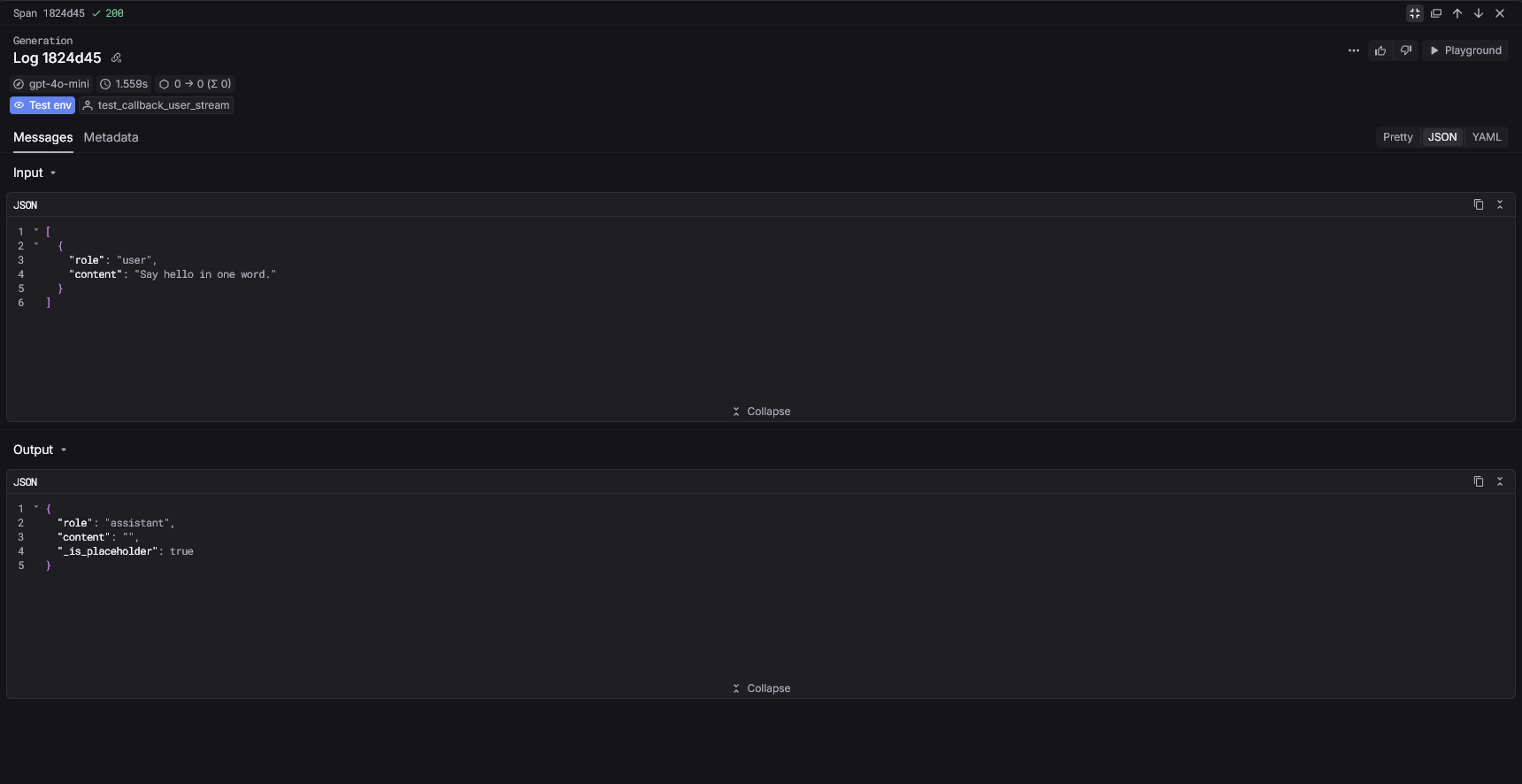
Register the Keywords AI callback to send logs automatically.
```python Python theme={"system"}
import litellm
from keywordsai_exporter_litellm import KeywordsAILiteLLMCallback
callback = KeywordsAILiteLLMCallback(api_key="YOUR_KEYWORDS_AI_API_KEY")
callback.register_litellm_callbacks()
response = litellm.completion(
model="gpt-4o-mini",
messages=[{"role": "user", "content": "Hello!"}],
)
print(response.choices[0].message.content)
```
### Step 2: Install packages
```bash Python theme={"system"}
pip install litellm keywordsai-exporter-litellm
```
### Examples
Choose one of the two ways to use the LiteLLM integration:
#### Callback mode (logging)
Register the Keywords AI callback to send logs automatically.
```python Python theme={"system"}
import litellm
from keywordsai_exporter_litellm import KeywordsAILiteLLMCallback
callback = KeywordsAILiteLLMCallback(api_key="YOUR_KEYWORDS_AI_API_KEY")
callback.register_litellm_callbacks()
response = litellm.completion(
model="gpt-4o-mini",
messages=[{"role": "user", "content": "Hello!"}],
)
print(response.choices[0].message.content)
```
 #### Gateway mode
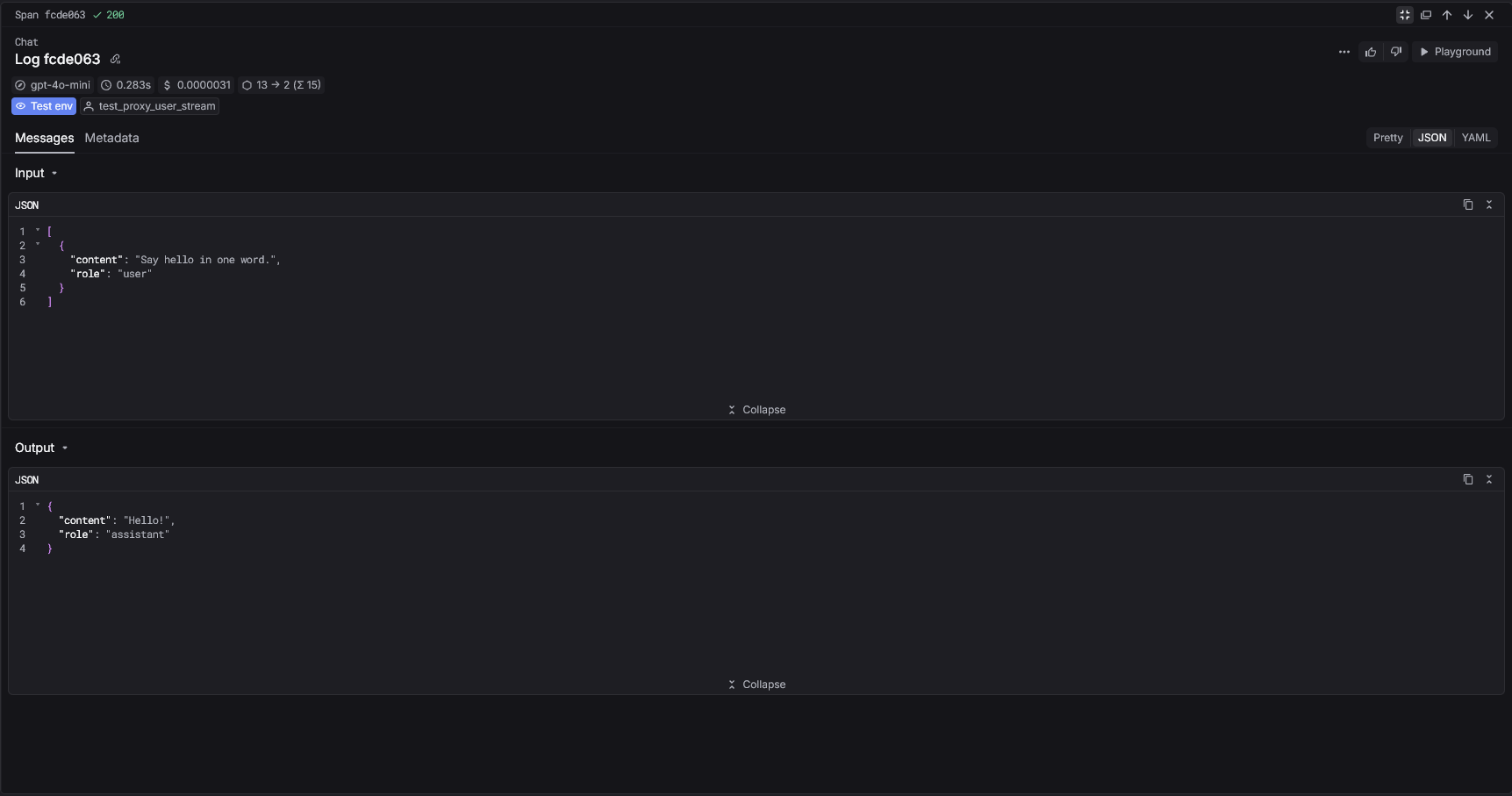
Route LiteLLM requests through the Keywords AI gateway.
```python Python theme={"system"}
import litellm
response = litellm.completion(
api_key="YOUR_KEYWORDS_AI_API_KEY",
api_base="https://api.keywordsai.co/api",
model="gpt-4o-mini",
messages=[{"role": "user", "content": "Hello!"}],
)
print(response.choices[0].message.content)
```
#### Gateway mode
Route LiteLLM requests through the Keywords AI gateway.
```python Python theme={"system"}
import litellm
response = litellm.completion(
api_key="YOUR_KEYWORDS_AI_API_KEY",
api_base="https://api.keywordsai.co/api",
model="gpt-4o-mini",
messages=[{"role": "user", "content": "Hello!"}],
)
print(response.choices[0].message.content)
```
 ## Keywords AI parameters
### Callback mode (metadata)
Pass Keywords AI parameters inside `metadata.keywordsai_params`.
```python Python theme={"system"}
response = litellm.completion(
model="gpt-4o-mini",
messages=[{"role": "user", "content": "Hello!"}],
metadata={
"keywordsai_params": {
"workflow_name": "simple_logging",
"span_name": "single_log",
"customer_identifier": "user-123",
}
},
)
```
### Gateway mode (extra\_body)
Pass Keywords AI parameters using `extra_body` when routing through the gateway.
```python Python theme={"system"}
response = litellm.completion(
api_key="YOUR_KEYWORDS_AI_API_KEY",
api_base="https://api.keywordsai.co/api",
model="gpt-4o-mini",
messages=[{"role": "user", "content": "Hello!"}],
extra_body={
"span_workflow_name": "simple_logging",
"span_name": "single_log",
"customer_identifier": "user-123",
},
)
```
Access your Keywords AI dashboard to see detailed analytics
## Next Steps
Track user behavior and patterns
Manage and version your prompts
## Keywords AI parameters
### Callback mode (metadata)
Pass Keywords AI parameters inside `metadata.keywordsai_params`.
```python Python theme={"system"}
response = litellm.completion(
model="gpt-4o-mini",
messages=[{"role": "user", "content": "Hello!"}],
metadata={
"keywordsai_params": {
"workflow_name": "simple_logging",
"span_name": "single_log",
"customer_identifier": "user-123",
}
},
)
```
### Gateway mode (extra\_body)
Pass Keywords AI parameters using `extra_body` when routing through the gateway.
```python Python theme={"system"}
response = litellm.completion(
api_key="YOUR_KEYWORDS_AI_API_KEY",
api_base="https://api.keywordsai.co/api",
model="gpt-4o-mini",
messages=[{"role": "user", "content": "Hello!"}],
extra_body={
"span_workflow_name": "simple_logging",
"span_name": "single_log",
"customer_identifier": "user-123",
},
)
```
Access your Keywords AI dashboard to see detailed analytics
## Next Steps
Track user behavior and patterns
Manage and version your prompts