> ## Documentation Index
> Fetch the complete documentation index at: https://docs.keywordsai.co/llms.txt
> Use this file to discover all available pages before exploring further.
# RubyLLM
> Use RubyLLM with Keywords AI gateway for logging, analytics, and access to 250+ models.
This integration is for the **Keywords AI gateway**.
## Overview
[RubyLLM](https://rubyllm.com/) is a delightful Ruby gem that provides a unified interface for interacting with AI models from OpenAI, Anthropic, Google, and more.
By pointing RubyLLM's OpenAI-compatible endpoint to Keywords AI, you get automatic logging, analytics, fallbacks, and access to 250+ models through a single API key.
## Quickstart
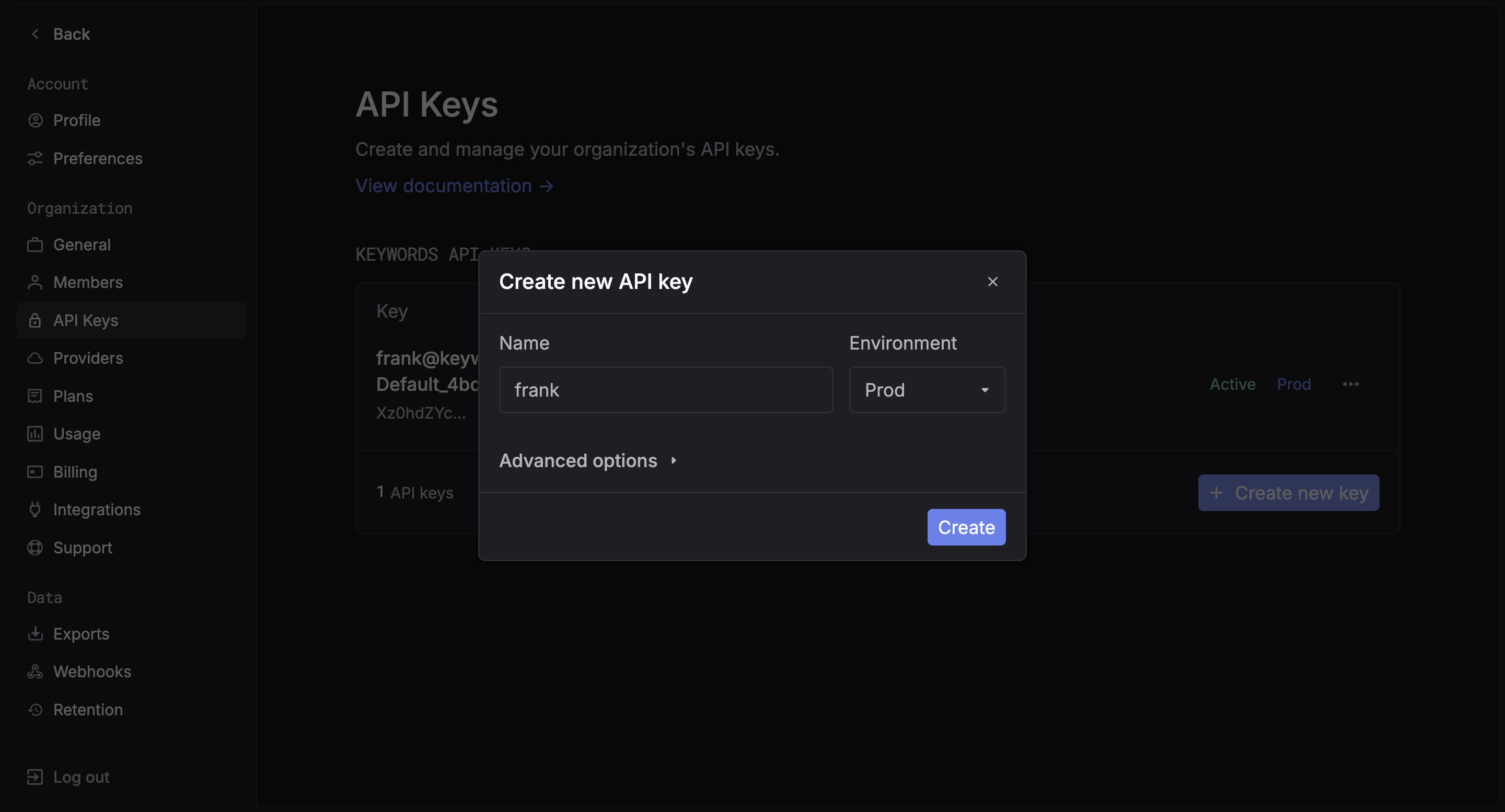
### Step 1: Get a Keywords AI API key
Create an API key in the [Keywords AI dashboard](https://platform.keywordsai.co/platform/api/api-keys).
 ### Step 2: Install RubyLLM
Add to your Gemfile:
```bash theme={"system"}
gem 'ruby_llm'
```
Then run:
```bash theme={"system"}
bundle install
```
### Step 3: Configure RubyLLM
Point RubyLLM to the Keywords AI gateway by setting the `openai_api_base` and `openai_api_key`:
```ruby {3-4} theme={"system"}
RubyLLM.configure do |config|
config.openai_api_base = "https://api.keywordsai.co/api/"
config.openai_api_key = ENV['KEYWORDS_AI_API_KEY']
end
```
### Step 4: Make Your First Request
```ruby theme={"system"}
chat = RubyLLM.chat(model: 'gpt-4o-mini')
response = chat.ask("Hello, world!")
puts response.content
```
### Step 5: See your log on [platform](https://platform.keywordsai.co/platform/requests?sort_by=-timestamp)
## Switch models
Since all requests go through the Keywords AI gateway, you can use any of the 250+ supported models by changing the model name:
```ruby {2-4} theme={"system"}
# OpenAI
chat = RubyLLM.chat(model: 'gpt-4o')
# Anthropic
# chat = RubyLLM.chat(model: 'claude-3-5-sonnet-20241022')
# Google
# chat = RubyLLM.chat(model: 'gemini-1.5-pro')
response = chat.ask("Your message")
```
See the [full model list](https://platform.keywordsai.co/platform/models) for all available models.
## Streaming
```ruby theme={"system"}
chat = RubyLLM.chat(model: 'gpt-4o-mini')
chat.ask("Tell me a story") do |chunk|
print chunk.content
end
```
## Rails integration
For Rails applications, configure RubyLLM in an initializer:
```ruby theme={"system"}
# config/initializers/ruby_llm.rb
RubyLLM.configure do |config|
config.openai_api_base = "https://api.keywordsai.co/api/"
config.openai_api_key = ENV['KEYWORDS_AI_API_KEY']
end
```
Access your Keywords AI dashboard to see detailed analytics
## Next Steps
Track user behavior and patterns
Manage and version your prompts
### Step 2: Install RubyLLM
Add to your Gemfile:
```bash theme={"system"}
gem 'ruby_llm'
```
Then run:
```bash theme={"system"}
bundle install
```
### Step 3: Configure RubyLLM
Point RubyLLM to the Keywords AI gateway by setting the `openai_api_base` and `openai_api_key`:
```ruby {3-4} theme={"system"}
RubyLLM.configure do |config|
config.openai_api_base = "https://api.keywordsai.co/api/"
config.openai_api_key = ENV['KEYWORDS_AI_API_KEY']
end
```
### Step 4: Make Your First Request
```ruby theme={"system"}
chat = RubyLLM.chat(model: 'gpt-4o-mini')
response = chat.ask("Hello, world!")
puts response.content
```
### Step 5: See your log on [platform](https://platform.keywordsai.co/platform/requests?sort_by=-timestamp)
## Switch models
Since all requests go through the Keywords AI gateway, you can use any of the 250+ supported models by changing the model name:
```ruby {2-4} theme={"system"}
# OpenAI
chat = RubyLLM.chat(model: 'gpt-4o')
# Anthropic
# chat = RubyLLM.chat(model: 'claude-3-5-sonnet-20241022')
# Google
# chat = RubyLLM.chat(model: 'gemini-1.5-pro')
response = chat.ask("Your message")
```
See the [full model list](https://platform.keywordsai.co/platform/models) for all available models.
## Streaming
```ruby theme={"system"}
chat = RubyLLM.chat(model: 'gpt-4o-mini')
chat.ask("Tell me a story") do |chunk|
print chunk.content
end
```
## Rails integration
For Rails applications, configure RubyLLM in an initializer:
```ruby theme={"system"}
# config/initializers/ruby_llm.rb
RubyLLM.configure do |config|
config.openai_api_base = "https://api.keywordsai.co/api/"
config.openai_api_key = ENV['KEYWORDS_AI_API_KEY']
end
```
Access your Keywords AI dashboard to see detailed analytics
## Next Steps
Track user behavior and patterns
Manage and version your prompts