> ## Documentation Index
> Fetch the complete documentation index at: https://docs.keywordsai.co/llms.txt
> Use this file to discover all available pages before exploring further.
# Azure OpenAI
> Use your own Azure OpenAI credits through Keywords AI
Azure OpenAI requires three credentials: **API key**, **API base URL** (also called base\_url or endpoint), and **API version**. Make sure you have all three from your Azure Portal before proceeding.
## Prerequisites
Before integrating Azure OpenAI with Keywords AI, ensure you have:
1. An active Azure OpenAI subscription
2. At least one deployed model in your Azure OpenAI resource
3. Your deployment name matches those listed on our [Models page](https://platform.keywordsai.co/platform/models)
## How to get your Azure OpenAI credentials
Visit your [Azure Portal OpenAI Service](https://portal.azure.com/#view/Microsoft_Azure_ProjectOxford/CognitiveServicesHub/~/OpenAI).
You will see your deployments. Choose the deployment you want to use.
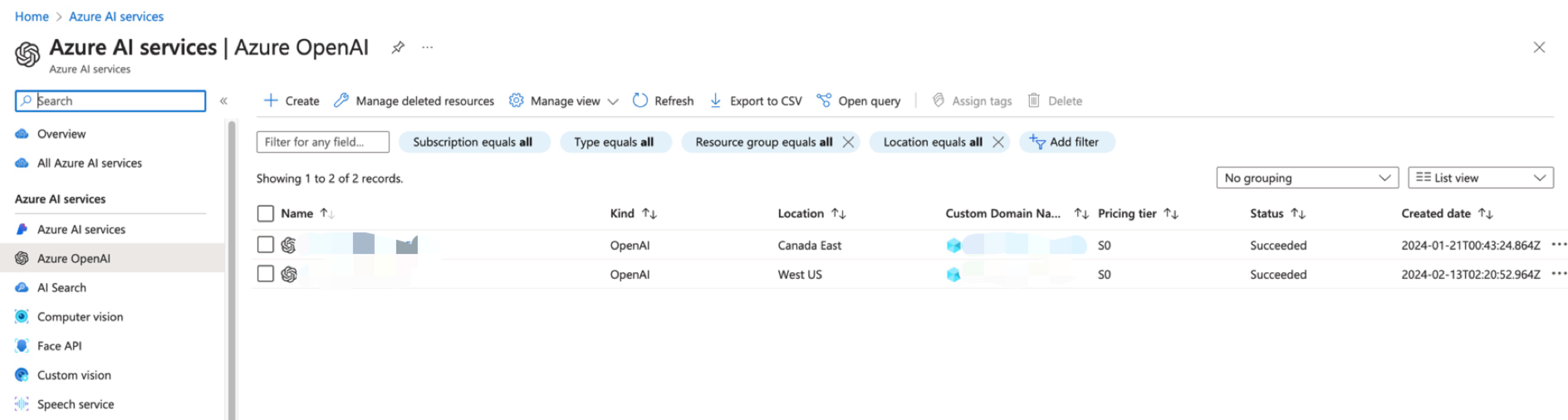 Click on the **"Endpoints"** link to view your API base URL.
The API base URL is also called **endpoint** or **base\_url**. For OpenAI, this would be `https://api.openai.com`, but for Azure it's unique to your resource (e.g., `https://your-resource.openai.azure.com/`).
Click on the **"Endpoints"** link to view your API base URL.
The API base URL is also called **endpoint** or **base\_url**. For OpenAI, this would be `https://api.openai.com`, but for Azure it's unique to your resource (e.g., `https://your-resource.openai.azure.com/`).
 Click on the **"Manage Keys"** link to view your API keys. You can use either Key 1 or Key 2.
Pick an API version from the [available Azure OpenAI versions](https://learn.microsoft.com/en-us/azure/ai-services/openai/reference).
* `2024-10-21` (recommended)
* `2024-08-01-preview`
* `2024-06-01`
* `2024-02-01`
## Azure OpenAI models compatibility
* [OpenAI SDK](/integration/development-frameworks/llm_framework/openai/openai-sdk)
* [LangChain SDK](/integration/development-frameworks/llm_framework/langchain)
* [Vercel/OpenAI](/integration/development-frameworks/llm_framework/vercel#openai)
* [Vercel/Google](/integration/development-frameworks/llm_framework/vercel#google)
* [LlamaIndex SDK](/integration/development-frameworks/llm_framework/llama-index)
* [Google GenAI](/integration/development-frameworks/llm_framework/google_genai)
* [Keywords native (Otel)](/get-started/quickstart/gateway)
* [Anthropic SDK](/integration/development-frameworks/llm_framework/anthropic)
* [Vercel/Anthropic](/integration/development-frameworks/llm_framework/vercel#anthropic)
## Add Azure OpenAI credentials
There are 2 ways to add your Azure OpenAI credentials to your requests:
### Option 1: Via UI (Recommended)
Go to [Providers page](https://platform.keywordsai.co/platform/api/providers) and select Azure OpenAI.
Click on the **"Manage Keys"** link to view your API keys. You can use either Key 1 or Key 2.
Pick an API version from the [available Azure OpenAI versions](https://learn.microsoft.com/en-us/azure/ai-services/openai/reference).
* `2024-10-21` (recommended)
* `2024-08-01-preview`
* `2024-06-01`
* `2024-02-01`
## Azure OpenAI models compatibility
* [OpenAI SDK](/integration/development-frameworks/llm_framework/openai/openai-sdk)
* [LangChain SDK](/integration/development-frameworks/llm_framework/langchain)
* [Vercel/OpenAI](/integration/development-frameworks/llm_framework/vercel#openai)
* [Vercel/Google](/integration/development-frameworks/llm_framework/vercel#google)
* [LlamaIndex SDK](/integration/development-frameworks/llm_framework/llama-index)
* [Google GenAI](/integration/development-frameworks/llm_framework/google_genai)
* [Keywords native (Otel)](/get-started/quickstart/gateway)
* [Anthropic SDK](/integration/development-frameworks/llm_framework/anthropic)
* [Vercel/Anthropic](/integration/development-frameworks/llm_framework/vercel#anthropic)
## Add Azure OpenAI credentials
There are 2 ways to add your Azure OpenAI credentials to your requests:
### Option 1: Via UI (Recommended)
Go to [Providers page](https://platform.keywordsai.co/platform/api/providers) and select Azure OpenAI.
 Fill in the three required Azure OpenAI credentials:
Your Azure OpenAI API key from the Azure Portal.
Your Azure OpenAI endpoint URL (also called **base\_url** or **endpoint**).
The `api_base` (synonyms: `base_url`, `endpoint`) is the base URL for your Azure OpenAI resource.
**Examples:**
* Azure OpenAI: `https://your-resource.openai.azure.com/`
* OpenAI (for reference): `https://api.openai.com`
You can find this in your Azure Portal under "Endpoints".
Your Azure OpenAI API version (e.g., `2024-10-21`). See [available versions](https://learn.microsoft.com/en-us/azure/ai-services/openai/reference).
Fill in the three required Azure OpenAI credentials:
Your Azure OpenAI API key from the Azure Portal.
Your Azure OpenAI endpoint URL (also called **base\_url** or **endpoint**).
The `api_base` (synonyms: `base_url`, `endpoint`) is the base URL for your Azure OpenAI resource.
**Examples:**
* Azure OpenAI: `https://your-resource.openai.azure.com/`
* OpenAI (for reference): `https://api.openai.com`
You can find this in your Azure Portal under "Endpoints".
Your Azure OpenAI API version (e.g., `2024-10-21`). See [available versions](https://learn.microsoft.com/en-us/azure/ai-services/openai/reference).
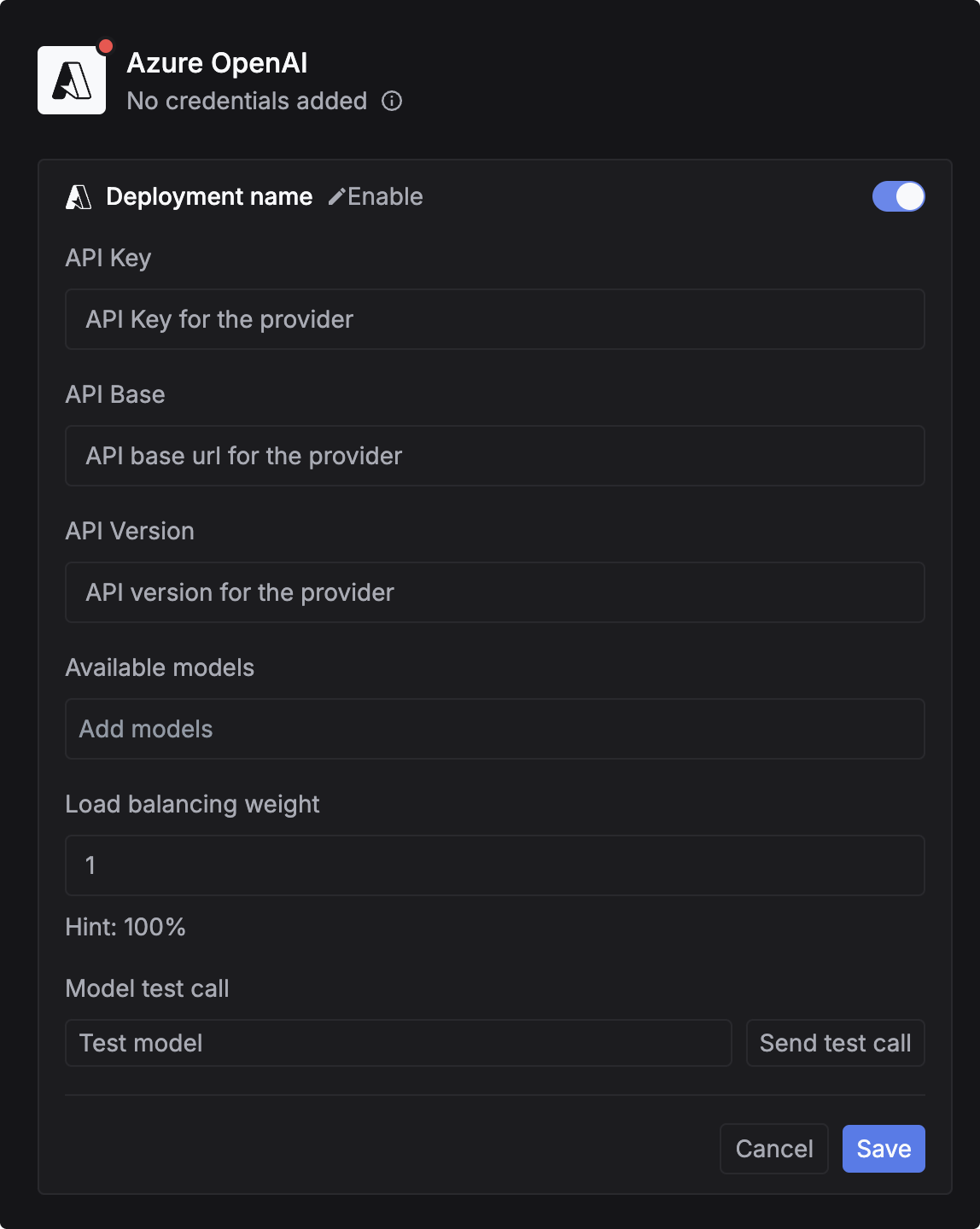 Azure allows custom deployment names. You need to map your deployment name so Keywords AI knows which Azure deployment to call.
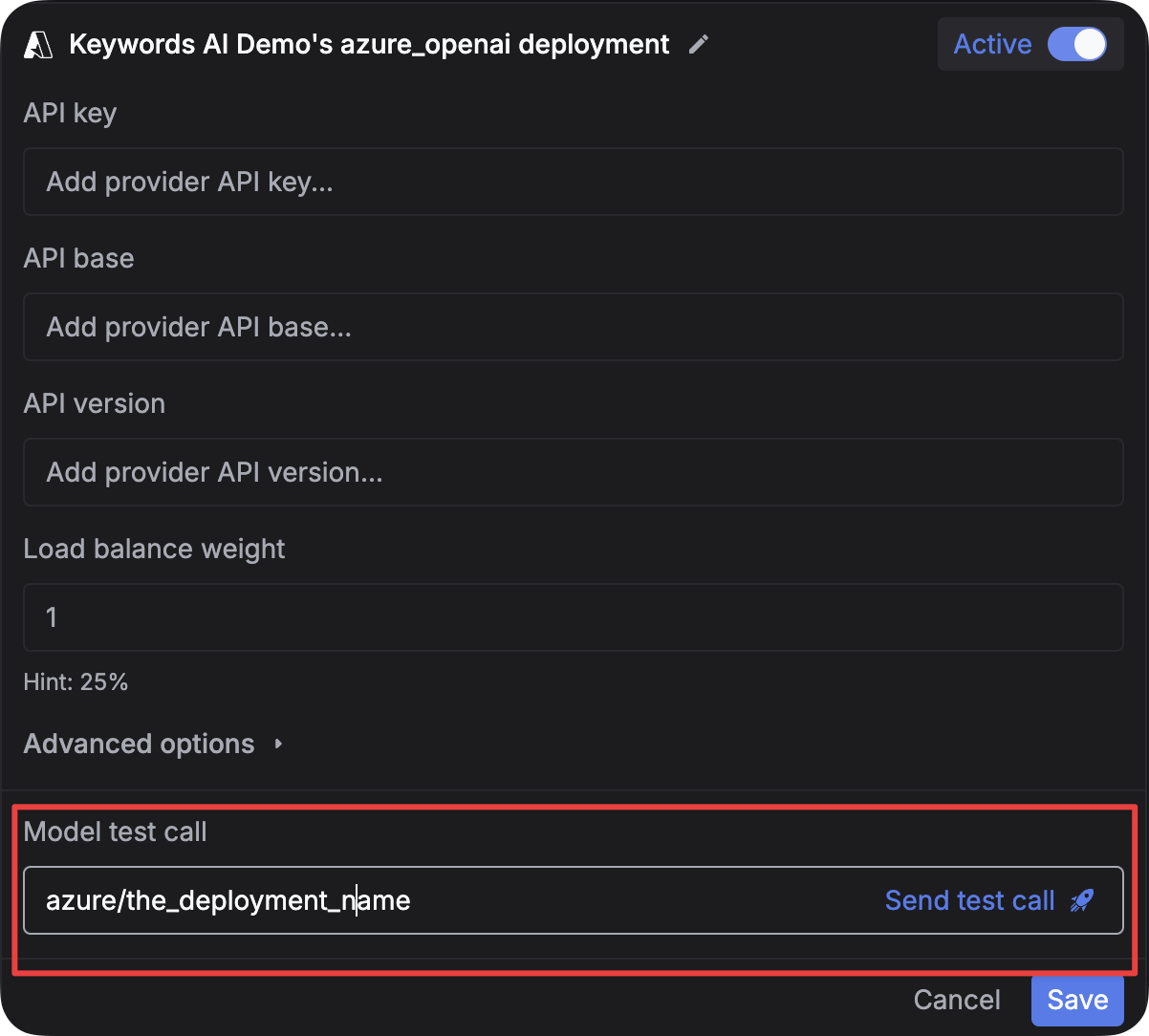
**Important:** When testing the model, use the format `azure/{your-deployment-name}` in the model test input.
For example:
* If your Azure deployment name is `gpt-4o`, use: `azure/gpt-4o`
* If your Azure deployment name is `my-gpt4-deployment`, use: `azure/my-gpt4-deployment`
Azure allows custom deployment names. You need to map your deployment name so Keywords AI knows which Azure deployment to call.
**Important:** When testing the model, use the format `azure/{your-deployment-name}` in the model test input.
For example:
* If your Azure deployment name is `gpt-4o`, use: `azure/gpt-4o`
* If your Azure deployment name is `my-gpt4-deployment`, use: `azure/my-gpt4-deployment`
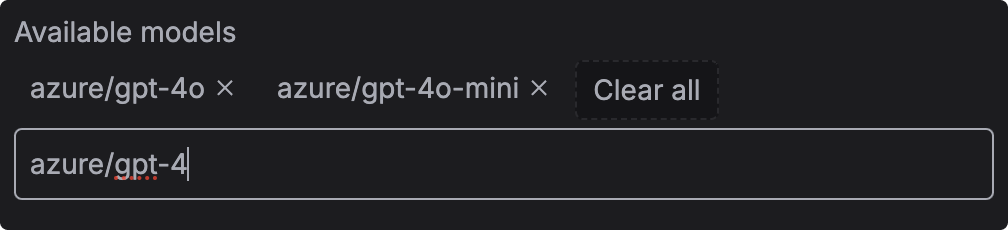
 You can limit which models use these credentials. Leave empty to apply your credentials for **all Azure OpenAI models**.
To specify models:
1. Go to the [Models page](https://platform.keywordsai.co/platform/models)
2. Copy the model ID (e.g., `azure/gpt-4o`)
3. Paste it in the input field
4. Press `Enter` to add the model
You can limit which models use these credentials. Leave empty to apply your credentials for **all Azure OpenAI models**.
To specify models:
1. Go to the [Models page](https://platform.keywordsai.co/platform/models)
2. Copy the model ID (e.g., `azure/gpt-4o`)
3. Paste it in the input field
4. Press `Enter` to add the model
 ### Option 2: Via Code
```bash Python theme={"system"}
pip install openai
```
```bash TypeScript theme={"system"}
npm install openai
```
```python Python theme={"system"}
from openai import OpenAI
client = OpenAI(
base_url="https://api.keywordsai.co/api/",
api_key="YOUR_KEYWORDSAI_API_KEY",
)
response = client.chat.completions.create(
model="azure/gpt-4o", # Use azure/ prefix with your deployment name
messages=[{"role": "user", "content": "Hello, how are you?"}],
extra_body={
"customer_credentials": {
"azure_openai": {
"api_key": "YOUR_AZURE_OPENAI_API_KEY",
"api_base": "https://your-resource.openai.azure.com/",
"api_version": "2024-10-21",
}
}
}
)
print(response)
```
```typescript TypeScript theme={"system"}
import { OpenAI } from "openai";
const client = new OpenAI({
baseURL: "https://api.keywordsai.co/api",
apiKey: "YOUR_KEYWORDSAI_API_KEY",
});
const response = await client.chat.completions.create({
model: "azure/gpt-4o", // Use azure/ prefix with your deployment name
messages: [{ role: "user", content: "Hello, how are you?" }],
// @ts-expect-error
customer_credentials: {
azure_openai: {
api_key: "YOUR_AZURE_OPENAI_API_KEY",
api_base: "https://your-resource.openai.azure.com/",
api_version: "2024-10-21",
}
}
});
console.log(response);
```
If your Azure deployment name differs from the standard model name, use `model_name_map` to specify the mapping.
**Example:** If you deployed `gpt-4o` with a custom name like `my-gpt4-prod`, map it like this:
```python Python theme={"system"}
response = client.chat.completions.create(
model="azure/gpt-4o",
messages=[{"role": "user", "content": "Hello"}],
extra_body={
"customer_credentials": {
"azure_openai": {
"api_key": "YOUR_AZURE_OPENAI_API_KEY",
"api_base": "https://your-resource.openai.azure.com/",
"api_version": "2024-10-21",
}
},
"model_name_map": {
"azure/gpt-4o": "azure/my-gpt4-prod" # Map to your custom deployment name
}
}
)
```
```typescript TypeScript theme={"system"}
const response = await client.chat.completions.create({
model: "azure/gpt-4o",
messages: [{ role: "user", content: "Hello" }],
// @ts-expect-error
customer_credentials: {
azure_openai: {
api_key: "YOUR_AZURE_OPENAI_API_KEY",
api_base: "https://your-resource.openai.azure.com/",
api_version: "2024-10-21",
}
},
model_name_map: {
"azure/gpt-4o": "azure/my-gpt4-prod" // Map to your custom deployment name
}
});
```
`model_name_map` only works when your credentials are valid.
You can override credentials for individual models without changing the default credentials.
```python Python theme={"system"}
response = client.chat.completions.create(
model="azure/gpt-4o",
messages=[{"role": "user", "content": "Hello"}],
extra_body={
"customer_credentials": {
"azure_openai": {
"api_key": "DEFAULT_AZURE_API_KEY",
"api_base": "https://resource1.openai.azure.com/",
"api_version": "2024-10-21",
}
},
"credential_override": {
"azure/gpt-4o": { # Override for this specific model only
"api_key": "ANOTHER_AZURE_API_KEY",
"api_base": "https://resource2.openai.azure.com/",
"api_version": "2024-10-21",
}
}
}
)
```
```typescript TypeScript theme={"system"}
const response = await client.chat.completions.create({
model: "azure/gpt-4o",
messages: [{ role: "user", content: "Hello" }],
// @ts-expect-error
customer_credentials: {
azure_openai: {
api_key: "DEFAULT_AZURE_API_KEY",
api_base: "https://resource1.openai.azure.com/",
api_version: "2024-10-21",
}
},
credential_override: {
"azure/gpt-4o": { // Override for this specific model only
api_key: "ANOTHER_AZURE_API_KEY",
api_base: "https://resource2.openai.azure.com/",
api_version: "2024-10-21",
}
}
});
```
You can add multiple Azure deployments and load balance between them for better availability and cost optimization.
Learn more: [Load Balancing Guide](/documentation/products/gateway/traffic_management/load-balancing)
Use the standard Keywords AI endpoint with Azure credentials:
```python Python theme={"system"}
import requests
url = "https://api.keywordsai.co/api/chat/completions"
headers = {
"Content-Type": "application/json",
"Authorization": "Bearer YOUR_KEYWORDSAI_API_KEY"
}
payload = {
"model": "azure/gpt-4o",
"messages": [{"role": "user", "content": "Hello, how are you?"}],
"customer_credentials": {
"azure_openai": {
"api_key": "YOUR_AZURE_OPENAI_API_KEY",
"api_base": "https://your-resource.openai.azure.com/",
"api_version": "2024-10-21"
}
}
}
response = requests.post(url, headers=headers, json=payload)
print(response.json())
```
```bash cURL theme={"system"}
curl -X POST "https://api.keywordsai.co/api/chat/completions" \
-H "Authorization: Bearer YOUR_KEYWORDSAI_API_KEY" \
-H "Content-Type: application/json" \
-d '{
"model": "azure/gpt-4o",
"messages": [{"role": "user", "content": "Hello, how are you?"}],
"customer_credentials": {
"azure_openai": {
"api_key": "YOUR_AZURE_OPENAI_API_KEY",
"api_base": "https://your-resource.openai.azure.com/",
"api_version": "2024-10-21"
}
}
}'
```
If your Azure deployment has a custom name:
```json theme={"system"}
{
"model": "azure/gpt-4o",
"messages": [{"role": "user", "content": "Hello"}],
"customer_credentials": {
"azure_openai": {
"api_key": "YOUR_AZURE_OPENAI_API_KEY",
"api_base": "https://your-resource.openai.azure.com/",
"api_version": "2024-10-21"
}
},
"model_name_map": {
"azure/gpt-4o": "azure/my-custom-gpt4-deployment"
}
}
```
## Testing your integration
**Important:** When testing in the model playground:
* The **"Model test call"** input field should contain the model identifier: `azure/your-deployment-name` (e.g., `azure/gpt-4o`)
* This is **NOT** for the message content
* The message content goes in the separate chat input field below
* The placeholder should show `azure/gpt-4o` as an example for Azure models
## Requirements and troubleshooting
### Requirements
1. **Deployment name format:** Use `azure/{deployment-name}` format (e.g., `azure/gpt-4o`)
2. **Credentials match:** Ensure your deployment name is correctly mapped if using custom names
3. **Regional availability:** Confirm your models are available in the region specified by your credentials
4. **API version:** Use a supported Azure OpenAI API version
### Common issues
**Cause:** Your deployment name doesn't match what's configured in Azure.
**Solution:**
* Check your Azure deployment name in the [Azure Portal](https://portal.azure.com/#view/Microsoft_Azure_ProjectOxford/CognitiveServicesHub/~/OpenAI)
* Use `model_name_map` to map the standard model name to your custom deployment name
* Ensure you're using the `azure/` prefix (e.g., `azure/gpt-4o`)
**Cause:** One or more of your Azure credentials are incorrect.
**Solution:**
* Verify `api_key` in Azure Portal → Manage Keys
* Verify `api_base` matches your resource endpoint exactly (including trailing slash)
* Verify `api_version` is a [valid version](https://learn.microsoft.com/en-us/azure/ai-services/openai/reference)
**Issue:** The "Model test call" input field is for specifying **which model to test**, not the message.
**Correct usage:**
* **Model test call input:** `azure/gpt-4o` (the model identifier with `azure/` prefix)
* **Message/chat input:** Your actual message like "Hello, how are you?"
The placeholder should be dynamic and show `azure/gpt-4o` for Azure providers, not just `gpt-4o`.
Credential validation is not currently supported. Make sure your credentials are correct before making requests to avoid errors.
## Supported models
### DeepSeek models
* `azure_deepseek/deepseek-v3`
* `azure_deepseek/deepseek-chat`
* `azure_deepseek/deepseek-reasoner`
* `azure_deepseek/deepseek-r1`
### O-series models
* `azure/o1`
* `azure/o3`
* `azure/o3-mini`
* `azure/o4-mini`
### GPT-4 series
* `azure/gpt-4`
* `azure/gpt-4-32k`
* `azure/gpt-4-1106-preview`
* `azure/gpt-4-vision-preview`
* `azure/gpt-4o`
* `azure/gpt-4o-mini`
* `azure/gpt-4o-2024-08-06`
* `azure/gpt-4.1`
* `azure/gpt-4.1-mini`
* `azure/gpt-4.1-nano`
### GPT-5 series
* `azure/gpt-5`
* `azure/gpt-5-mini`
### GPT-3.5 series
* `azure/gpt-35-turbo`
You can find the complete and up-to-date list [here](https://platform.keywordsai.co/platform/models).
### Option 2: Via Code
```bash Python theme={"system"}
pip install openai
```
```bash TypeScript theme={"system"}
npm install openai
```
```python Python theme={"system"}
from openai import OpenAI
client = OpenAI(
base_url="https://api.keywordsai.co/api/",
api_key="YOUR_KEYWORDSAI_API_KEY",
)
response = client.chat.completions.create(
model="azure/gpt-4o", # Use azure/ prefix with your deployment name
messages=[{"role": "user", "content": "Hello, how are you?"}],
extra_body={
"customer_credentials": {
"azure_openai": {
"api_key": "YOUR_AZURE_OPENAI_API_KEY",
"api_base": "https://your-resource.openai.azure.com/",
"api_version": "2024-10-21",
}
}
}
)
print(response)
```
```typescript TypeScript theme={"system"}
import { OpenAI } from "openai";
const client = new OpenAI({
baseURL: "https://api.keywordsai.co/api",
apiKey: "YOUR_KEYWORDSAI_API_KEY",
});
const response = await client.chat.completions.create({
model: "azure/gpt-4o", // Use azure/ prefix with your deployment name
messages: [{ role: "user", content: "Hello, how are you?" }],
// @ts-expect-error
customer_credentials: {
azure_openai: {
api_key: "YOUR_AZURE_OPENAI_API_KEY",
api_base: "https://your-resource.openai.azure.com/",
api_version: "2024-10-21",
}
}
});
console.log(response);
```
If your Azure deployment name differs from the standard model name, use `model_name_map` to specify the mapping.
**Example:** If you deployed `gpt-4o` with a custom name like `my-gpt4-prod`, map it like this:
```python Python theme={"system"}
response = client.chat.completions.create(
model="azure/gpt-4o",
messages=[{"role": "user", "content": "Hello"}],
extra_body={
"customer_credentials": {
"azure_openai": {
"api_key": "YOUR_AZURE_OPENAI_API_KEY",
"api_base": "https://your-resource.openai.azure.com/",
"api_version": "2024-10-21",
}
},
"model_name_map": {
"azure/gpt-4o": "azure/my-gpt4-prod" # Map to your custom deployment name
}
}
)
```
```typescript TypeScript theme={"system"}
const response = await client.chat.completions.create({
model: "azure/gpt-4o",
messages: [{ role: "user", content: "Hello" }],
// @ts-expect-error
customer_credentials: {
azure_openai: {
api_key: "YOUR_AZURE_OPENAI_API_KEY",
api_base: "https://your-resource.openai.azure.com/",
api_version: "2024-10-21",
}
},
model_name_map: {
"azure/gpt-4o": "azure/my-gpt4-prod" // Map to your custom deployment name
}
});
```
`model_name_map` only works when your credentials are valid.
You can override credentials for individual models without changing the default credentials.
```python Python theme={"system"}
response = client.chat.completions.create(
model="azure/gpt-4o",
messages=[{"role": "user", "content": "Hello"}],
extra_body={
"customer_credentials": {
"azure_openai": {
"api_key": "DEFAULT_AZURE_API_KEY",
"api_base": "https://resource1.openai.azure.com/",
"api_version": "2024-10-21",
}
},
"credential_override": {
"azure/gpt-4o": { # Override for this specific model only
"api_key": "ANOTHER_AZURE_API_KEY",
"api_base": "https://resource2.openai.azure.com/",
"api_version": "2024-10-21",
}
}
}
)
```
```typescript TypeScript theme={"system"}
const response = await client.chat.completions.create({
model: "azure/gpt-4o",
messages: [{ role: "user", content: "Hello" }],
// @ts-expect-error
customer_credentials: {
azure_openai: {
api_key: "DEFAULT_AZURE_API_KEY",
api_base: "https://resource1.openai.azure.com/",
api_version: "2024-10-21",
}
},
credential_override: {
"azure/gpt-4o": { // Override for this specific model only
api_key: "ANOTHER_AZURE_API_KEY",
api_base: "https://resource2.openai.azure.com/",
api_version: "2024-10-21",
}
}
});
```
You can add multiple Azure deployments and load balance between them for better availability and cost optimization.
Learn more: [Load Balancing Guide](/documentation/products/gateway/traffic_management/load-balancing)
Use the standard Keywords AI endpoint with Azure credentials:
```python Python theme={"system"}
import requests
url = "https://api.keywordsai.co/api/chat/completions"
headers = {
"Content-Type": "application/json",
"Authorization": "Bearer YOUR_KEYWORDSAI_API_KEY"
}
payload = {
"model": "azure/gpt-4o",
"messages": [{"role": "user", "content": "Hello, how are you?"}],
"customer_credentials": {
"azure_openai": {
"api_key": "YOUR_AZURE_OPENAI_API_KEY",
"api_base": "https://your-resource.openai.azure.com/",
"api_version": "2024-10-21"
}
}
}
response = requests.post(url, headers=headers, json=payload)
print(response.json())
```
```bash cURL theme={"system"}
curl -X POST "https://api.keywordsai.co/api/chat/completions" \
-H "Authorization: Bearer YOUR_KEYWORDSAI_API_KEY" \
-H "Content-Type: application/json" \
-d '{
"model": "azure/gpt-4o",
"messages": [{"role": "user", "content": "Hello, how are you?"}],
"customer_credentials": {
"azure_openai": {
"api_key": "YOUR_AZURE_OPENAI_API_KEY",
"api_base": "https://your-resource.openai.azure.com/",
"api_version": "2024-10-21"
}
}
}'
```
If your Azure deployment has a custom name:
```json theme={"system"}
{
"model": "azure/gpt-4o",
"messages": [{"role": "user", "content": "Hello"}],
"customer_credentials": {
"azure_openai": {
"api_key": "YOUR_AZURE_OPENAI_API_KEY",
"api_base": "https://your-resource.openai.azure.com/",
"api_version": "2024-10-21"
}
},
"model_name_map": {
"azure/gpt-4o": "azure/my-custom-gpt4-deployment"
}
}
```
## Testing your integration
**Important:** When testing in the model playground:
* The **"Model test call"** input field should contain the model identifier: `azure/your-deployment-name` (e.g., `azure/gpt-4o`)
* This is **NOT** for the message content
* The message content goes in the separate chat input field below
* The placeholder should show `azure/gpt-4o` as an example for Azure models
## Requirements and troubleshooting
### Requirements
1. **Deployment name format:** Use `azure/{deployment-name}` format (e.g., `azure/gpt-4o`)
2. **Credentials match:** Ensure your deployment name is correctly mapped if using custom names
3. **Regional availability:** Confirm your models are available in the region specified by your credentials
4. **API version:** Use a supported Azure OpenAI API version
### Common issues
**Cause:** Your deployment name doesn't match what's configured in Azure.
**Solution:**
* Check your Azure deployment name in the [Azure Portal](https://portal.azure.com/#view/Microsoft_Azure_ProjectOxford/CognitiveServicesHub/~/OpenAI)
* Use `model_name_map` to map the standard model name to your custom deployment name
* Ensure you're using the `azure/` prefix (e.g., `azure/gpt-4o`)
**Cause:** One or more of your Azure credentials are incorrect.
**Solution:**
* Verify `api_key` in Azure Portal → Manage Keys
* Verify `api_base` matches your resource endpoint exactly (including trailing slash)
* Verify `api_version` is a [valid version](https://learn.microsoft.com/en-us/azure/ai-services/openai/reference)
**Issue:** The "Model test call" input field is for specifying **which model to test**, not the message.
**Correct usage:**
* **Model test call input:** `azure/gpt-4o` (the model identifier with `azure/` prefix)
* **Message/chat input:** Your actual message like "Hello, how are you?"
The placeholder should be dynamic and show `azure/gpt-4o` for Azure providers, not just `gpt-4o`.
Credential validation is not currently supported. Make sure your credentials are correct before making requests to avoid errors.
## Supported models
### DeepSeek models
* `azure_deepseek/deepseek-v3`
* `azure_deepseek/deepseek-chat`
* `azure_deepseek/deepseek-reasoner`
* `azure_deepseek/deepseek-r1`
### O-series models
* `azure/o1`
* `azure/o3`
* `azure/o3-mini`
* `azure/o4-mini`
### GPT-4 series
* `azure/gpt-4`
* `azure/gpt-4-32k`
* `azure/gpt-4-1106-preview`
* `azure/gpt-4-vision-preview`
* `azure/gpt-4o`
* `azure/gpt-4o-mini`
* `azure/gpt-4o-2024-08-06`
* `azure/gpt-4.1`
* `azure/gpt-4.1-mini`
* `azure/gpt-4.1-nano`
### GPT-5 series
* `azure/gpt-5`
* `azure/gpt-5-mini`
### GPT-3.5 series
* `azure/gpt-35-turbo`
You can find the complete and up-to-date list [here](https://platform.keywordsai.co/platform/models).