> ## Documentation Index
> Fetch the complete documentation index at: https://docs.keywordsai.co/llms.txt
> Use this file to discover all available pages before exploring further.
# OpenAI
> Route OpenAI model calls through Keywords AI Gateway and track requests.
This section is for **Keywords AI LLM gateway** users.
Use Keywords AI Gateway to call OpenAI models while keeping unified observability (logs, cost, latency, and reliability metrics) in Keywords AI.
## Prerequisites
* A **Keywords AI API key**
* An **OpenAI API key** (BYOK)
Retrieve your API key from the OpenAI platform to begin integration.
## Supported SDKs / integrations
* [OpenAI SDK](/integration/development-frameworks/llm_framework/openai/openai-sdk)
* [LangChain SDK](/integration/development-frameworks/llm_framework/langchain)
* [Vercel/OpenAI](/integration/development-frameworks/llm_framework/vercel#openai)
* [Vercel/Google](/integration/development-frameworks/llm_framework/vercel#google)
* [LlamaIndex SDK](/integration/development-frameworks/llm_framework/llama-index)
* [Google GenAI](/integration/development-frameworks/llm_framework/google_genai)
* [Keywords native (Otel)](/get-started/quickstart/gateway)
* [Anthropic SDK](/integration/development-frameworks/llm_framework/anthropic)
* [Vercel/Anthropic](/integration/development-frameworks/llm_framework/vercel#anthropic)
## Configuration
There are 2 ways to add your OpenAI credentials to your requests:
### Via UI (Global)
Go to the [Providers page](https://platform.keywordsai.co/platform/api/providers). This page allows you to manage credentials for over 20+ supported providers.
 Select OpenAI and paste your API key.
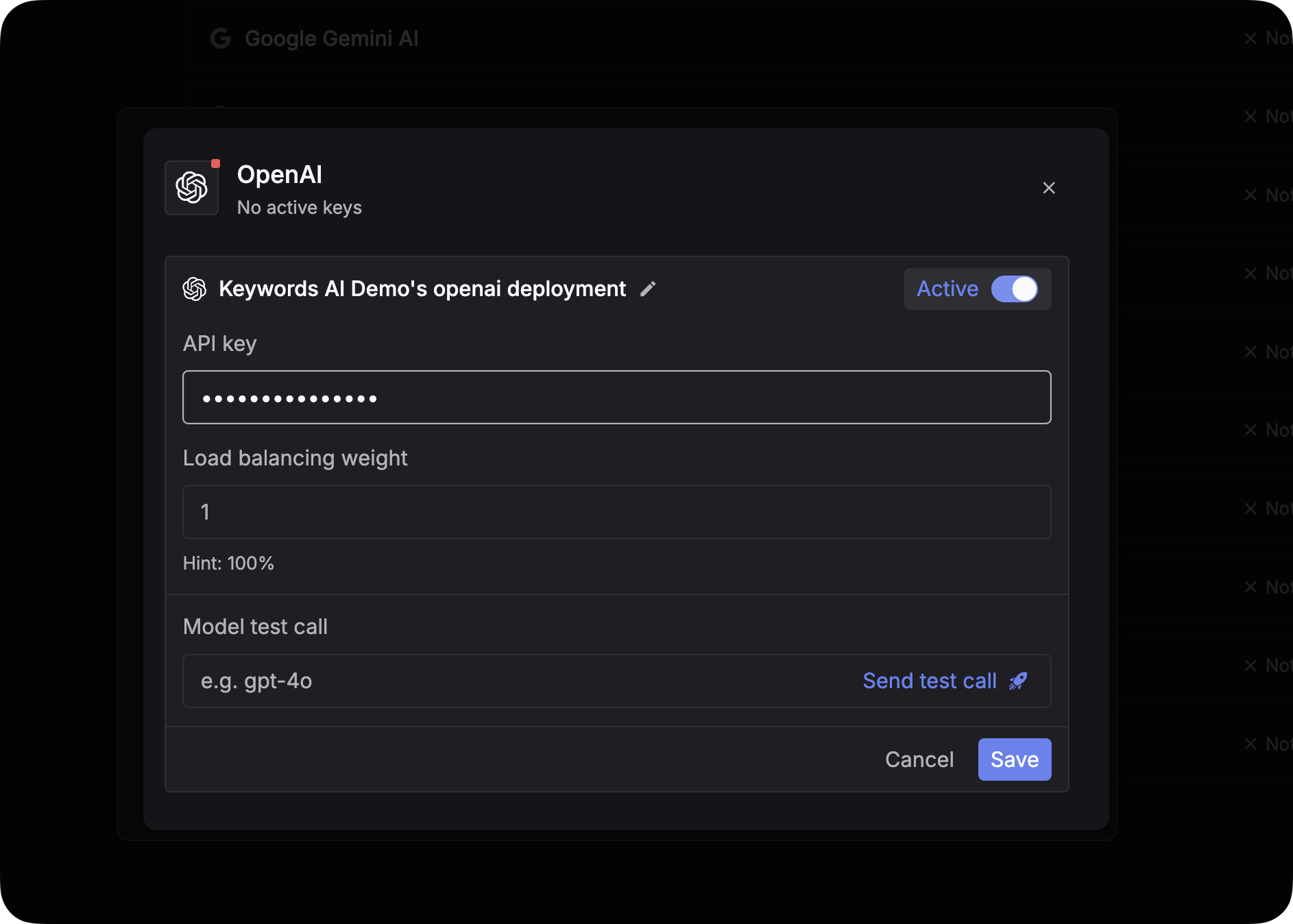 You can add multiple OpenAI API keys for redundancy. Use the `Load balancing weight` field to determine how traffic is distributed between keys.
### Via code (Per-Request)
You can pass credentials dynamically in the request body. This is useful if you need to use your users' own API keys (BYOK).
Add the `customer_credentials` parameter to your [Gateway request](/api-endpoints/develop/gateway/chat-completions):
```json theme={"system"}
{
// Rest of the request body
"customer_credentials": {
"openai": {
"api_key": "YOUR_OPENAI_API_KEY",
}
}
}
```
## Log OpenAI requests
If you are not using the Gateway to proxy requests, you can still log your OpenAI requests to Keywords AI asynchronously. This allows you to track cost, latency, and performance metrics for external calls.
```python OpenAI Python SDK theme={"system"}
import requests
url = "https://api.keywordsai.co/api/request-logs/create/"
payload = {
"model": "gpt-4o",
"prompt_messages": [
{
"role": "user",
"content": "Hello, how are you?"
}
],
"completion_message": {
"role": "assistant",
"content": "I'm doing well, thank you for asking!"
},
"cost": 0.0015,
"generation_time": 2.3,
"customer_params": {
"customer_identifier": "user_123"
}
}
headers = {
"Authorization": "Bearer YOUR_KEYWORDS_AI_API_KEY",
"Content-Type": "application/json"
}
response = requests.post(url, headers=headers, json=payload)
```
View the full guide on setting up comprehensive logging for your LLM stack.
You can add multiple OpenAI API keys for redundancy. Use the `Load balancing weight` field to determine how traffic is distributed between keys.
### Via code (Per-Request)
You can pass credentials dynamically in the request body. This is useful if you need to use your users' own API keys (BYOK).
Add the `customer_credentials` parameter to your [Gateway request](/api-endpoints/develop/gateway/chat-completions):
```json theme={"system"}
{
// Rest of the request body
"customer_credentials": {
"openai": {
"api_key": "YOUR_OPENAI_API_KEY",
}
}
}
```
## Log OpenAI requests
If you are not using the Gateway to proxy requests, you can still log your OpenAI requests to Keywords AI asynchronously. This allows you to track cost, latency, and performance metrics for external calls.
```python OpenAI Python SDK theme={"system"}
import requests
url = "https://api.keywordsai.co/api/request-logs/create/"
payload = {
"model": "gpt-4o",
"prompt_messages": [
{
"role": "user",
"content": "Hello, how are you?"
}
],
"completion_message": {
"role": "assistant",
"content": "I'm doing well, thank you for asking!"
},
"cost": 0.0015,
"generation_time": 2.3,
"customer_params": {
"customer_identifier": "user_123"
}
}
headers = {
"Authorization": "Bearer YOUR_KEYWORDS_AI_API_KEY",
"Content-Type": "application/json"
}
response = requests.post(url, headers=headers, json=payload)
```
View the full guide on setting up comprehensive logging for your LLM stack.