


Authentication
Keywords AI uses digital signature strategy for webhook data verification. The data sent from Keywords AI undergoes the following process before you can use it:- The data is ready in Keywords AI’s backend
- The Keywords AI encodes the data with your API Key string retrieved from the action’s header (we don’t store your API key) that triggers the webhook, using SHA-256 algorithm.
- The signature is then passed to
X-Keywordsai-Signature. This is case sensitive.
- You can verify then data and accept or reject the payload
Using Webhook Secrets
Instead of using your API key for webhook signature verification, you can use a dedicated webhook secret. This provides better security by allowing you to use a separate secret specifically for webhook validation without exposing your API key. When creating or editing a webhook in the Keywords AI platform, you can copy the webhook secret and use it for signing the signature instead of using the API key.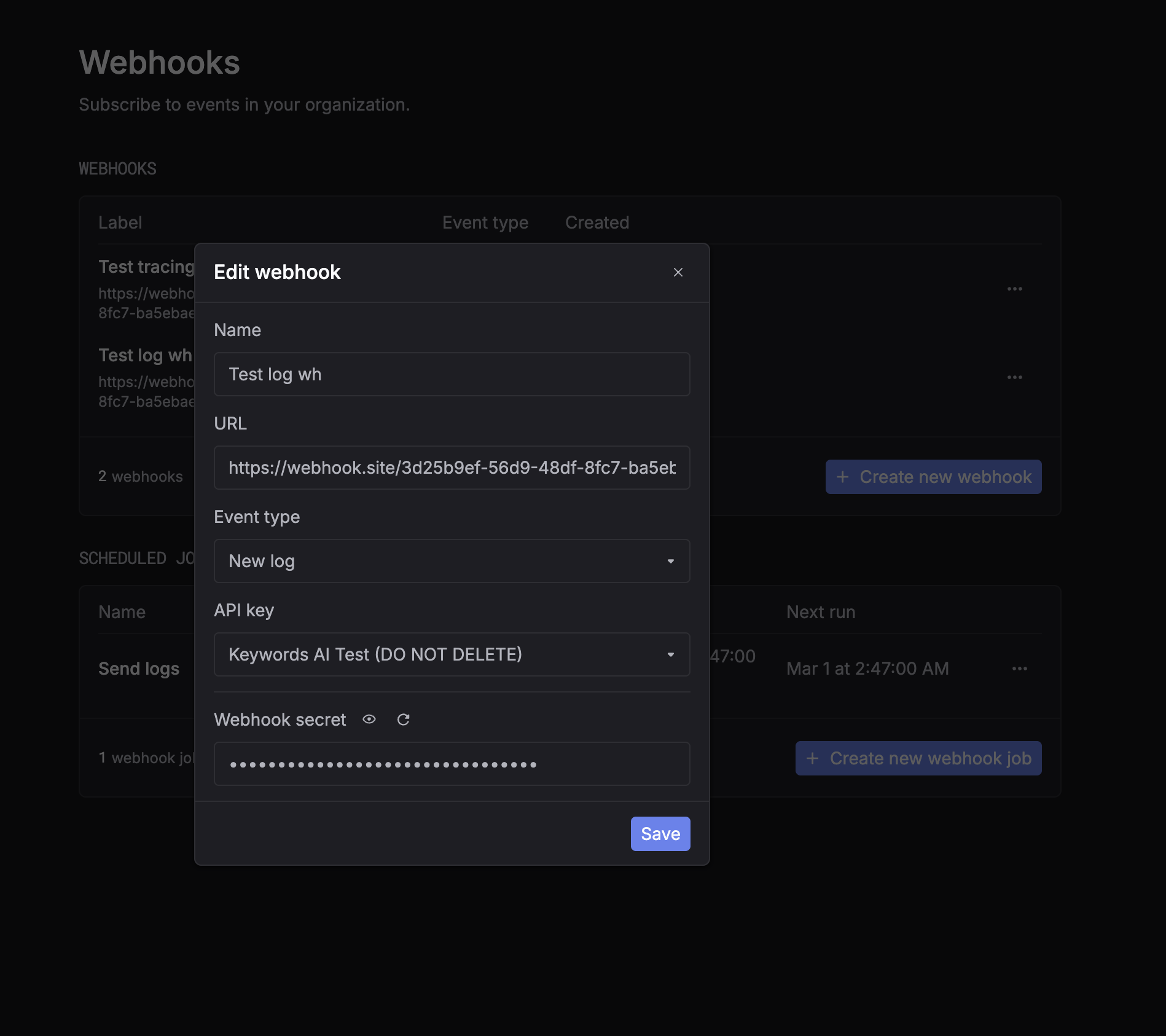
YOUR_KEYWORDS_AI_API_KEY with your webhook secret in the verification code:
Example for using Webhooks
- Define a webhook endpoint in your application.
Django
-
Create a new webhook in the Keywords AI platform.
- Go to the Webhooks page in the Keywords AI platform.
- Click on the “Create Webhook” button, a modal will appear.
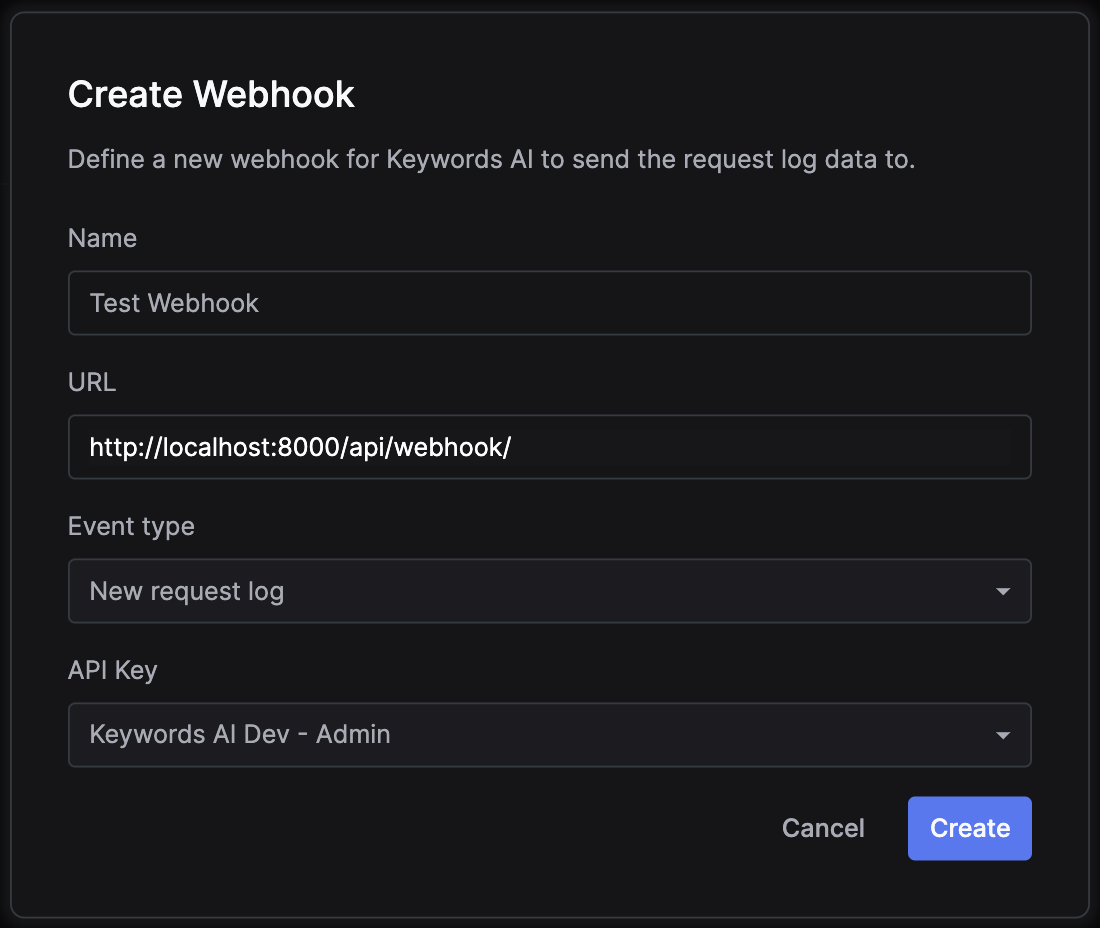
- Define the webhook URL. In this demo, it is
http://localhost:8000/api/webhook/. - Define the event type that triggers the webhook. In this demo, it is
New request log(when an API call is logged). - Define the API Key you want to associate this webhook with. In this demo, it is an admin development key.
- (Optional) Copy the webhook secret from the webhook settings if you want to use it instead of the API key for signature verification.
- Click on the “Create” button.
- Make an API call to the chat completion endpoint
- Receive the email.