Documentation Index
Fetch the complete documentation index at: https://docs.keywordsai.co/llms.txt
Use this file to discover all available pages before exploring further.
How does user analytics work?
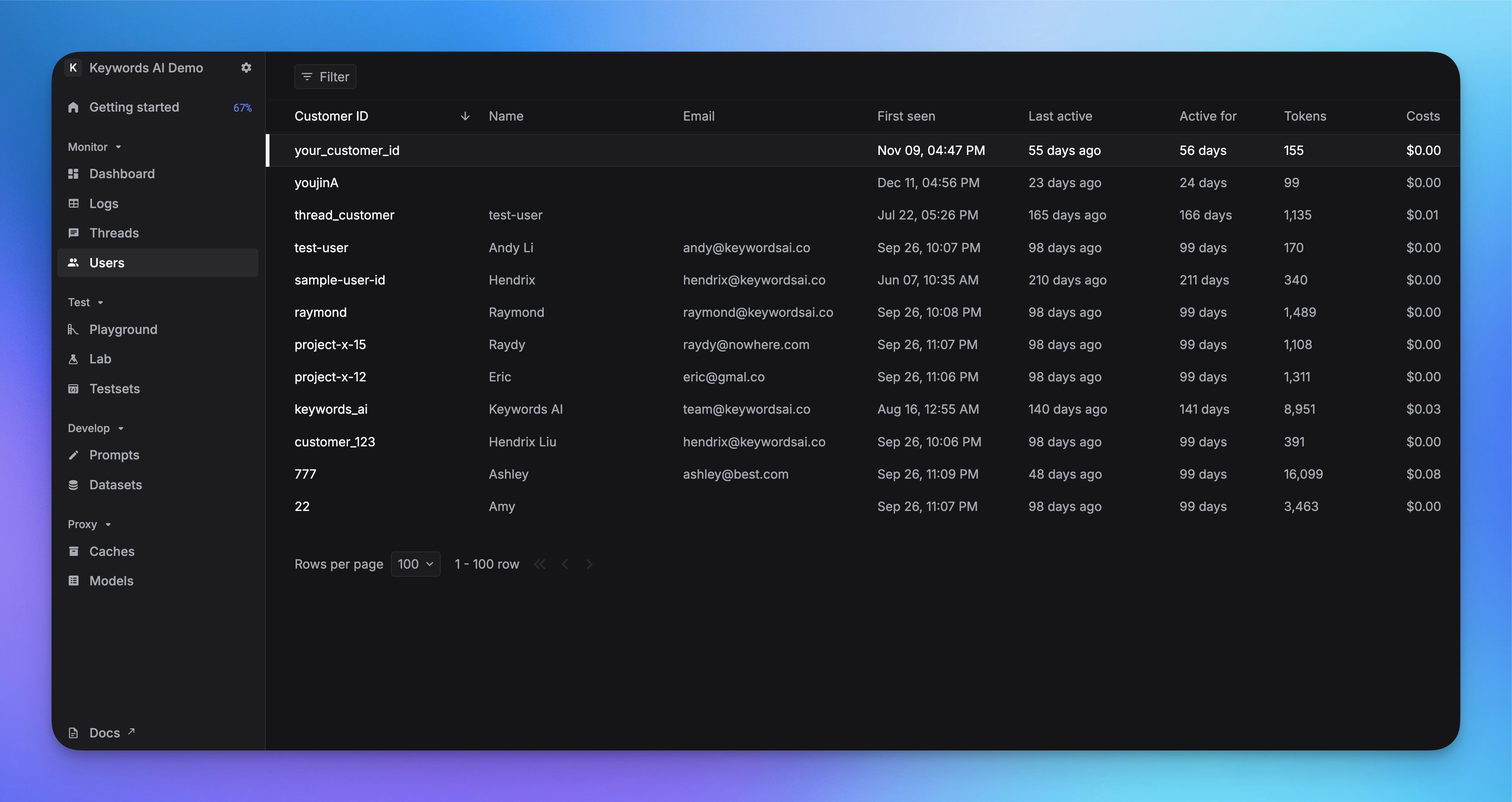
On Keywords AI, we built a Users page to help you understand your users and their behavior on your LLM applications. With our user analytics feature, you can;
- Track user LLM usage
- Set user budget
- Filter logs by user identifier
Enable user analytics in the code
You can pass a customer_params to the request to track the user’s behavior on your LLM applications.
OpenAI Python SDK
OpenAI TypeScript SDK
Standard API
Other SDKs
Here is an example of how to send a user’s data with the parameter customer_params to Keywords AI in the OpenAI Python SDK.from openai import OpenAI
client = OpenAI(
base_url="https://api.keywordsai.co/api/",
api_key="YOUR_KEYWORDSAI_API_KEY",
)
response = client.chat.completions.create(
model="gpt-4o-mini",
messages=[
{"role": "user", "content": "Tell me a long story"}
],
extra_body={
"customer_params": {
"customer_identifier": "customer_1",
"name": "Hendrix Liu", # optional parameter
"email": "hendrix@keywordsai.co" # optional parameter
}
}
)
Here is an example of how to send a user’s data with the parameter customer_params to Keywords AI in the OpenAI TypeScript SDK. In OpenAI TypeScript SDK, you should add a // @ts-expect-error before the metadata field.import { OpenAI } from "openai";
const client = new OpenAI({
baseURL: "https://api.keywordsai.co/api",
apiKey: "YOUR_KEYWORDSAI_API_KEY",
});
const response = await client.chat.completions
.create({
messages: [{ role: "user", content: "Say this is a test" }],
model: "gpt-4o-mini",
// @ts-expect-error
customer_params: {
"customer_identifier": "customer_1",
"name": "Hendrix Liu", // optional parameter
"email": "hendrix@keywordsai.co" // optional parameter
}
})
.asResponse();
console.log(await response.json());
import requests
def demo_call(input,
model="gpt-4o-mini",
token="YOUR_KEYWORDS_AI_API_KEY",
):
headers = {
'Content-Type': 'application/json',
'Authorization': f'Bearer {token}',
}
data = {
'model': model,
'messages': [{'role': 'user', 'content': input}],
'customer_params': {
"customer_identifier": "customer_1",
"name": "Hendrix Liu", # optional parameter
"email": "hendrix@keywordsai.co" # optional parameter
}
}
response = requests.post('https://api.keywordsai.co/api/chat/completions', headers=headers, json=data)
return response
messages = "Say 'Hello World'"
print(demo_call(messages).json())
We also support adding credentials in other SDKs or languages, please check out our integration section for more information.
After you send the user’s data to Keywords AI, there are 3 places you can see the user’s data on the platform.
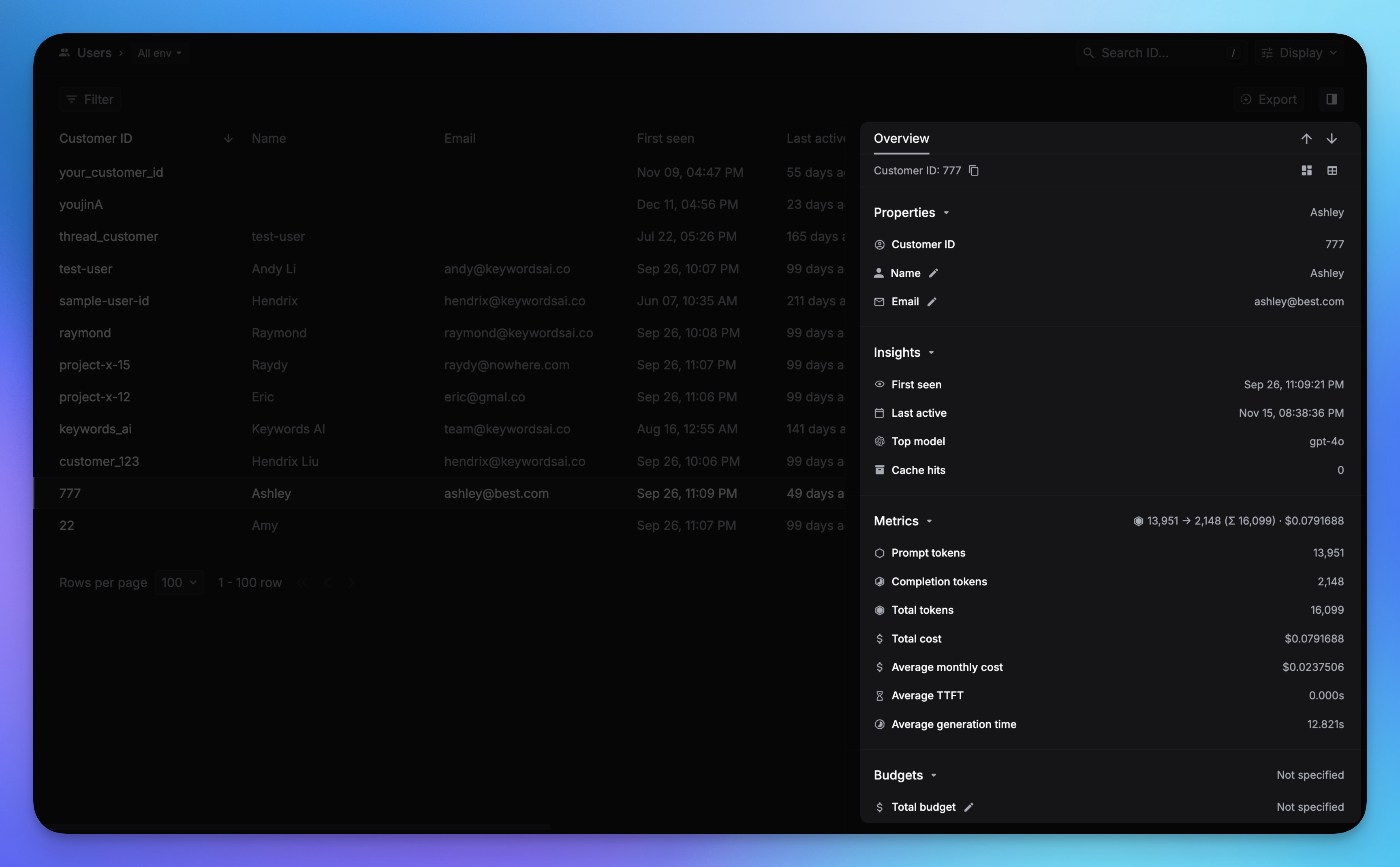
You will see each user’s detail information and their LLM usage on the Users page and the side panel.
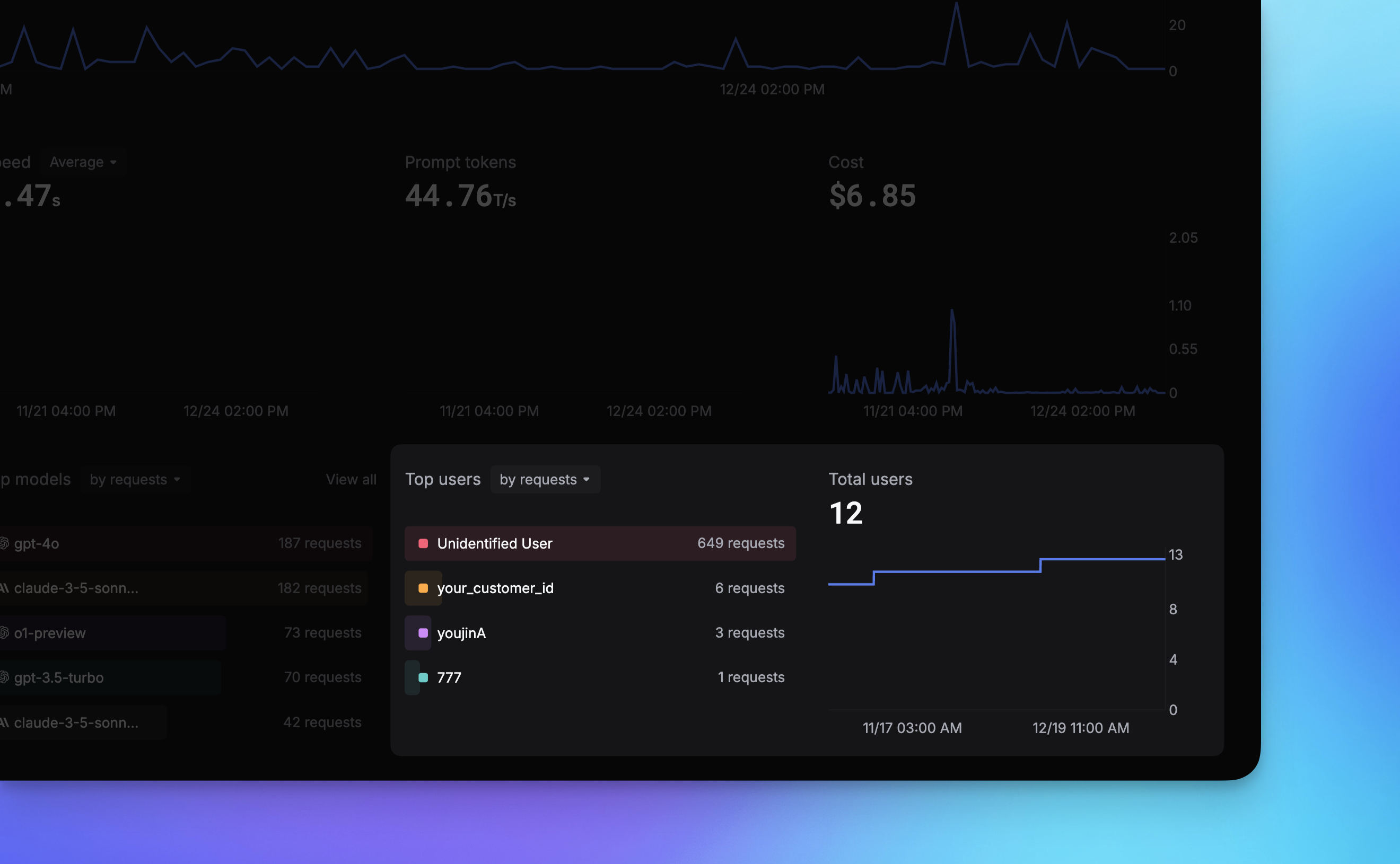
There are several charts on the Dashboard page to help you understand your users’ behavior, including;
- Top users
- Daily active users count
- LLM cost by user
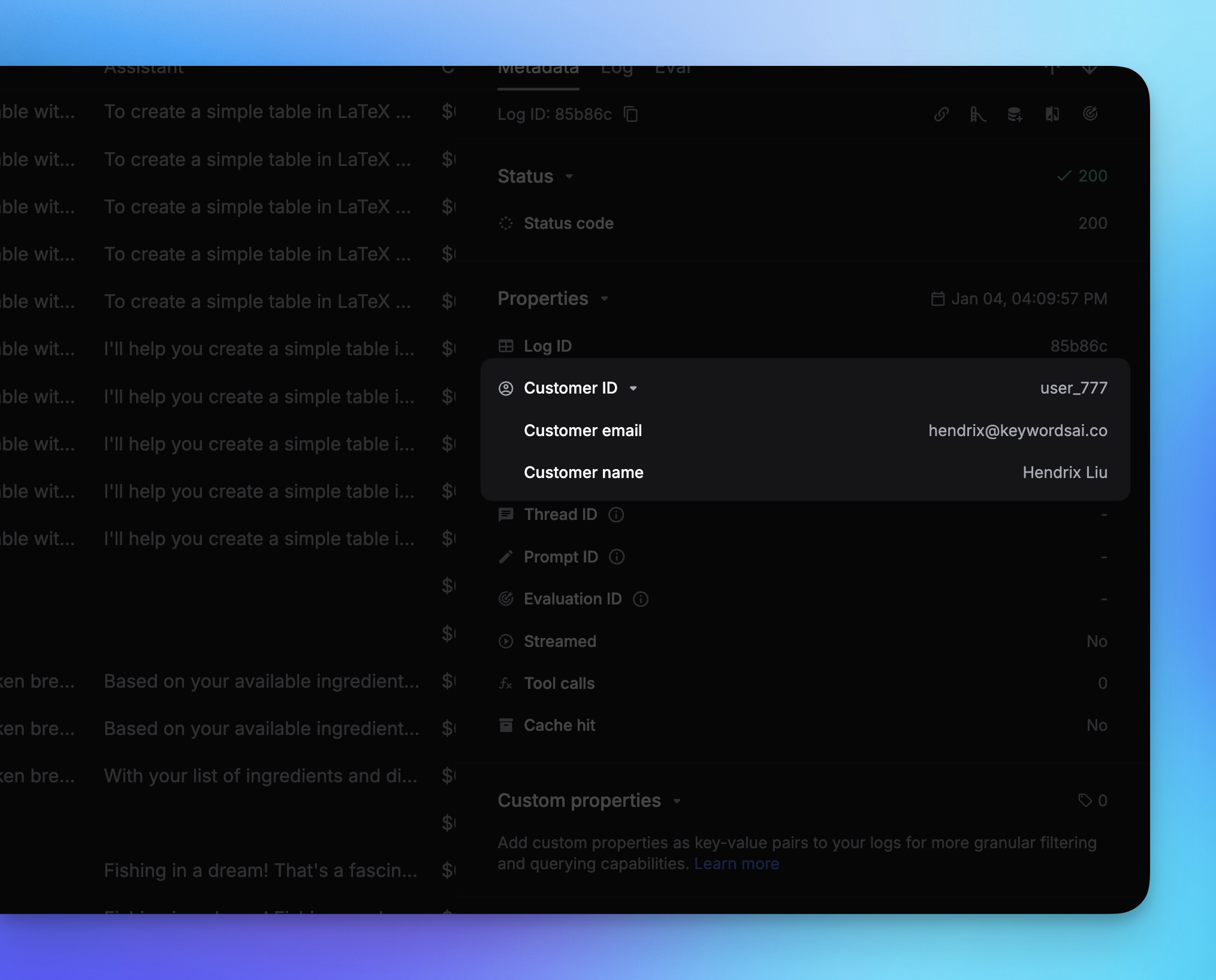
For each LLM log, you can see the corresponding user’s data in the side panel. You can also filter logs by choosing a User Identifier.
Create a user without sending a log