

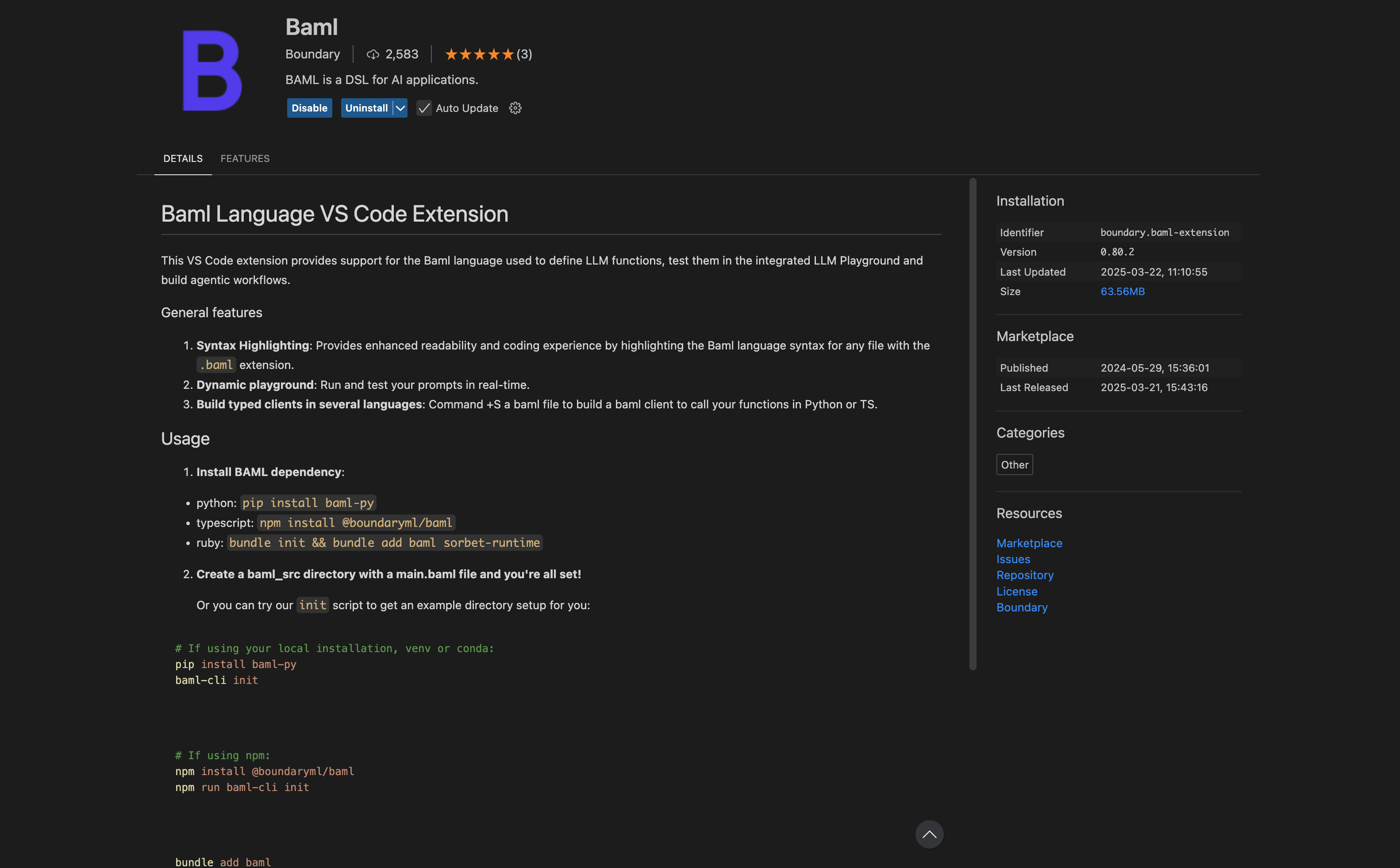
Install extension
Install BAML extension in VS code. create a.baml file (e.g., test.baml) and get started!
Integration methods
There are 2 ways to integrate Keywords AI with BAML and allow you send Keywords AI params and check them in Keywords AI platform:- Send Keywords AI params through header.
- End at low level and send params to Keywords AI through the client.
Send Keywords AI params through header
Set up a BAML Client Registry and Keywords AI Integration First, you need to set up a client registry in BAML. This registry manages your LLM clients.Python
Python
- Track and monitor all LLM requests
- Analyze performance and usage patterns
- Associate custom identifiers with your LLM calls
Using Keywords AI client in BAML
Initialize a Keywords AI client in BAML Initialize a Keywords AI client in BAML by switching the base URL and adding the KEYWORDSAI_API_KEY in the environmental variable. Learn how to create a Keywords AI API key here.BAML
BAML
BAML
Test & monitor
After you have the code,cmd+shift+p > BAML: Open in Playground and run your tests. You can also monitor your LLM performance in the Keywords AI dashboard. Sign up here: https://www.keywordsai.co